Table of Contents
Brisk Teaching can turn a topic or source file into a draft quiz, including multiple-choice questions and an answer key. The important part is to give it specific instructions, then review every question before assigning the quiz to students.
Note: The screenshots below show Brisk's classic interface. Brisk also has a newer Create experience, so some buttons may appear in a different place.
1. Start a new quiz in Brisk
Open Brisk Teaching and sign in. In the newer interface, describe what you want in the Create box. In the classic interface, choose the quiz or question generator.
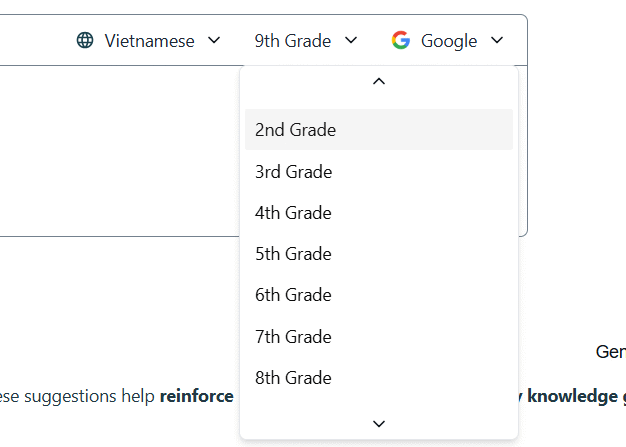
Set the grade level and output language before generating questions. If your school provides standards or curriculum settings in Brisk, select the appropriate option, but do not assume the generated questions are perfectly aligned without checking them.
2. Add the topic or source material
Type the lesson topic, paste the relevant material, or use the plus button to attach a document, image, or file. Use only material that you are allowed to upload, and avoid including student records or other sensitive information.
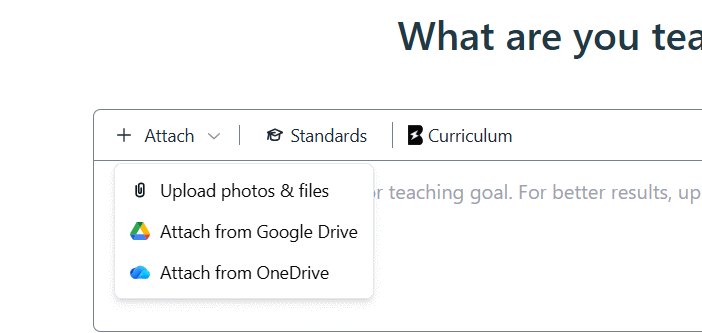
For a source-based quiz, tell Brisk to use only the supplied material. A useful prompt is:
Create 10 multiple-choice questions for Grade 7. Use only the attached material. Give four plausible choices per question, mark one best answer, and include a short answer explanation. Avoid trick questions and repeated facts.
Clear constraints usually produce a more usable first draft than a one-line request. Teachers who are comparing other classroom options can also see these free educational apps for classroom use.
3. Choose the quiz settings
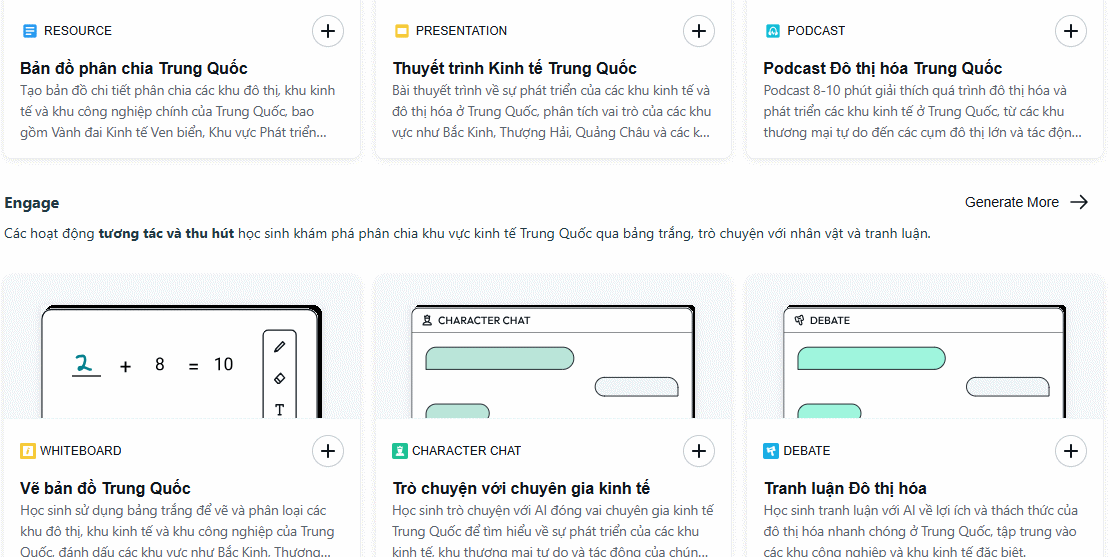
In the classic interface, scroll through the suggested support materials, select Quiz, and use the edit icon to adjust the instructions.
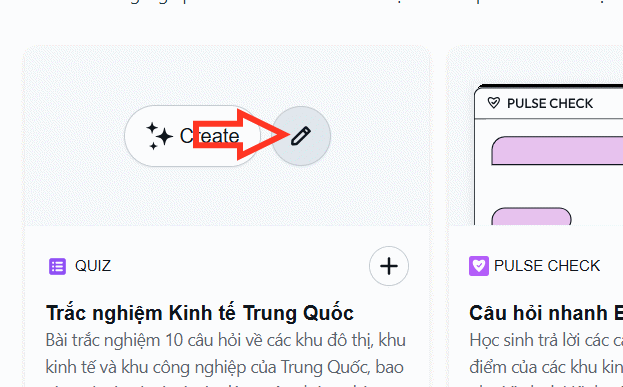
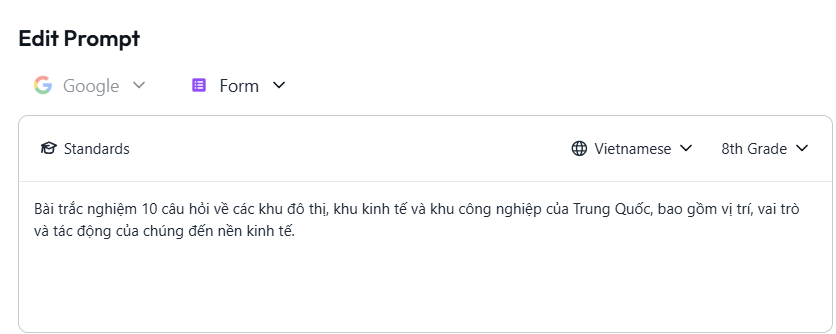
Choose multiple-choice questions, set the number of items, and confirm the grade and language. Depending on the interface and account, Brisk may ask follow-up questions or let you choose an output such as Google Forms, Microsoft Forms, a document, or another supported format.
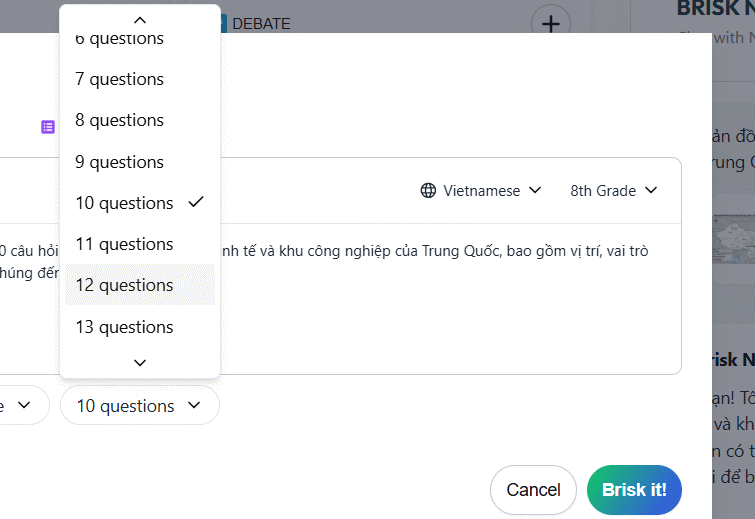
Click Create, Enhance, or Brisk it, whichever appears in your version. Brisk's quiz generator overview lists its currently supported output formats.
4. Review the generated questions
Do not send the first draft directly to students. Check that each question is supported by the source, has one unambiguously best answer, uses age-appropriate language, and includes plausible distractors. Remove duplicate questions and correct any misleading answer key.
Also check names, dates, calculations, and terminology against the lesson material. AI-generated curriculum alignment and difficulty levels are suggestions, not a substitute for a teacher's review. For a broader comparison of tools, see TipsMake's guide to free AI tools.
5. Finish the quiz in Google Forms
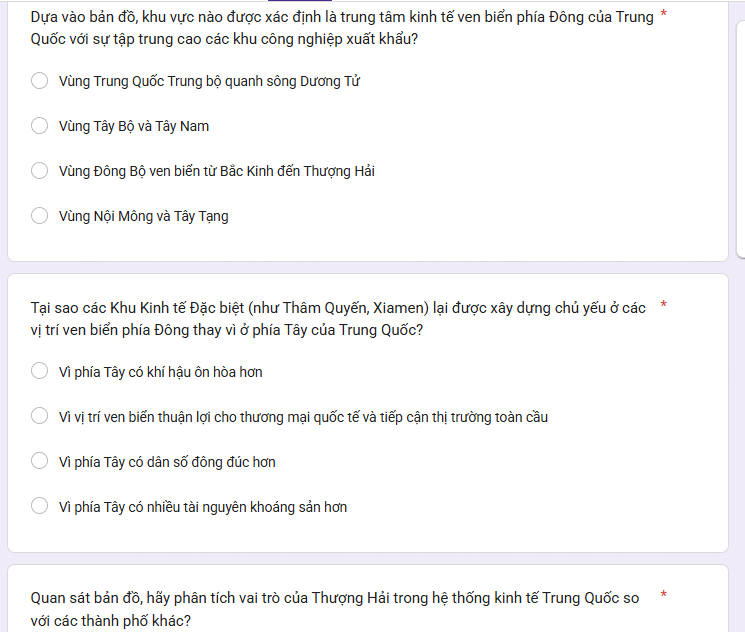
If you selected Google Forms, open the generated form and verify the correct answer and point value for every item. Decide whether questions are required, review the response settings, and preview the form as a student before sharing it.
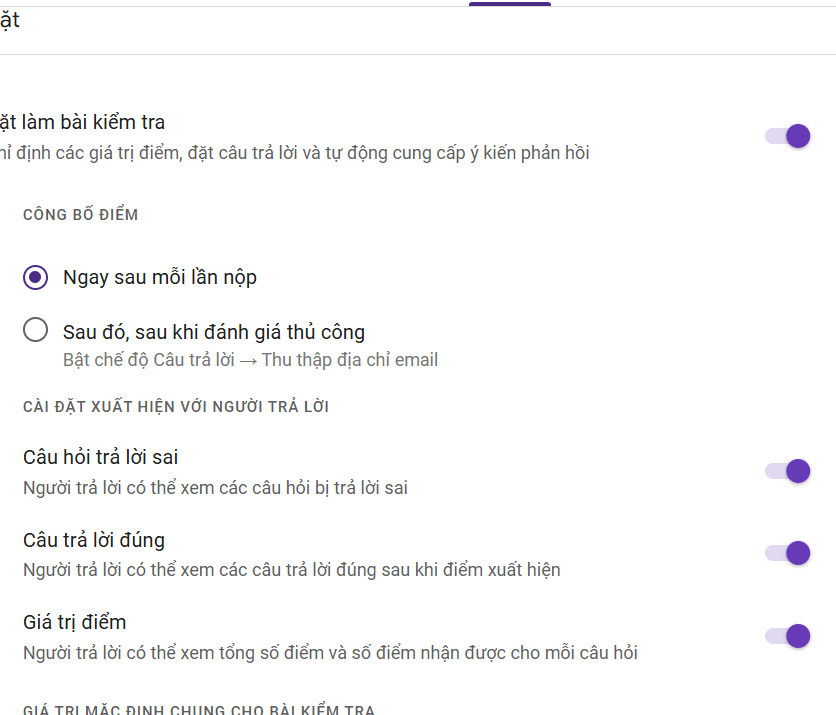
Brisk can speed up question drafting, but the final quality depends on a focused prompt and a careful human check. Keep the quiz tied to the learning objective rather than adding questions simply to reach a target count.
Related Articles
 Guide to Creating Multiple Choice Questions on Vnedu4 minutes read
 Guide to Creating Lecture Slides Using Brisk AI5 minutes read
 Quickly Create Multiple-choice Questions from Slides4 minutes read
 Guide to Creating the Brisk AI Learning Assistant for Students5 minutes read
 Instructions on Creating Multiple-choice Questions on Gemini3 minutes read
 How to Create Lesson Podcasts Using Brisk AI4 minutes read
Reader Comments 0
Sign in with email or Google to join the discussion.