Table of Contents
Quiz.com is a browser-based quiz platform where you can play public trivia or create an interactive quiz. Its editor supports standard answer choices as well as ordering, numeric range, map location, image pinpoint, typed answers, information slides, and AI-assisted generation.
Quiz.com is a different service from Quizizz, which is now named Wayground. Check that the address bar shows quiz.com before signing in or sharing a game PIN.
Plan the quiz before opening the editor
- Define the audience and purpose: entertainment, practice, formative check, or training.
- List the facts or learning objectives each question should test.
- Choose an authoritative source and record its date.
- Decide whether speed should affect the experience.
- Prepare media you created or have permission to reuse.
- Keep the answer key separate for independent checking.
A short, accurate quiz is more useful than a long game built from unverified trivia.
1. Sign in and open the Quiz editor
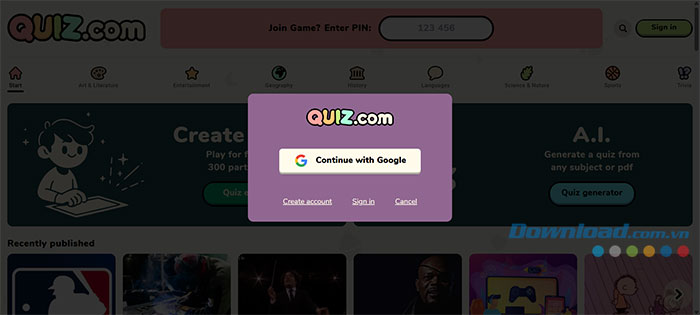
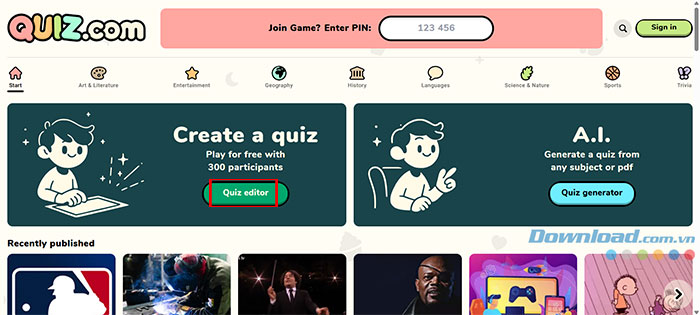
- Go to the official Quiz.com site.
- Select Sign in and complete the available account flow.
- Under Create a quiz, open Quiz editor.
2. Choose a slide type
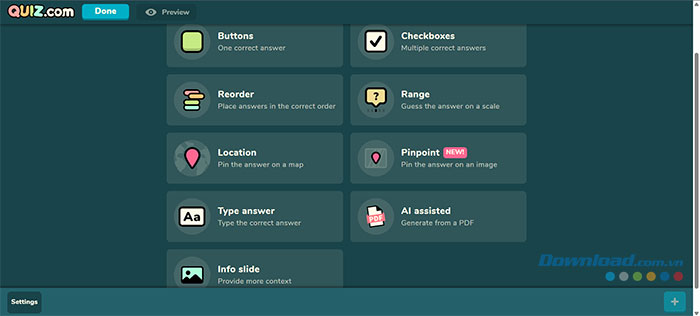
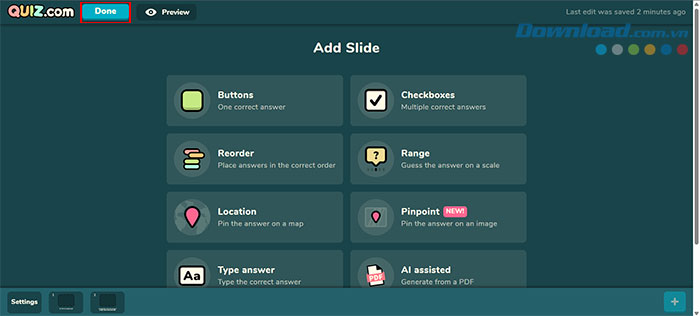
Select Add Slide, then choose the format that fits the task. Some older automatic translations label Range or Player answer incorrectly; the corrected names and purposes are below.
| Slide type | Player action | Best use |
|---|---|---|
| Buttons | Select one correct option | Single-answer multiple choice |
| Checkboxes | Select more than one option | Questions with multiple correct answers |
| Reorder | Drag items into the correct order | Processes, timelines, rankings, or sequences |
| Range | Estimate a value on a scale | Numeric guesses with a defined acceptable range |
| Location | Place a marker on a map | Geographic identification |
| Pinpoint | Mark a location on an image | Diagrams, artwork, anatomy, interfaces, or maps |
| Player answer | Type an answer | Short text or exact-value responses |
| AI assisted | Review questions generated from a subject or PDF | Creating a draft that will be edited and verified |
| Info slide | Read or view information; no answer | Instructions, context, transitions, or explanations |
3. Add the question and answer
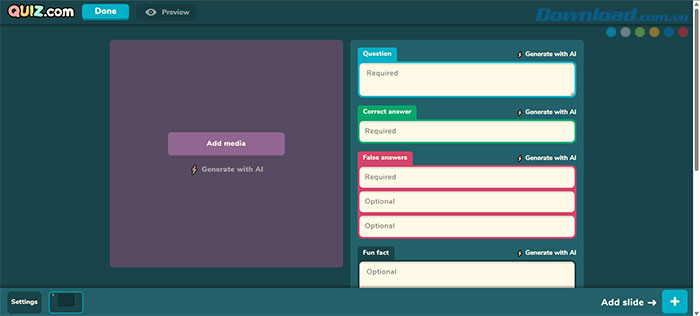
- Enter a concise question.
- Add the required answer choices or response target.
- Mark every correct answer.
- Select Add media when an image or audio clip is necessary.
- Set the answer time and other slide options.
- Preview the slide before adding the next one.
Write answer choices carefully
- Make the stem understandable without reading every option.
- Avoid two options that are both correct under a reasonable interpretation.
- Keep option length and grammar similar so the correct answer is not obvious.
- Do not use an arbitrary time limit for a question that requires reading or calculation.
- Explain units and acceptable rounding for numeric items.
4. Add more slides
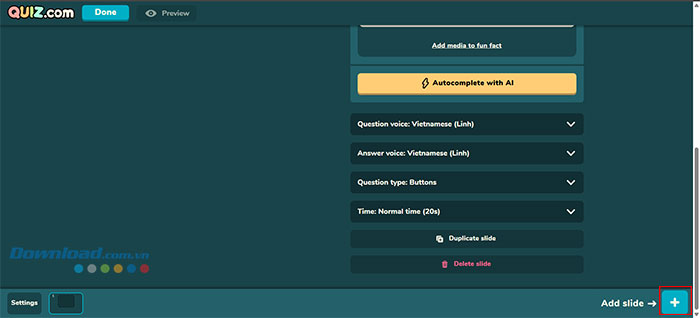
Select the plus button to add another question or information slide. Varying slide types can improve a quiz when each format genuinely matches the content; variety alone is not a reason to turn an objective question into an imprecise map or range task.
5. Finish and edit quiz details
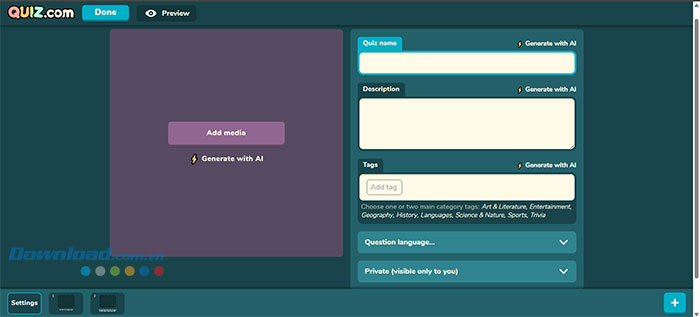
When the draft is complete, select Done. Open the quiz's edit/settings area and provide:
- A descriptive title
- A concise summary
- Relevant category or tags
- The correct language
- Public or private visibility as appropriate
Do not publish classroom names, student information, answer keys, or restricted training content in a public quiz.
How to use AI-assisted quiz generation
Quiz.com offers an AI generator for a subject or uploaded PDF. Treat the generated quiz as a draft:
- Use a document you are authorized to upload and remove personal information.
- Specify the exact topic or PDF scope.
- Generate the questions.
- Compare each question and answer with the source.
- Rewrite ambiguous stems and weak distractors.
- Remove unsupported claims and duplicate items.
- Test the completed game in player view.
AI can produce incorrect facts, answer keys, calculations, or interpretations. Asking the same generator to confirm its own answer is not independent verification.
Quality checks by slide type
Checkboxes
Tell players that more than one answer may be correct and ensure the scoring logic matches the intended requirement.
Reorder
Confirm that only one order is defensible. If two steps can occur simultaneously, rewrite the task or accept equivalent orders if the platform permits.
Range
Choose an acceptable range based on a cited value and state units. Do not make the scoring tolerance so narrow that normal rounding becomes wrong.
Location and Pinpoint
Use a clear, properly licensed map or image. Verify that the target area matches the expected precision and that the task has a nonvisual alternative when needed.
Player answer
List acceptable spelling, capitalization, abbreviation, punctuation, and numeric variants. Exact matching can incorrectly reject a valid response.
Test the player experience
- Open the finished quiz in its preview or play mode.
- Join from a second browser or device if the game uses a host and PIN.
- Answer every question, including intentionally wrong answers.
- Check media loading, timing, scoring, feedback, and the final results.
- Return to the editor and correct any problem.
Also test on the smallest screen students or participants will use. An image-pin question that works on a desktop may be difficult on a phone.
Sharing and hosting safely
- Share the quiz link or current game PIN only with the intended audience.
- Do not post a private classroom PIN on a public social account.
- Use the platform's visibility controls and verify them after saving.
- Have a backup activity in case the network, audio, or player devices fail.
- Explain whether the quiz is entertainment, practice, or graded assessment.
Pre-publish checklist
- Every question has an authoritative source.
- Every marked answer was independently checked.
- The slide type matches the skill being tested.
- Timing and scoring are fair and accessible.
- Images and audio are licensed and work on player devices.
- Visibility is correct and no personal data is exposed.
- The complete quiz was played once from start to finish.
Related Articles
 How to Create Quizzes on ChatGPT5 minutes read
 How to Create Multiple-choice Questions in ScratchJR (Part 2)6 minutes read
 How to Use Wayground AI to Create Quizzes7 minutes read
 How to Create Questions and Quizzes Using Quizizz11 minutes read
 Are You a Smart Person P1: General Knowledge Quizzes1 minutes read
 Are You a Smart Person?3 minutes read
Reader Comments 0
Sign in with email or Google to join the discussion.