Table of Contents
In addition to creating AI images with Gamma Imagine , users can design graphics with many different options such as infographics, advertising posters, logos, etc., from a selection list. From the description of the graphic you want to create, Gamma Imagine will convert it into content for you to further process. Below is a guide to designing graphics using Gamma Imagine.
How to design AI graphics using Gamma Imagine
Step 1:
We click on the link below to go to the graphic design page and choose the type of content we want.
- Access creation options in Gamma Imagine
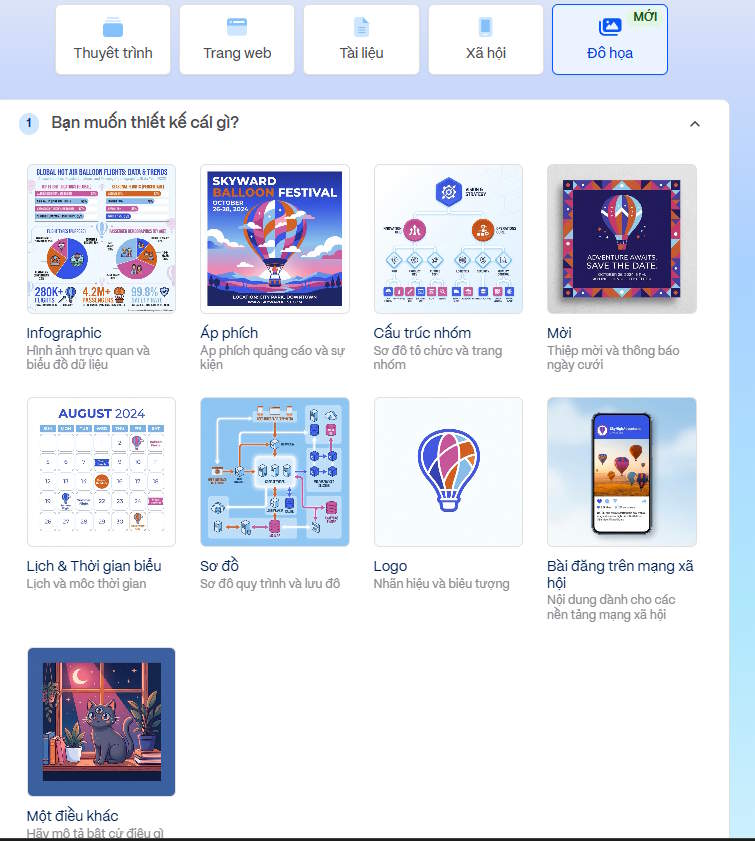
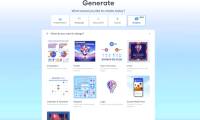
Next, Gamma Imagine helps us create many different types of content, as shown below.
- Infographic: Visual images and data charts.
- Event promotional poster
- Diagrams: Flowcharts and process diagrams.
- Social media post
- Logo
- Invitation cards and announcement cards
- Calendar & Schedule
- Organizational chart and team page
Each graphic type comes with a different layout. If none of them suit your needs, select Other and describe exactly what you need.
Step 2:
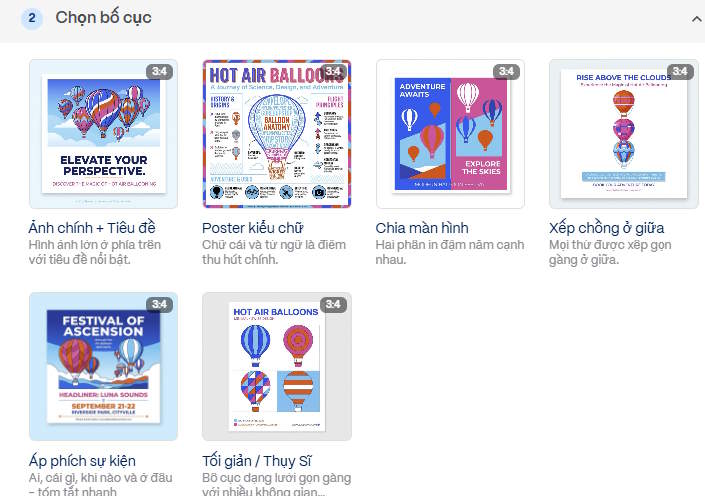
For example, this article demonstrates creating a poster using Gamma Imagine . Then, you choose the poster layout style you want, using the options shown in the image.
Step 3:
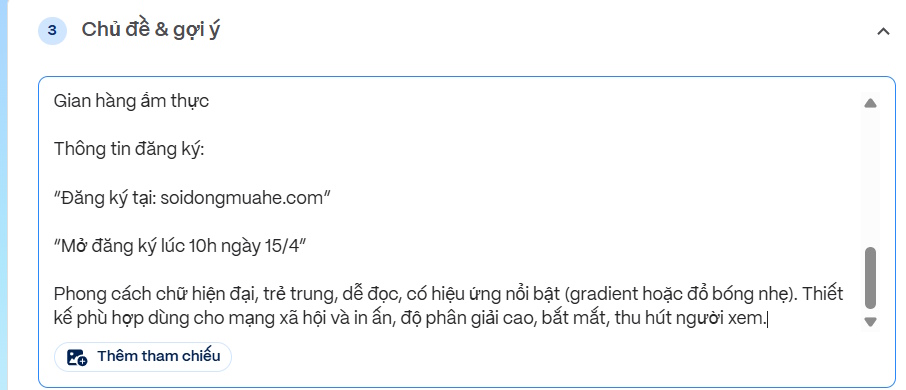
After selecting the desired poster style in Gamma Imagine, we enter a description for the event poster we want to create.
You can use ChatGPT or Gemini to describe the event poster you want to create, as shown in the prompt below.
Thiết kế poster quảng cáo sự kiện 'Mùa hè sôi động' với phong cách trẻ trung, năng động, hiện đại. Sử dụng bảng màu tươi sáng đặc trưng mùa hè (vàng, cam, xanh biển, hồng), ánh sáng rực rỡ, hiệu ứng ánh nắng, không khí vui tươi, sôi động. Bố cục rõ ràng, nổi bật tiêu đề ở trung tâm. Hình ảnh minh họa: các bạn trẻ vui chơi ngoài trời, sân khấu âm nhạc, band trình diễn, khu trò chơi, gian hàng ẩm thực, cây xanh và không gian công viên mùa hè. Nội dung trên poster: Tiêu đề lớn: 'MÙA HÈ SÔI ĐỘNG' Thời gian tổ chức: '23/6' Địa điểm: 'Công viên Yên Sở' Hoạt động: Band trình diễn ngoài trời Chơi trò chơi Gian hàng ẩm thực Thông tin đăng ký: 'Đăng ký tại: soidongmuahe.com' 'Mở đăng ký lúc 10h ngày 15/4' Phong cách chữ hiện đại, trẻ trung, dễ đọc, có hiệu ứng nổi bật (gradient hoặc đổ bóng nhẹ). Thiết kế phù hợp dùng cho mạng xã hội và in ấn, độ phân giải cao, bắt mắt, thu hút người xem.
Step 4:
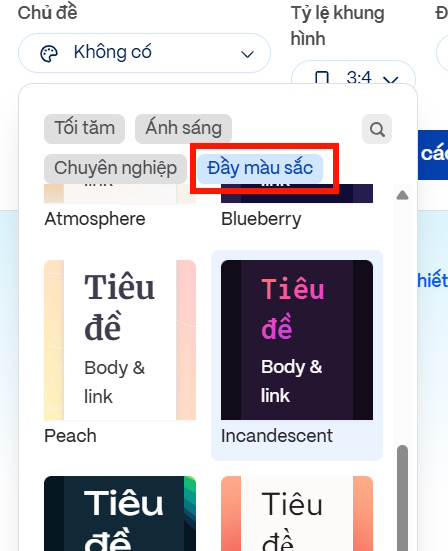
Next, you choose a theme for the poster , which you can select from the list that appears.
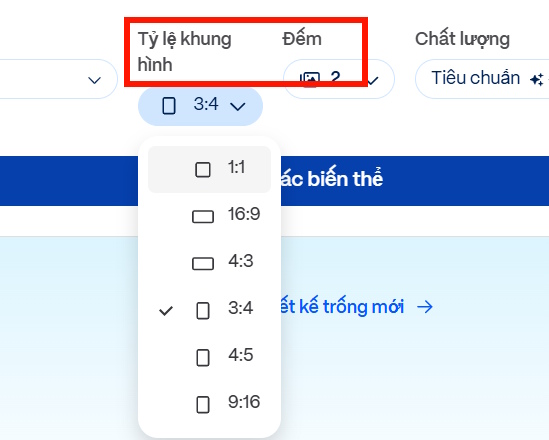
Next, choose the size and number of posters you want to create, corresponding to the number of credits you need to pay.
Finally, choose to create in Standard mode ; if you choose Pro mode, you will need more credits. Press Create to generate the poster using Gamma Imagine according to your description and settings.
Step 5:
The result is the event promotional poster shown below.
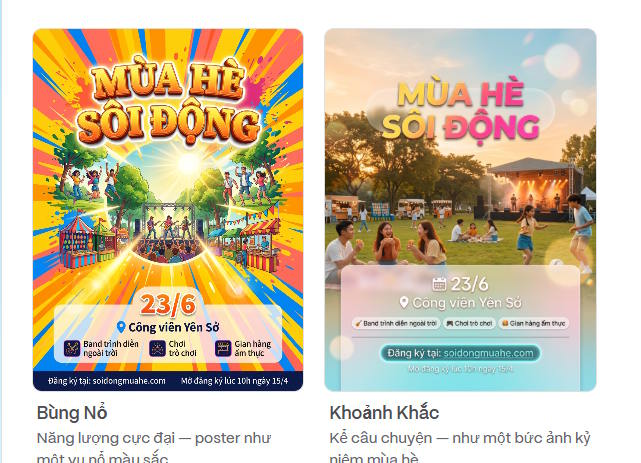
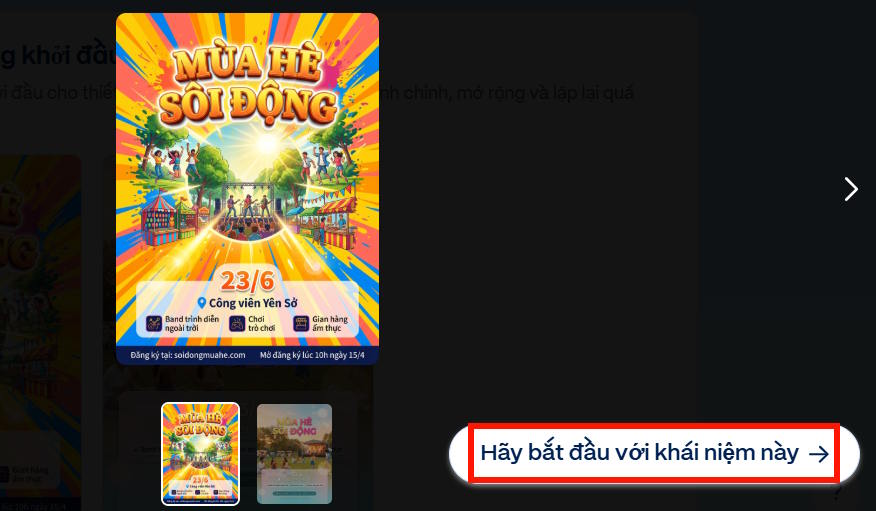
Click on the poster, then select " Let's get started with this concept . "
Step 6:
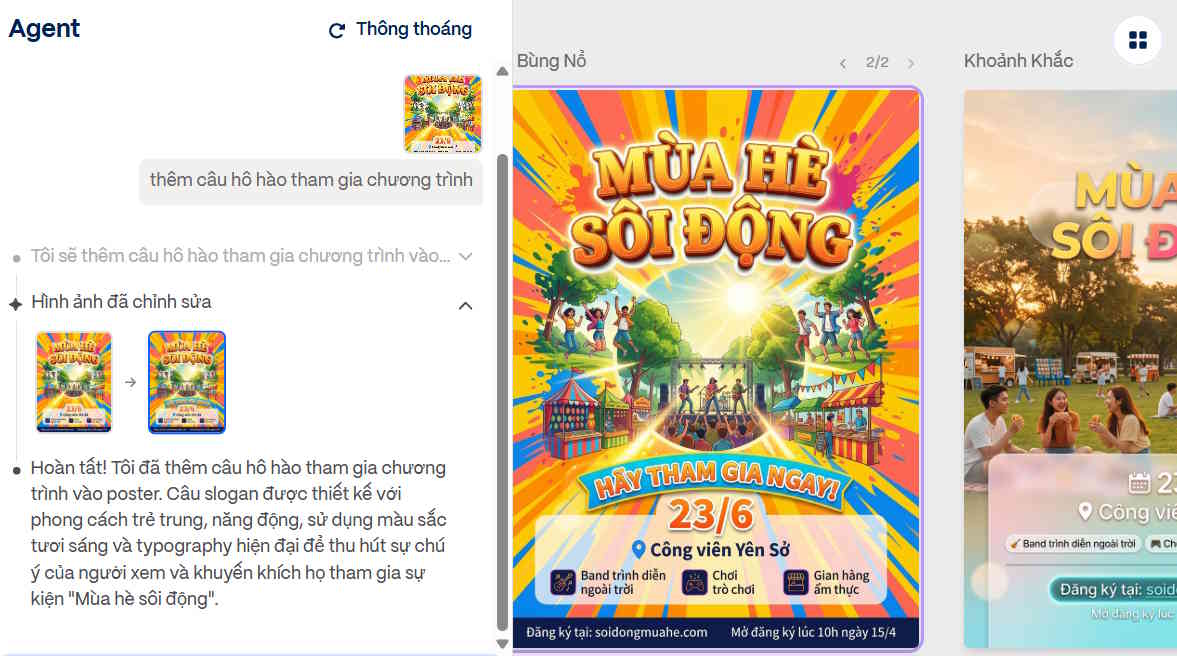
In the editing interface, you can enter a description to make changes , or use the available tools to edit it .
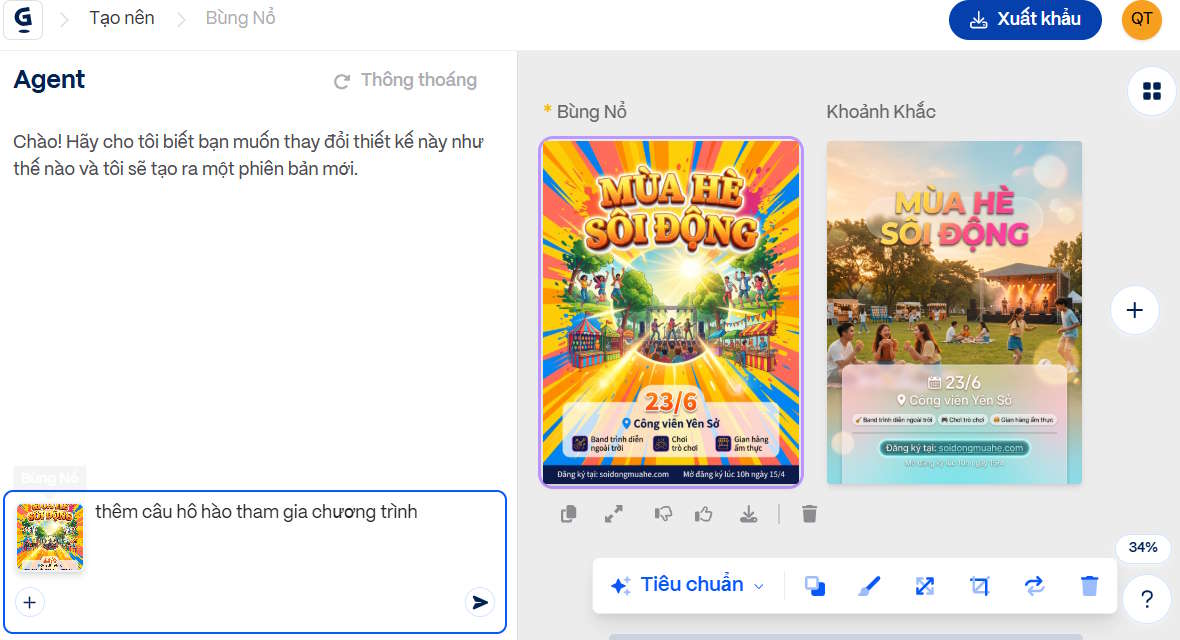
The resulting image has been modified to reflect your updated description.
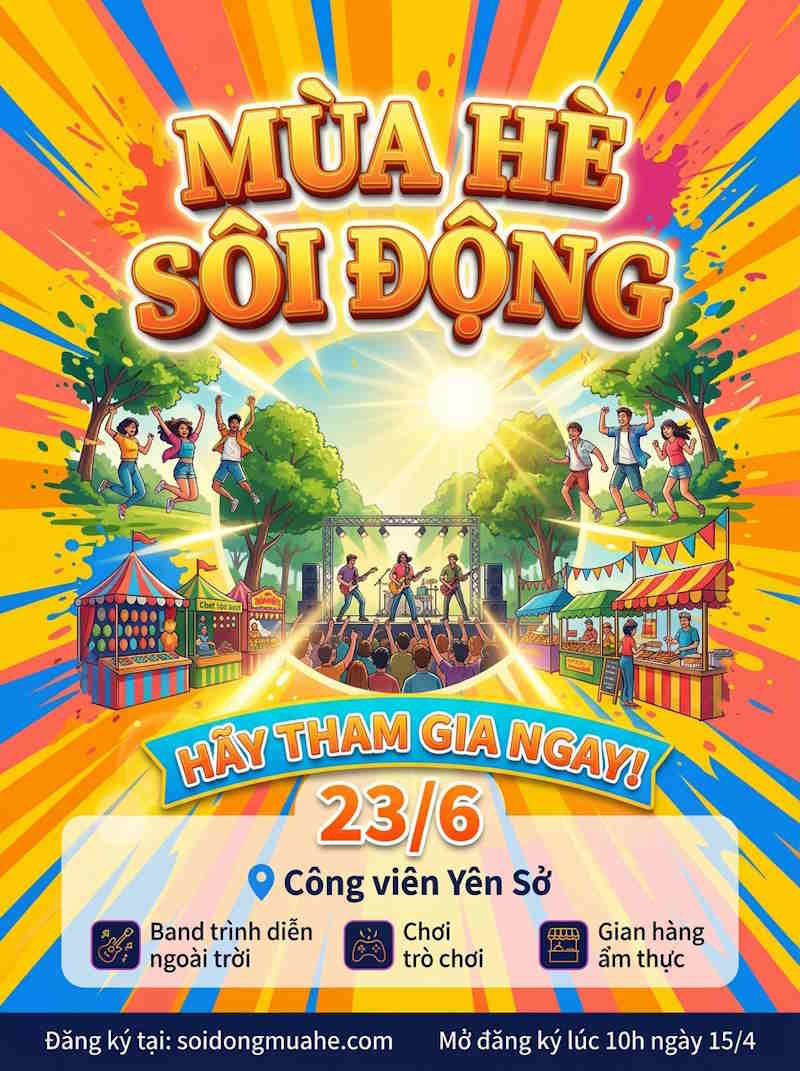
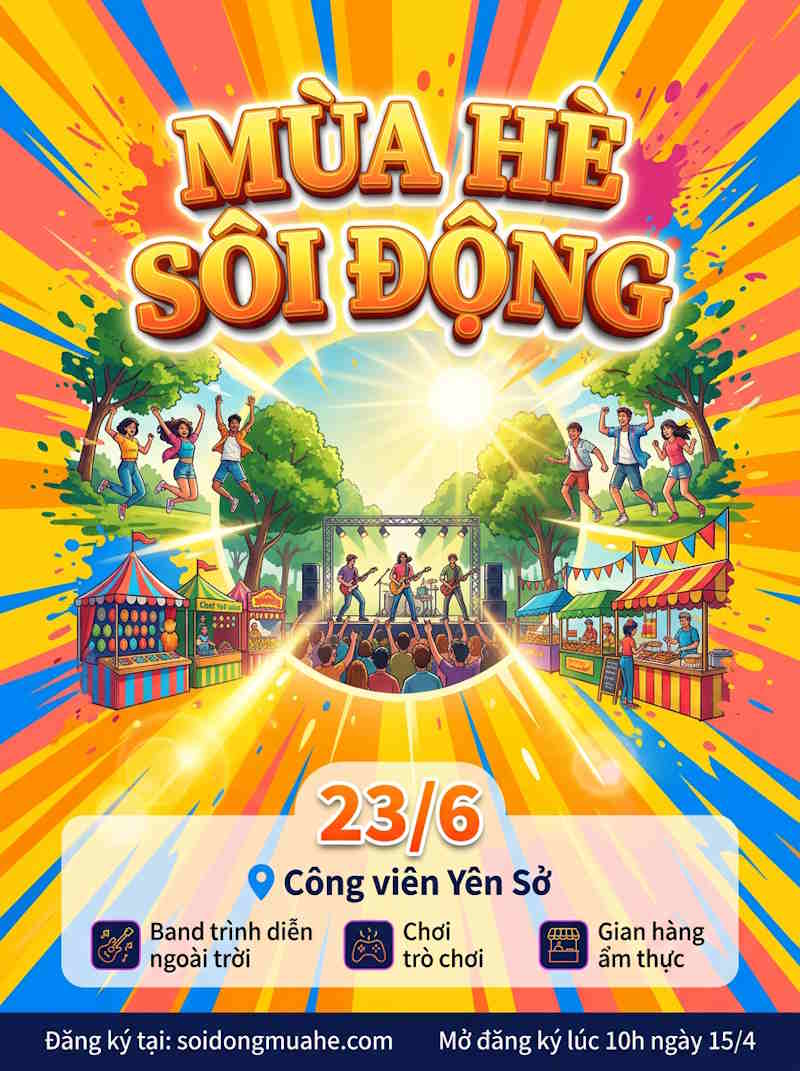
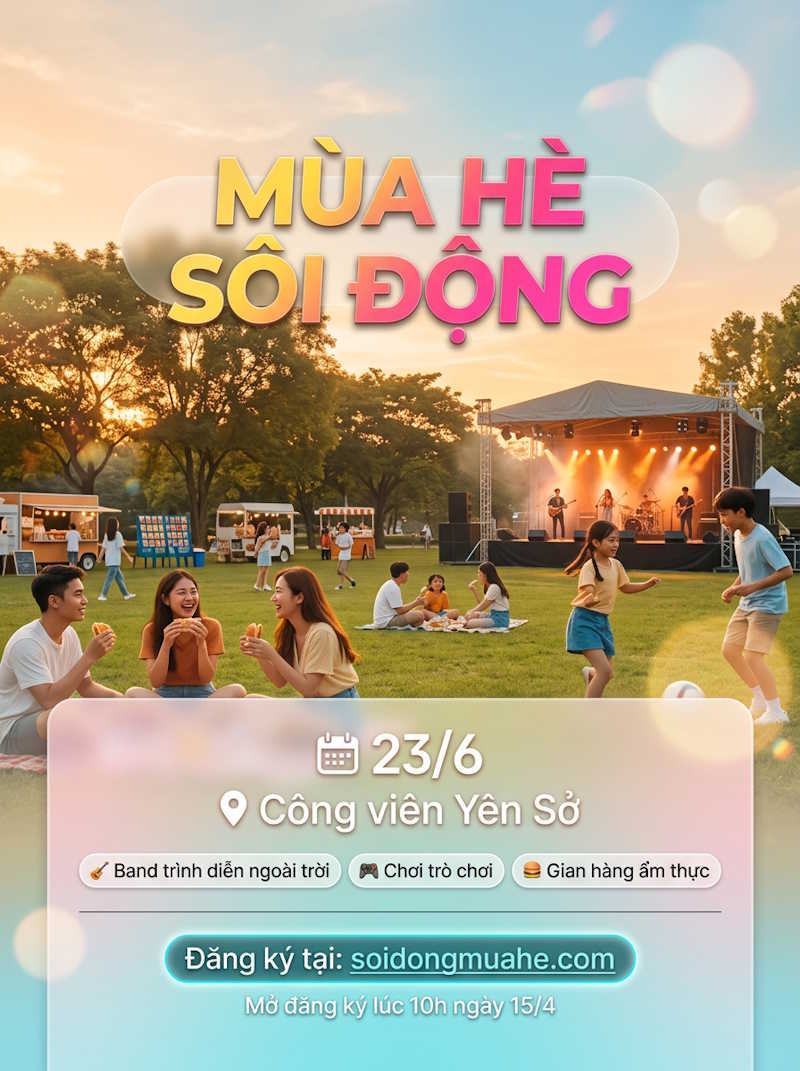
Finally, select Publish to download the design. Below are some examples of AI-generated posters created on Gamma Imagine.
Related Articles
 Gamma Has Created AI Images, Here's How to Use Them!5 minutes read
 What Is Gamma-ray Burst: Gamma Rays13 minutes read
 Design Infographics on Gamma AI with Just Voice Commands3 minutes read
 minutes read
 Synthesis of the Most Beautiful Vietnamese Font for Graphic Design or Text2 minutes read
 How to Use Gamma AI to Create Stunning Presentations8 minutes read
Reader Comments 0
Sign in with email or Google to join the discussion.