Table of Contents
If Windows will not apply a new desktop background, test a local JPG or PNG first. Then check activation, accessibility settings, organization policy, and the wallpaper cache. A background enforced by work or school policy should be changed by the administrator, not bypassed locally.
Test a local image and the normal settings
- Copy a JPG or PNG to the local Pictures folder. Do not test with an online-only cloud file or a disconnected network location.
- Right-click the image and select Set as desktop background.
- If that fails, open Settings > Personalization > Background, choose Picture, and browse to the same file.
- Make sure the file opens normally and is not zero bytes or corrupted.
For the standard controls and multi-monitor options, see How to Change Desktop Wallpaper on Windows.
Check Windows activation
Open Settings > System > Activation on Windows 11, or Settings > Update & Security > Activation on Windows 10. An unactivated installation can restrict personalization controls.
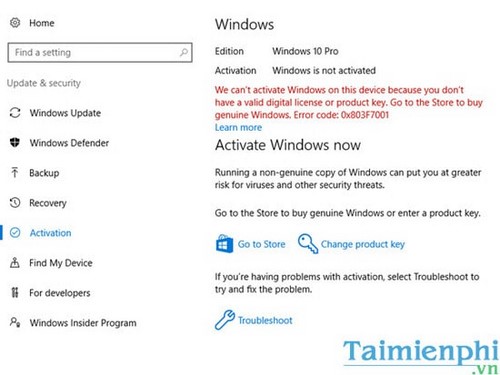
Use a valid digital license or product key that matches the installed edition. Do not use unofficial activators or Registry changes to bypass licensing.
Check accessibility and slideshow conditions
On older Windows 10 builds, open Control Panel > Ease of Access Center > Make the computer easier to see and make sure Remove background images is not selected. On current builds, review Settings > Accessibility and contrast-theme settings.
If only a slideshow fails, confirm that the source folder still exists, the files are stored locally, and any setting that pauses the slideshow on battery power is appropriate.
Remove an unintended Group Policy restriction
This method applies to editions with Local Group Policy Editor and to a PC you administer yourself.
- Press Windows + R, enter
gpedit.msc, and press Enter. - Go to User Configuration > Administrative Templates > Control Panel > Personalization.
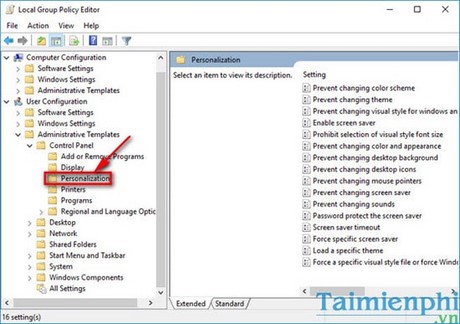
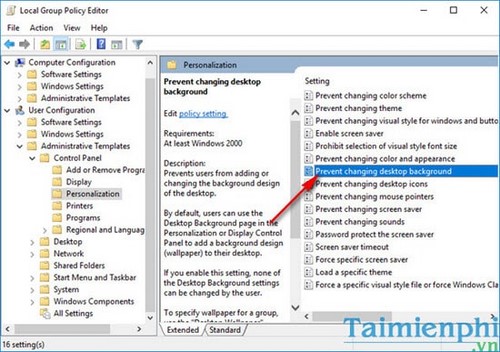
Open Prevent changing desktop background.
Select Not Configured, then apply the change and sign out or restart.
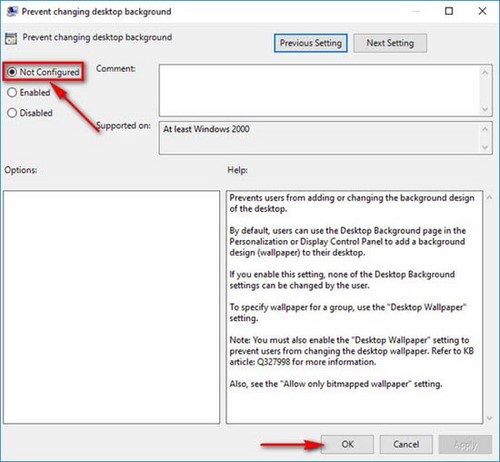
If the setting is locked or returns after sign-in, the device may be managed by an organization. Contact its administrator.
Check the equivalent Registry policy
Back up the affected key first. Open Registry Editor and navigate to:
HKEY_CURRENT_USERSoftwareMicrosoftWindowsCurrentVersionPoliciesActiveDesktop
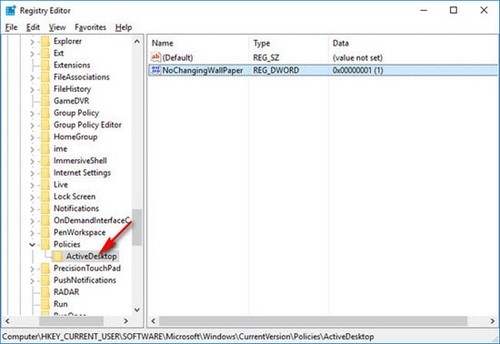
If NoChangingWallpaper exists and is set to 1, delete that value or set it to 0, then sign out and back in. Do not create the key or value when it is absent; absence already means the restriction is not configured. Also check whether a Desktop Wallpaper policy under Administrative Templates > Desktop > Desktop enforces a particular image.
Reset a corrupt wallpaper cache
- Press Windows + R, enter
%AppData%MicrosoftWindowsThemes, and press Enter. - Rename
TranscodedWallpapertoTranscodedWallpaper.old. - If
slideshow.iniexists, rename it toslideshow.old. - Sign out, sign back in, and select the background again.
Renaming preserves the files for reversal. Windows creates a new cache automatically.
If the setting still will not apply
Test another local user account. If the background works there, the first profile or its per-user policy is damaged. Run a full malware scan if restrictions appeared unexpectedly, then repair Windows files with DISM.exe /Online /Cleanup-Image /RestoreHealth followed by sfc /scannow.
A black desktop accompanied by missing icons or an unresponsive taskbar is a shell or display problem, not simply a wallpaper setting. Use the computer repair checklist to diagnose that broader symptom.
Related Articles
 Fixing the Issue of CD/DVD Drives Not Showing Up on Windows 10/8.1/7 Computers9 minutes read
 Fixing the Windows 10 Taskbar Not Working or Not Responding6 minutes read
 Fixed an Issue with Missing Mfreadwrite. DLL and Windows 88.1N4 minutes read
 How to Change Time, Date and Month in Windows 10?5 minutes read
 USB Connection Error with Windows3 minutes read
 Instructions for Changing Username on Windows 103 minutes read
Reader Comments 0
Sign in with email or Google to join the discussion.