Table of Contents
Optical drives are an essential part of Windows computers, used to open files on CDs or DVDs. Sometimes users will encounter common problems related to CD/DVD drives , such as the CD/DVD drive not showing up in My Computer/This PC/Windows Explorer even though the drive is functioning normally.
Reasons why the CD/DVD drive doesn't show up on Windows 10/8.1/7 computers.
If your Windows computer is infected with a virus, you will face many problems and troubles, including the CD/DVD drive not appearing on your computer.
Here are some reasons why your CD/DVD drive might not be showing up on your Windows 10/8.1/7 computer:
1. Corrupted Windows Registry files : Due to malware or viruses attacking the computer, the configuration information in the Windows Registry can be corrupted, resulting in Windows being unable to boot optical hardware devices and CD/DVD drives functioning incorrectly.
2. The problem could be due to a faulty CD/DVD driver installed on your computer: if your CD/DVD drive is outdated, damaged, or lost, you may encounter difficulties opening files from the optical drive. If the operating system cannot properly load the driver (for the devices to function correctly), you will experience problems with your computer's CD/DVD drive.
3. The problem arises even though the Windows driver is still working, but the issue may be due to a faulty or missing hardware device.
4. The optical drive on a Windows computer may not work if the device driver is disabled. System administrators can disable the driver to prevent unauthorized file transfers from the computer. Sometimes, the device driver can be disabled by a virus.
Fixing the issue of CD/DVD drives not showing up on Windows 10/8.1/7 computers.
Method 1: Check the BIOS settings on your Windows computer.
Sometimes, optical drives can be disabled in the BIOS/Chipset settings. If this happens, you won't be able to find the DVD drive in This PC or My Computer on your Windows computer. Simply go into the BIOS and confirm that all drives (including the optical drive) are correctly configured. If you find any errors in the BIOS settings, just enable the CD/DVD drive as your optical drive.
Method 2: Run the Troubleshooter to fix the issue of the CD/DVD drive not showing up on your Windows 10/8.1/7 computer.
If you're a Windows 7/8/10 user, you're probably familiar with the Windows Troubleshooter, a tool used to fix hardware-related problems. In this case, you can also use the Troubleshooter to fix the issue of a CD/DVD drive not displaying on your Windows 10/8.1/7 computer.
To open Troubleshooter on a Windows computer:
Open the Control Panel and access the Search box in the Control Panel window.
Type "Troubleshooter" into the Search box, then click the Troubleshooting option in the search results .
Click to select the " Configure a device" option located under the "Hardware and Sound" option .
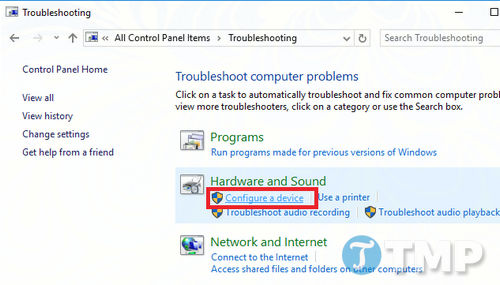
Next, follow the on-screen instructions to troubleshoot the issue. If the CD/DVD drive still doesn't appear on your Windows 10/8.1/7 computer, you can refer to some other troubleshooting methods in the following section.
Method 3: Update or uninstall and reinstall the CD/DVD drive driver.
First, visit the manufacturer's website to update the device driver. If one is unavailable, you can update the driver directly from Device Manager on your Windows computer. Follow the steps below:
Press the Windows + R key combination to open the Run command window.
Type devmgmt.msc into the Run command window and press Enter to open the Windows Device Manager window.
Navigate to DVD/CD-Rom Drives and expand the option to open the optical drive connected to your computer.
Right-click on the ROM drive and select the Update driver option .
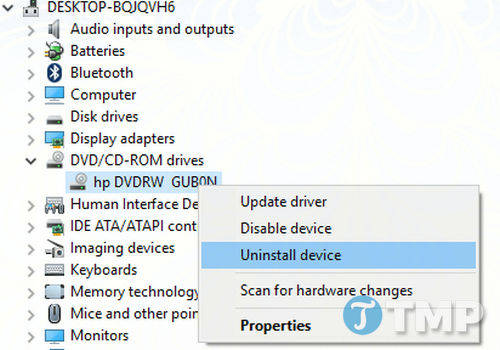
If this method is not available, follow the same steps and select the Uninstall device option from the context menu (right-click menu) to remove the driver.
Restart your computer and the driver will be installed automatically. Alternatively, you can select the "Scan for hardware changes" option to reinstall the driver automatically.
If the error you're experiencing is related to the device driver, simply follow the steps above to fix it.
Alternatively, you can uninstall and reinstall IDE ATA/ATAPI controllers from the Device Manager window. Of course, you will need to enable the " Show hidden files" option in the Device Manager window to display IDE ATA/ATAPI controllers in the list.
Method 4: Repair corrupted Registry files to fix the CD/DVD drive not showing up on Windows 10/8.1/7 computers.
Before proceeding, remember to back up your Windows Registry to avoid any potential problems.
Step 1 : Press the Windows + R key combination to open the Run command window, then type regedit and press Enter to open the Windows Registry Editor.
Step 2
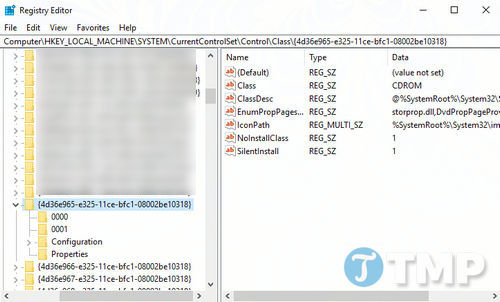
In the Windows Registry Editor window, navigate to the following key:
HKEY_LOCAL_MACHINESYSTEMCurrentControlSetControlClass
{4D36E965-E325-11CE-BFC1-08002BE10318}
Step 3
In the right pane, find and delete the strings UpperFilters and LowerFilters .
Step 4
Restart your computer. Hopefully, after your computer restarts, you should be able to access the optical drive on your Windows computer.
If you cannot find the UpperFilters and LowerFilters registry entries, you will need to create a registry subkey to fix CD/DVD drive errors.
Method 5: Create a Registry Subkey
Press the Windows + R key combination to open the Run command window, then type regedit and press Enter to open the Windows Registry Editor, then navigate to the following key:
HKEY_LOCAL_MACHINESYSTEMCurrentControlSetServicesatapi
Next, in the ATAPI section , create a new subkey and name it Controller0 .
Open the Controller0 key you just created, then create a new DWORD value named EnumDevice1 . Double-click on EnumDevice1 and set the value in the Value Data field to 1 .
Finally, close the Registry Editor window and restart your computer. Hopefully, this will fix the issue of the CD/DVD drive not showing up on your Windows 10/8.1/7 computer.
Alternatively, you can use Command Prompt to add registry subkeys directly. All you need to do is open the Command Prompt window as an administrator, then run the following command:
reg.exe add "HKLMSystemCurrentControlSetServicesatapiController0"
/f /v EnumDevice1 /t REG_DWORD /d 0x00000001
If you don't know how to open Command Prompt with administrator privileges, you can refer to TipsMake's article on how to open CMD in Windows 10 with administrator privileges to open Command Prompt with administrator rights.
If you've tried all the above methods and still can't fix the issue of the CD/DVD drive not showing up on your Windows 10/8.1/7 computer, try the last resort: use the best antivirus software to scan and remove viruses preventing you from accessing the CD/DVD drive in My Computer. There are many antivirus programs available, such as BKAV or KIS, that can help you detect and remove viruses quickly.
Related Articles
 5 Silly Mistakes When Fixing Computers That Many People Still5 minutes read
 Steps to Fix Printer Not Showing up in Windows Remote4 minutes read
 Fixing the Windows 10 Issue Where You Can't Change the Wallpaper/Background4 minutes read
 Fix WiFi Network Not Showing Error on Windows 10: Complete Overview12 minutes read
 6 Clever and Unique Ways to Reuse Old USB Drives: Explained7 minutes read
 Multi-level SSD: Slc, Mlc, Tlc, Qlc and Plc?9 minutes read
Reader Comments 0
Sign in with email or Google to join the discussion.