Table of Contents
If Windows Update appears frozen, first determine where it is stuck. A download or “Pending install” state inside Settings can usually be troubleshot safely. A full-screen “Working on updates” phase during restart should normally be given time, especially when the disk activity light is blinking; forcing power off during installation can damage Windows.
Before resetting anything
- Restart the PC once if you are still at the desktop.
- Confirm that the system drive has ample free space.
- Use a stable internet connection and disconnect VPN software temporarily.
- Disconnect nonessential storage, docks, printers, and other USB devices.
- Check Settings > Windows Update > Update history and record the KB number and error code.
Security software can interfere, but do not turn off the firewall or antivirus permanently. If a third-party security suite is the suspected cause, use its vendor's documented temporary troubleshooting mode and restore protection immediately.
Run the Windows Update troubleshooter
On Windows 11, open Settings > System > Troubleshoot > Other troubleshooters and run Windows Update. Newer builds may continue in the Get Help app. On Windows 10, use Settings > Update & Security > Troubleshoot > Additional troubleshooters.
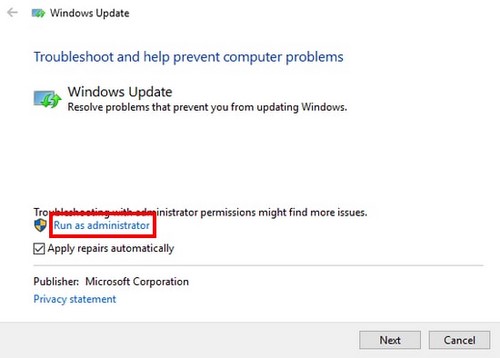
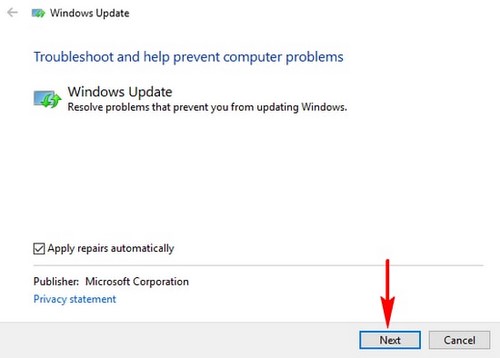
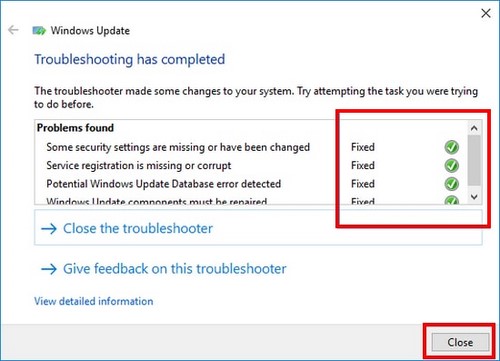
The following screens show the older Control Panel troubleshooter. Its path was Control Panel > System and Security > Troubleshooting > Fix problems with Windows Update.
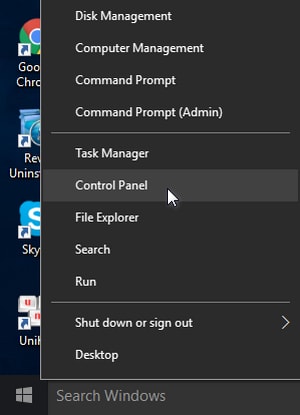
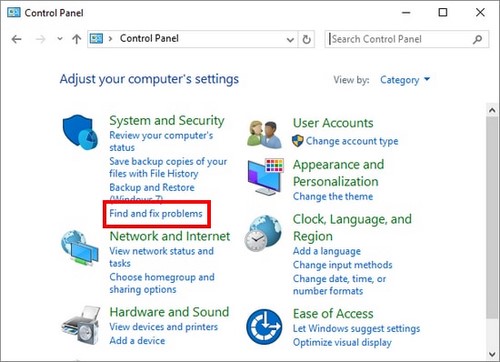
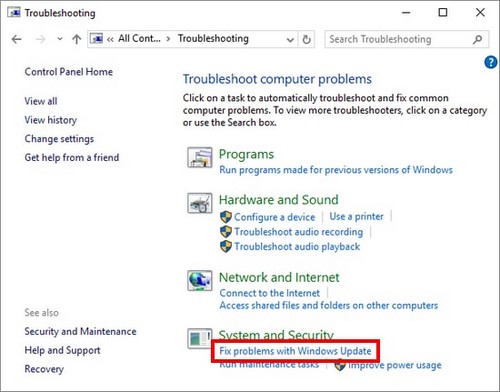
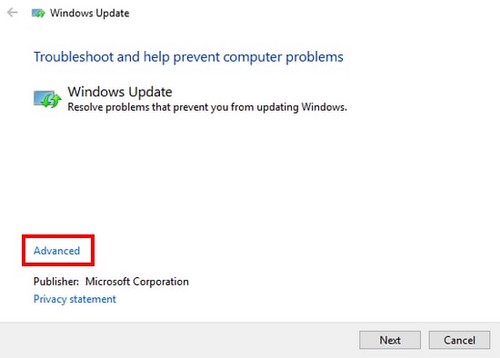
Run it as administrator if offered, allow recommended repairs, and save the result or error code.
Reset the download cache safely
Use this only when downloads repeatedly fail or remain at the same percentage after a restart. Open Windows Terminal (Admin) or Command Prompt (Admin).
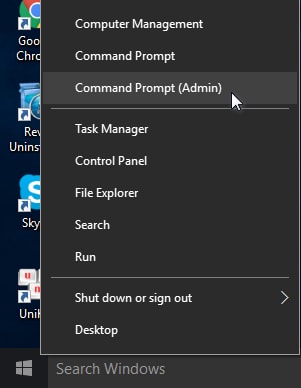
Stop the update services:
net stop bits
net stop wuauserv
net stop cryptsvc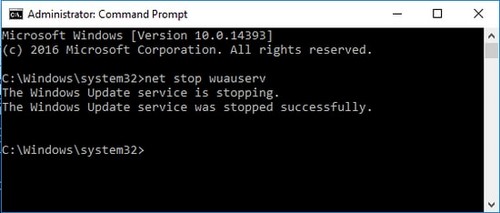
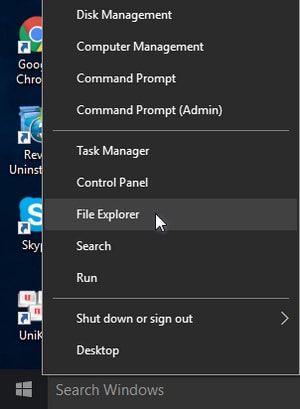
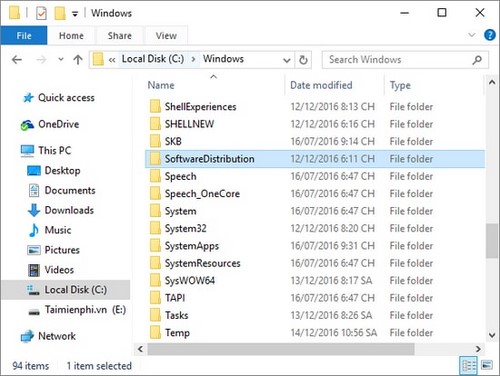
Open File Explorer and navigate to C:Windows.
Rename SoftwareDistribution to SoftwareDistribution.old rather than manually deleting arbitrary files. Also rename C:WindowsSystem32catroot2 to catroot2.old. Windows will create clean replacements.
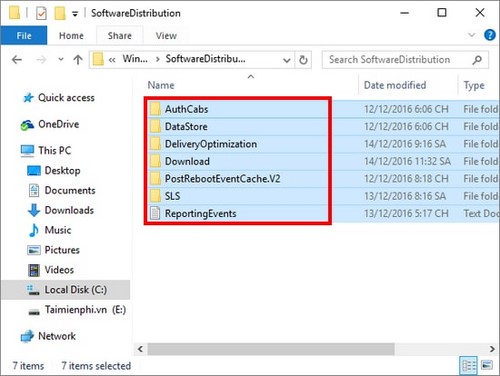
Start the services again:
net start cryptsvc
net start wuauserv
net start bits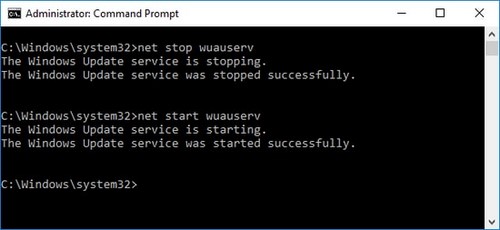
Restart Windows and test the update. The update history interface may no longer list some previously downloaded-but-not-installed entries, but installed updates remain installed. Delete the renamed backup folders only after updates work and you no longer need them for diagnosis.
Repair Windows servicing files
If the cache reset does not help, run these commands in an administrator Terminal, in this order:
DISM.exe /Online /Cleanup-Image /RestoreHealth
sfc /scannow
Restart when both finish. If DISM reports that source files cannot be found, use a matching Microsoft installation image or perform a repair reinstall rather than downloading system files from a third-party site.
Check for updates again
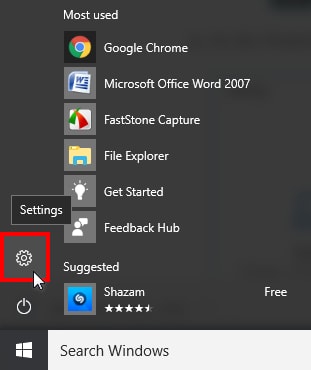
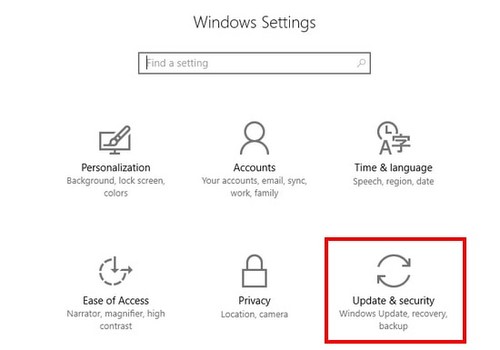
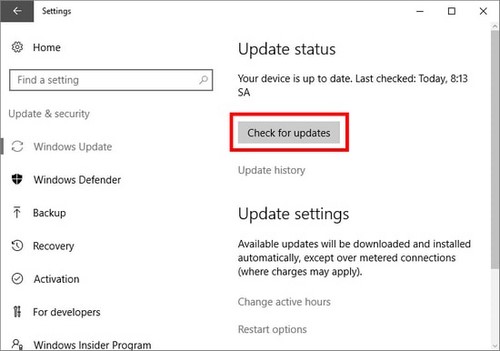
On Windows 10, open Start, choose Settings, then Update & Security > Windows Update > Check for updates. On Windows 11, Windows Update is a top-level Settings page.
When one update still fails
Search the exact KB number and error code in Microsoft's update history and catalog. A driver-related feature update may require newer firmware or an OEM driver; a quality update may need to be temporarily paused while Microsoft replaces it. The Windows 11 update error table gives next steps for common codes.
If Windows cannot boot after the update, enter the Windows Recovery Environment and use Uninstall Updates, starting with the latest quality update. For broader servicing failures, follow How to Fix Windows 10 Errors.
Windows 10 note: general support ended on October 14, 2025. A machine not covered by a current extended-update program should move to a supported operating system.
Related Articles
 How to fix Remote Desktop lag and freezing issues5 minutes read
 Issues Related to the KB4579311 Update3 minutes read
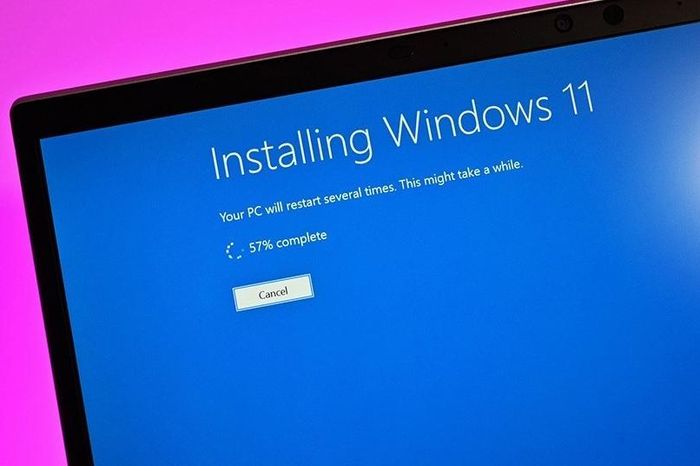 The New Update of Windows 11 Has Many Errors: Complete Overview4 minutes read
 List of Windows 11 24H2 Errors, Reasons Not to Update9 minutes read
 Update Windows: Complete Guide4 minutes read
 Turn Off Update Win 10 Permanently, Quickly and Effectively9 minutes read
Reader Comments 0
Sign in with email or Google to join the discussion.