Table of Contents
If the Windows 10 Taskbar is visible but does not respond to clicks, begin by restarting Windows Explorer. If only Search is broken, troubleshoot Search separately; changing virtual-memory settings or ending the retired Cortana process does not address a general Taskbar failure.
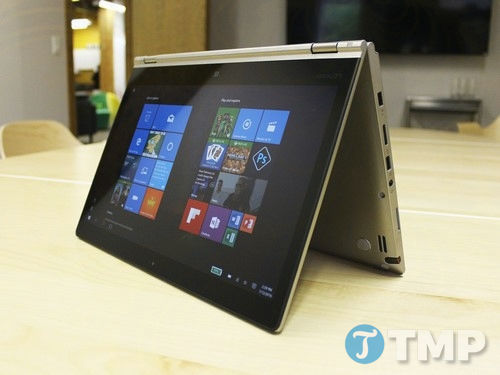
Support note: Microsoft ended standard Windows 10 support on October 14, 2025. These repairs remain useful on legacy systems, but moving compatible hardware to a supported Windows release is the safer long-term solution.
1. Confirm the Taskbar is not merely hidden
Move the pointer to the bottom and other screen edges. Press the Windows key to see whether Start opens. If the Taskbar appears only when the pointer reaches an edge, auto-hide is enabled; adjust it under Settings > Personalization > Taskbar. If the bar never appears or ignores clicks, continue below.
2. Restart Windows Explorer
Save open work, then use the keyboard so you do not depend on the frozen Taskbar:
Press Ctrl + Shift + Esc to open Task Manager.
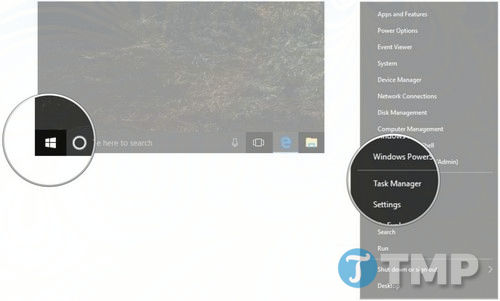
- Select More details if Task Manager opens in its compact view.
On the Processes tab, select Windows Explorer and choose Restart.
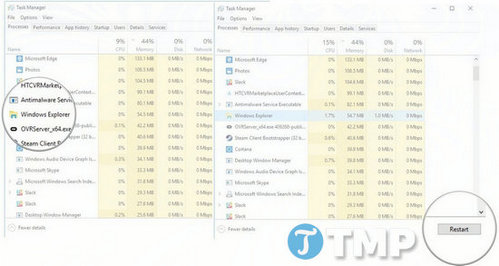
The desktop and Taskbar disappear briefly while Explorer reloads. If Windows Explorer is not listed, use File > Run new task, enter explorer.exe, and press Enter.
3. Restart Windows and install updates
If Explorer freezes again, press Ctrl + Alt + Delete, select the power icon, and restart the PC. After signing in, open Settings > Update & Security > Windows Update and install available updates. A restart can finish pending servicing work even when no update prompt is visible.
4. Disable conflicting Taskbar tools
Temporarily exit or uninstall recently added Start menu, Taskbar, desktop-shell, overlay, screen-recording, and keystroke-enhancement utilities. Do not disable security software permanently; instead, update it and ask its vendor about compatibility. If the Taskbar works after one tool is removed, leave that tool disabled until a compatible release is available.
5. Repair Windows system files
Run the built-in repair tools if Explorer continues to crash or other Windows components are also failing:
- Press Ctrl + Shift + Esc, then choose File > Run new task.
- Enter
cmd, select Create this task with administrative privileges, and choose OK. Run DISM first:
DISM.exe /Online /Cleanup-Image /RestoreHealthWhen it finishes, run System File Checker:
sfc /scannow- Wait for each command to complete, review its result, and restart Windows.
Microsoft's DISM and System File Checker instructions explain the possible results. TipsMake also has a detailed guide to repairing a Windows 10 image with DISM.
6. If only Search is not responding
If Start and pinned apps work but the Taskbar Search box does not, run the Search and Indexing troubleshooter instead of treating the entire Taskbar as broken.
- Press Windows + R, enter
control, and press Enter. In Control Panel, open Troubleshooting, then System and Security.
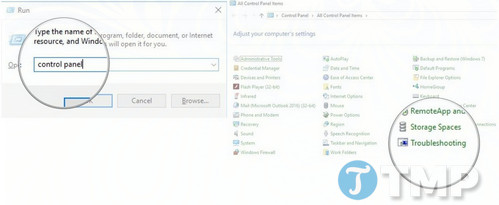
Open Search and Indexing and run it as administrator if prompted.
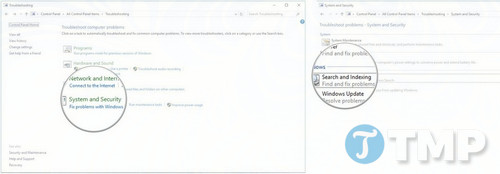
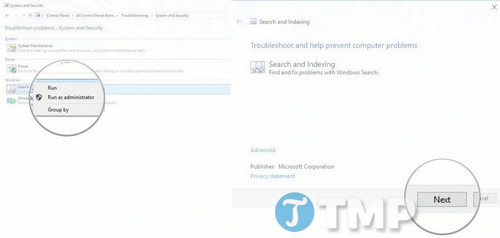
Select the symptom that matches the problem and follow the suggested repair.
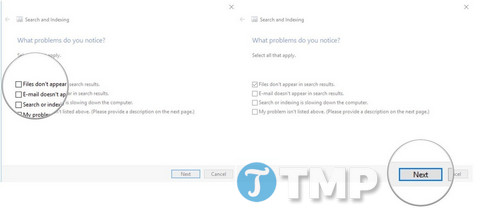
Check the Windows Search service
Use this check only for a Search-specific problem:
Press Windows + R, enter
services.msc, and press Enter.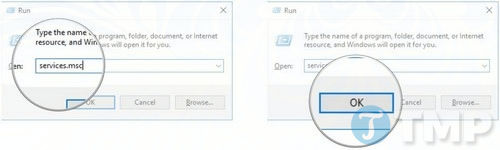
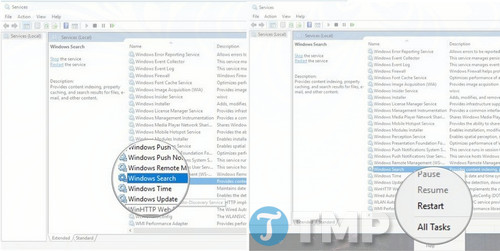
Open Windows Search and check its status.
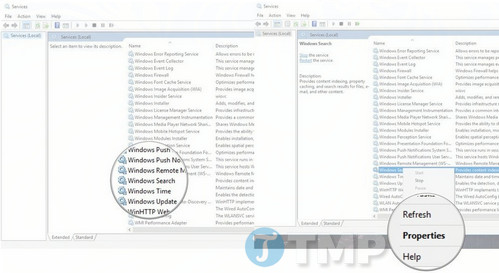
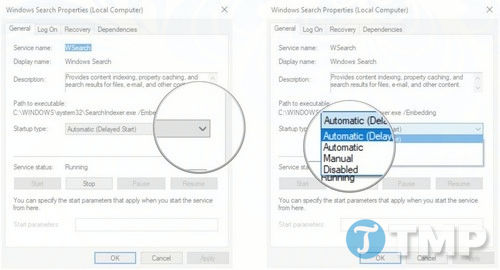
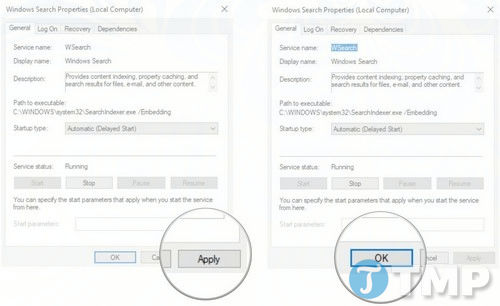
Use the existing default startup configuration unless an administrator or troubleshooting result instructed otherwise. If the service is stopped, select Start; if it is running, select Restart.
7. Test Safe Mode or another user profile
If the problem returns after every normal sign-in, start Windows 10 in Safe Mode. A working Taskbar there points to a third-party startup app, shell extension, or driver. If only one account is affected, test a new local user profile before considering broader recovery options.
When to use recovery options
Use System Restore or an in-place repair only after the targeted checks above fail, and back up important files first. Resetting Windows removes apps and may change settings, so it should not be the first fix for a frozen Taskbar.
Related Articles
 How to Fix Windows 11 Taskbar Not Working8 minutes read
 Fix Taskbar Not Working on Windows 108 minutes read
 6 Ways to Fix the Taskbar Not Working: Top Picks and Buying Guide8 minutes read
 Windows Not Responding - Causes and Solutions8 minutes read
 Fixing the 'Taskbar Not Found' Error When Browsing the Web3 minutes read
 Taskbar: Complete Guide: After All, Microsoft Seems to Be Working on3 minutes read
Reader Comments 0
Sign in with email or Google to join the discussion.