Table of Contents
Are you worried about your laptop getting a blue screen of death (BSOD)? Find out the causes of BSODs and learn simple, effective ways to fix this system error.
A Windows blue screen is a stop-code error: Windows halts to protect the system after detecting a serious problem in a driver, operating-system component, firmware, or hardware. One isolated restart may not recur; repeated crashes with the same pattern need structured troubleshooting.
Do these things first
- Photograph the screen or write down the stop code and any named file.
- Note what changed immediately before the crash: Windows update, driver, application, peripheral, RAM, storage, BIOS setting, or heavy workload.
- Disconnect newly added nonessential hardware and restart once.
- If Windows starts, back up irreplaceable files before making major repairs.
- Change one variable at a time and record whether the crash returns.
Use drivers from Windows Update or the computer/component manufacturer's official support page. Avoid “one-click” driver updaters and registry cleaners; they can add more variables without identifying the cause. Do not open the laptop or reseat components unless you understand the warranty, battery, electrostatic-discharge, and data risks.
Microsoft's current guide covers Windows stop-code troubleshooting, while its technical reference explains bug checks and crash dumps. TipsMake also provides a Windows BSOD code reference and a guide to starting Windows in Safe Mode.
Immediate troubleshooting summary
- Always record the stop code displayed on the blue screen to pinpoint the cause; this is the most important step.
- Common causes include software errors, driver conflicts, or hardware issues such as RAM, hard drive problems, and overheating.
- If you can still access Windows, prioritize uninstalling newly installed software or drivers, scanning for viruses, and running system repair commands.
- If you can't access Windows, boot into Safe Mode to safely uninstall faulty drivers or updates.
- You should take your device for a technical check-up if the problem recurs, the device overheats, or there are clear signs of hardware failure.
1. What a Windows blue screen means
A laptop displaying a Blue Screen of Death (BSOD) causes Windows to pause to prevent further damage, then displays an error message and often restarts automatically. Many people worry that their computer is severely damaged, but the cause could actually be software, driver, or hardware issues.
BSODs (Blue Screen of Death) are often accompanied by a Stop Code, which is crucial information for identifying the cause and troubleshooting steps. Unlike typical system freezes where applications or the system simply hang, a Blue Screen of Death is a Windows operating system error and usually causes the computer to restart automatically after the problem occurs.
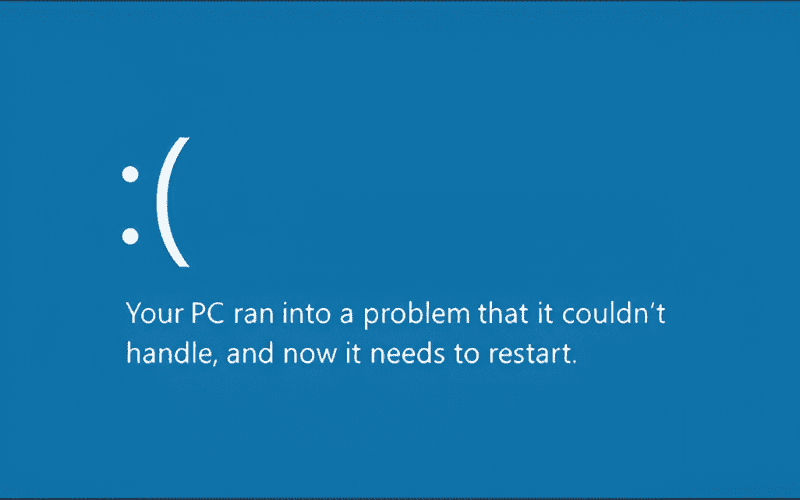
The blue screen is an error that forces Windows to stop operating in order to protect the system.
2. Identifying and reading information on a blue screen of death
When you see a blue screen error on your laptop, don't just restart it immediately. The information displayed on the screen is crucial for determining the correct course of action.
The three pieces of data you should look at first are the Stop Code, the error name, and the time the error occurred. On Windows 10/11, some machines also have a QR code for quick lookup. Dump files are system data recording errors, but average users don't need to analyze them in depth yet.
- Stop Code: An error code that helps identify errors related to drivers, memory, or drives.
- Error name: For example, UNMOUNTABLE_BOOT_VOLUME.
- When it happens: After an update, installing an app, plugging in a device, or playing demanding games.
- QR code: Used for quick lookup if displayed on the device.
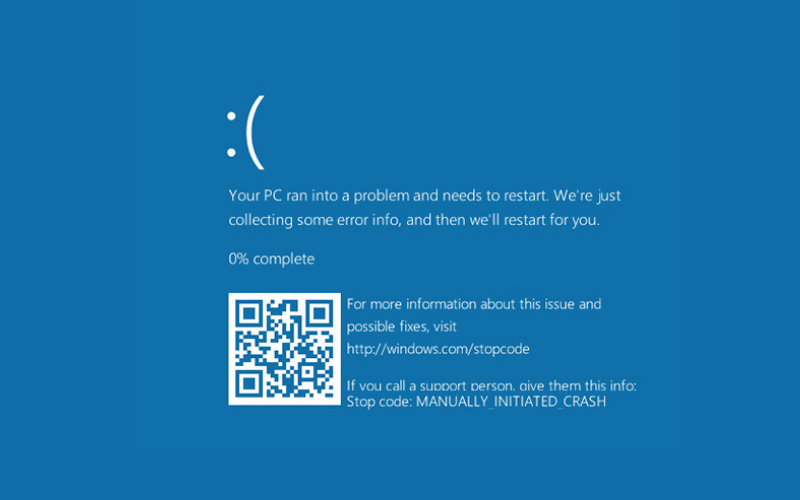
Reading the information on the blue screen helps you identify errors.
3. Common causes of blue screen errors on laptops
3.1. Errors caused by Windows and software
You should prioritize troubleshooting their devices themselves when encountering this error.
- The Windows update is faulty or incompatible.
- The system files become corrupted after a sudden shutdown or update error.
- Cracked software, third-party antivirus, or deeply interfering applications can cause conflicts.
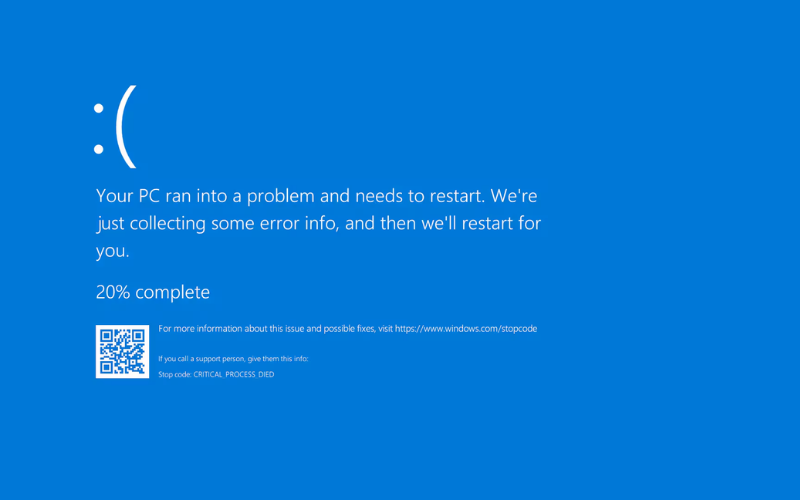
You should prioritize self-checking their computers when encountering errors caused by Windows and software.
3.2. Driver-related errors
Drivers are software that helps Windows communicate with hardware. Incorrect versions or conflicts can cause the system to crash and result in a BSOD (Body Problem Outcome). This is common after updating VGA, audio, or WiFi drivers, or installing new games.
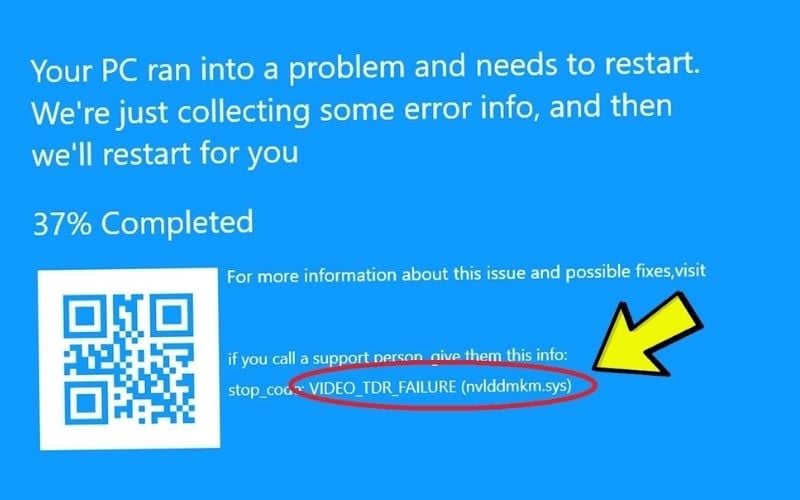
Blue screen error message due to driver conflict.
3.3. Hardware Errors
- Loose RAM, faulty RAM, or unstable operation.
- SSD /HDD may have read/write errors or bad sectors.
- CPU and GPU overheat under heavy load.
- Unstable power supply on some older machines.
This group should only be suspected if the error is repeated or accompanied by clear signs.
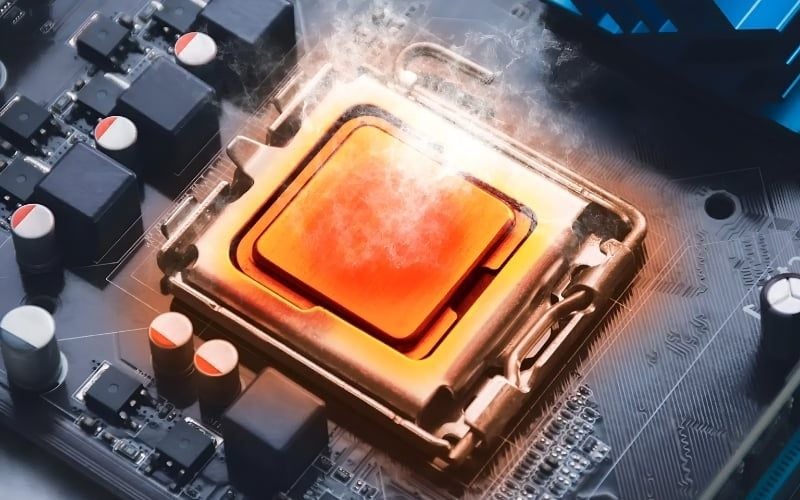
CPU and GPU overheating under heavy load can lead to blue screen errors.
4. Steps to take when your laptop displays a blue screen
4.1. Initial inspection and response
- Record the Stop Code: Take a picture or write down the error code before the machine restarts automatically.
- Turn off the computer and disconnect peripherals: Remove USB drives, external hard drives, docks, mice, and external mechanical keyboards if not needed.
- Restart to check: See if the error repeats regularly or appears randomly.
- Back up your data if you can access Windows: Prioritize study files, work files, and important accounts.
- Try Safe Mode: This is a minimalist boot mode for safer debugging.
- Only perform in-depth repairs after localization: Determine whether the problem is related to software, drivers, or hardware before proceeding further.
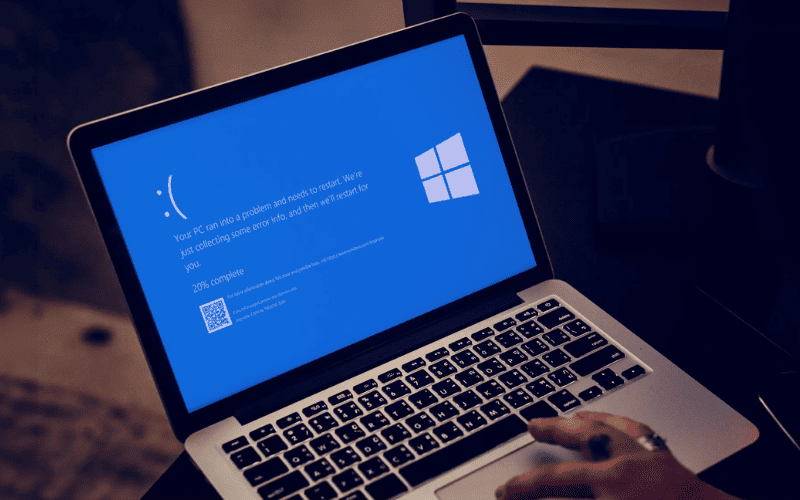
Take a picture or note down the error code before the machine restarts automatically.
4.2. Things you shouldn't do right now
- Don't reset the device right away.
- Do not reinstall Windows without backing up your data.
- Do not download drivers from unknown sources.
- Do not attempt to disassemble the machine yourself if you lack experience.
5. How to fix the problem when you can still access Windows
5.1. Scan for malware with Windows Security
- Step 1: Open Windows Security > Virus & threat protection
- Step 2: Select Scan options > Full scan > Scan now.
This process helps eliminate malware or malicious software that may be causing conflicts. Windows Defender should be prioritized over installing additional unfamiliar tools.
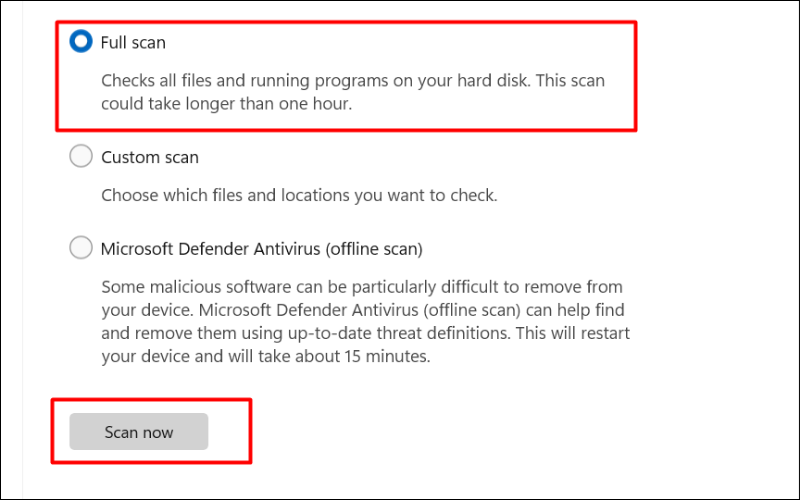
Select Full scan and then click Scan now.
5.2. Uninstall newly installed updates, software, or drivers
If the error occurs after an update or new app installation, uninstall them in the order they were newest. For drivers, go to Device Manager to uninstall and install the latest driver versions from the laptop manufacturer's website or official sources such as NVIDIA, AMD, Intel, and Windows Update.
5.3. Run commands to repair system files and drives
- Step 1: Press the Windows key, type cmd, right-click on Command Prompt and select Run as administrator.
- Step 2: Type sfc /scannow, press Enter, and wait for the system to reach 100% completion to automatically repair the corrupted file.
- Step 3: Type chkdsk C: /f /r, press Enter, then type Y, and restart your computer to scan the drive.
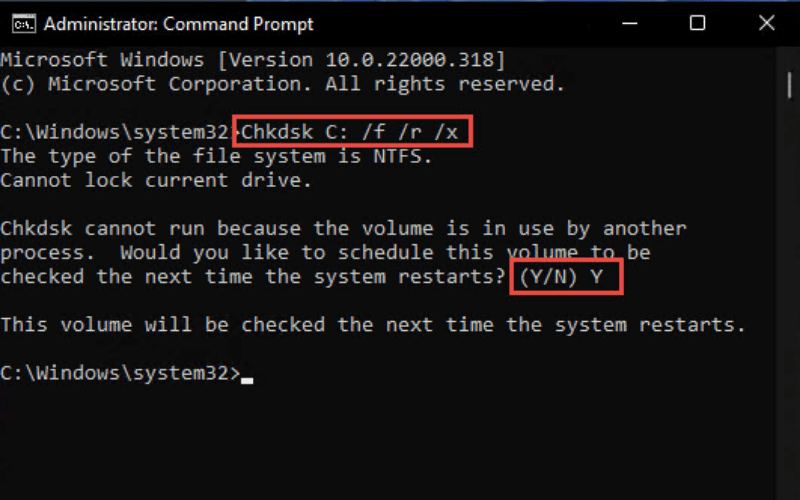
Type chkdsk C: /f /r > Enter > Y and then restart your computer.
5.4. Clean Boot to find software conflicts
Clean Boot is a method of starting Windows with very few third-party services. This method is useful when you suspect background software is causing crashes. If your computer is more stable after a Clean Boot, the cause is usually the application or service that was just removed.
5.5. Restore the system to its previous stable point
Use System Restore if the error only appeared recently after an update or software installation. This feature restores the system to a previous stable state and usually does not significantly affect personal data.
- Step 1: Press the Windows key, type " restore, " and then select "Create a restore point."
- Step 2: Click the System Restore. button, then click Next.
- Step 3: Select a time point from the list (when the device was still working properly) and then click Next.
- Step 4: Click Finish and select Yes to allow the computer to automatically restart and return to its previous state.
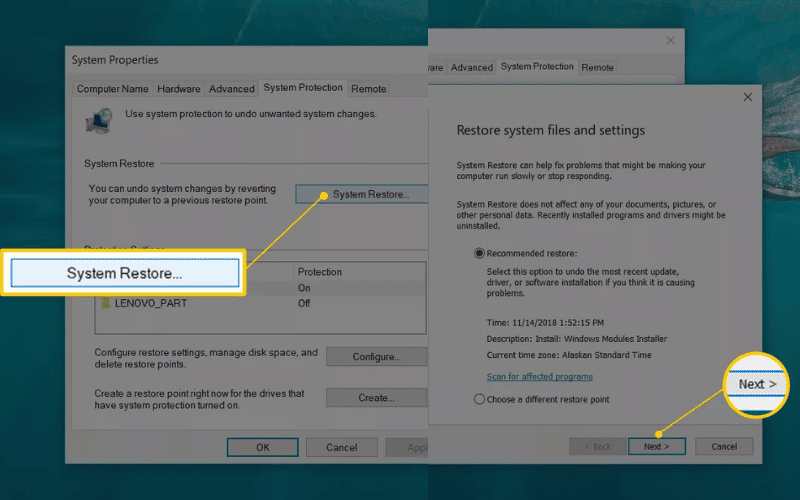
Click the System Restore. button, then click Next.
6. How to handle a laptop that keeps getting a blue screen and won't boot into Windows
6.1. Enter Safe Mode on Windows 10/11
- Step 1: If the device automatically enters Recovery mode, select Troubleshoot > Advanced options.
- Step 2: Select Startup Settings and then click Restart.
- Step 3: After the computer restarts, press key 4 or F4 to enter Safe Mode.
Safe Mode only loads essential Windows components. This makes it easier for users to uninstall faulty drivers, update corrupted software, or resolve software conflicts.
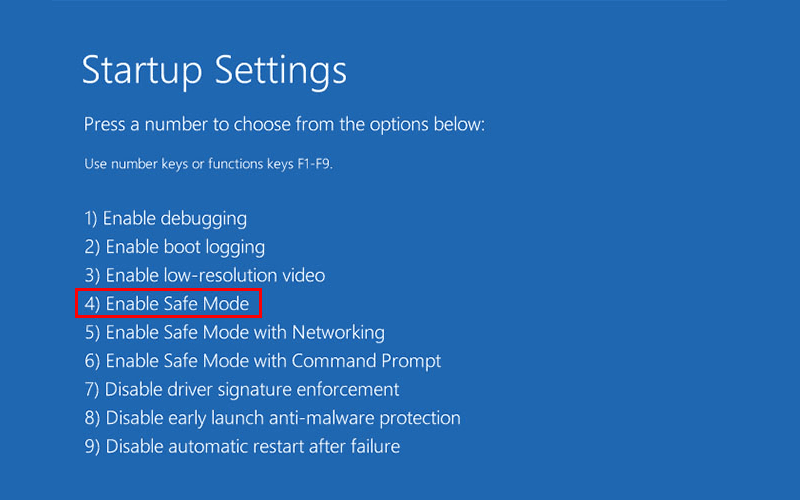
Press key 4 or F4 to enter Safe Mode.
6.2. Use Startup Repair or uninstall the faulty update
- If the error occurs right at startup, select Startup Repair in the Advanced options.
- If the error appears after an update, select Uninstall Updates to remove the most recent update. Only reset or reinstall Windows if you have tried the basic steps and the computer is still unstable.
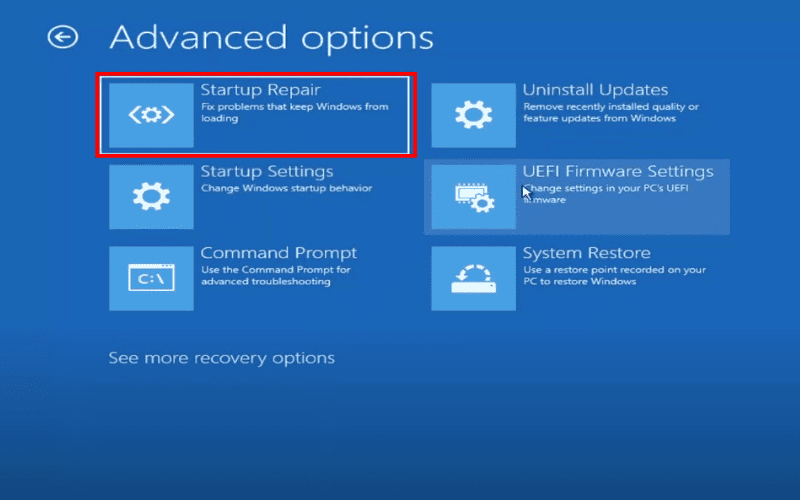
Select Startup Repair in the Advanced options section.
7. Table for differentiating between software, driver, or hardware errors using easily recognizable signs
|
Symptom |
Most likely |
Priority course of action |
|---|---|---|
|
Error after driver update |
VGA, audio, and WiFi driver conflicts. |
Roll back or uninstall the driver in Device Manager. |
|
Errors after Windows update |
Update errors, corrupted system files. |
Uninstall the update, then run sfc /scannow. |
|
Errors when playing demanding games. |
GPU driver, CPU/GPU overheating, RAM issues. |
Update the correct drivers, check the temperature. |
|
Random errors when the computer is idle. |
Background software, RAM, SSD/HDD |
Clean Boot, check memory and disk space. |
8. Some common blue screen error codes and short troubleshooting steps
- 0x0000007E: Usually related to drivers, RAM, or the hard drive. Prioritize uninstalling newly installed drivers, checking the free space on drive C, and running a system file repair tool.
- 0x0000008E: This often occurs due to memory errors or software conflicts. You should uninstall any recently installed apps and check your chipset and VGA drivers.
- 0x00000050: Usually related to memory access errors. Prioritize running sfc /scannow and checking the drive with chkdsk.
- UNMOUNTABLE_BOOT_VOLUME: This usually relates to the boot partition or storage drive. You should use Startup Repair and check the SSD/HDD status.
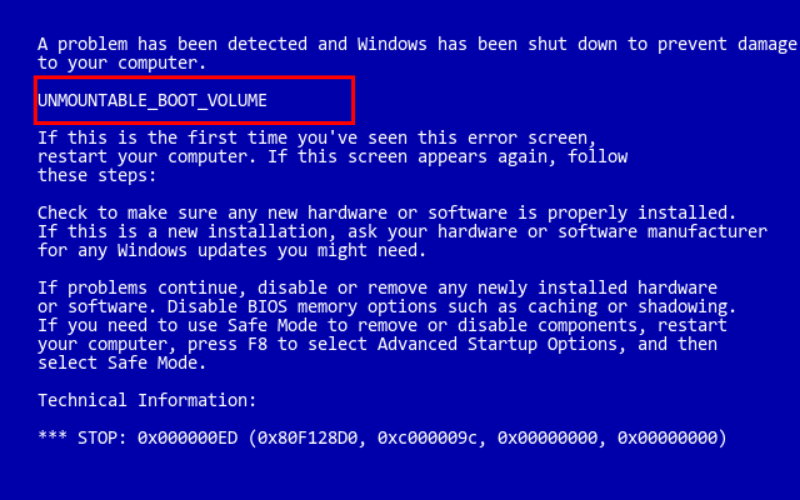
The error code UNMOUNTABLE_BOOT_VOLUME is usually related to the boot region or storage drive.
9. When to stop and seek professional repair
- The error keeps recurring even after trying the basic steps.
- The machine overheats, the fan makes a loud noise, or shuts down under heavy load.
- There's a strange noise coming from the hard drive.
- Unable to access Windows or Safe Mode.
- Suspected issues with RAM, SSD/HDD, or cooling system.
When these signs appear, a thorough check should be performed to avoid incorrect operation or data loss. Not all blue screen errors on laptops are due to hardware issues, but if the error is persistent, a proper inspection is necessary.
10. How to reduce the recurrence of blue screen errors
- Update your drivers from the laptop manufacturer's website or other official sources.
- Avoid installing software from unknown sources, especially cracked versions.
- Keep Windows stable and prioritize licensed or official installations.
- Regular maintenance and cleaning of your laptop is essential.
- Back up important data to reduce the risk of recurring errors.
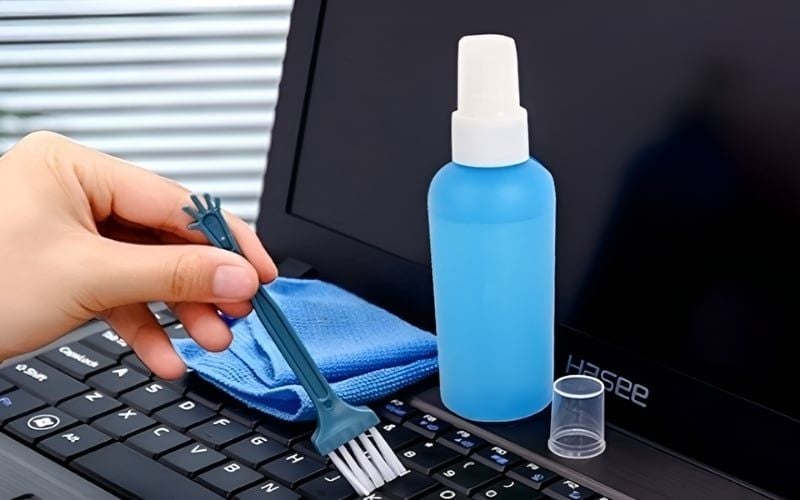
Regular laptop maintenance and cleaning will help reduce the recurrence of blue screen errors.
11. Data loss, reinstall, and hardware questions
11.1. Will I lose data if my laptop gets a blue screen of death?
Normally, this error doesn't cause immediate data loss. However, if the error recurs multiple times or the hard drive is faulty, there's still a risk of file corruption. If you can still access Windows, you should back up your data as soon as possible.
11.2. Should I reinstall Windows if my laptop keeps getting a blue screen of death?
This method shouldn't be the first choice. The logical order is to enter Safe Mode, uninstall any newly installed updates or drivers, run a system file repair tool, and only then consider reinstalling Windows.
11.3. When is a blue screen error caused by RAM or the hard drive?
You should suspect RAM or the hard drive if errors occur randomly, repeatedly, during boot failures, when the computer freezes, or when memory and disk testing tools give unusual results.
Related Articles
 How to Prevent Blue Screen Error on Laptop, PC5 minutes read
 Instructions to Fix Blue Screen Error on Computer15 minutes read
 Laptop Blue Screen Error: Causes and Solutions18 minutes read
 How to Effectively Fix the Blue Screen Error on Windows 116 minutes read
 Summary of Common Laptop Errors and Simple Fixes5 minutes read
 Causes and Solutions When Laptop Screen Is Shaking10 minutes read
Reader Comments 0
Sign in with email or Google to join the discussion.