Table of Contents
If your keyboard suddenly stops typing, start with the symptom rather than looking for a universal “unlock” key. Check its power and connection, restart the computer, test the affected keys in more than one app, and turn off accessibility settings that delay or redirect keystrokes. Driver changes should come later.
If liquid was spilled on a laptop or keyboard, shut the device down, disconnect power if it is safe to do so, and stop pressing keys. Continued testing can worsen electrical damage; arrange professional inspection instead.
What “keyboard locked” can mean
People use “locked” for several different problems. Identifying the pattern prevents unnecessary driver changes or keyboard replacement.
- No keys work: suspect power, cable, receiver, Bluetooth pairing, an operating-system setting, or hardware failure.
- Only the numeric keypad fails: check Num Lock on Windows or Mouse Keys on macOS.
- Keys respond only after being held: check Filter Keys in Windows or Slow Keys on Mac.
- Keys type the wrong characters: check the selected keyboard language and layout; the keyboard may be working normally.
- One key or one area fails: debris, wear, a damaged switch, or a laptop keyboard cable is more likely.
- It fails in only one app: focus on that app, its shortcuts, plug-ins, or a remapping tool.

Quick checks that solve many keyboard problems
- Try another text field. Test in a plain text editor and at the sign-in screen if possible. A single unresponsive app does not mean the keyboard is locked.
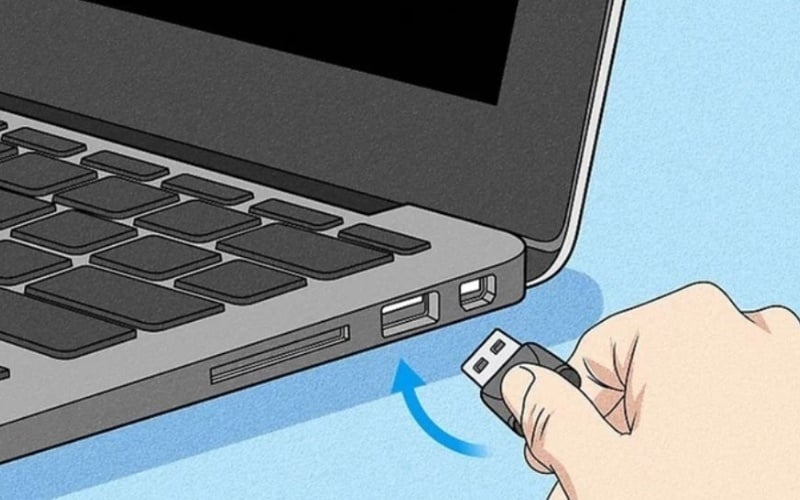
- Reconnect the keyboard. For USB models, disconnect it and use another port directly on the computer. Avoid an unpowered hub while testing.
- Check wireless power. Turn the keyboard off and on, charge it or replace its batteries, and reseat the 2.4 GHz USB receiver.
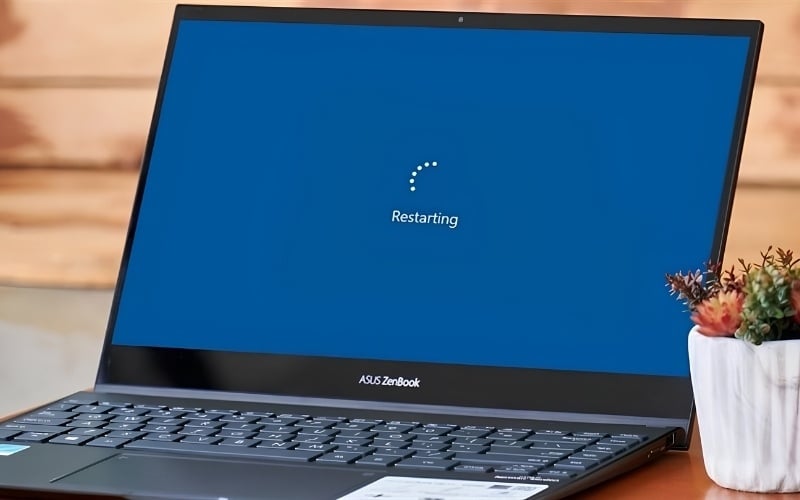
- Restart the computer. Use the mouse or trackpad to choose Restart, not just Sleep.
- Test a second keyboard. An external keyboard helps separate a built-in laptop keyboard problem from a wider operating-system problem.
If you need temporary input on Windows, open Settings > Accessibility > Keyboard > On-Screen Keyboard, or select the Accessibility button at the sign-in screen. On a Mac, open System Settings > Accessibility > Keyboard and enable the Accessibility Keyboard.
Check the physical or wireless connection
USB keyboard
- Push the connector in fully and try a different USB port.
- Connect directly to the computer instead of a dock or hub.
- Inspect the cable and plug for visible damage; do not use a frayed cable.
- Try the keyboard on another computer if one is available.
2.4 GHz wireless keyboard
- Confirm the power switch is on and the battery has charge.
- Remove and reinsert the correct USB receiver.
- Move the receiver closer to the keyboard and away from obvious sources of interference.
- Use the manufacturer's pairing procedure if the keyboard and receiver have lost their link.
Bluetooth keyboard
Confirm that Bluetooth is enabled and the keyboard still appears as connected. If it does not, remove the pairing and pair it again. For a Magic Keyboard, Apple recommends turning the device off and on and connecting its cable briefly to pair and charge it.
If Bluetooth itself has disappeared from Windows, use the separate guide to restore Bluetooth in Windows 11 before troubleshooting the keyboard profile.
Restart and check lock-related keys
A restart clears temporary input-service and application problems. If the keyboard returns after restarting but fails again after opening a particular utility, that app or service is an important clue.
Next, check only the keys that match your symptom:
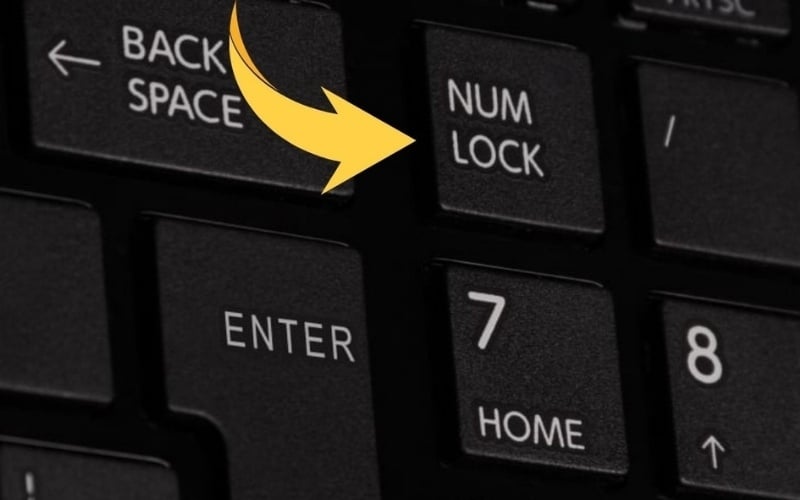
- Num Lock: affects the separate numeric keypad, not the entire keyboard.
- Fn Lock: changes the behavior of function keys on some laptops. The combination varies by manufacturer, so look for an Fn-lock symbol or consult the model's manual.
- Caps Lock: changes letter case but does not disable typing.
- Keyboard-lock shortcut: exists on some specialty, gaming, or detachable keyboards. Check the manufacturer's documentation rather than trying random combinations.
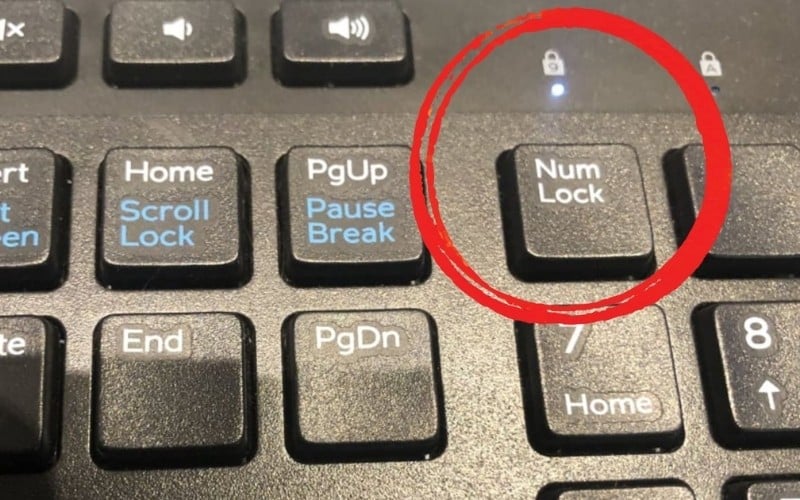
Turn off Filter Keys in Windows
Filter Keys is an accessibility feature that can ignore brief or repeated presses or require a key to be held before Windows accepts it. When it is enabled unintentionally, the keyboard can appear delayed or unresponsive.
- Use the mouse to open Settings.
- Go to Accessibility > Keyboard.
- Turn Filter Keys off.
- Open the Filter Keys options and disable its keyboard shortcut if you repeatedly activate it by accident.
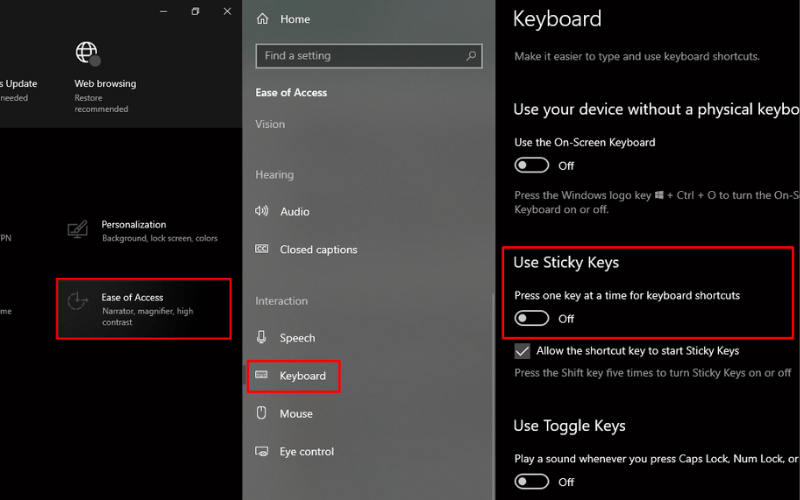
Sticky Keys and Toggle Keys do not normally disable ordinary typing, so change them only if their behavior matches the problem.
Check Slow Keys and Mouse Keys on Mac
Apple identifies two accessibility settings that can make a working keyboard seem faulty:
- Go to Apple menu > System Settings > Accessibility > Keyboard and turn off Slow Keys if keys work only after a delay.
- Go to System Settings > Accessibility > Pointer Control and turn off Mouse Keys if letter or number keys move the pointer instead of typing.
Apple's current keyboard troubleshooting instructions also recommend checking the selected input layout when keys produce unexpected characters. For a number-only problem, TipsMake's guide to MacBook number keys shows the Mouse Keys check.
Check the keyboard layout
If letters appear but do not match the keycaps, the keyboard is not locked. On Windows, select the language indicator on the taskbar or sign-in screen and choose the intended layout. Remove layouts you never use if you often switch accidentally. On macOS, choose the correct layout from the Input menu.
Update or reinstall the Windows keyboard driver
Do this only after the connection and accessibility checks. Windows Update is the preferred source for recommended hardware drivers.
- Right-click Start and select Device Manager.
- Expand Keyboards.
- Right-click the relevant keyboard and select Update driver > Search automatically for drivers.
- Also check Settings > Windows Update for applicable driver updates.
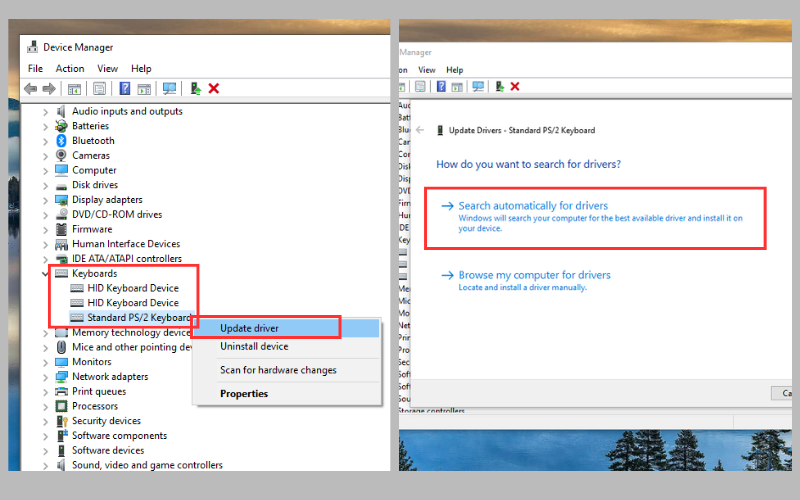
If the device stopped working after a driver problem, you can uninstall that keyboard device in Device Manager and restart Windows so it can detect the hardware again. Keep a mouse or touch input available before doing this. The Device Manager guide explains the tool in more detail.
Remove software conflicts
Key-remapping utilities, gaming-device suites, macro tools, remote-control software, and vendor updates can intercept keystrokes. If the problem began immediately after installing or updating one of these tools:
- exit it completely and test again;
- disable its startup entry temporarily;
- restore its default key map; or
- uninstall the recent version and restart.
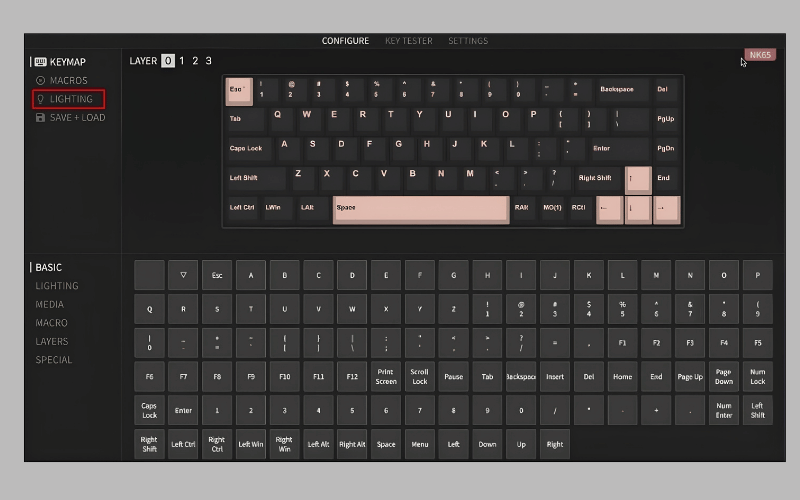
Do not download a generic “keyboard unlocker” or driver from an unknown site. Use Windows Update or the computer or keyboard manufacturer's support page.
Software problem or hardware failure?
| Test or symptom | More consistent with software/settings | More consistent with hardware |
|---|---|---|
| When it began | After an app, driver, accessibility, or layout change | After a spill, impact, cable damage, or gradual key failure |
| Keys affected | All keys, a remapped group, or only one app | One key, one row, or an intermittent physical area |
| External keyboard on a laptop | Both keyboards fail in the same way | External keyboard works while the built-in keyboard does not |
| Another computer | Keyboard works normally elsewhere | The same external keyboard fails elsewhere |
| Physical clues | No visible damage | Sticky, sunken, broken, wet, corroded, or loose components |
When to arrange repair
Stop home troubleshooting and seek service when there has been liquid exposure, burning smell, heat, visible damage, a swollen laptop battery, or a damaged connector. Repair is also reasonable when several built-in keys remain dead while an external keyboard works normally, or when an external keyboard fails on multiple computers.
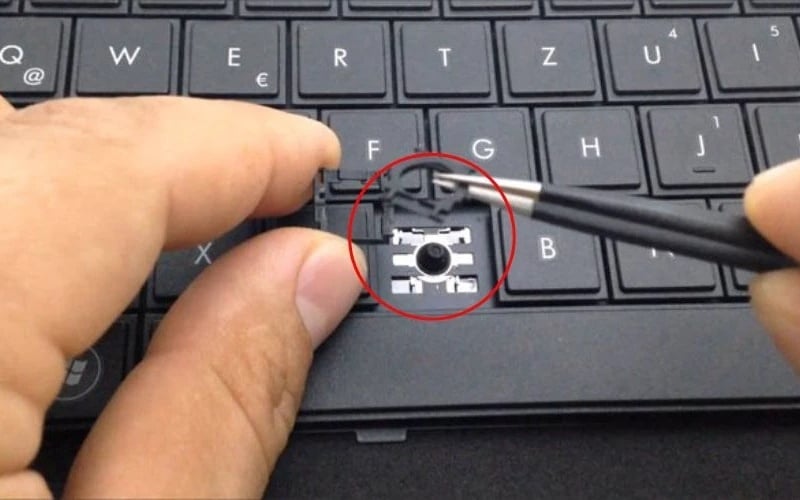
Use a compatible external keyboard as a temporary workaround if the computer itself is safe to operate. For an employer- or school-managed computer, contact the administrator before removing drivers or device-management software.
Prevent repeat problems
- Keep drinks away from the keyboard and power the device down before cleaning.
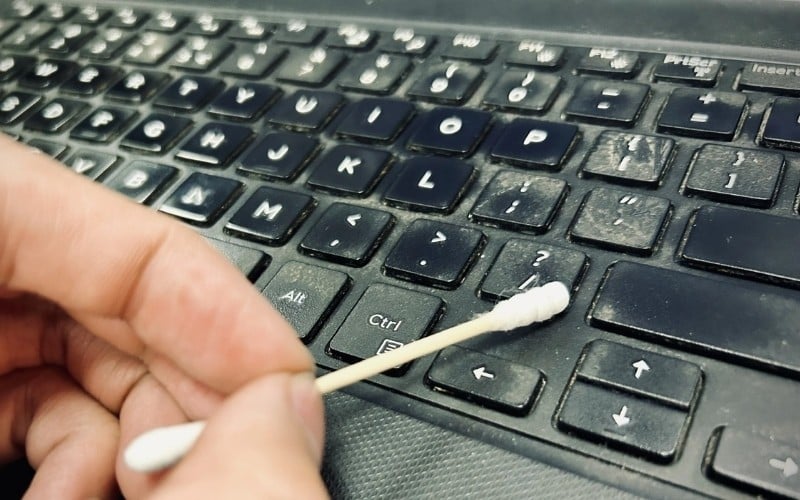
- Remove loose dust with a method approved by the manufacturer; do not pry laptop keycaps off without model-specific instructions.
- Replace or charge wireless batteries before they are completely depleted.
- Keep receivers and cables where they will not be bent or struck.
- Install keyboard utilities only from trusted sources and save a copy of custom key mappings.
- Leave Windows and macOS security updates enabled.

A keyboard that responds after changing Filter Keys, Slow Keys, Mouse Keys, a layout, or a remapping app was not physically locked. If the same keys fail across devices or operating-system screens, hardware inspection is the more productive next step.
Related Articles
 6 Effective Ways to Lock/Unlock a Locked Computer Keyboard: Recommended Choices13 minutes read
 3 Ways to Unlock a Locked Computer Without a Password: Expert Selection Guide8 minutes read
 How to Lock the Keyboard, Unlock the Windows Laptop Keyboard4 minutes read
 Laptop Keyboard Disorders: How to Fix It Quickly - Most Effectively6 minutes read
 Click: How to Delete a Locked File10 minutes read
 How to Unlock Layers in Photoshop: Step-by-Step Guide7 minutes read
Reader Comments 0
Sign in with email or Google to join the discussion.