Table of Contents
Vietnamese elementary school fonts can help teachers prepare handwriting models and ruled practice sheets in Microsoft Word. After obtaining a compatible font package from a trusted source, install the font files in Windows, select the new font in Word, and use any included handwriting-grid symbols as needed.
Note: The original download link is no longer present on this page. The instructions below therefore begin with a font archive you have already downloaded. Scan the archive before opening it and avoid packages from unfamiliar sources.
Install the font package in Windows
1. Extract the downloaded archive
Right-click the ZIP or RAR archive and choose the extraction option available on your computer. Open the extracted folder and confirm that it contains font files, commonly with .ttf or .otf extensions.
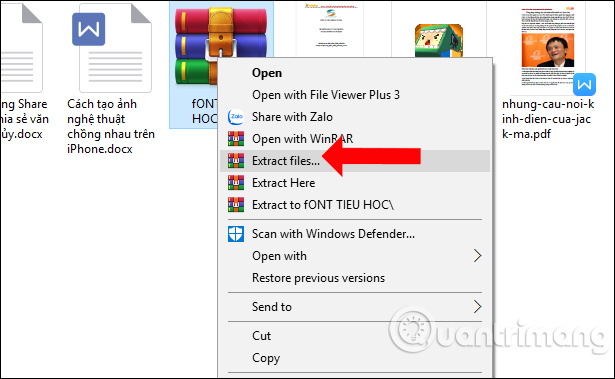
2. Install the font files
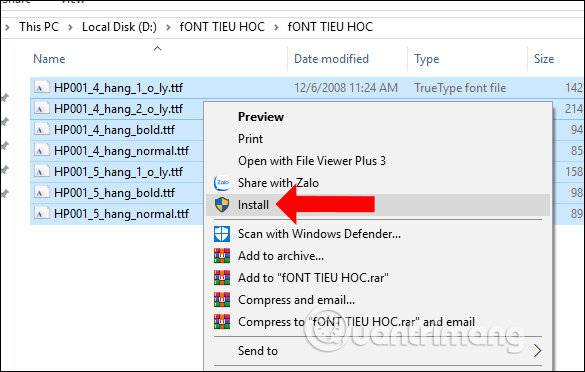
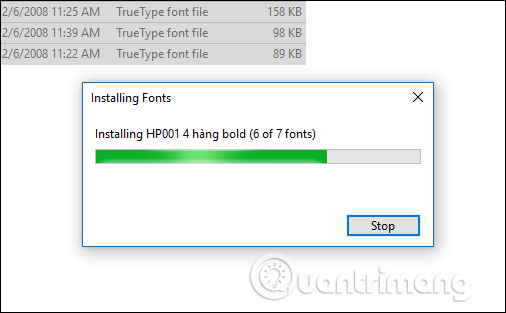
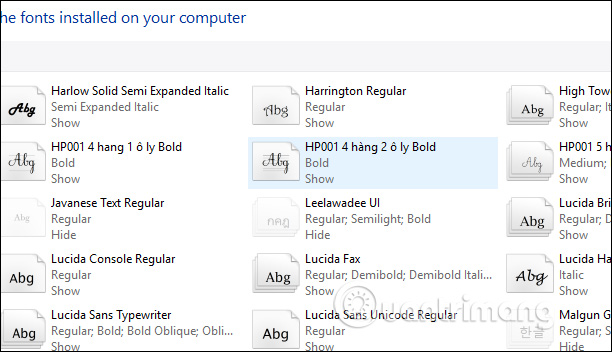
Select the font files, right-click the selection, and choose Install or Install for all users. Wait for Windows to complete the installation.
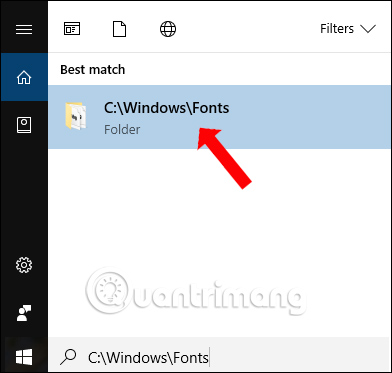
If the context-menu option is unavailable, open C:WindowsFonts and drag or copy the font files into that folder. This is an alternative installation method; you do not normally need to use both methods.
3. Check Vietnamese input settings
If you type Vietnamese with UniKey, choose the character set required by the font package. Unicode is appropriate for Unicode fonts, while some older fonts require a legacy encoding. Do not assume that changing the font alone will correct an encoding mismatch. TipsMake's guide to fixing Vietnamese typing errors in Word and Excel explains the common checks.
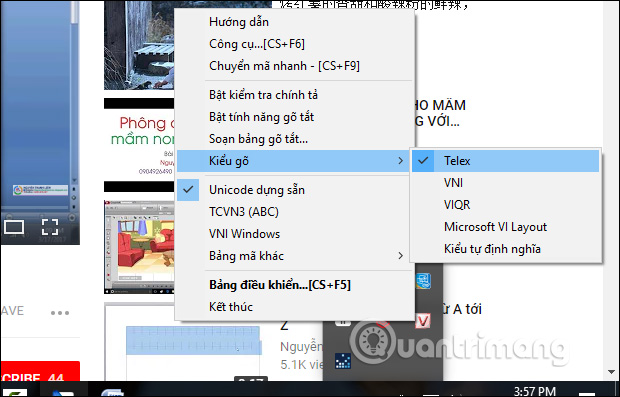
For help with input methods, see the comparison of Telex, VNI, and VIQR in UniKey.
Use the handwriting fonts in Microsoft Word
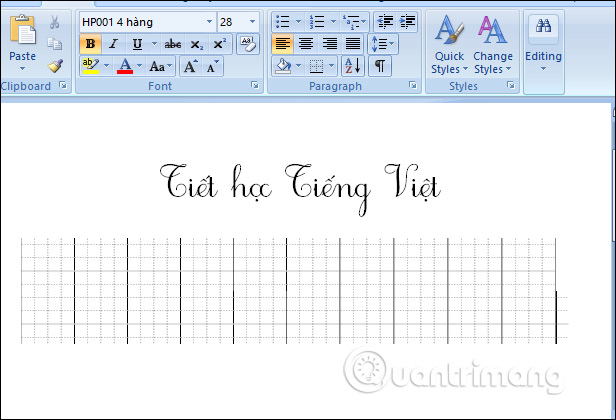
Restart Word if it was open during installation. Open the font list and search for the installed family name. The package shown in these screenshots includes names such as HL Hoctro, HP001 4-row, and several HP001 four-row and five-row variants.
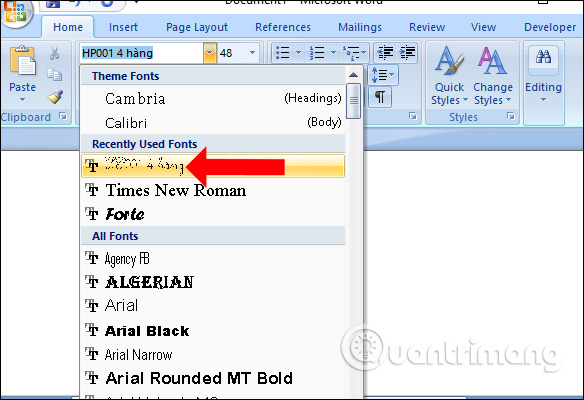
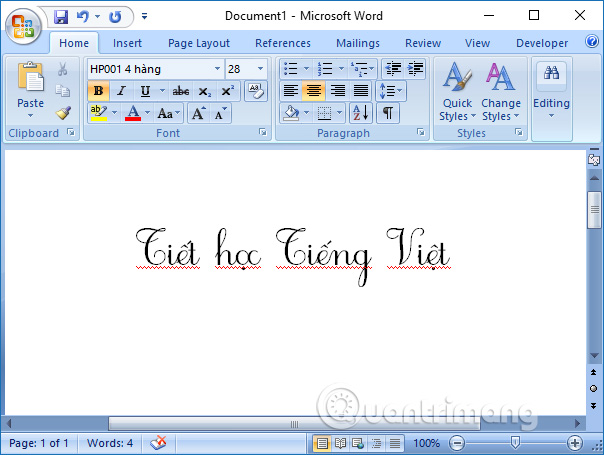
Select a font and type a short test line. Check both lowercase and uppercase Vietnamese characters before preparing a full worksheet.
Add ruled handwriting lines with font symbols
Some elementary-school font packages include ruled-line characters. In Word, choose Insert > Symbol > More Symbols, select the installed school font, and locate the relevant line or grid symbol.
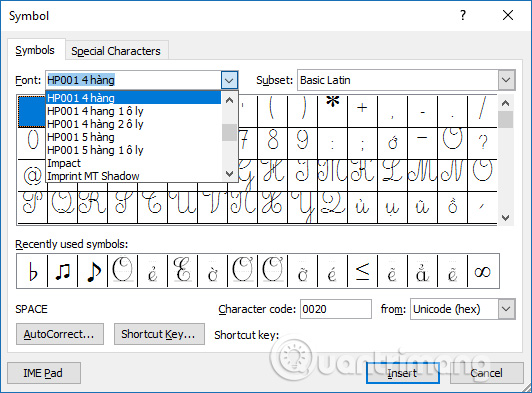
Select the symbol and insert it into the document.
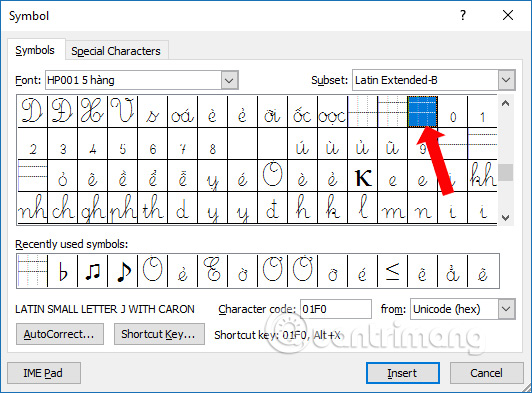
Repeat the symbol to create the required writing area.
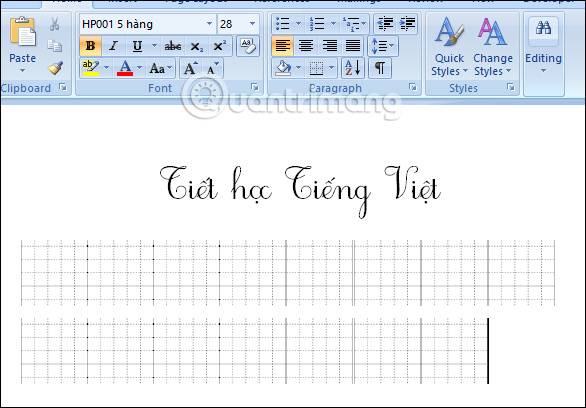
Fix gaps between the ruled lines
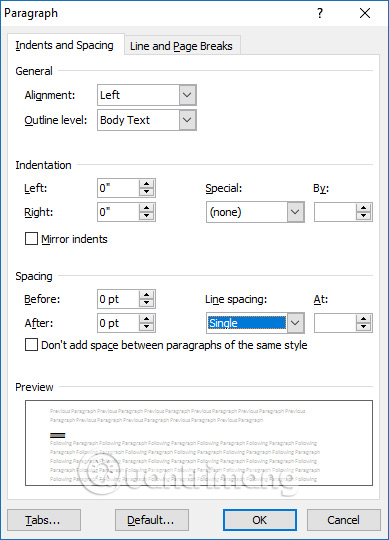
If repeated line symbols do not join cleanly, select the affected paragraphs and open Home > Line and Paragraph Spacing > Line Spacing Options.
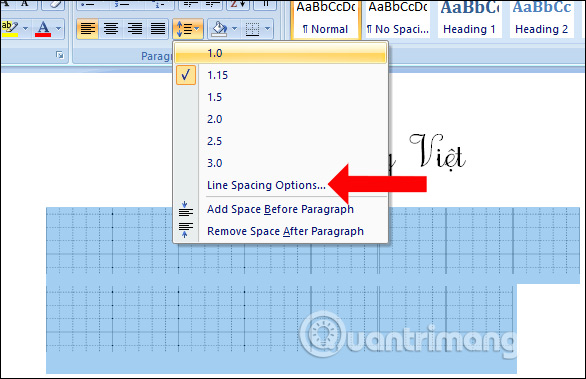
Adjust paragraph spacing and line spacing while watching the result in the document. The exact values depend on the font and the worksheet size, so use the screenshot as a reference rather than a universal setting.
If gaps remain, test another grid variant included in the font package; different variants may be designed for different row heights.
Quick troubleshooting
- The font does not appear in Word: close and reopen Word, then confirm that the font is visible in Windows Fonts.
- Vietnamese characters look wrong: verify that the input character set matches the font encoding.
- The ruled lines are uneven: remove extra paragraph spacing and try another grid-symbol font.
- You are sharing the document: export a PDF or confirm that the recipient has the same font installed.
For other layout tasks, see how to use shapes and gridlines in Microsoft Word.
Related Articles
 How to Download and Install Vietnamese Fonts for Computers5 minutes read
 How to Download Fonts on Dafont4 minutes read
 Please Download 20 Beautiful Handwriting Fonts for Design3 minutes read
 How to Install and Remove Fonts on Mac: Install Fonts on Mac11 minutes read
 8 Reasons You Should Install Elementary Os9 minutes read
 How to Install Uni File to Write on Computer3 minutes read
Reader Comments 0
Sign in with email or Google to join the discussion.