Table of Contents
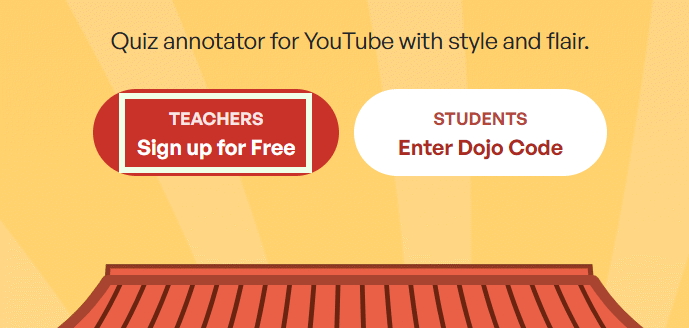
Kung Fu Quiz can turn a YouTube video into an interactive lesson by pausing playback at selected points and asking students to answer questions. The basic workflow is to create a teacher account, add a video, place questions on the timeline, publish the activity, and share its link with the class.
The screenshots below show the interface used when this guide was created. Button names or page layouts may change as the service is updated.
1. Create a teacher account
Open Kung Fu Quiz and create a teacher account. Students do not need to build the lesson themselves; they join the activity using the link or code supplied by the teacher.
2. Start a new video challenge
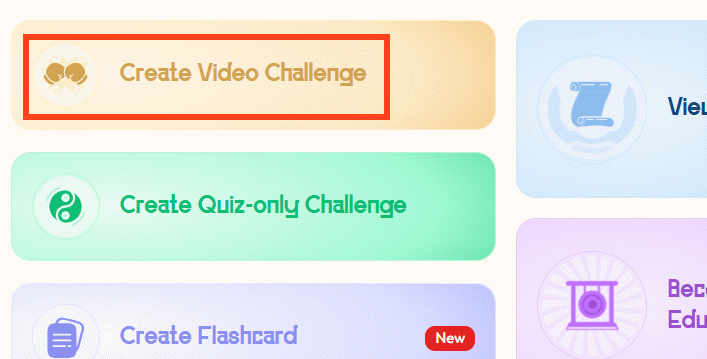
From the dashboard, choose Create New Challenge.
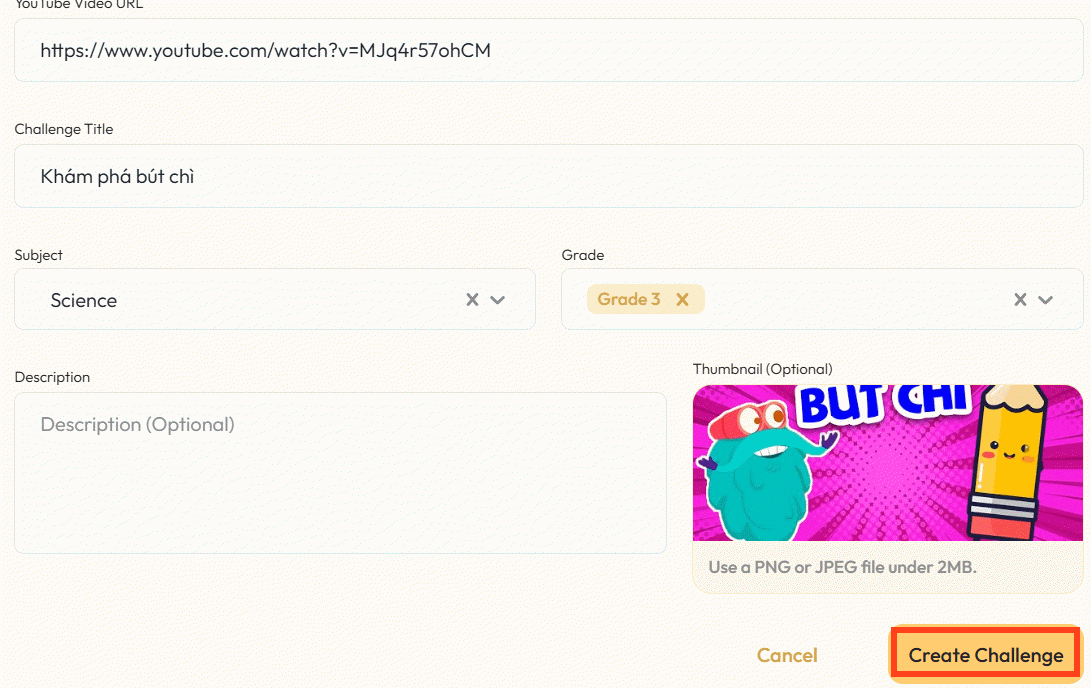
Paste the URL of the YouTube video you want to use, complete the requested lesson details, and select Create Challenge. Choose a video whose length and difficulty suit the class. If you are comparing other authoring tools, see TipsMake's guide to electronic lesson-planning software.
3. Add questions at the right moments
Play the video and pause at the point where you want students to respond. Select Add Question to insert an interaction at that timestamp.
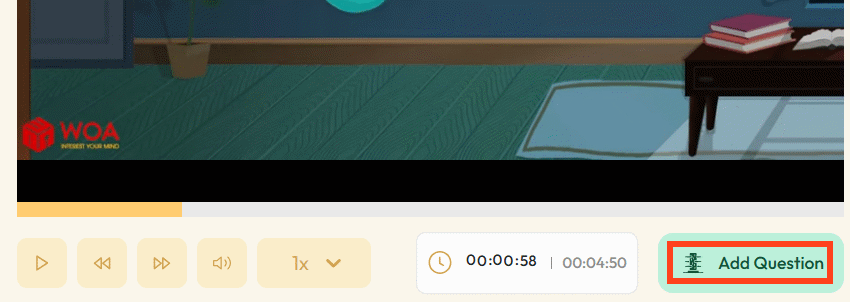
Choose a question type that matches what you want to check: recall, interpretation, or application.
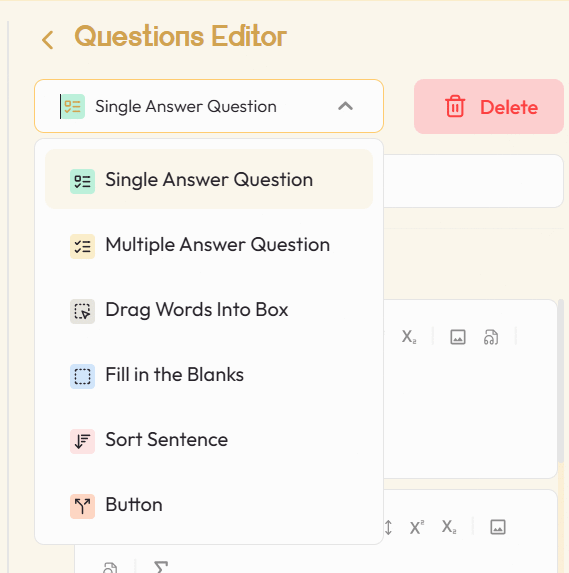
Enter the question and answer choices. For a multiple-choice item, mark the correct answer before saving. Keep each prompt specific enough that students can answer it from the video segment they have just watched.
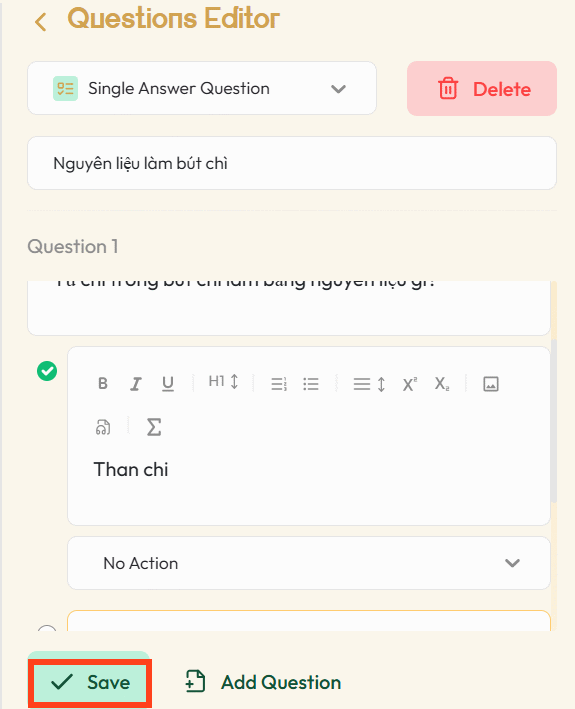
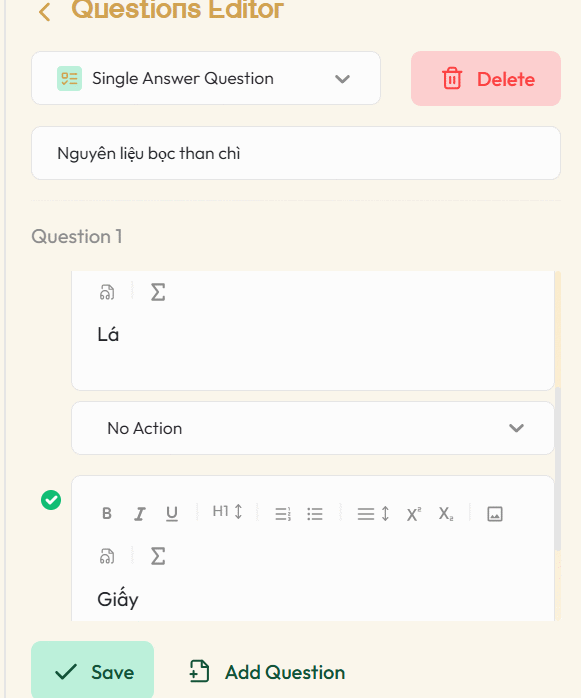
Repeat the process for other important points in the video. Avoid placing questions so frequently that they disrupt comprehension; focus on the ideas students genuinely need to notice or apply.
4. Review and publish the lesson
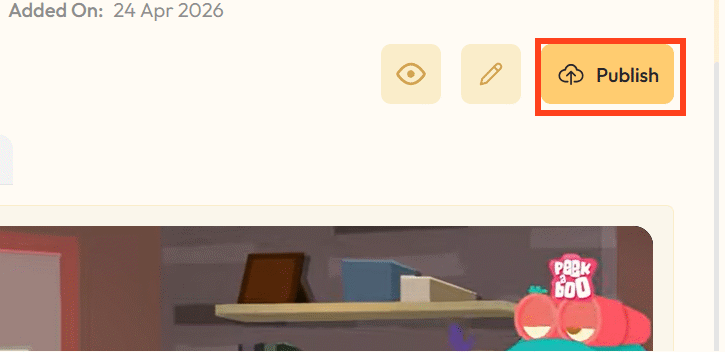
Review the question list before publishing. Check wording, answer keys, timing, and whether every question supports the lesson objective. Use the edit control to correct an item, then select Publish when the activity is ready.
5. Share the activity with students
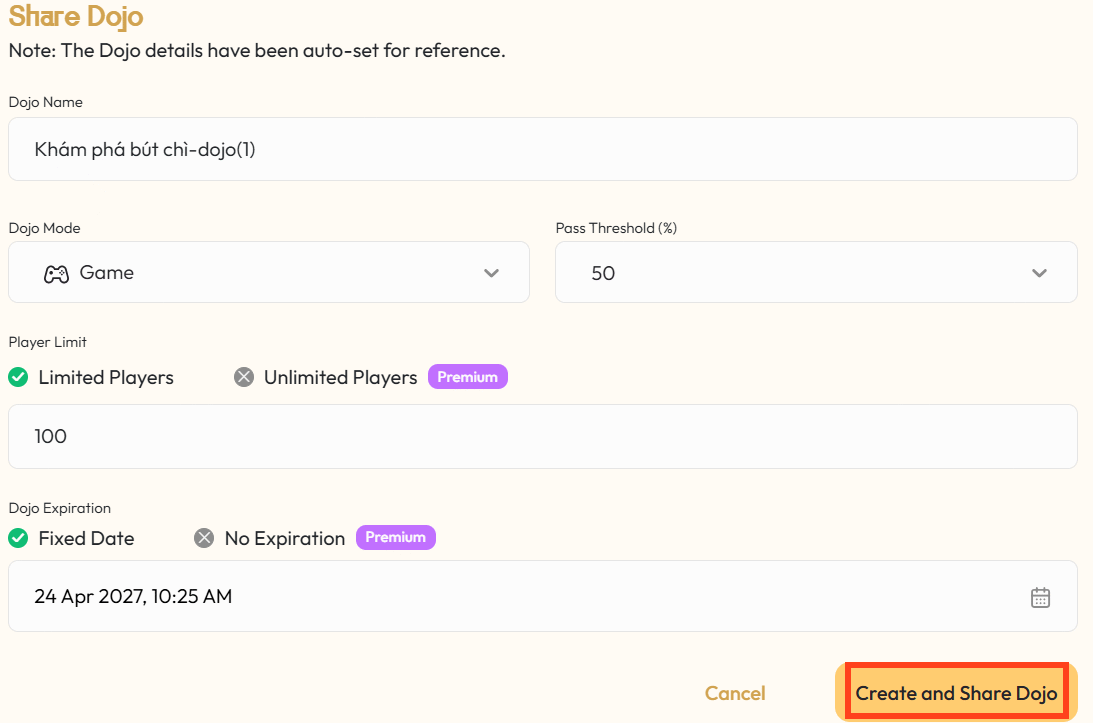
Choose Create and Share Dojo to generate the student activity.
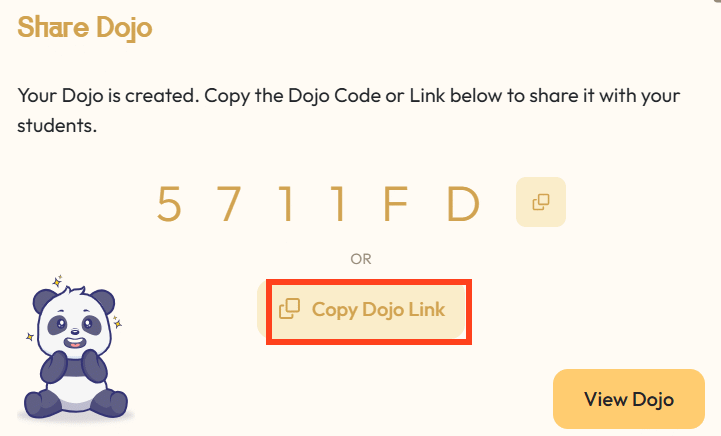
Copy the generated link and send it to students through the channel used by your class.
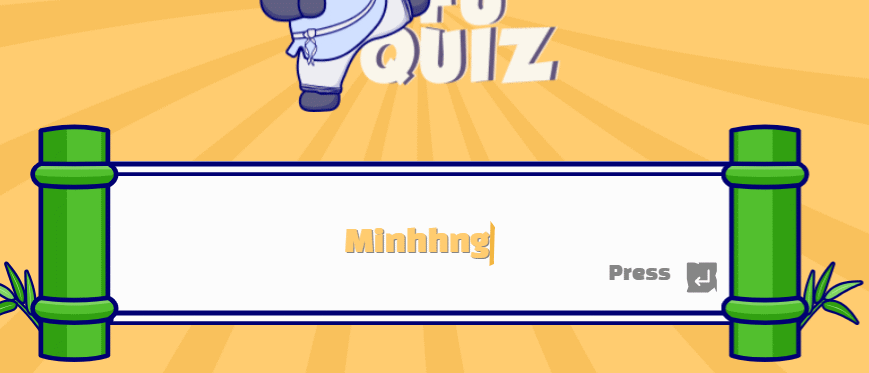
Students enter their names and join the activity. When a question appears, they submit an answer and receive the result in the lesson interface. Teachers may want to test the shared link in a private window before class to confirm that the activity opens correctly.
Tips for a more useful interactive lesson
- State the learning goal before students begin.
- Use a small number of purposeful questions instead of interrupting every minute.
- Include at least one question that asks students to explain or apply an idea, not only recall a fact.
- Check the video for age-appropriate content, captions, and accessibility.
For more classroom options, compare these free educational apps for teachers.
Related Articles
 Instructions on Converting Lessons into Videos on NotebookLM4 minutes read
 How to Create an Interactive Game Website on Replit3 minutes read
 Guide Interactive Statistics Reactions When Livestream on Facebook7 minutes read
 How to Make an Anime TikTok Video2 minutes read
 Guide to Creating AI-integrated Lectures Using Claude AI4 minutes read
 Guide to Converting Videos into Lectures Using NotebookLM4 minutes read
Reader Comments 0
Sign in with email or Google to join the discussion.