Table of Contents
Windows 10 version 22H2 is the final feature version of Windows 10. To check your PC, press Windows + R, enter winver, and press Enter. If the About Windows dialog shows version 22H2, there is no newer Windows 10 feature release to install.
Windows 10 Home and Pro reached end of support on October 14, 2025. A normal Windows 10 installation no longer receives standard monthly security updates unless the device is covered by an eligible Extended Security Updates program or a different lifecycle edition. Updating to 22H2 is still useful for reinstalling Windows 10 or meeting an ESU prerequisite, but it does not turn an unsupported PC into a fully supported one.
Before updating Windows 10
- Back up important files to another drive or a trusted cloud service.
- Connect a laptop to power and keep the internet connection stable.
- Make sure the system drive has enough free space.
- Disconnect nonessential USB storage and accessories.
- Check the PC manufacturer's support page for firmware or driver warnings.
What is the latest Windows 10 version?
Version 22H2, released in 2022, is the final Windows 10 feature update. Microsoft did not release a “2026 feature update” for Windows 10.
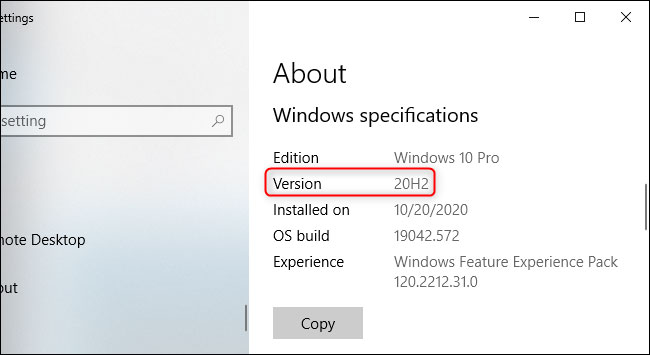
Quality or security updates can change the OS build number without changing the 22H2 version label. ESU-enrolled and special-lifecycle devices may therefore show newer builds while remaining on 22H2.
Method 1: Install available updates through Windows Update
This is the best first choice because Windows Update evaluates the device and offers the updates intended for it.
- Open Settings > Update & Security > Windows Update.
- Select Check for updates.
- Install the available cumulative update or a Feature update to Windows 10, version 22H2 if it is offered.
- Save your work and restart when prompted.
- Run
winveragain to verify the version.
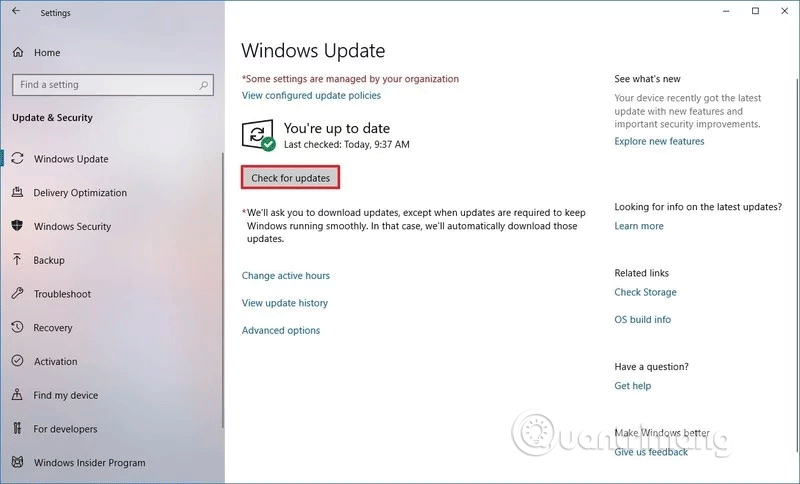
If Windows Update does not offer 22H2, do not assume that repeated checks will force it. The PC may have too little storage, damaged update components, incompatible software, or an administrative policy. Record any error code before troubleshooting.
Method 2: Use official Windows 10 installation media
Microsoft's Windows 10 Media Creation Tool can create installation media and may also offer an in-place upgrade. Download it only from Microsoft's Windows software-download site. The filename can include MediaCreationTool_22H2.exe.
- Run the downloaded tool as an administrator.
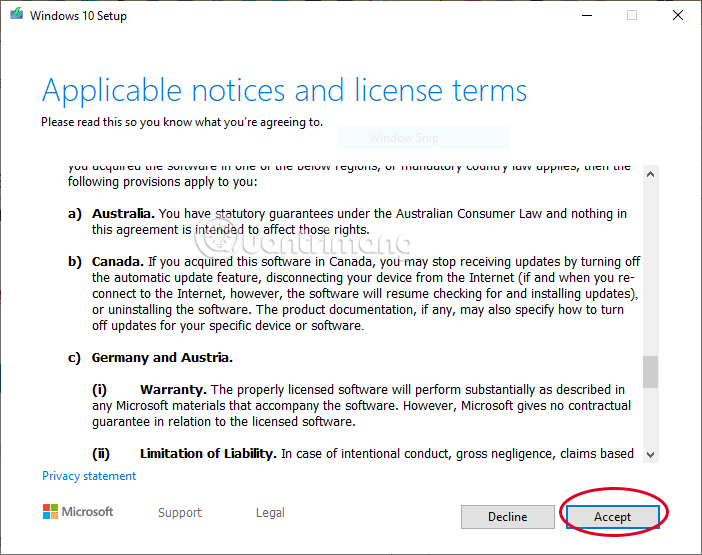
- Read and accept the license terms.
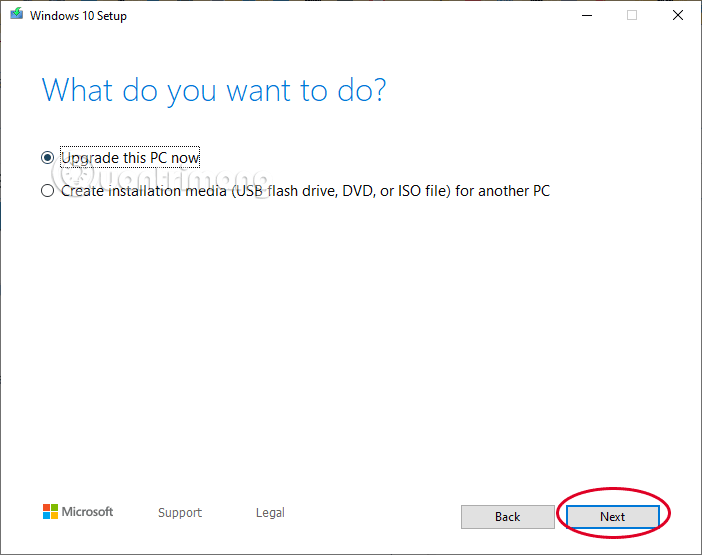
- Choose Upgrade this PC now for an in-place installation, if that option is available.
- Wait while Setup downloads and checks the installation files.
- On the summary screen, confirm what will be kept. Choose Change what to keep if necessary.
- Select Install only after the screen says that personal files and apps will be kept, if that is your intention.
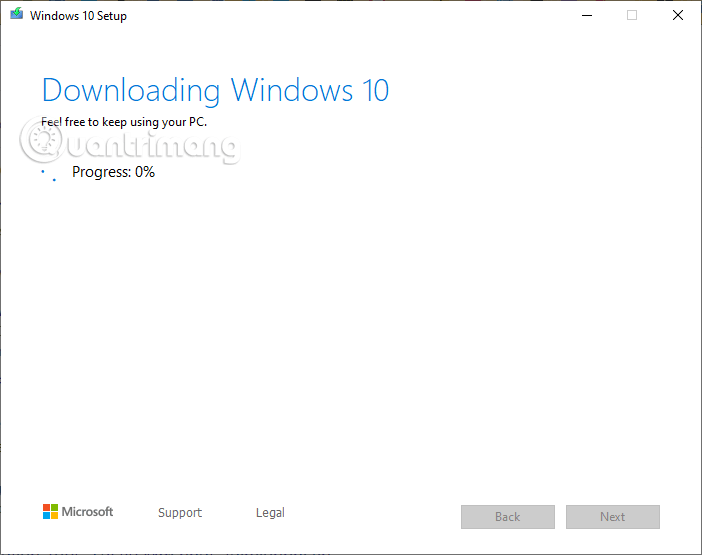
For a clean installation or repair USB, follow the guide to creating Windows 10 installation media on a USB drive. A clean install can erase apps, settings, and files, so it is not equivalent to an in-place upgrade.
What happened to Windows 10 Update Assistant?
Older instructions used a small Update Assistant download and an Update now button. The following screens document that legacy workflow, but they refer to earlier releases such as the November 2021 Update rather than a current 2026 release.
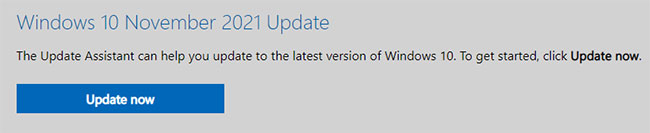
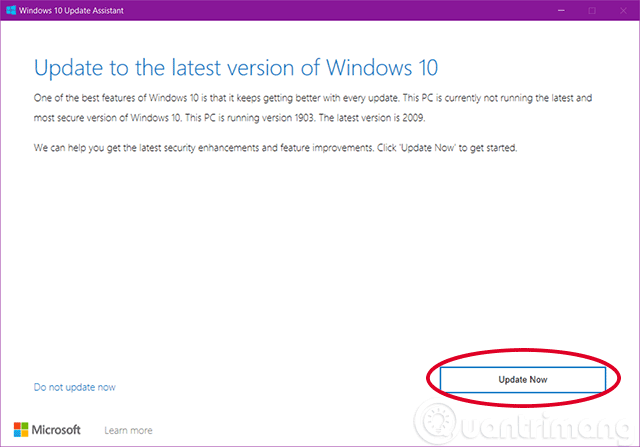
The assistant checked CPU, memory, and storage compatibility, then downloaded the feature update.
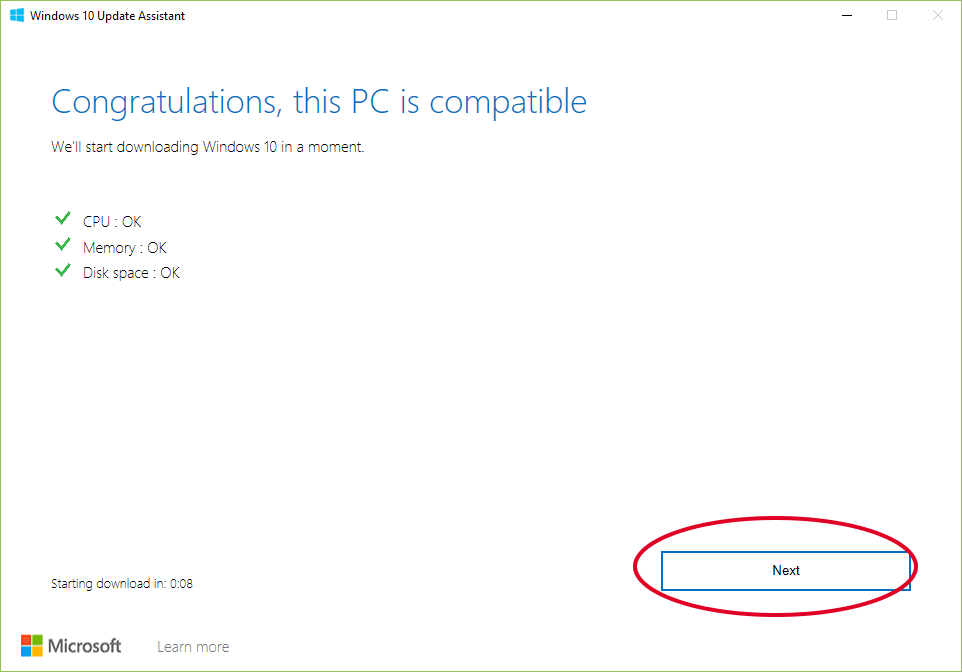
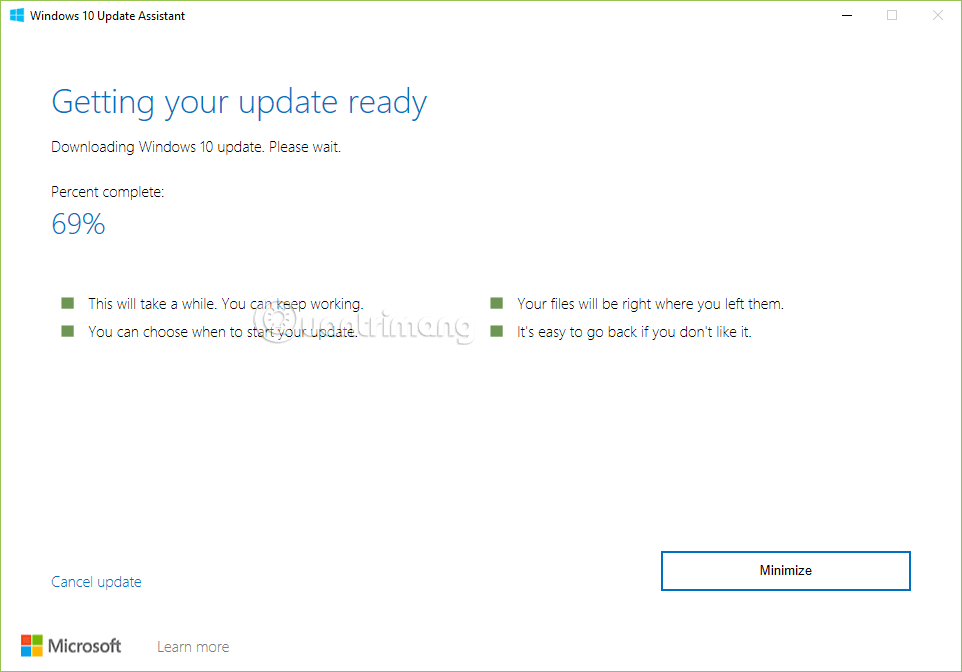
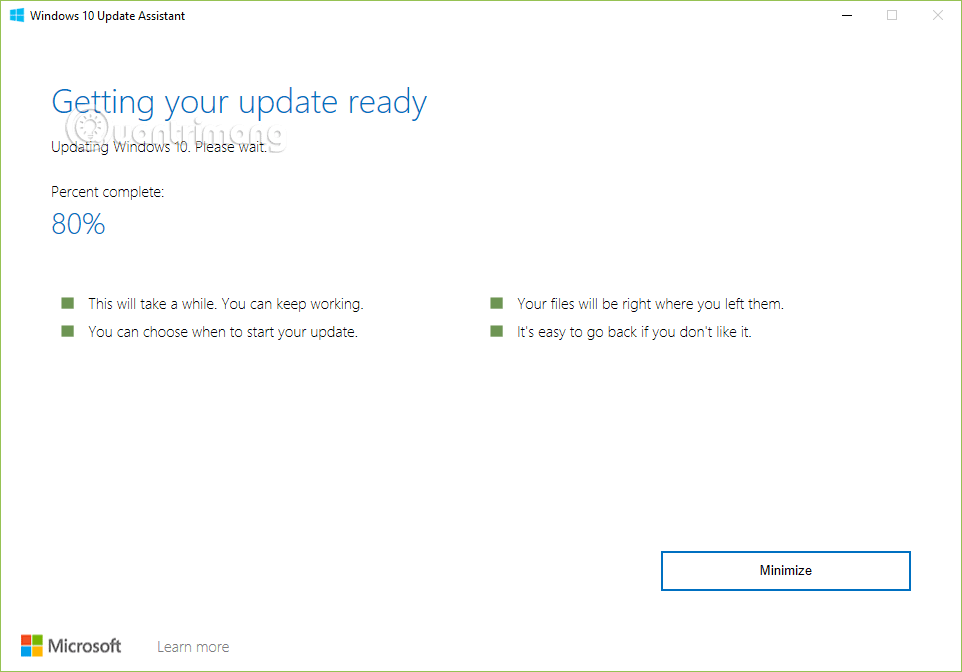
Do not download an old copy of Update Assistant from a third-party site. Use Windows Update or Microsoft's current Windows 10 download page instead.
If the update fails
- Restart the PC and retry Windows Update once.
- Free space on the system drive and empty temporary update files through Storage settings.
- Temporarily remove incompatible third-party security or tuning software only if its vendor recommends doing so.
- Run the Windows Update troubleshooter and note the exact error code.
- Check whether the system is already on 22H2 but waiting for an ordinary cumulative update.
The Windows update error-code guide includes steps that also apply to many Windows 10 servicing failures.
Should you remain on Windows 10?
If the PC supports Windows 11 and your applications are compatible, moving to a supported operating system is the safer long-term plan. If the hardware cannot run Windows 11, review official ESU eligibility or plan to replace or repurpose the device. Installing 22H2 alone does not restore normal support.
Keep the system backed up and avoid unofficial “latest Windows 10” ISO files. Microsoft has not released a Windows 10 version newer than 22H2.
Related Articles
 3 Ways to Update Windows 10 to the Latest Update 2023: Top Picks and Buying11 minutes read
 How to Update Windows 10, Update Win 10 Latest Version 20247 minutes read
 How to Upgrade to the Latest Windows 10, Update Win!11 minutes read
 How to Update Itunes to the Latest Version6 minutes read
 How to Update to Windows 10 Creators Update Without Losing Data6 minutes read
 How to Update Win 7, Update Windows 7 to the Latest Version5 minutes read
Reader Comments 0
Sign in with email or Google to join the discussion.