Table of Contents
When OneNote stops syncing, protect unsynced work before closing a notebook, signing out, resetting the app, or deleting anything. Then check whether the notebook opens on the web. That single test helps separate a local app problem from an account, permission, storage, or Microsoft service problem.
Important: the separate OneNote for Windows 10 app reached end of support on October 14, 2025 and moved to read-only mode. Use the supported OneNote on Windows desktop app. Microsoft's migration guide explains the change.
1. Protect pages that have not synced
- Do not close the affected notebook until important edits appear online or have been copied elsewhere.
- Copy critical text into a temporary local document, or print/export important pages to PDF.
- Record the sync error code and the name of the affected notebook, section, and account.
- Check available space on the PC and in the OneDrive or SharePoint account that stores the notebook.
2. Open the notebook in a browser
In desktop OneNote, choose File > Info, right-click the notebook link, and copy it. You can also right-click the notebook name and choose Copy Link to Notebook.
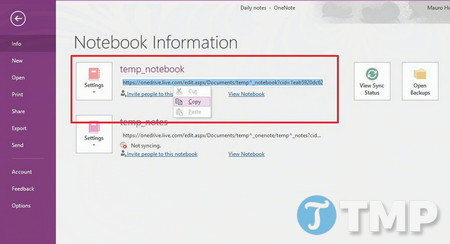
Paste the link into a current browser and sign in with the account that owns or has access to the notebook.
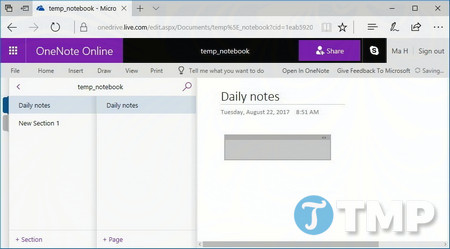
- The notebook opens and recent pages are present: the cloud copy is healthy; focus on the Windows app, its account, or local cache.
- The notebook opens but recent pages are missing: preserve the local unsynced pages before resetting anything.
- The notebook does not open: verify the Microsoft account, sharing permission, OneDrive or SharePoint location, storage quota, and service status.
3. Read the sync status and try a manual sync
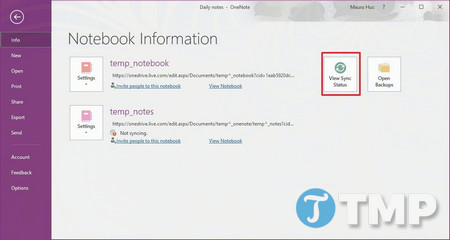
Choose File > Info > View Sync Status, or right-click the notebook and choose Notebook Sync Status. Select Sync Now for the affected notebook or Sync All, then read the complete error message.
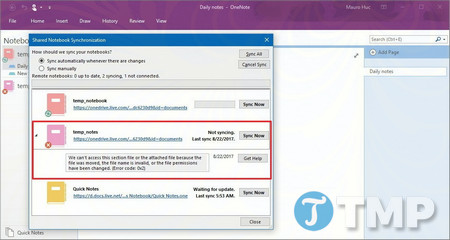
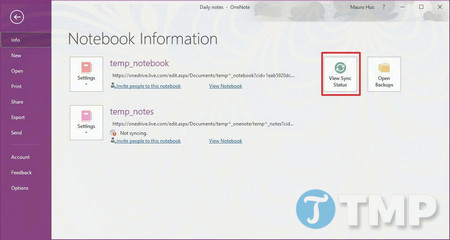
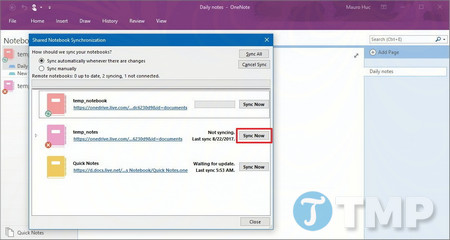
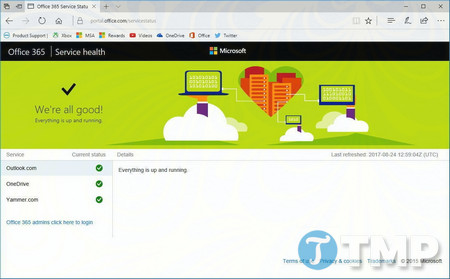
If all notebooks fail, test another network, turn off VPN or proxy software temporarily, confirm the PC's date and time, and check Microsoft 365 service health. If only a shared notebook fails, ask the owner to confirm that it still exists and that your access has not changed.
4. Close and reopen only after confirming the cloud copy
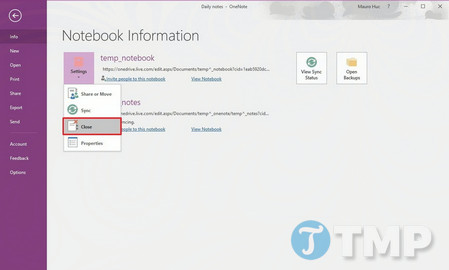
When the browser shows a complete, current copy, closing and reopening the notebook can refresh its connection. In File > Info, open the notebook's Settings menu and choose Close.
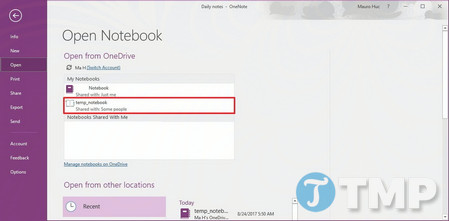
Then choose File > Open and select the notebook from the correct account.
Do not do this when the only copy of recent work is still local. Closing a notebook with unresolved sync changes can make recovery harder.
5. Repair one section that refuses to sync
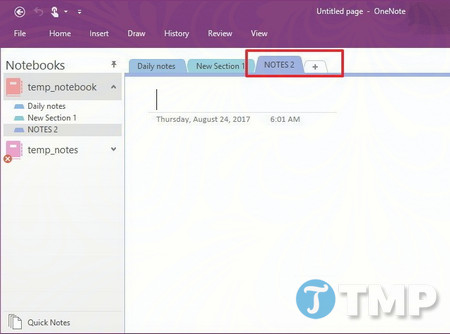
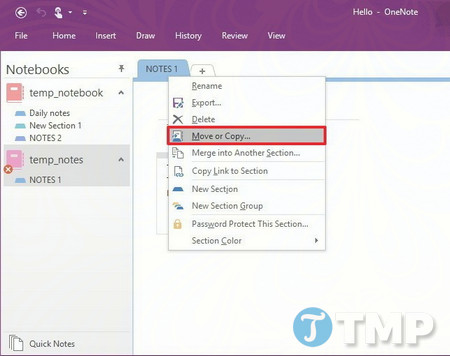
If other sections sync normally, create a new section in the same notebook. Give it a clear temporary name, then use Move or Copy on each affected page and choose Copy. Copying is safer than moving until the new section has synced and appears on the web.
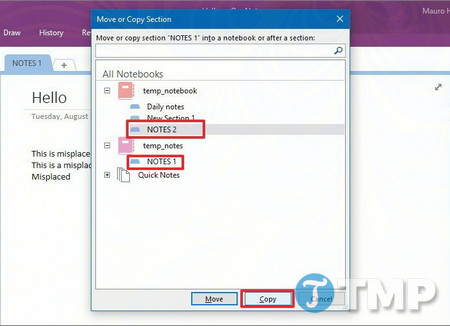
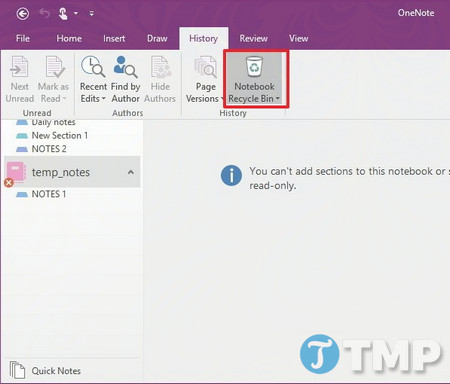
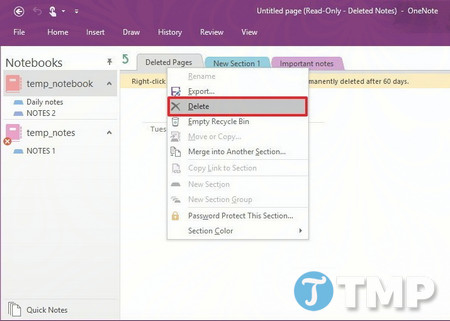
After every copied page is visible online and on another device, you can archive or delete the broken section. Avoid emptying the Notebook Recycle Bin during diagnosis.
6. Resolve misplaced sections
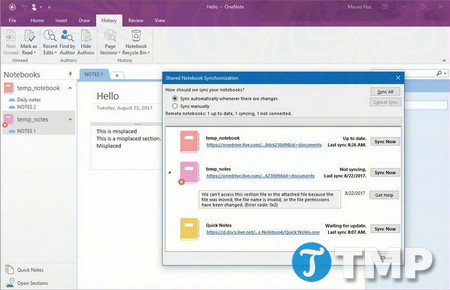
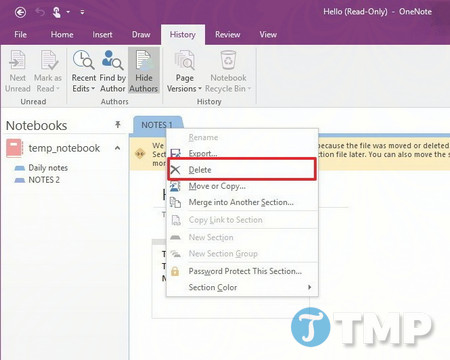
A Misplaced Sections entry means OneNote has locally cached content that it cannot match to the expected cloud section. Open it, inspect every page, and move or copy the section into an accessible notebook.
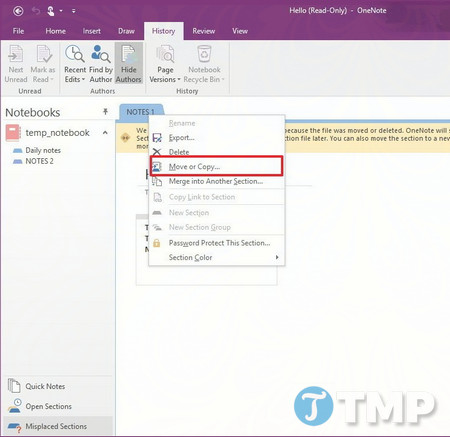
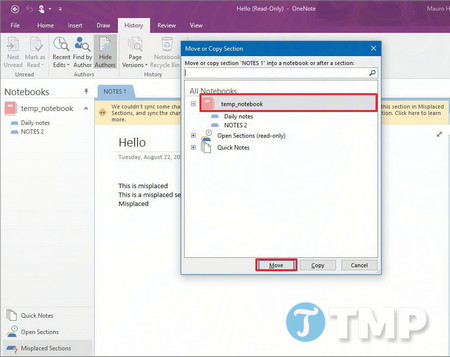
Delete a misplaced section only after confirming that its pages are unnecessary or safely copied and synced. Microsoft's misplaced-sections instructions include the current interface paths.
7. Merge sync conflicts carefully
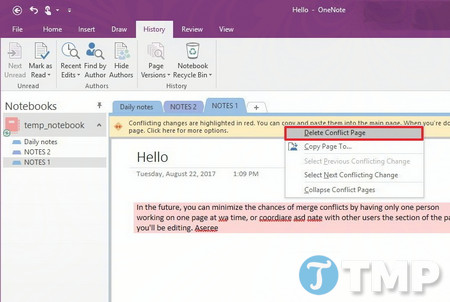
When two people edit the same paragraph or page area before either copy syncs, OneNote can create a conflict page and show a yellow notification. Compare both versions, copy every change that should be kept into the main page, and ask collaborators to verify the merged result.
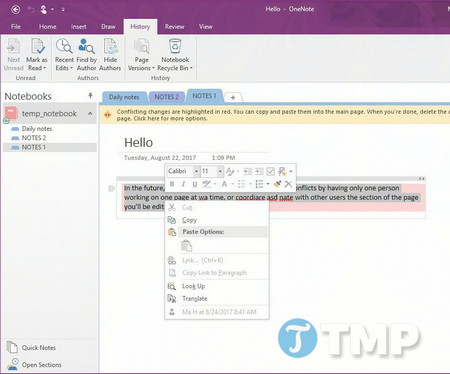
Delete the conflict page only after the merged page has synced. Teams can reduce conflicts by editing different pages or separate page regions, avoiding long offline editing sessions, and waiting for sync before moving sections.
8. Fix quota and large-notebook errors
Error 0xE00015E0 can indicate insufficient storage or a notebook whose contents are difficult to sync. Check both the cloud quota and free local disk space. Remove unnecessary large attachments only after making a separate backup, and divide an unusually large section into smaller sections.
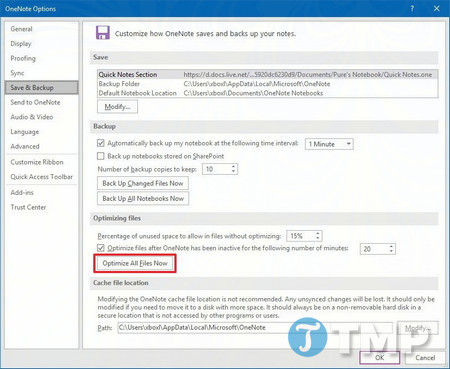
Desktop OneNote also provides File > Options > Save & Backup > Optimize All Files Now.
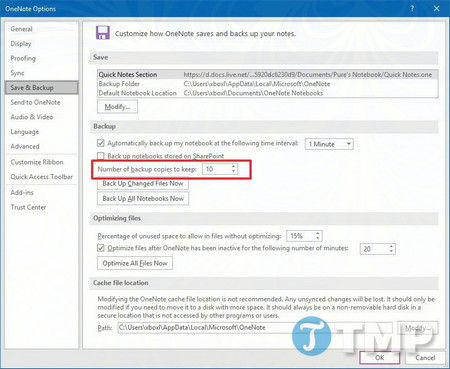
You may reduce the number of local backup copies if they consume excessive disk space, but keep enough generations to recover from accidental edits.
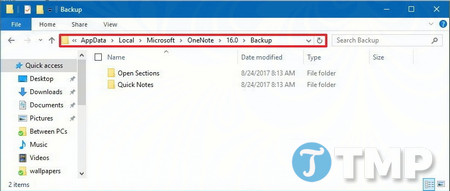
Desktop OneNote backups are commonly stored beneath %localappdata%MicrosoftOneNote in a version-specific Backup folder.
Before deleting backups, copy the newest known-good set to another drive and open a sample to confirm it is usable. Local backups and cloud synchronization solve different problems; neither should be treated as the only copy of irreplaceable notes.
9. Update the supported app
In desktop OneNote, choose File > Account > Update Options > Update Now. Make sure every notebook uses the intended Microsoft account. If problems continue, compare the error code with Microsoft's current OneNote sync guide.
Once synchronization is healthy, organize projects with stable sections and lightweight pages. TipsMake's guide to using OneNote as a to-do list offers practical organization ideas without changing the notebook's storage location.
Related Articles
 Why Should I Switch from Onenote 2016 to Onenote for Windows 10?12 minutes read
 How to Fix Errors That Are Not Backed up Are Noted on Onenote 20163 minutes read
 How to Use Onenote Template10 minutes read
 How to Take Screenshots with Onenote7 minutes read
 How to Delete Onenote Data on Windows 10: How to Use Onenote4 minutes read
 Microsoft Begins Testing New Design of Windows 11 for Onenote App4 minutes read
Reader Comments 0
Sign in with email or Google to join the discussion.