Table of Contents
Claude Artifacts place substantial content in a dedicated panel beside your conversation. Instead of losing a document, code sample, diagram, or interactive prototype among chat messages, you can view and refine it as a separate item while continuing to give Claude instructions.
Artifacts are useful for content that can stand on its own and may need several revisions. The controls available to you can depend on your Claude plan, workspace settings, device, and the type of artifact.
What is a Claude Artifact?
An Artifact is a separate preview of content Claude creates during a conversation. Claude may open one automatically when a response is long or structured, or you can ask directly—for example, “Create this project brief as an Artifact” or “Build an interactive calculator as an Artifact.”
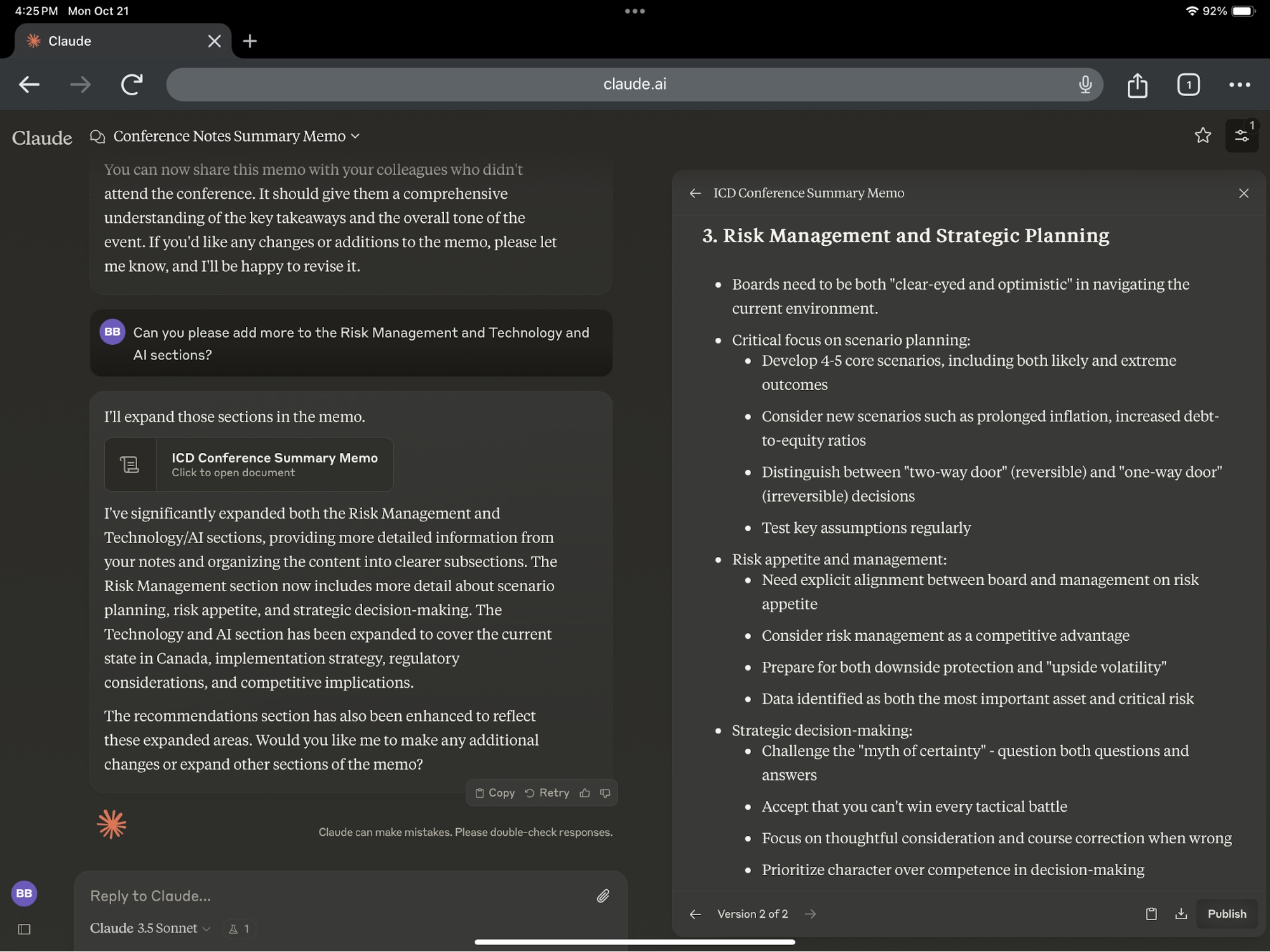
The chat remains the place where you describe changes. The Artifact panel shows the current result, while version controls let you revisit earlier iterations when available.
How to create an Artifact
- Open Claude on the web or in a supported app and start a conversation.
- Describe the deliverable and ask Claude to create it as an Artifact.
- Include the intended audience, format, constraints, and any source material Claude should use.
- Review the Artifact separately from Claude’s explanatory chat response.
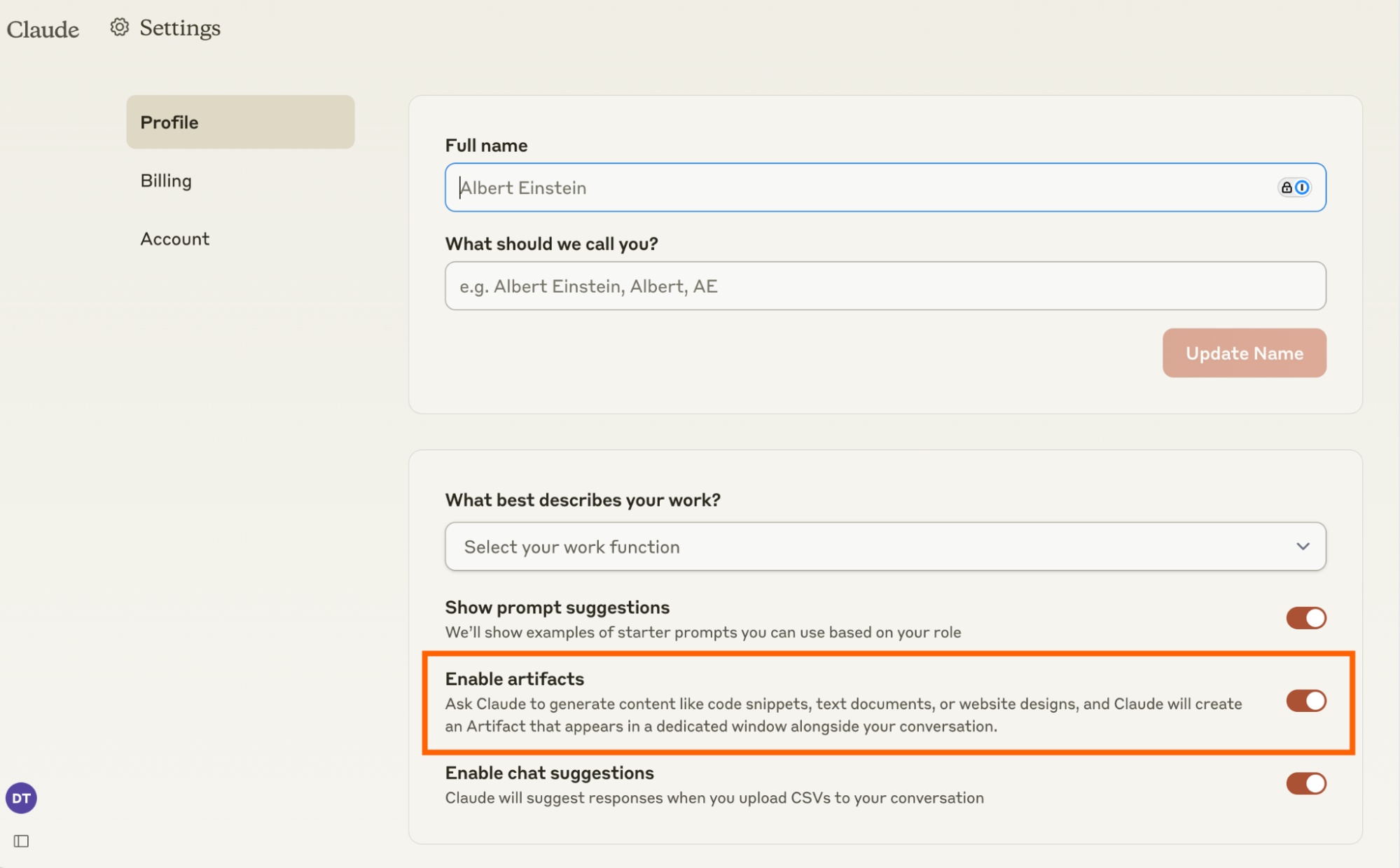
Artifacts are generally available without a separate feature-preview switch. If the panel does not appear, try explicitly requesting an Artifact and check whether your organization’s administrator limits the feature.
How to edit an Artifact
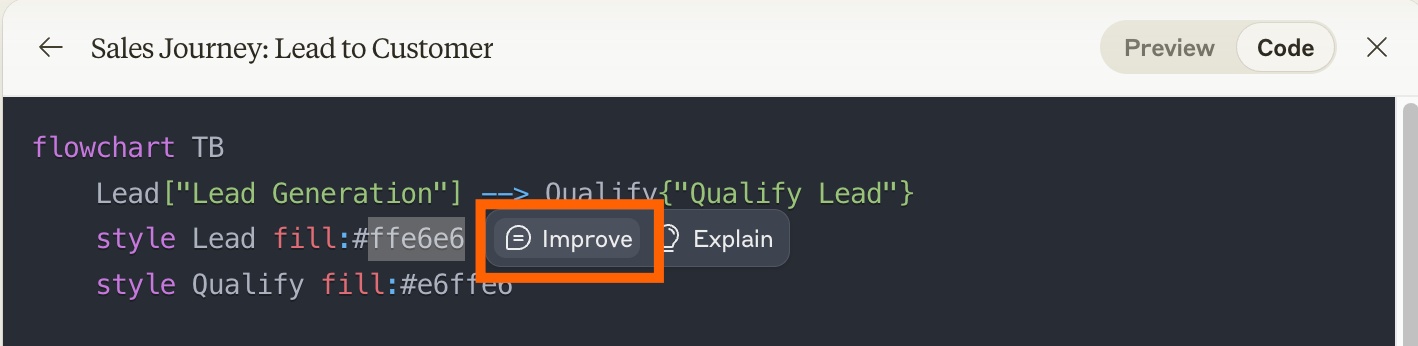
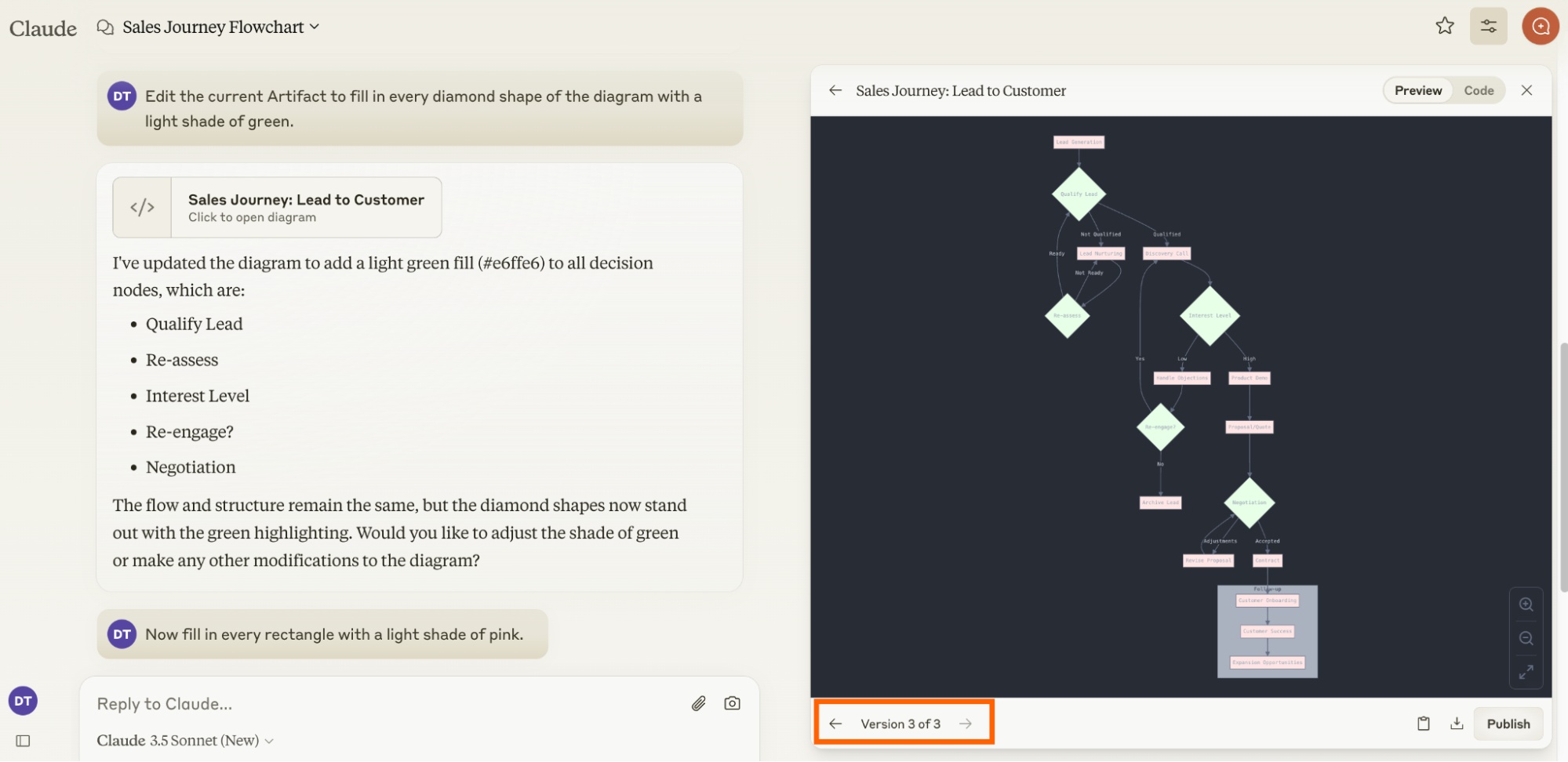
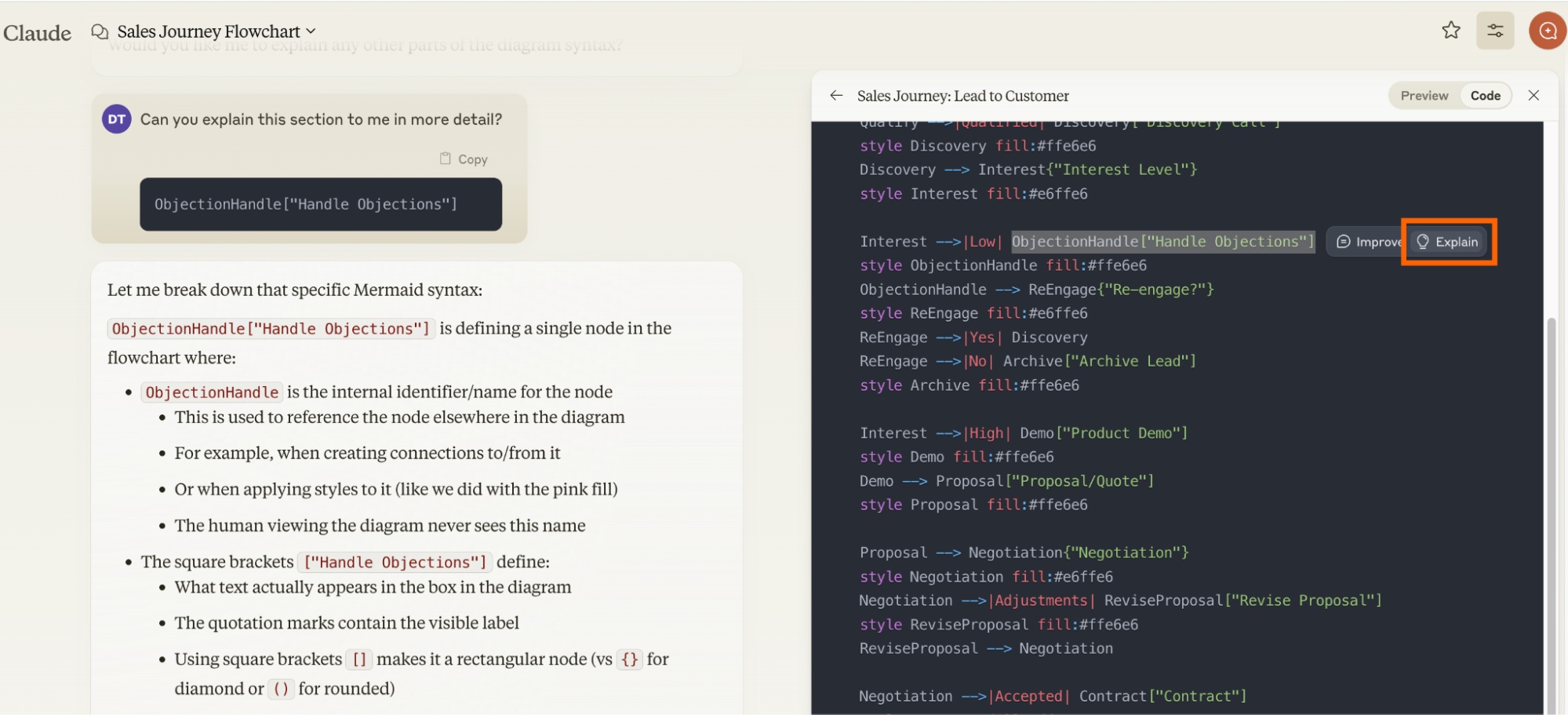
Continue the conversation with a precise revision request. Refer to the section, function, visual element, or behavior you want changed, and say what must remain untouched. When the interface supports selection, highlight part of the Artifact and ask Claude to revise or explain that portion.
Claude normally creates another version instead of silently replacing the prior result. Use the version arrows or history controls in the Artifact panel to compare iterations.
Copy, download, and share
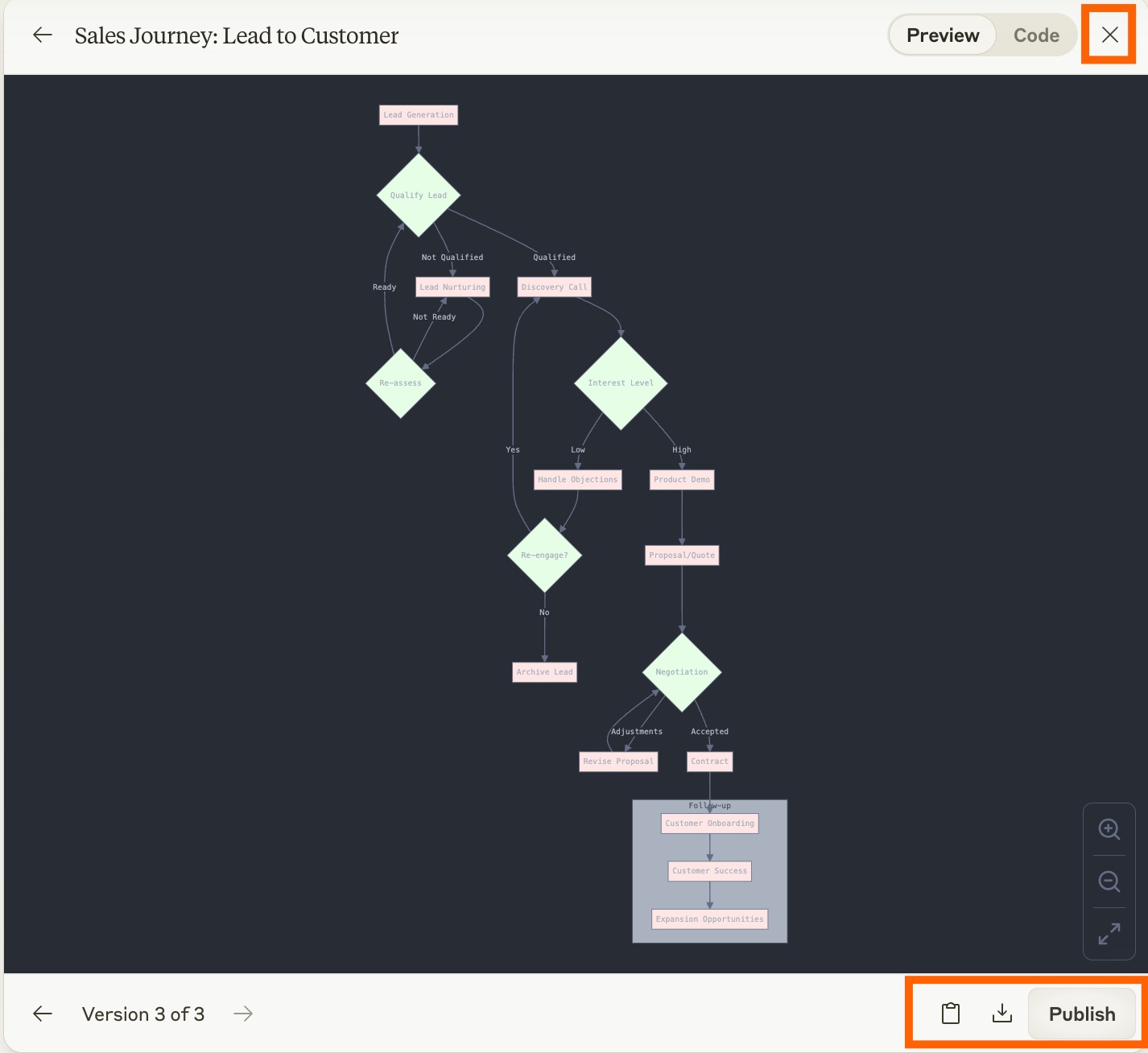
The Artifact toolbar may provide several actions:
- Copy: Copies the underlying text or code. For a diagram, this may copy the diagram source rather than a rendered image.
- Download: Saves the content in a file format appropriate to the Artifact.
- Publish: Creates a public or shareable link when publishing is available. Review the entire result first because a published Artifact can expose its content beyond your private chat.
- Close: Hides the panel without deleting the conversation.
Never publish confidential prompts, personal data, credentials, private source files, or proprietary code. A shared Artifact is not a secure substitute for an access-controlled document repository.
Common types of Artifacts
Code
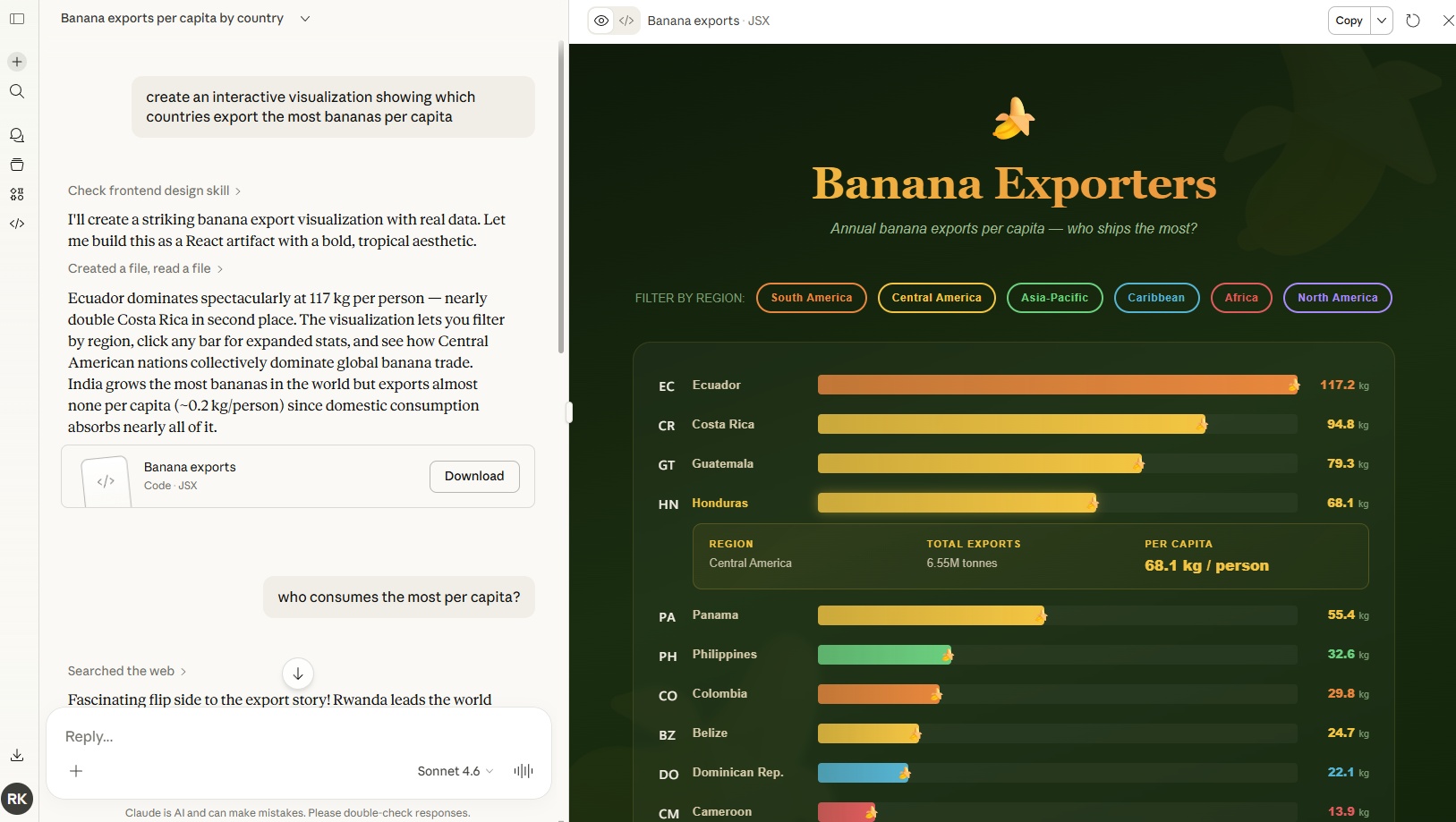
Claude can put a focused code sample or a small application in an Artifact. Ask for clear file boundaries and test instructions when the project has multiple components. Preview execution is useful for prototypes, but generated code still needs security review and testing before production use.
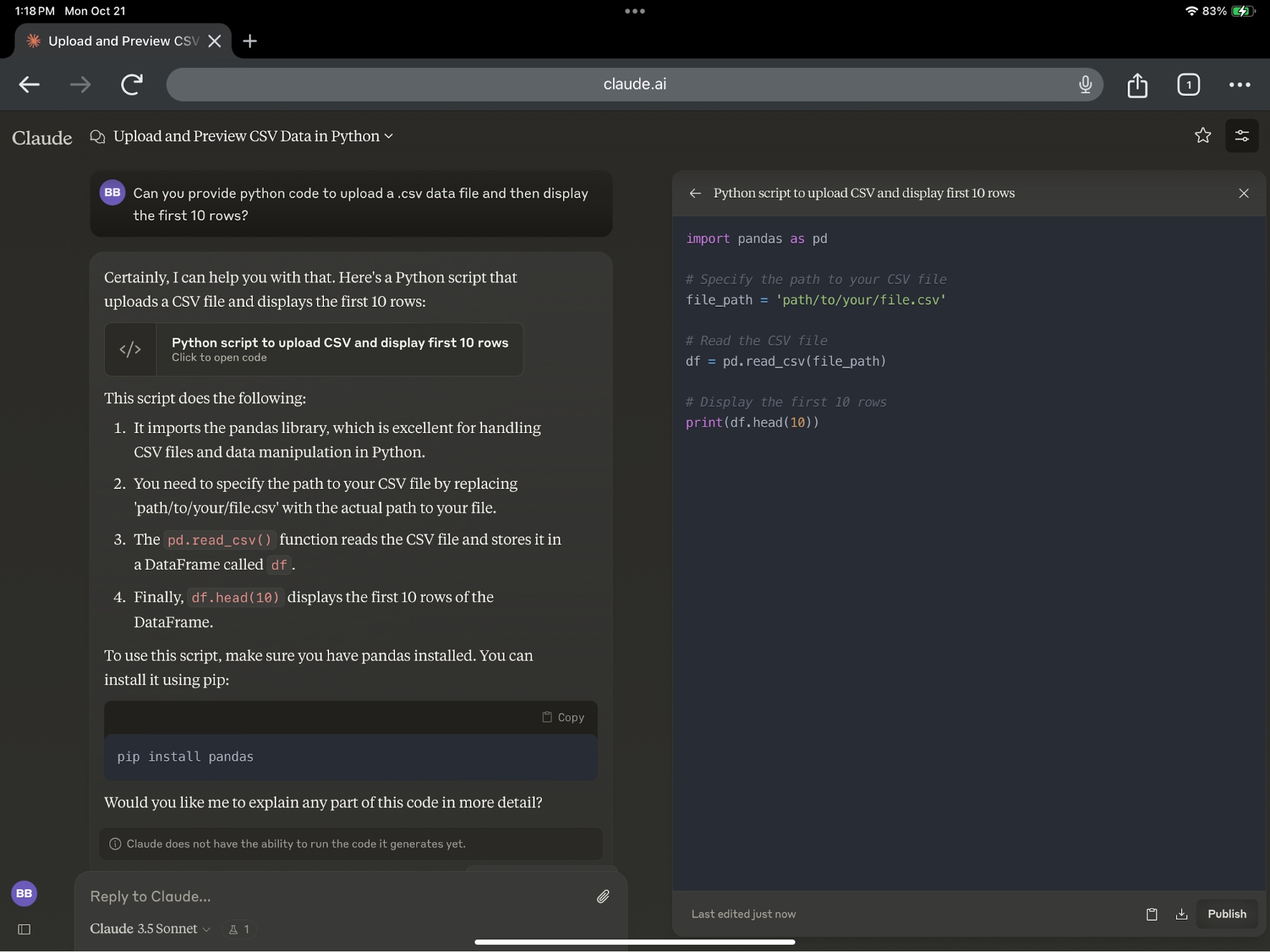
Code-execution and analysis capabilities have changed over time and may be controlled by plan or workspace policy. Do not rely on an older “Feature Preview” menu path if it no longer appears.
Documents
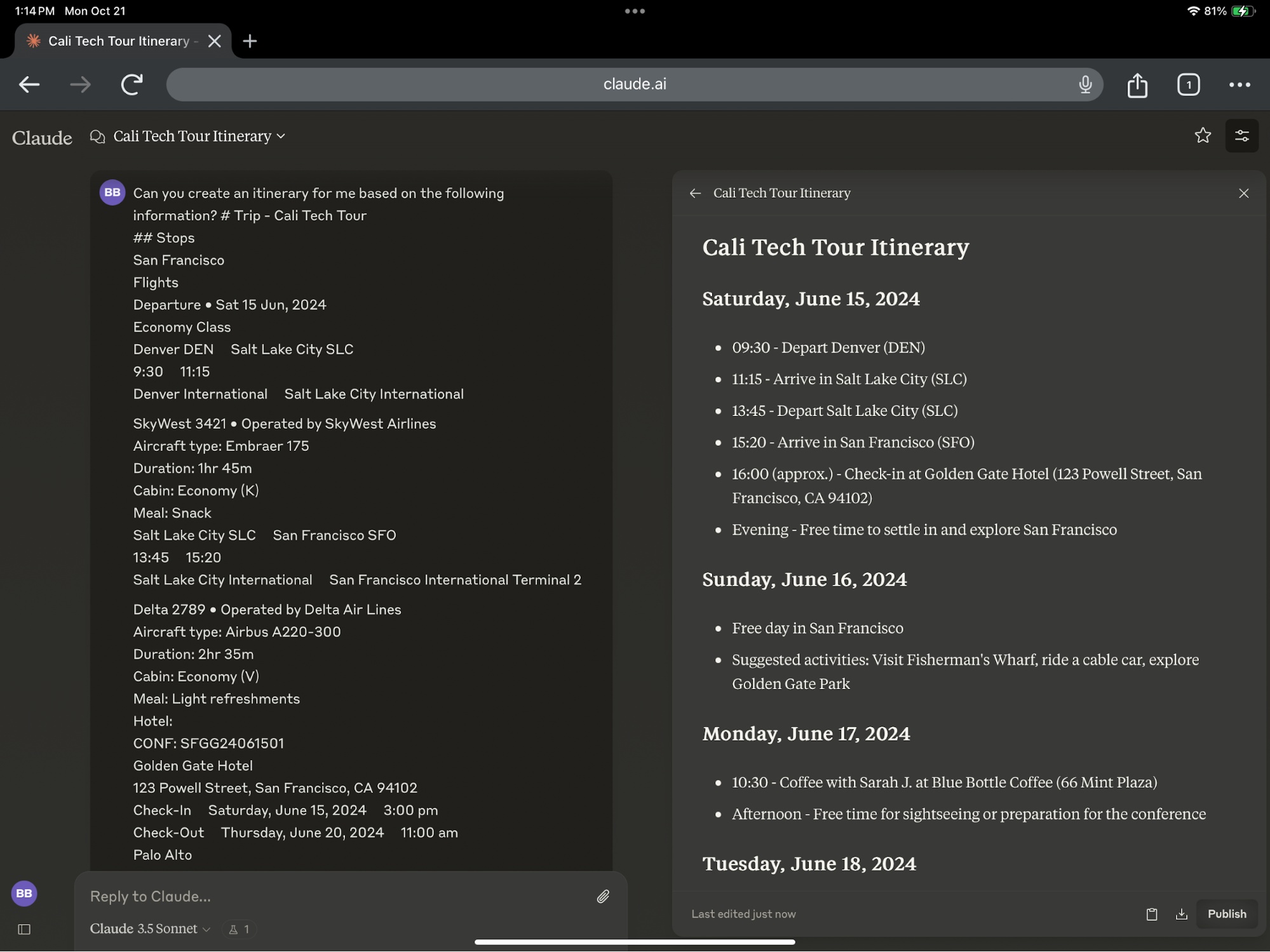
Briefs, summaries, itineraries, specifications, and other structured writing can be drafted as text or Markdown Artifacts. Ask Claude to cite sources where needed, then verify every factual claim before using the document.
Web pages and interactive components
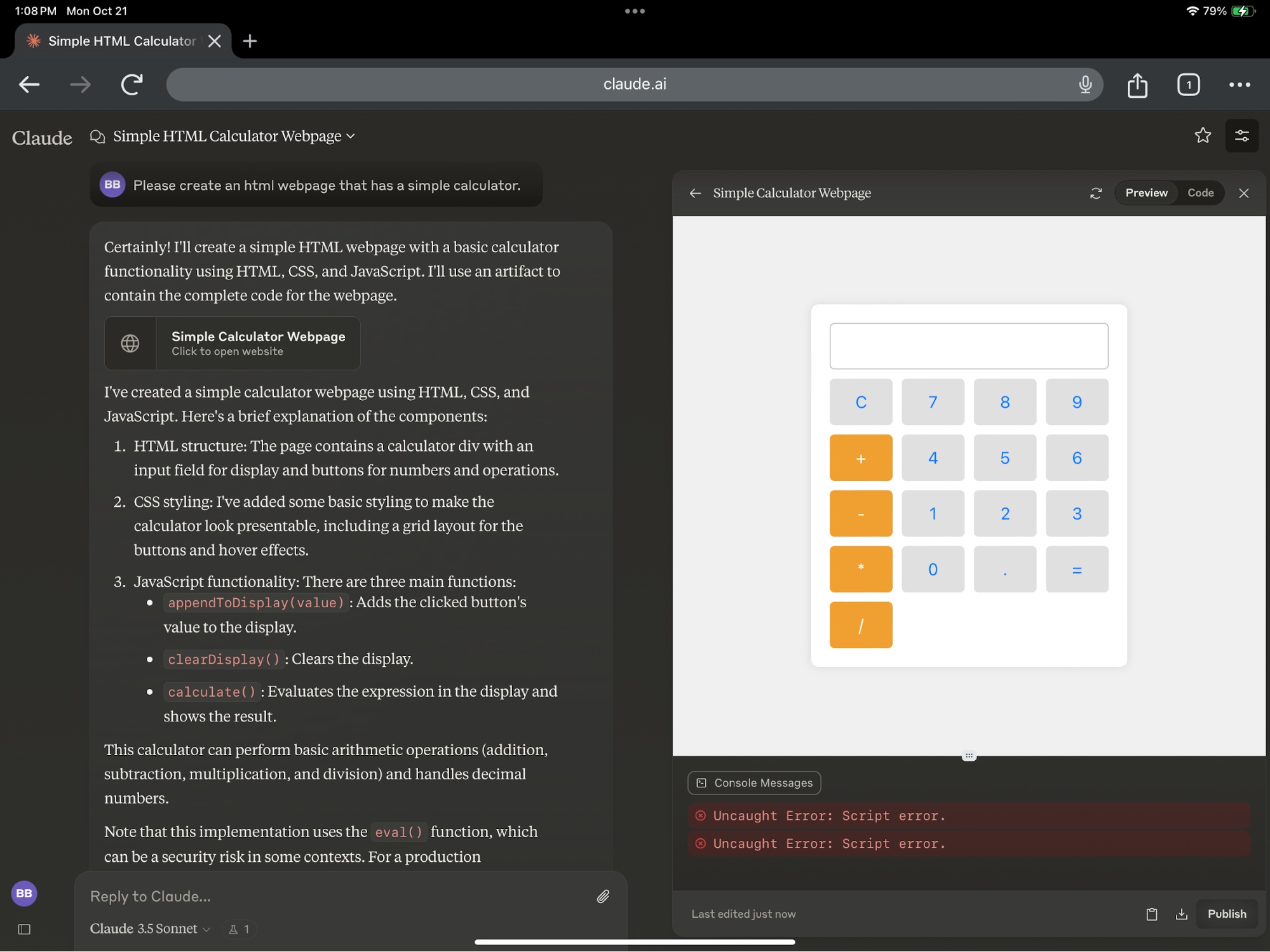
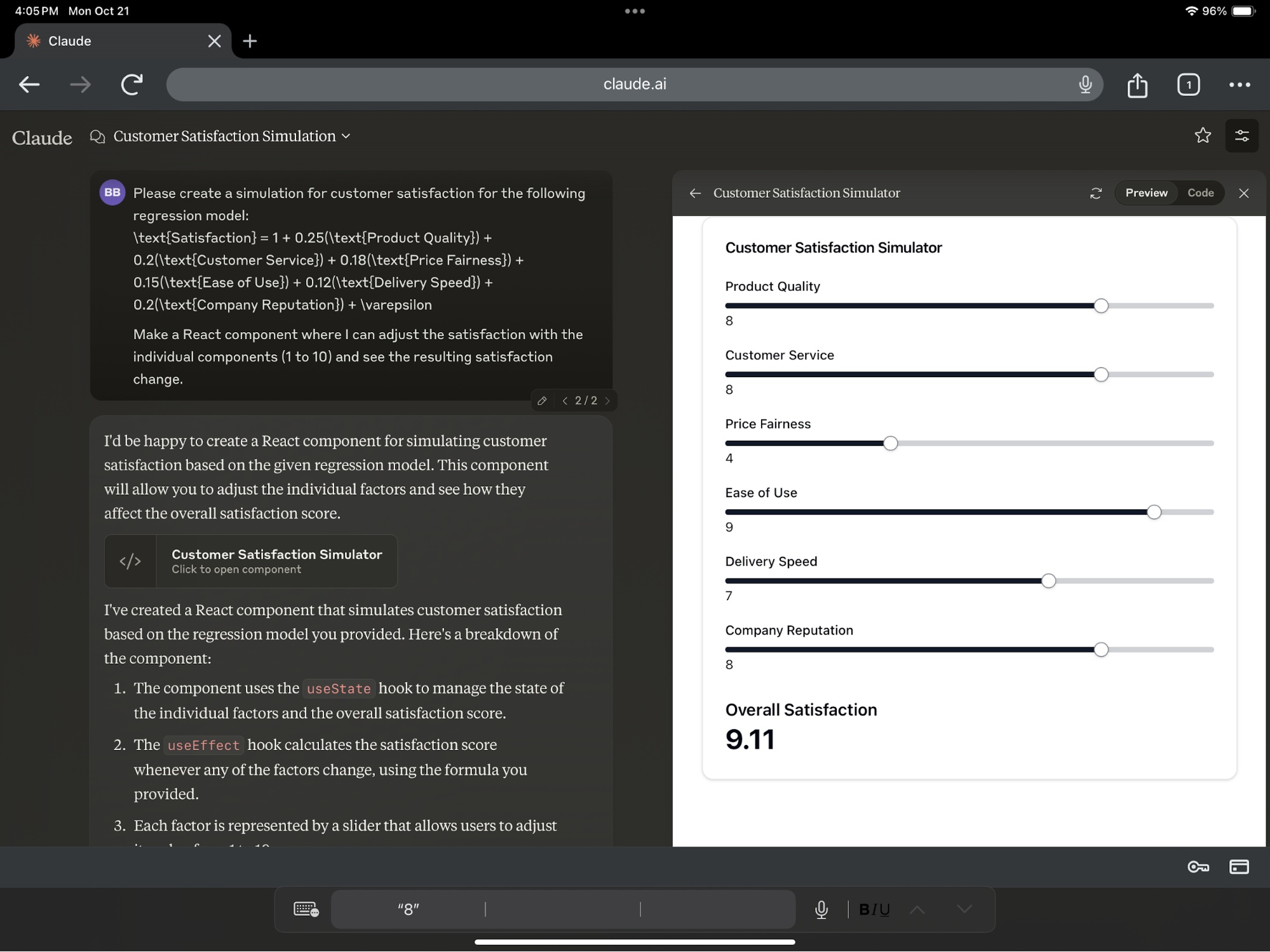
Artifacts can preview HTML, CSS, JavaScript, or React-based interfaces. They are well suited to mockups, calculators, small demonstrations, and UI experiments. A preview is not the same as a tested, deployed website: check accessibility, responsiveness, data handling, browser support, and dependencies separately.
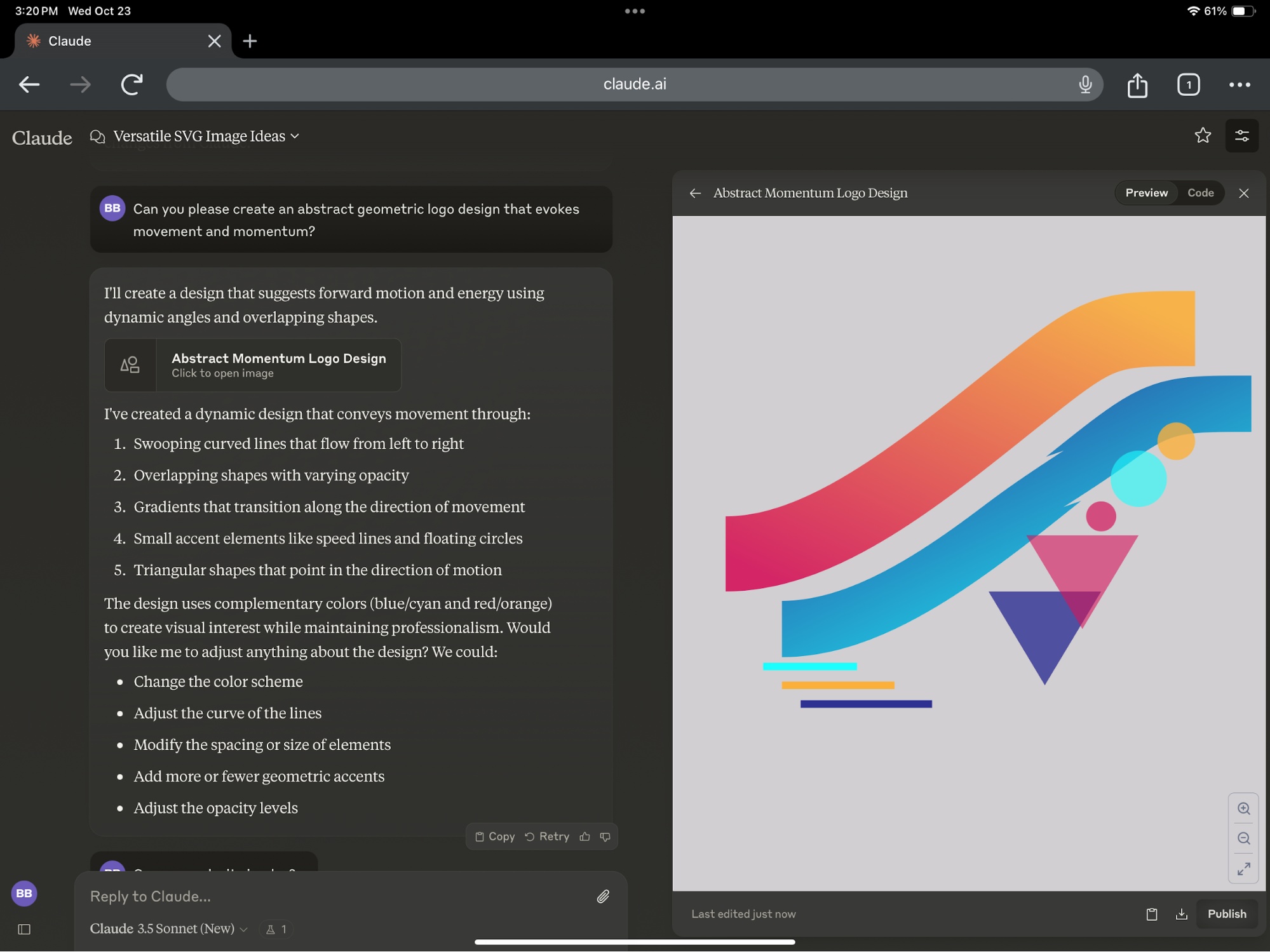
SVG graphics
Claude can generate editable SVG markup for simple icons, diagrams, and geometric illustrations. Inspect the rendered image and the source before reuse, especially when brand accuracy or accessibility matters.
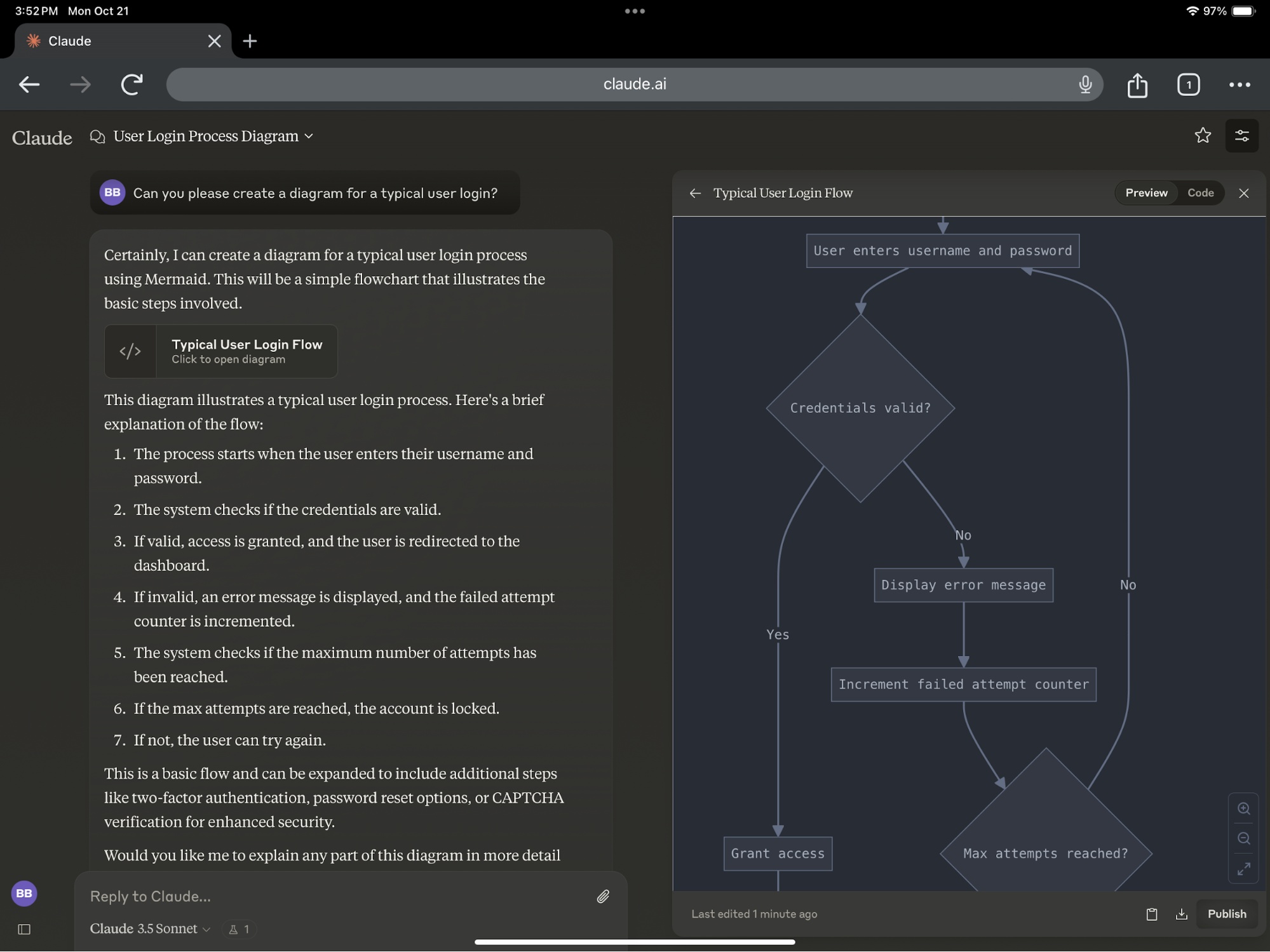
Diagrams and flowcharts
Claude can create Mermaid diagrams for processes, timelines, and system relationships. Give it the exact nodes and connections, then check that the rendered diagram matches the underlying facts.
Tips for better results
- State the desired Artifact type and intended use in the first prompt.
- Request one change at a time when diagnosing a layout or code problem.
- Specify what must not change during a revision.
- Use version history to compare results instead of repeatedly starting over.
- Download important work; do not assume a chat preview is your only copy.
- Verify facts, test code, and review public links before sharing.
For current availability and interface details, consult Anthropic’s official Artifacts help page.
Related Articles
 Reasons to Try Claude's Artifacts: What You Need to Know7 minutes read
 How to Use Claude Artifacts to Visualize Data7 minutes read
 What Is the Claude Code: Clear Explanation7 minutes read
 Claude API: How to Get the Key and Use the API: Explained19 minutes read
 What Is Claude AI: Clear Explanation9 minutes read
 Why Do Developers Always Choose Claude Over Other AIs?11 minutes read
Reader Comments 0
Sign in with email or Google to join the discussion.