Table of Contents
To install Windows 11 from USB, first verify the PC's compatibility and back up its files. Create trusted installation media, boot it in UEFI mode, choose the licensed Windows edition and carefully identify the installation destination before proceeding.
This guide describes a clean installation. If you want to retain existing applications and settings, investigate an eligible upgrade or in-place reinstall instead of booting a USB and assuming everything will be preserved.
Prepare before booting the installer
- Check compatibility. Use Microsoft's requirements and PC Health Check where applicable. Baseline requirements include an approved processor, 4 GB RAM, a 64 GB or larger storage device, UEFI firmware with Secure Boot capability and TPM 2.0. Some features require more.
- Back up independently. Copy important files to another physical device or verified backup service. Keep any encryption recovery key available.
- Confirm the license. Record the installed edition and activation status if reinstalling. Home and Pro are different entitlements.
- Prepare network access. Windows 11 Home and Pro for personal use require internet connectivity and a Microsoft account during initial setup under Microsoft's stated requirements.
- Keep power connected. Avoid interrupting installation or the first-start configuration.
Check the official requirements for the complete list. The original suggestion to allocate only 30 GB is inadequate. See using PC Health Check for the compatibility workflow.
Create trusted USB installation media
Use Microsoft's media-creation instructions or a trusted image-writing method with an official image. Creating the USB erases its existing contents, so verify its identity and back it up first.
This Windows 11 USB creation guide covers the preparation step. The screenshots below show an older installer; current releases may use different wording or ordering.
Start Windows Setup
- Connect the installation USB.
- Open the computer's one-time boot menu using its model-specific key.
- Select the appropriate UEFI USB entry.
- Choose your preferred language, regional format and keyboard layout.
- Start the installation using the option shown by Setup.
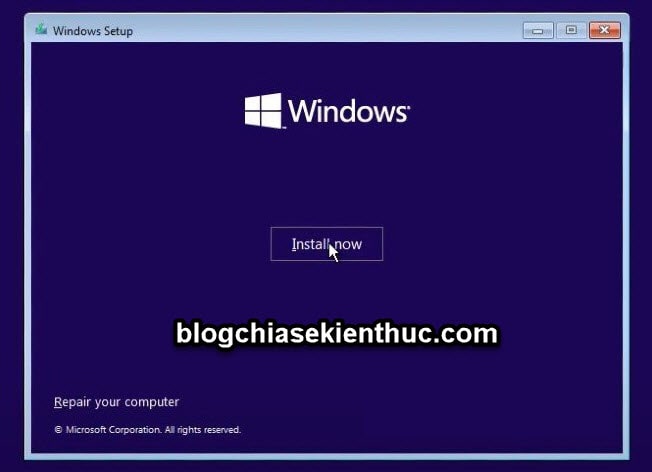
If the computer returns to the existing Windows desktop, it may not have booted the USB. Check the manufacturer's boot procedure instead of repeatedly changing unrelated firmware settings.
Choose the licensed edition
Enter your product key if required. On a device with an eligible existing digital license, Setup may allow I don't have a product key so activation can occur later for the matching edition. That option is not a universal 30-day trial or permission to use an unlicensed copy.
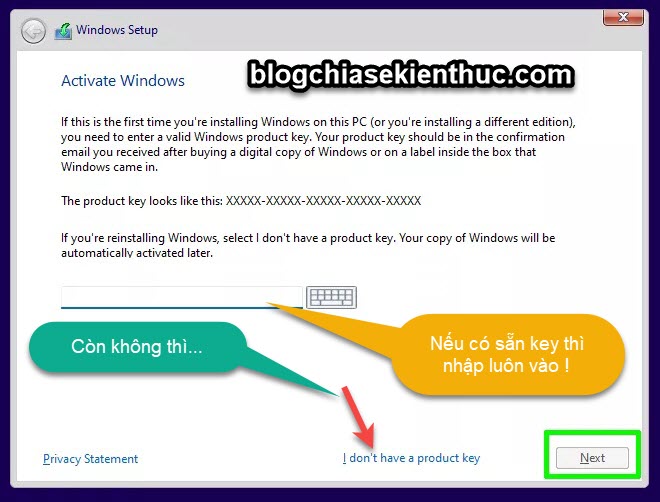
If an edition selector appears, choose the one covered by your license. The number of choices depends on the image and any embedded key; it is not always limited to one or two in official media.
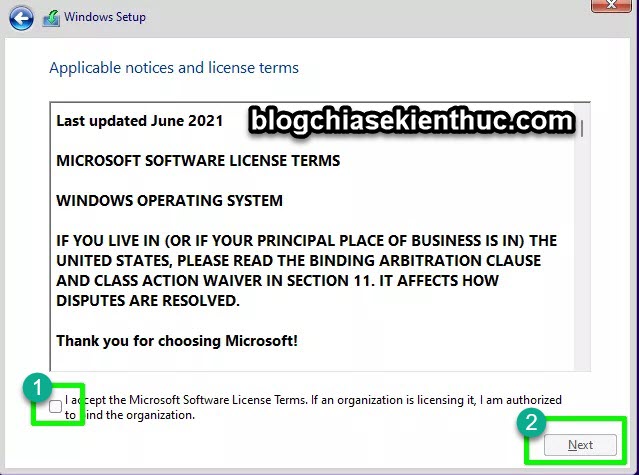
Read the license terms and continue only if you agree.
Choose the installation type and destination
Older media presents Custom: Install Windows only for a clean installation. An upgrade that preserves apps normally starts from the existing supported Windows session, rather than being selected casually after booting external media.
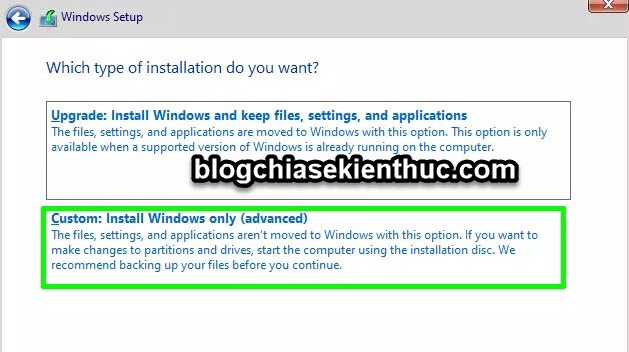
Identify the intended physical disk and its partitions before proceeding. Capacity is useful but not sufficient when several devices are similar. Disconnect unnecessary data drives where practical. A clean installation can remove personal files, applications and manufacturer customizations.
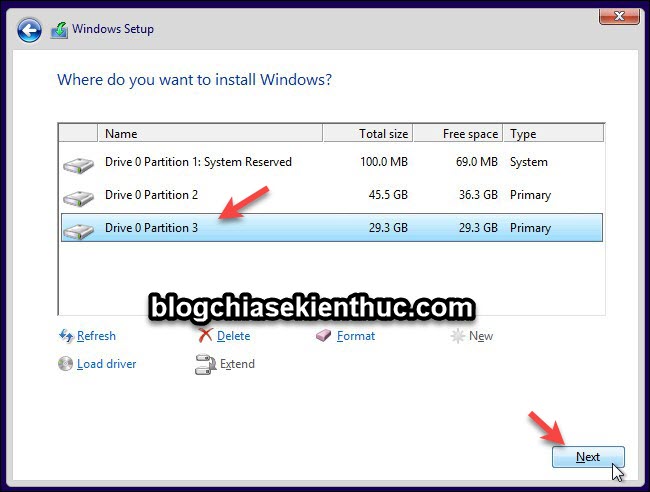
On a new empty destination, Setup can create the required partitions in suitable unallocated space. On a populated disk, do not delete EFI, recovery or data partitions merely to imitate an example. If the expected disk is missing, investigate storage-driver requirements first.
Microsoft's reinstallation guidance explains the clean-install and in-place routes. Back up first even when selecting an option intended to preserve files.
Let installation finish
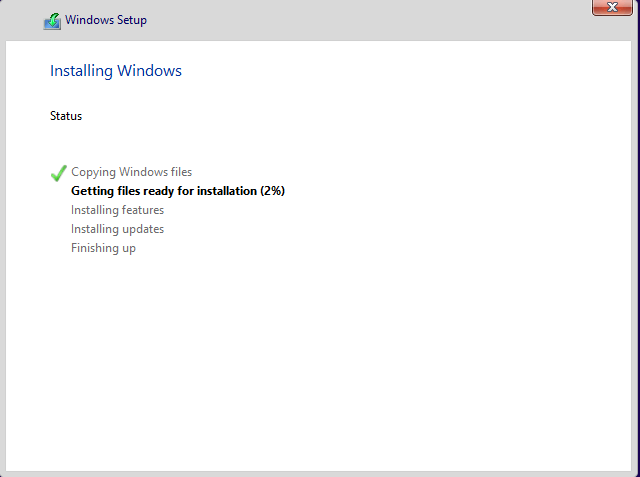
Windows copies files and restarts several times. Do not interrupt power. If the machine restarts into the USB installer again, use the intended internal Windows Boot Manager rather than starting another installation.
Complete the first-start setup
- Choose your actual country or region and keyboard layout.
- Add another keyboard layout only if needed.
- Connect to a trusted network and follow the account workflow offered by the edition.
- Use personal setup for your own device; use work or school enrollment only when directed by the organization managing it.
- Create the offered secure sign-in method, such as a Windows Hello PIN.
- Review privacy, backup and optional-service choices individually.
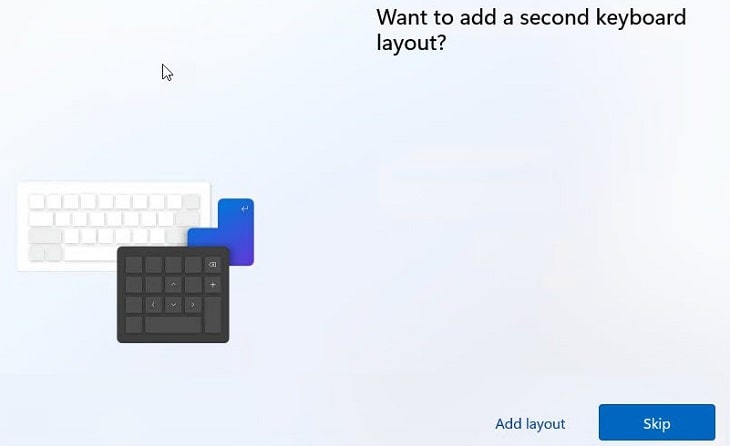
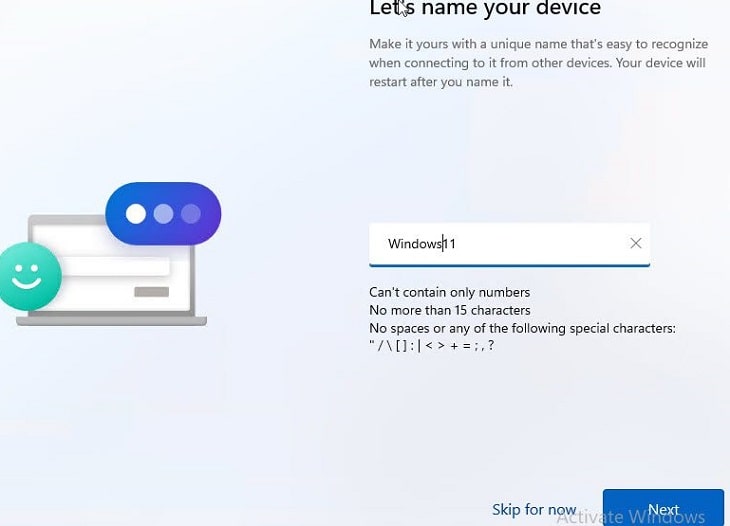
Old offline-account screenshots do not guarantee the same option in a current release. Follow the supported setup path for the edition instead of relying on obsolete bypass instructions.
Check the desktop installation
Verify activation in Settings → System → Activation. Run Windows Update, review the manufacturer's drivers and check networking, sound, input devices and storage. Restore your files from the verified backup and confirm that encryption recovery information is stored somewhere accessible if the PC fails.
Original video demonstration
The video is retained as an interface reference; compare its steps with current requirements and the destination checks above.
Related Articles
 Instructions for installing Windows XP with USB step by step from A to Z
 How to Install Go on Windows
 How to install SPSS on a MacBook: A step-by-step guide
 How to Install Windows XP SP3 for a Legacy System
 How to Switch from Windows to ChromeOS: Step-by-Step Guide for Beginners
 How to easily check a bootable USB drive on Windows 10
Reader Comments 0
Sign in with email or Google to join the discussion.