Table of Contents
Looking for instructions on how to install SPSS on your Mac? This article provides detailed guidance from downloading and installing the software to activating it, ensuring you can use it without errors.
How to install SPSS on macOS
Step 1: Download SPSS for Mac
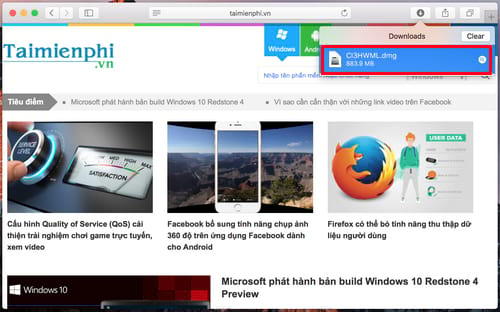
Step 2: After downloading, click the download icon in your browser and then click the installer file to launch it (remember to disconnect from the internet during installation).
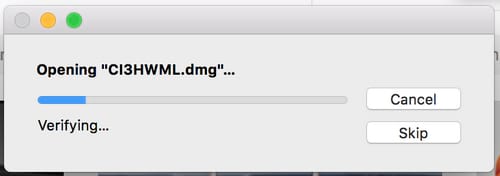
The system will begin extracting the installation files.
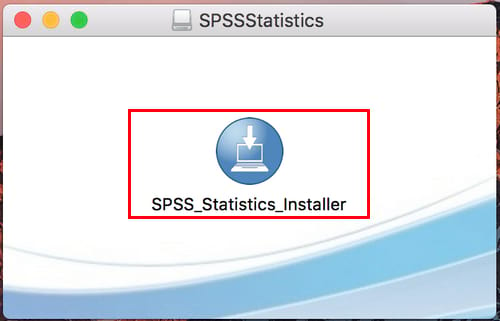
Step 3: The SPSSStatistics dialog box will appear. Double-click on SPSS_Statistics_Installer to launch the installer.
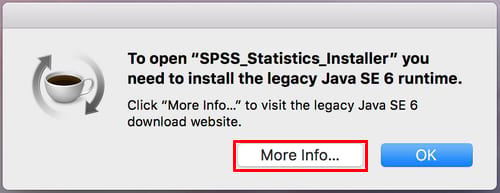
However, to install SPSS_Statistics_Installer, you need to install Java SE 6 software as well. Click on More Info.
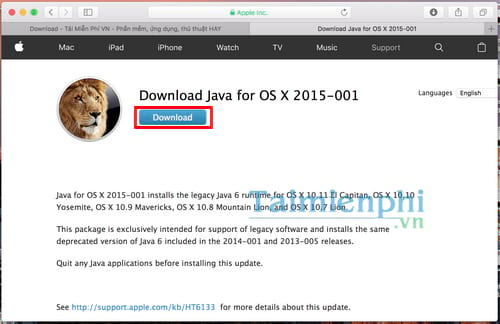
The Java download page will appear; click on the "Download" button as shown in the image below.
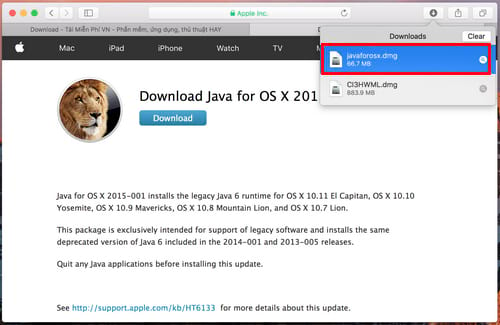
After the download is complete, click on the download button in your browser and then click on the downloaded file to install Java following the steps shown in the image below.
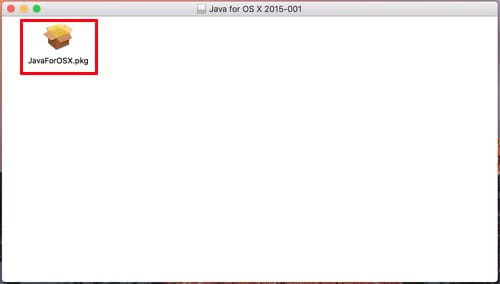
Double-click JavaForOSX.pkg
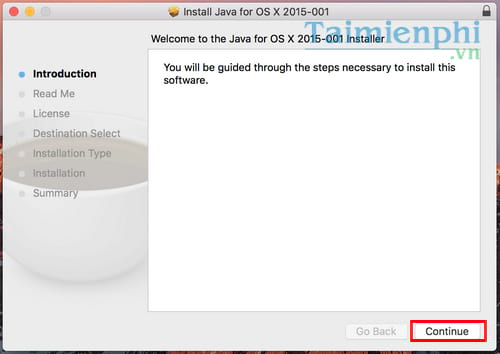
Click Continue
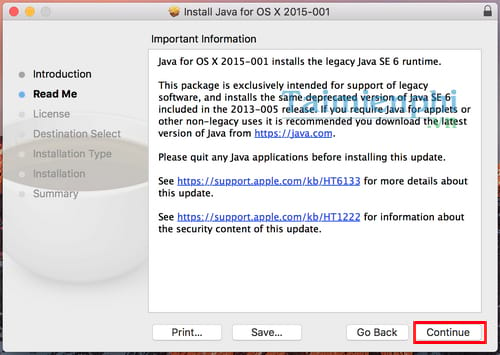
Click Continue
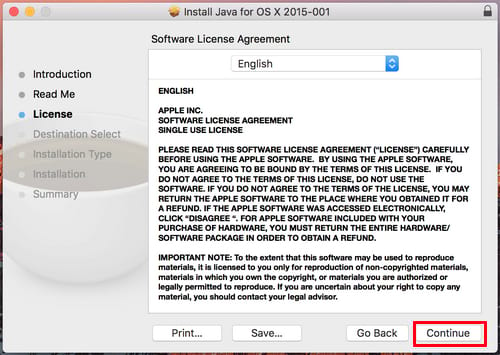
Click Continue
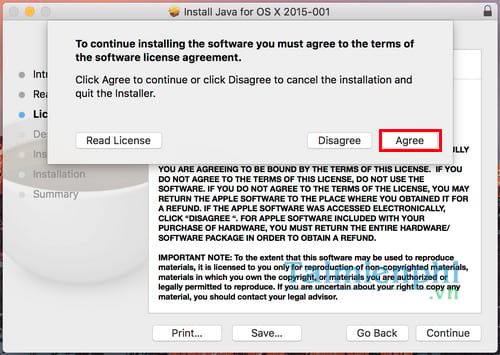
Click Agree to accept the installation terms.
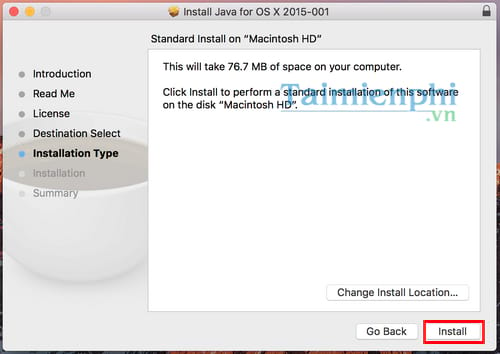
Click Install
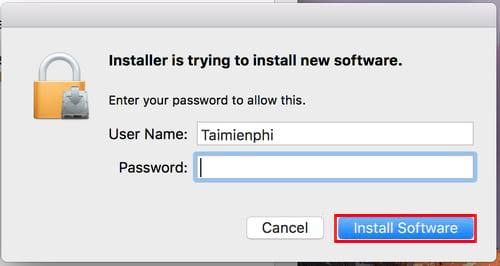
Enter your user account password and click Install Software to confirm the installation.
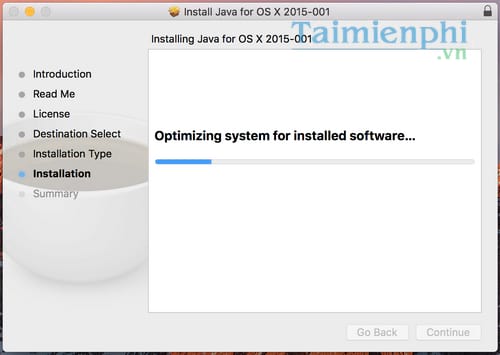
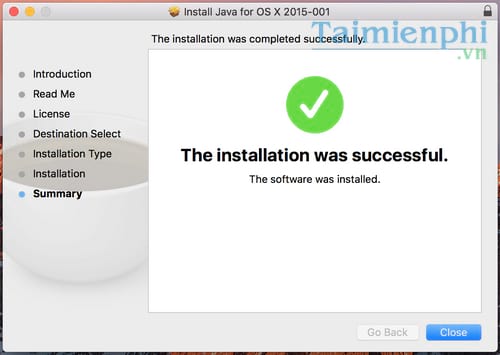
Step 4: Return to the SPSSStatistics dialog box and double-click SPSS_Statistics_Installer to restart the installer.
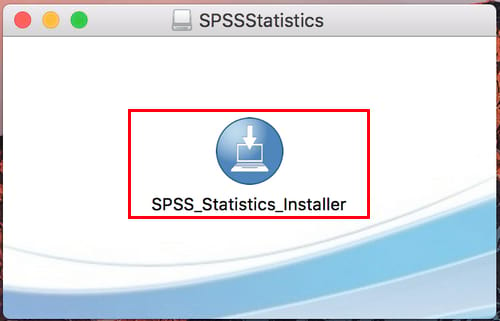
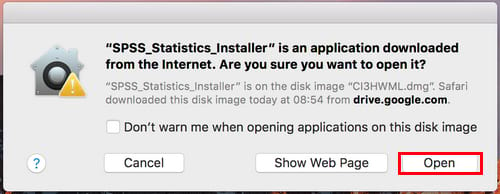

Package installation verification system
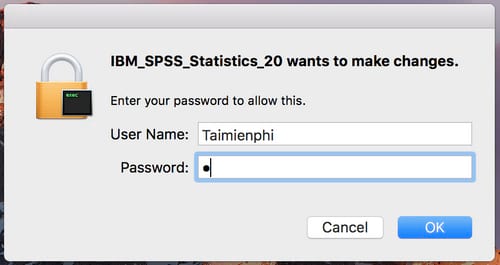
Enter your account security code and then press OK to set it up.
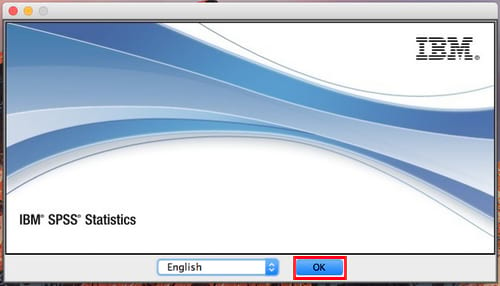
Press OK
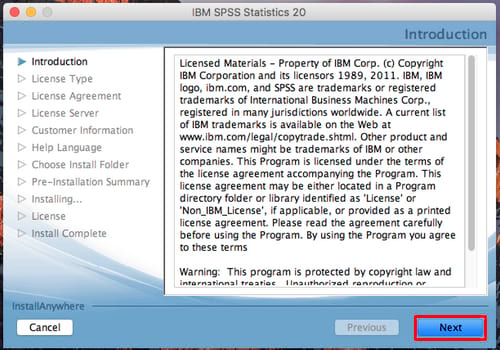
Select Next
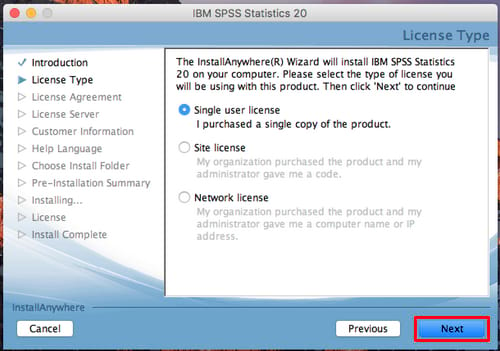
Select Next
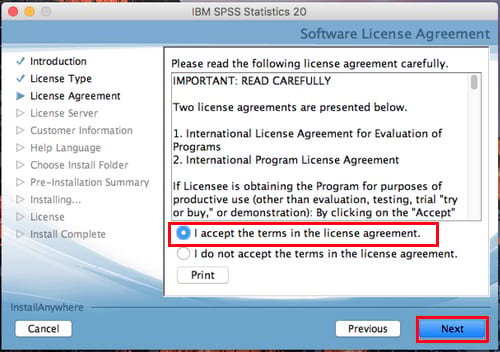
Select " I accept the terms in the license agreement" and then click Next.
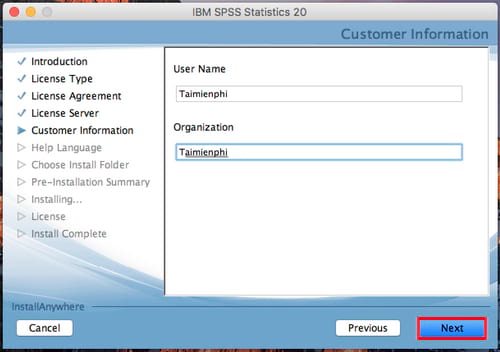
Next
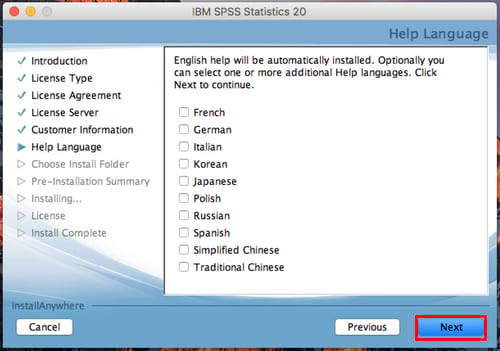
Select additional languages by checking the boxes next to the language pack you want to add, then click Next.
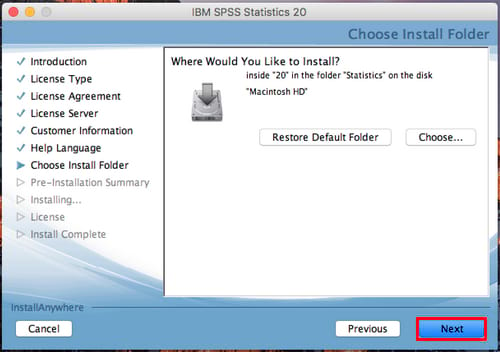
Next
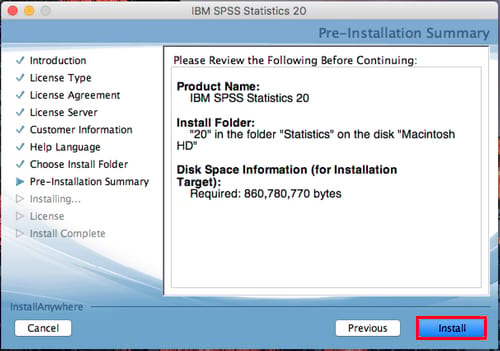
Click Install
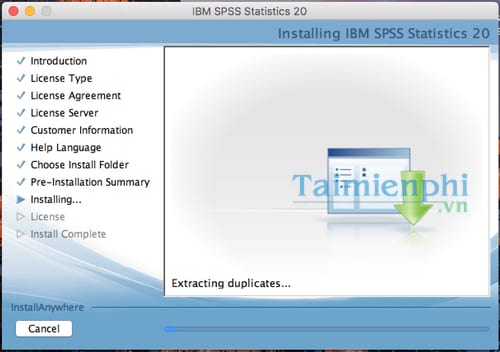
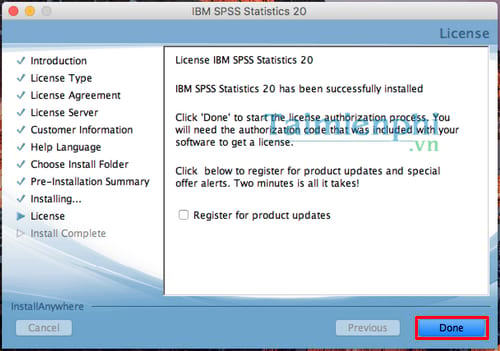
Done to complete the installation.
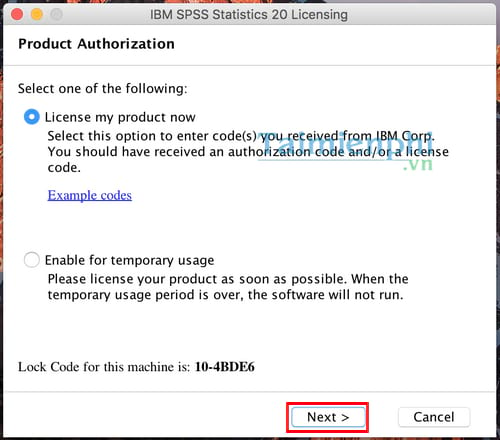
Press Next
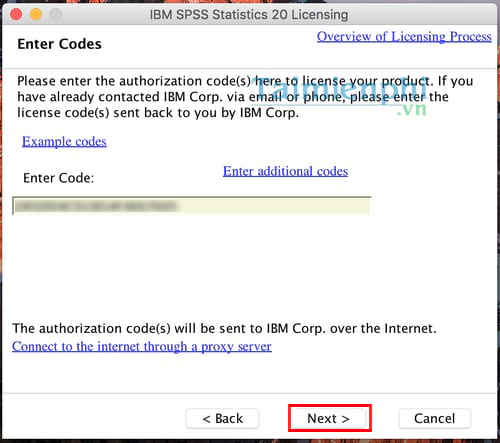
Enter the code you have into the required field and then click Next.
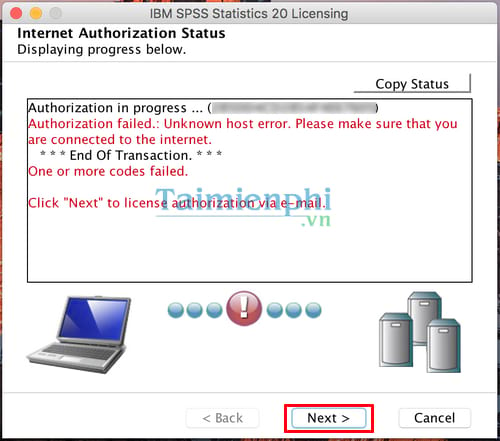
Continue pressing Next
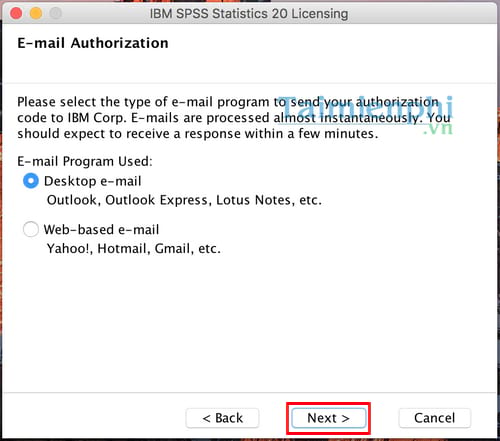
Next
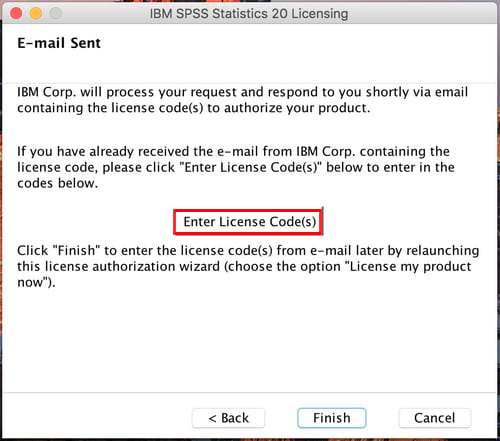
Click on the Enter License Code option.
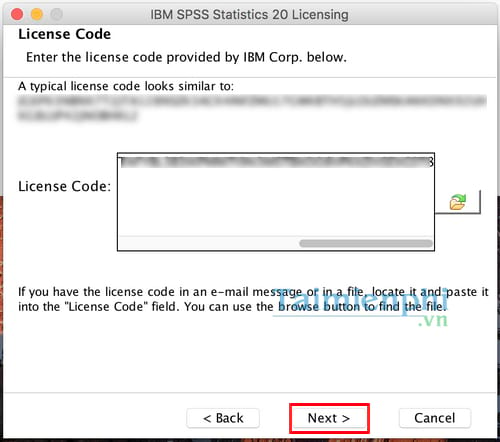
Enter the License Code in the box and then click Next.
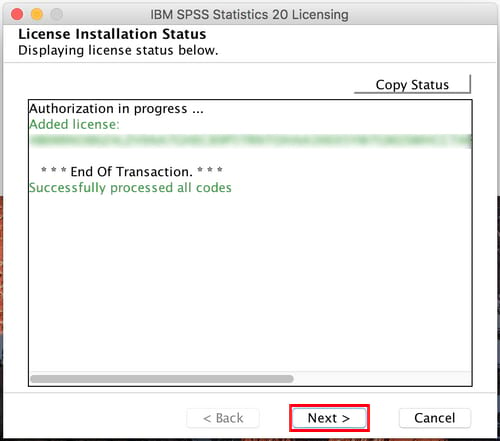
Next
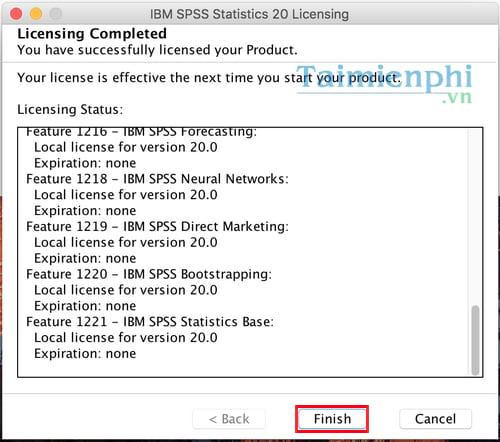
Finish to complete.
After completing the SPSS installation on MAC OS, launch the software and you will be able to start working with a user-friendly interface as shown in the following image.
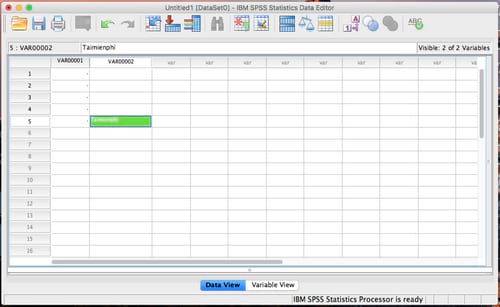
SPSS on macOS may encounter errors during installation, especially on MacBook M1/M2. If the software doesn't run, try Rosetta 2 or check the Java SE Runtime for compatibility.
Related Articles
 Detailed Instructions on How to Install SPSS on Your Computer for Free3 minutes read
 How to Install SPSS on a Computer4 minutes read
 What Is SPSS? What Is SPSS Software Used For?4 minutes read
 How to Import Data from Excel into SPSS Quickly and Accurately4 minutes read
 Instructions on How to Install Windows 10 with USB Step by Step6 minutes read
 How to Download the Latest SPSS Update for Android and iOS4 minutes read
Reader Comments 0
Sign in with email or Google to join the discussion.