Table of Contents
You can run a portable Windows installation from an external USB drive using WinToUSB or the Windows To Go option in Rufus. Windows is installed on the external drive itself; this is different from a USB installer that installs Windows onto a computer's internal disk.
Back up the entire destination drive before starting. The preparation steps can erase its partitions and files. Use a spare drive, confirm its model and capacity, and disconnect other removable drives to reduce the chance of selecting the wrong disk.
What to prepare
- A Windows ISO obtained from Microsoft and a valid license for the edition you intend to use.
- A suitable external SSD, hard drive, or USB flash drive with enough space for Windows, applications, and updates. An external SSD is preferable for everyday responsiveness; a small or slow flash drive can be impractical.
- A computer that can boot from USB and is compatible with the Windows version and processor architecture you select.
- Hasleo WinToUSB or Rufus.
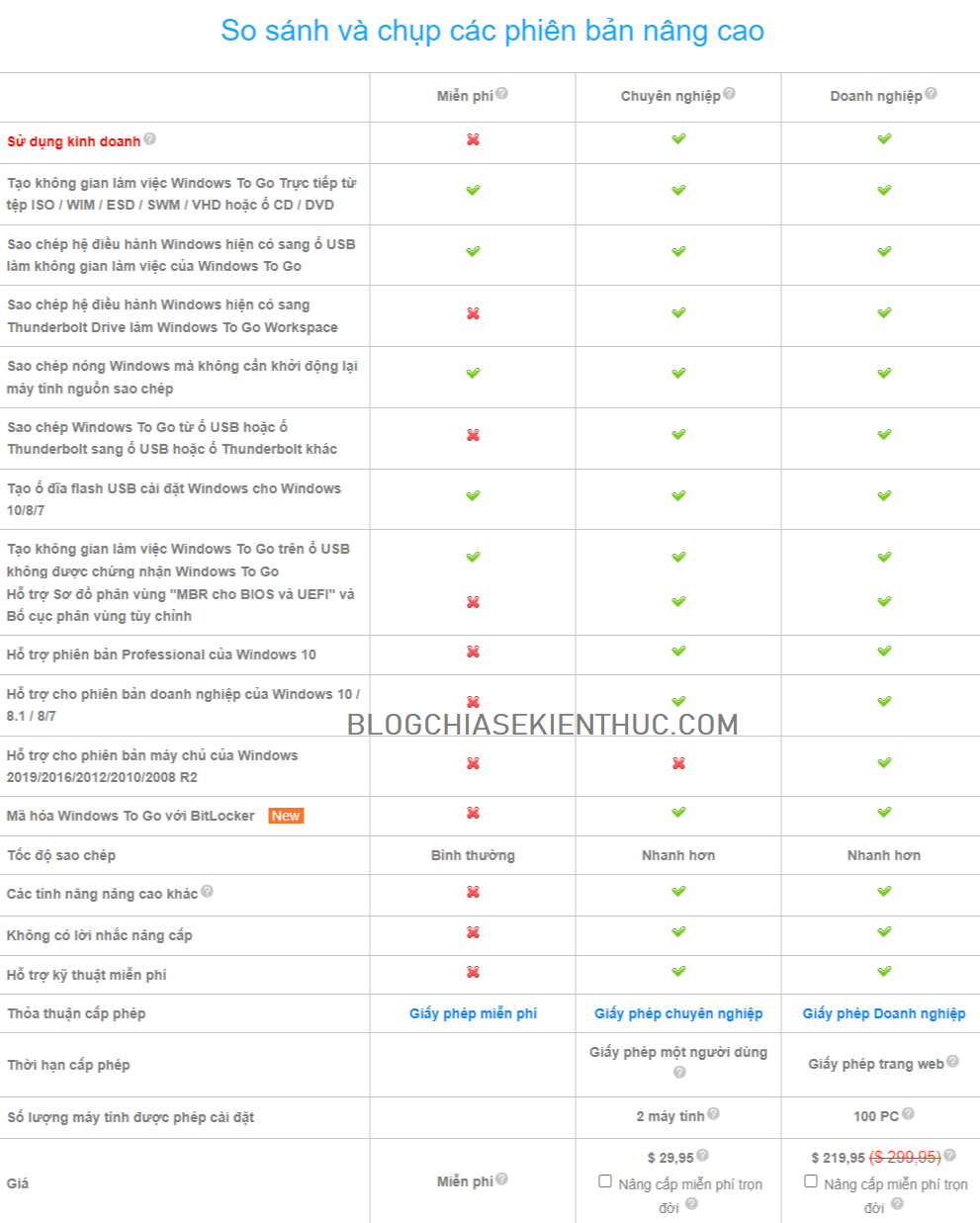
Microsoft's original Windows To Go feature is no longer under development. Third-party tools still create portable installations, but compatibility, updates, activation, and recovery can differ from a normal internal-drive installation. Check the tool's current edition limits before starting. Free utility software does not make Windows itself free.
The screenshots below show an older interface, so labels and available options may differ.
Create the drive with WinToUSB
1. Select the Windows image and edition
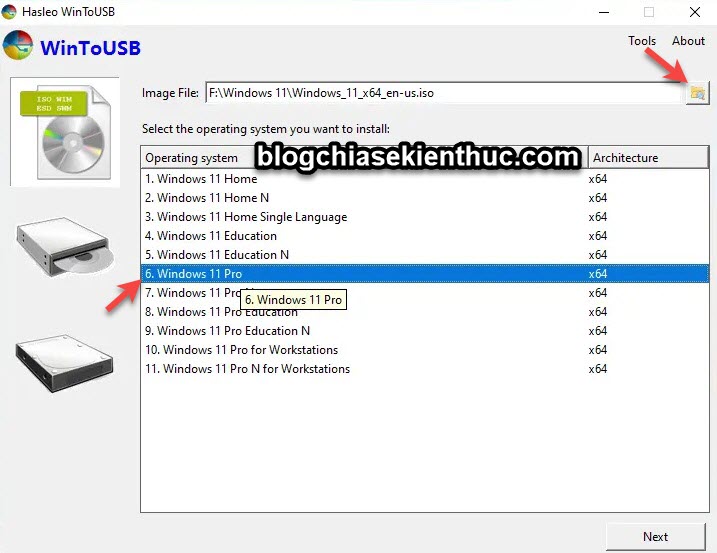
Open WinToUSB and choose its Windows To Go creation option. Browse to your Windows ISO, then select the edition that matches your license and is supported by your WinToUSB edition.
The older interface uses these image-selection controls: 

2. Check the destination drive
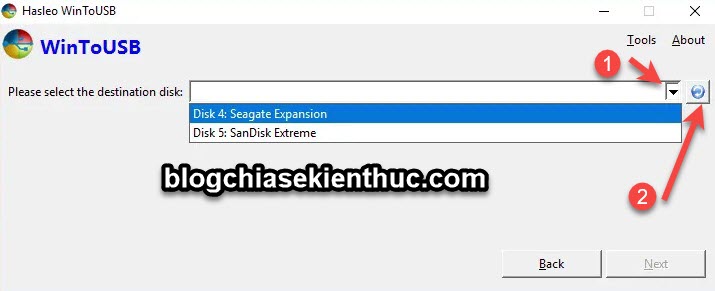
Select the external drive by model and capacity. If it is missing, check the connection and refresh the device list using the refresh control  . Stop if you cannot identify it confidently.
3. Choose a compatible partition scheme
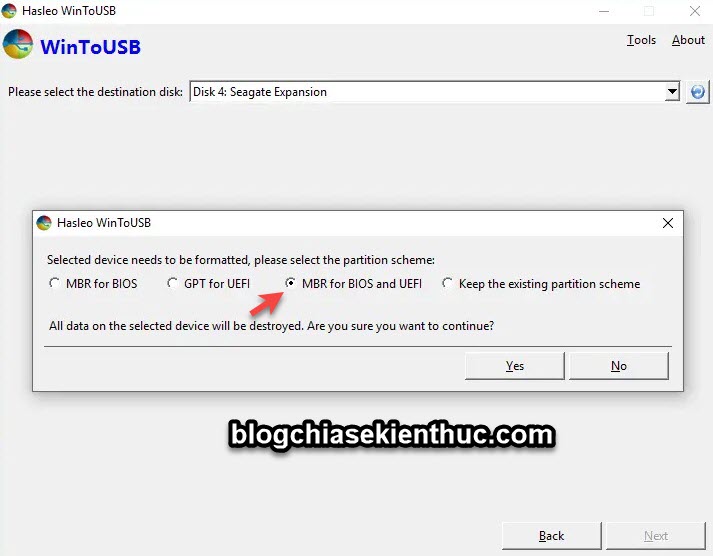
For a modern UEFI computer, use the tool's GPT/UEFI option where appropriate. For older legacy BIOS hardware, use a compatible MBR option. Some versions offer an MBR option intended for both BIOS and UEFI. Select for the computers you will actually use, rather than assuming one choice works everywhere.
Review the format warning carefully. Keeping an existing partition scheme is not a backup and does not guarantee that existing files will survive.
4. Confirm the layout and create Windows
If prompted, select the boot and Windows system partitions on the external drive. Review the selected disk again before proceeding. Extra options, including encryption, vary by version and edition; keep any encryption recovery key separately from the drive.
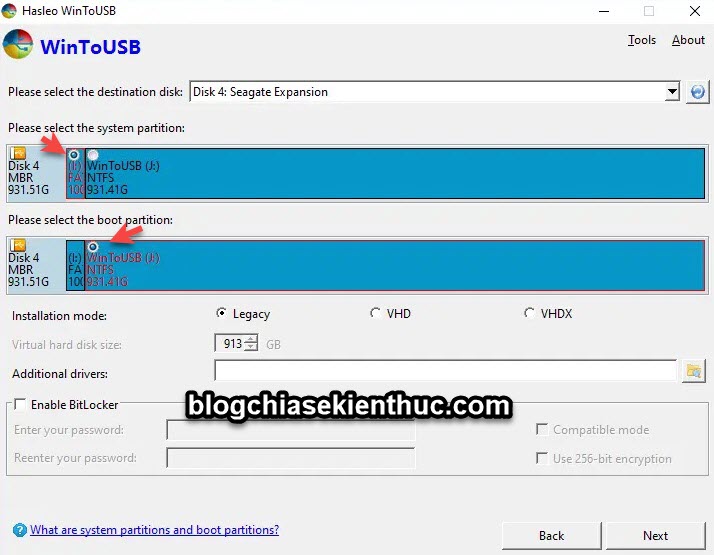
Start creation and wait for the tool to report completion. Keep the drive connected and the computer powered throughout the process.
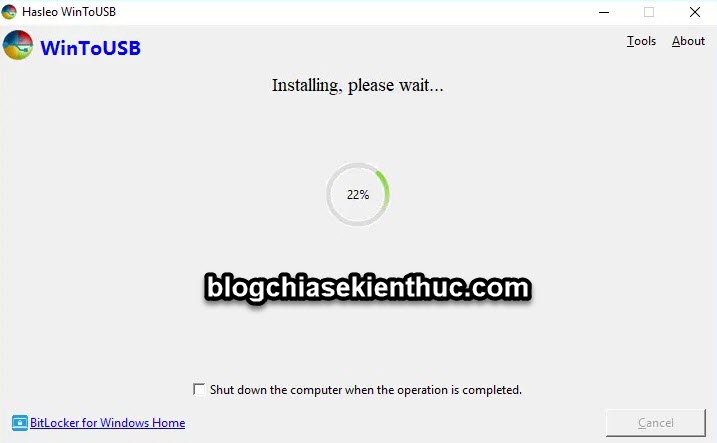
Boot Windows from the external drive
- Shut down the target computer and connect the external drive directly to a suitable USB port.
- Open the computer's one-time boot menu using the manufacturer's documented key.
- Select the external drive's entry that matches the firmware mode used during creation.
- Complete Windows setup and allow time for hardware detection.
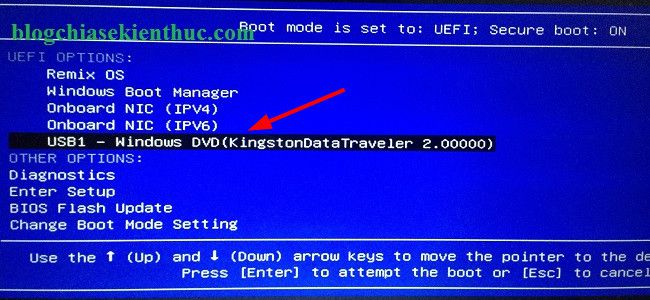
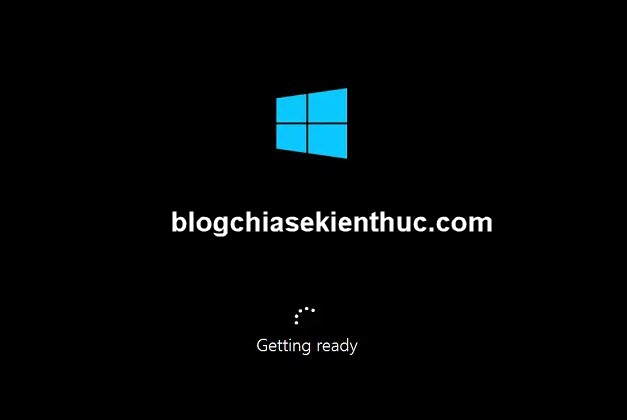
When moving the drive to another computer, Windows may need different drivers or ask you to sign in again. If a PIN reset is requested, follow the displayed account-verification steps. Do not assume that every computer will boot the drive or that activation will transfer automatically.
Shut Windows down completely before unplugging the drive. Removing it while Windows is running can interrupt writes and damage the installation.
Alternative: create Windows To Go with Rufus
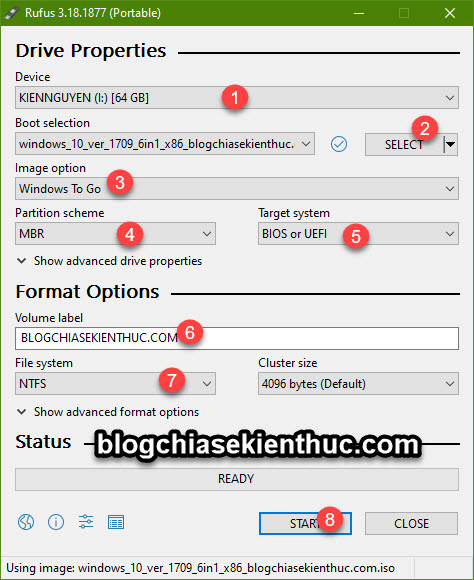
- Open Rufus and select the correct external drive under Device.
- Choose your Windows ISO with SELECT.
- Under Image option, select Windows To Go if it is available. The standard Windows installation option creates installer media instead.
- Choose the partition scheme and target system for the intended computer. Review the file-system settings suggested by Rufus rather than copying older screenshots blindly.
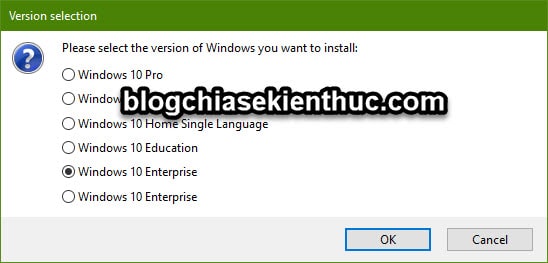
- Click START, choose the Windows edition if prompted, and read the data-erasure warning before confirming.
After Rufus finishes, boot the external drive using the steps above. For additional context, see the Windows To Go and Rufus walkthrough. If your goal is to install Windows onto the internal disk instead, follow the separate Windows 11 installation USB guide.
If the drive does not boot
- Check that USB boot is available and select the correct device in the one-time boot menu.
- Confirm that the drive layout matches the target computer's UEFI or legacy boot mode.
- Check the ISO architecture and Windows hardware requirements for the target computer.
- Try a direct USB connection and a different suitable port if the drive is not detected.
- If Windows starts but performs poorly, consider a faster external SSD. Repeatedly recreating the same slow flash drive is unlikely to solve its performance limits.
Related Articles
 Download files and websites directly from Google Drive in Chrome browser
 How to Install Windows from Files on an Internal Drive
 How to set up the Windows Store app installation to any D drive or drive
 How to directly run Windows 10 from a USB drive?
 Install Win 7 from your hard drive, no need for USB, install Win disk
 How to Partition a Hard Drive in Windows 8 or 8.1
Reader Comments 0
Sign in with email or Google to join the discussion.