Table of Contents
If Windows Setup cannot find the SSD on an Intel 11th-generation laptop, it may need the storage-controller driver used by that model. Download the manufacturer's appropriate Intel RST/VMD package, extract its setup-compatible driver files and load them at the disk-selection screen.
This is not a universal CPU problem, and loading a driver does not fix every INACCESSIBLE_BOOT_DEVICE error. A missing destination disk during setup and a blue screen after installation are different symptoms.
Check the symptom before deleting anything
- SSD absent in firmware: Investigate hardware detection and the model's storage configuration first.
- SSD present in firmware but absent in Setup: A missing compatible storage driver is a possible cause.
- SSD visible in one WinPE environment but not another: Their included drivers may differ.
- Windows starts installing but later blue-screens: Record the exact error and configuration instead of assuming the drive must be repartitioned.
Deleting a Windows partition is not a prerequisite for diagnosing a missing driver. Back up files and locate any encryption recovery key before planning a reinstall.
Prepare the correct installation media and driver
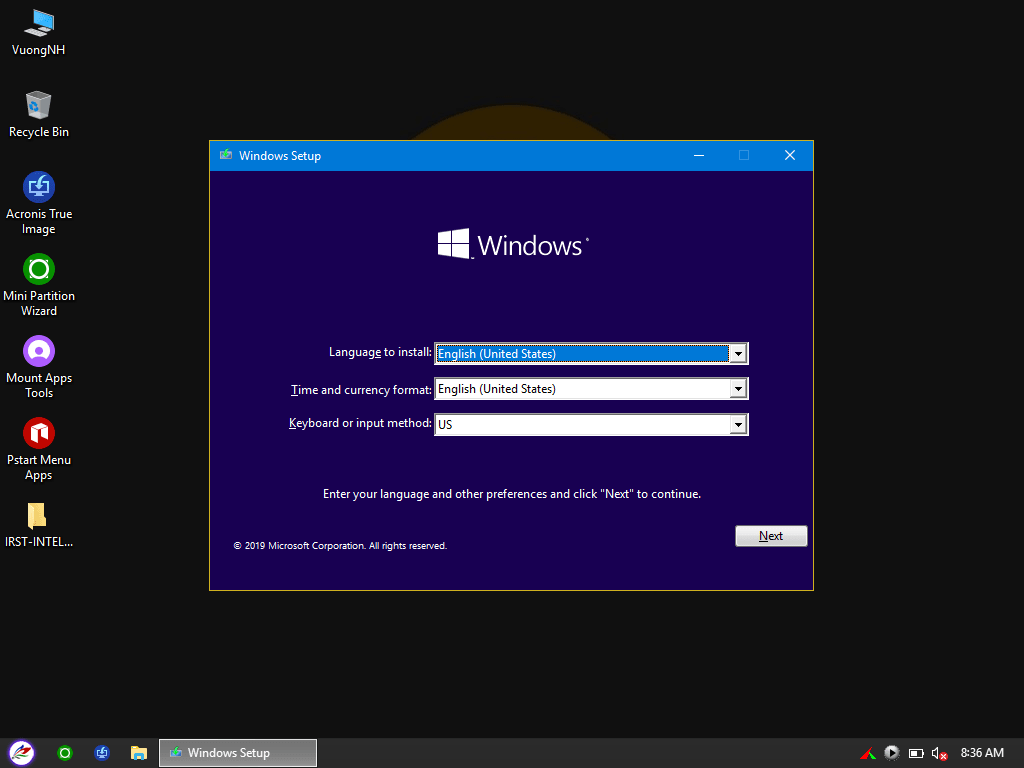
Use Windows installation media appropriate for the laptop and a Windows release supported by its manufacturer. An old Windows 10 20H2 image is not a current default simply because it appears in the screenshots.
Download the RST/VMD driver for the exact laptop model and intended Windows version. Extract it according to the manufacturer's instructions so Setup can browse to its driver files. An installer executable left unopened on a USB is not necessarily a loadable setup-driver folder.
Intel's missing-drive guidance and ASUS's model-specific procedure explain the driver-loading route. Avoid an anonymous “Gen 11” ZIP assumed to fit every storage controller.
Load the storage driver in Windows Setup
- Boot the Windows installer using the intended firmware mode.
- Proceed to the installation destination screen.
- If the expected SSD is absent, choose Load driver.
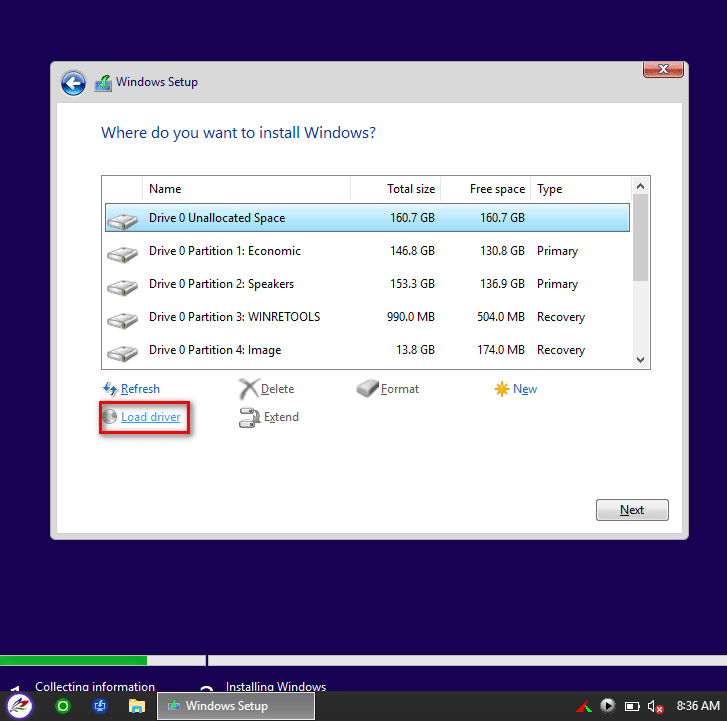
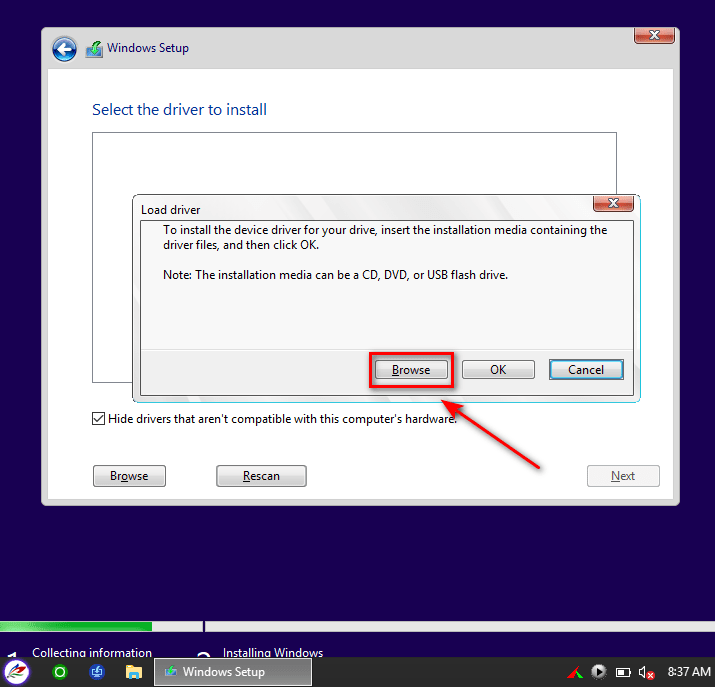
Choose Browse and point to the extracted driver directory on your USB. Folder names depend on the package.
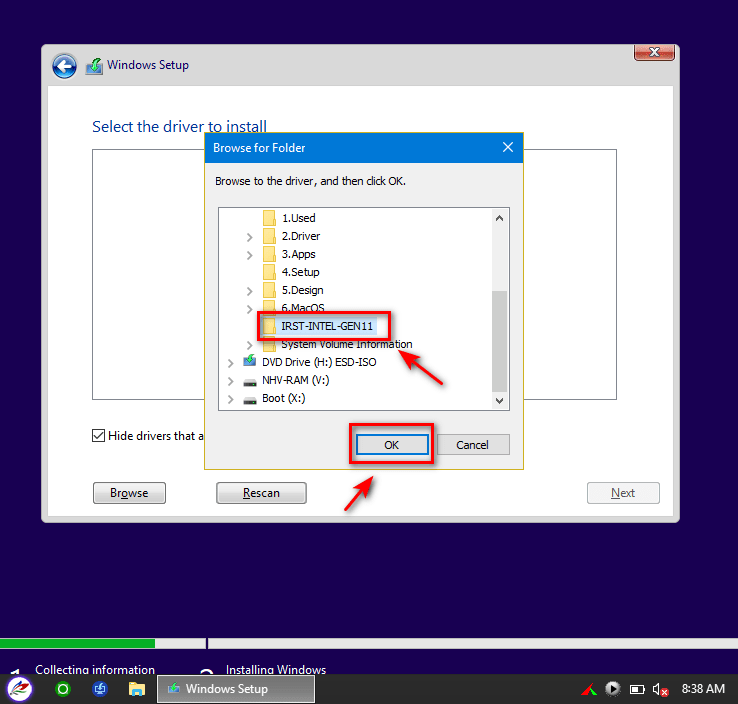
Select the compatible controller driver offered by Setup and continue. If no compatible driver appears, check the package, extraction and architecture; do not force an unrelated controller entry.
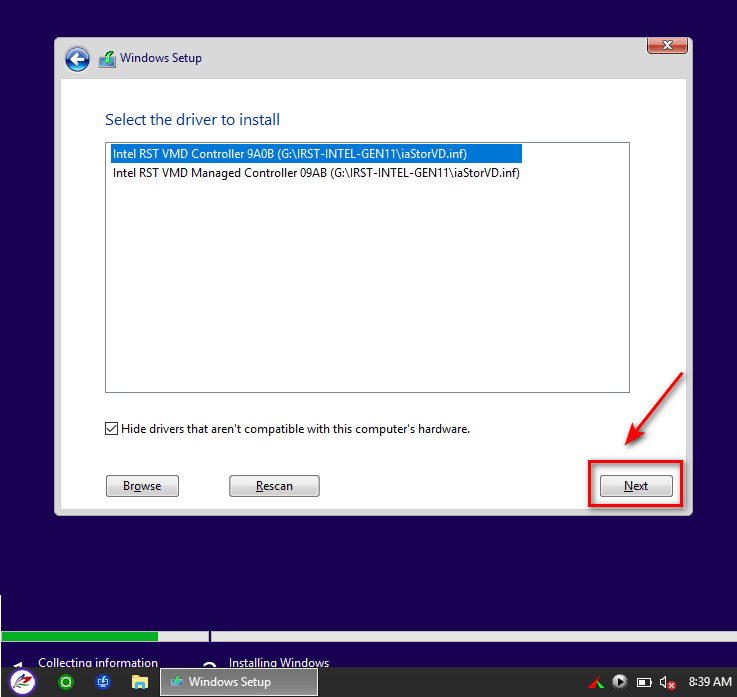
Verify the destination before continuing
After loading, confirm that the expected SSD and its partitions appear. Match capacity and existing layout before selecting an installation destination.
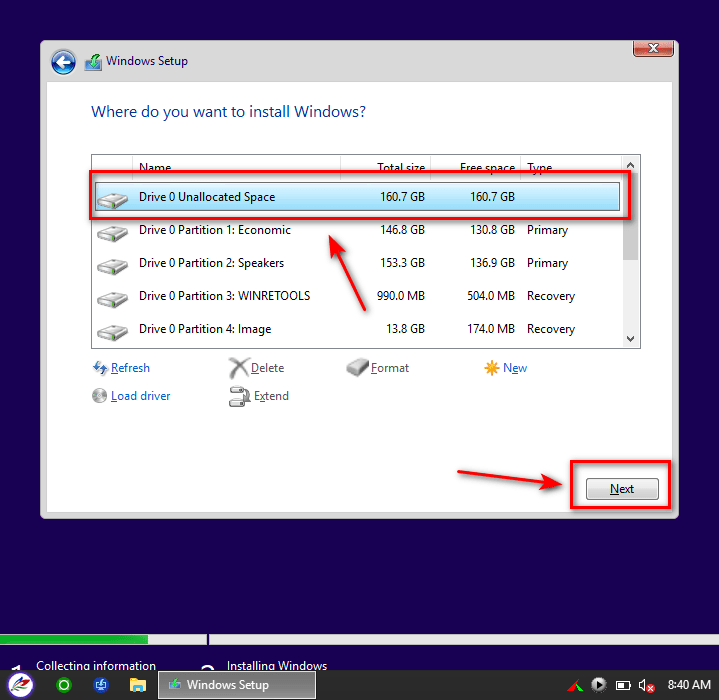
A fresh installation can remove applications and files. Do not format every partition or use a fixed 50 GB target merely because an old guide suggests it. Setup requirements and practical space needs depend on the Windows release and intended use. See the Windows installation process for the distinction between selecting a destination and preserving existing data.
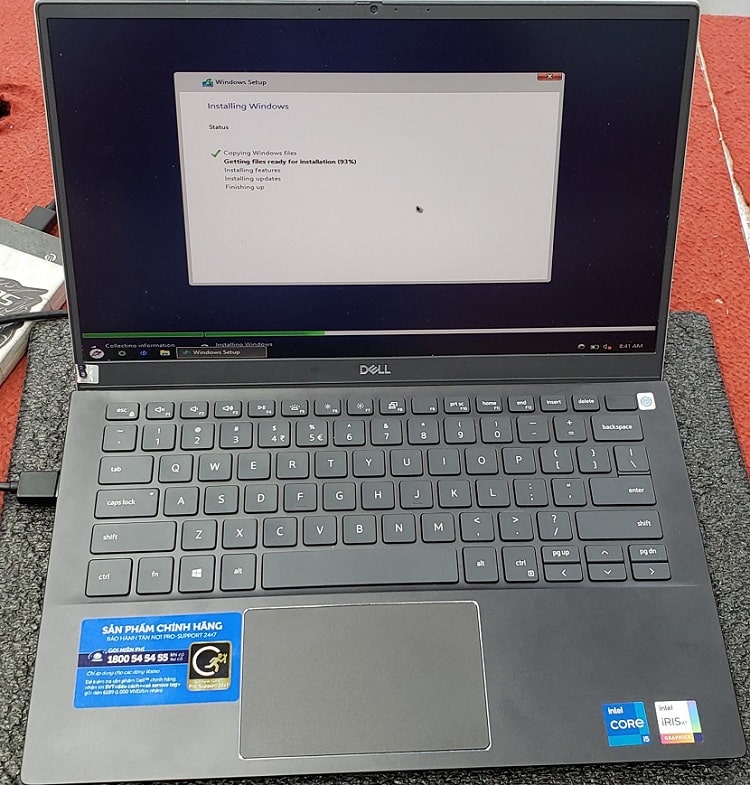
If the drive is still missing
Recheck the laptop model, driver package and extraction instructions. Keep the current storage mode recorded. Changing VMD, RAID or AHCI settings can affect an existing installation, so do not toggle them at random to make a disk appear.
If a later boot error occurs, record when it starts and the exact code. This Windows installation troubleshooting guide covers other causes. A recovery toolkit may help inspect the layout, but no particular WinPE package guarantees SSD, touchpad and network support on every newer laptop.
Related Articles
 Top 6 best-selling cheap 11th generation core i7 laptops at the beginning of the year
 Revealing the first laptop to use Haswell chip: LaVie L
 The 11th generation Intel Core H-series (Tiger Lake-H) mobile processors have just arrived
 Laptop uses Ivy Bridge chip to Vietnam
 Strix Scar III - laptop running Asus' first generation 9 Core i9 chip, highly configurable, has' lock 'to personalize the computer
 Qualcomm built a new Wi-Fi chip for the Wi-Fi 802-11ax generation
Reader Comments 0
Sign in with email or Google to join the discussion.