Table of Contents
Windows XP Service Pack 3 should be installed only for a specific legacy requirement, preferably inside an isolated virtual machine. Microsoft support for Windows XP ended in April 2014, so SP3 does not make XP safe for current web browsing, email, or sensitive work. Microsoft's Windows XP lifecycle page confirms that the product is out of support.
This guide covers a clean installation of 32-bit Windows XP with Service Pack 3 from licensed media. Windows XP Professional x64 Edition follows a different service-pack history and should not use these SP3 instructions.
Use a virtual machine when possible
A VM avoids changing a physical computer's partitions and can provide virtual hardware that XP recognizes more easily. Create the VM on a supported host, attach the licensed XP ISO to its virtual CD/DVD drive, disable networking unless it is essential, and take a snapshot after setup. See our comparison of VirtualBox and VMware before choosing a platform.
Before installing on physical hardware
- Back up every file on the target disk. The partition and format steps can permanently erase data.
- Use an original, licensed Windows XP SP3 disc or ISO and the matching valid product key. Do not download modified images or keys from file-sharing sites.
- Check for XP drivers for the exact storage controller, chipset, graphics, audio, and network hardware before erasing the current system.
- Expect problems on modern UEFI-only, NVMe, USB 3-only, or SATA/AHCI hardware. Do not weaken firmware security on a current primary computer merely to install XP.
- Disconnect other internal and external disks when practical so the wrong drive cannot be formatted.
Install Windows XP SP3
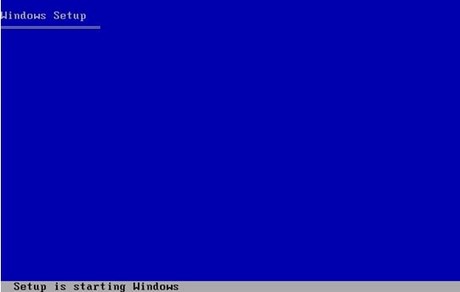
- Boot from the installation disc. Use the PC's one-time boot menu or documented BIOS settings to select the CD/DVD drive. When the blue text-mode Windows Setup screen appears, wait for it to load drivers.
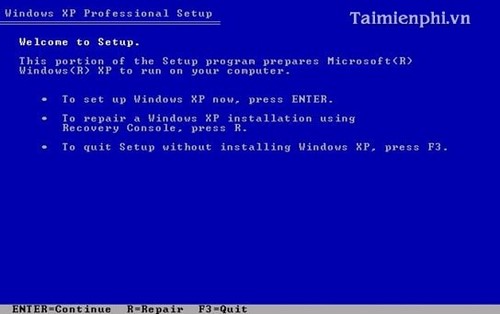
- Start a new installation. Press Enter for “To set up Windows XP now.” Pressing R opens the Recovery Console, while F3 exits Setup.
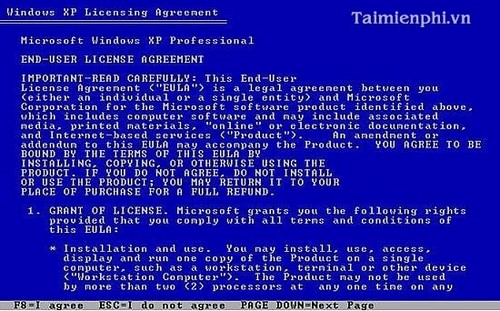
- Read the license terms. Press F8 only if you accept them and your license covers this installation.
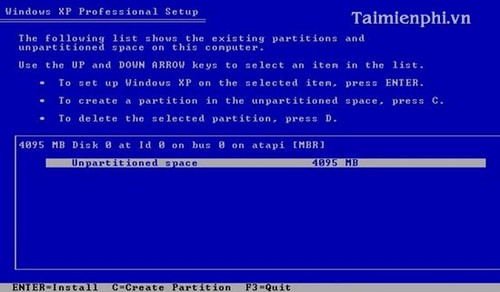
- Select the destination disk and partition. Identify the target by capacity and existing partition information, not by assumption. Creating or deleting partitions changes the disk layout and can destroy data.
- Choose a file system. NTFS is the appropriate default for most XP installations. A full format checks the volume more thoroughly; a quick format is faster but should not be used to dismiss signs of a failing disk.
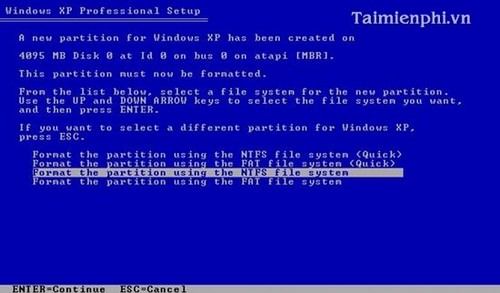
Wait for formatting to finish without restarting or removing power.
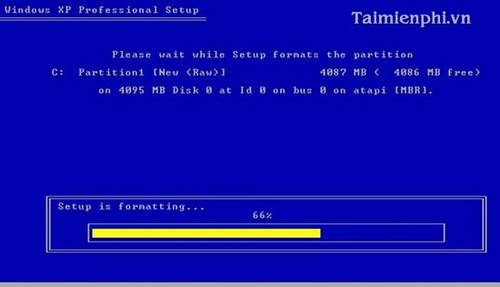
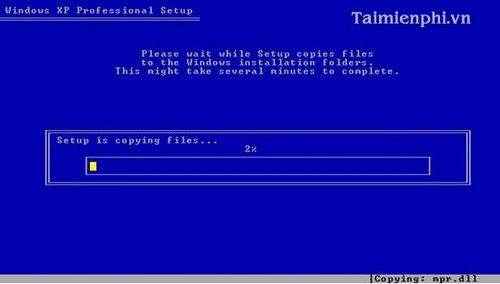
- Let Setup copy files. No manual copying is required. Setup copies the necessary files from the disc to the selected partition.
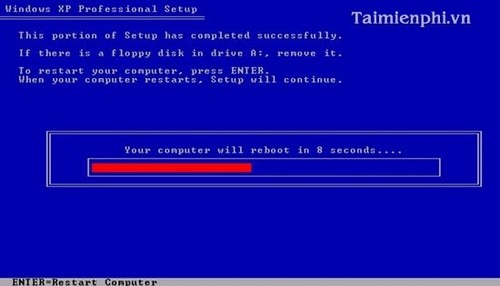
- Allow the first restart. When the countdown appears, let it finish or press Enter. Do not press a key to boot from the CD again after restart, or text-mode Setup will start over.
Complete graphical Setup
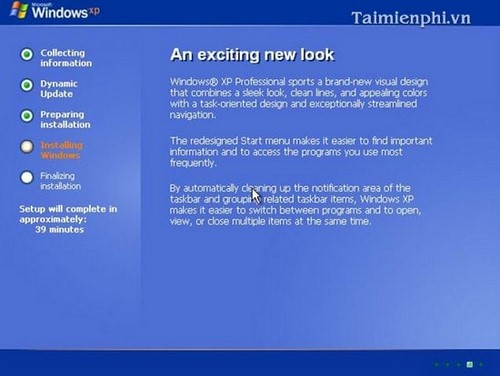
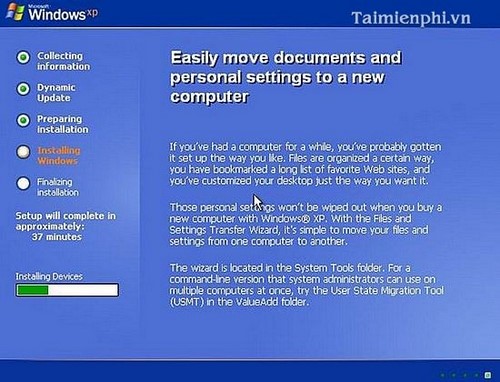
Windows now detects devices and installs components. The screen can change resolution and the computer may appear idle for several minutes.
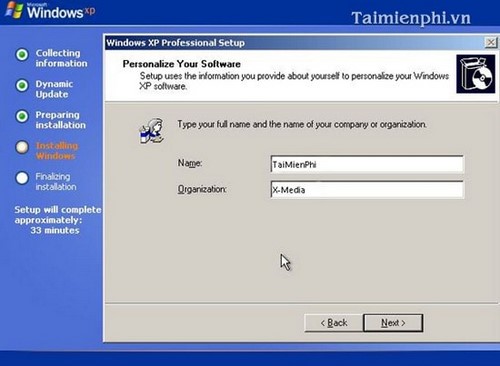
- Enter regional and owner information. Confirm the language and keyboard layout, then provide the name and organization fields as required.
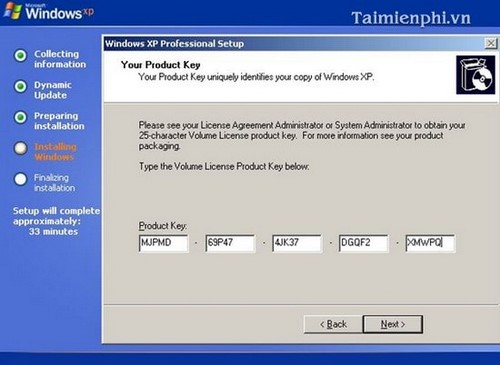
- Enter the product key. Use only the key supplied with the licensed media or computer. Keep it private and verify that the edition matches.
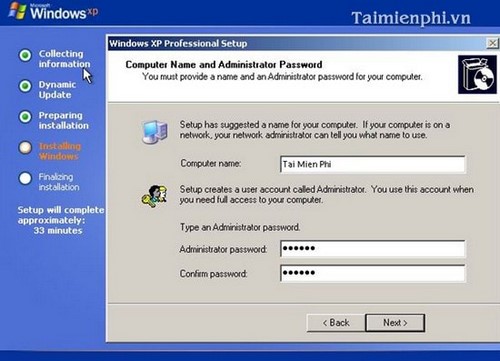
- Set the computer and Administrator credentials. Use a unique computer name and a strong local Administrator password. Do not leave the Administrator account without a password.
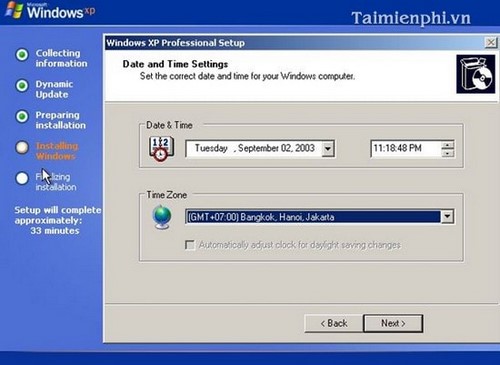
- Set the date, time, and time zone. An incorrect clock can cause certificate and authentication errors.
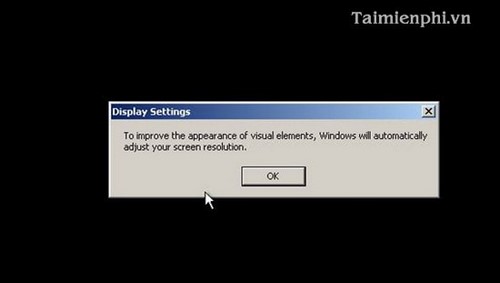
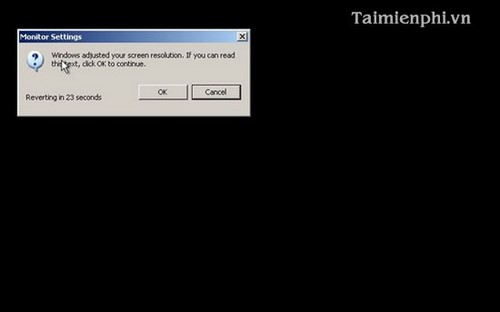
- Confirm display settings. After Setup restarts, accept the automatic display adjustment only if the screen is readable.
- Wait for the first desktop setup. Windows prepares the initial session and may restart once more.
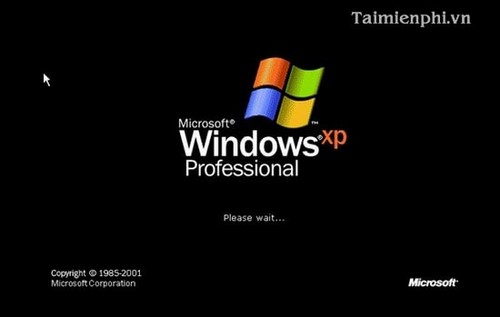
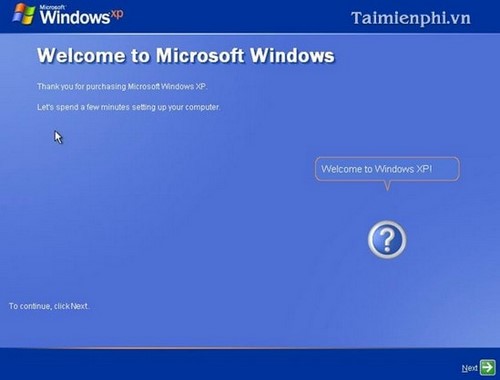
- Complete the welcome screens. Continue through the wizard, but keep networking disabled unless the legacy environment requires it.
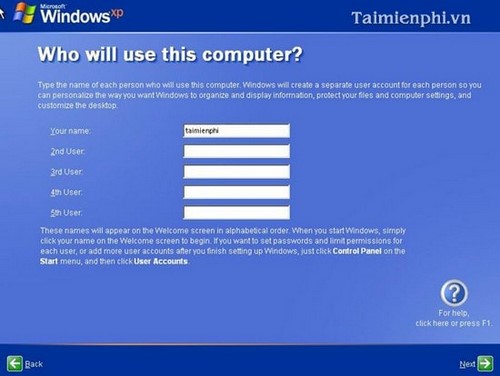
- Create the everyday user account. Enter a user name distinct from Administrator, then finish Setup.
After installation
- Install only drivers obtained from the hardware or VM vendor. Unknown driver packs can contain unwanted software.
- Activate Windows with the valid license if activation is available for that media and environment.
- Disable unused services, shared folders, clipboard integration, and removable-device access in a VM.
- Do not use XP for current browsers, email, banking, password storage, or exposure to an untrusted network.
- Keep a clean VM snapshot or your own verified disk image so the legacy environment can be restored without relying on an unofficial “ghost” image.
If the installer cannot see the disk, the system repeatedly crashes during hardware detection, or no XP drivers exist, stop rather than forcing the installation. Use a virtual machine or replace the legacy application or device with a supported alternative. For broader planning, see TipsMake's Windows installation and recovery guides.
Related Articles
 Install && Uninstall Service Pack 1 on Windows 78 minutes read
 Install Windows XP Service Pack 3 (SP3)7 minutes read
 Tong: Overview of Windows XP Service Pack 312 minutes read
 Windows 7 Will Automatically Install Service Pack 1 on March 204 minutes read
 Error Handling Cannot Install Updates and Program Settings21 minutes read
 How to Repair Wi Fi Connection After Windows Service Pack 22 minutes read
Reader Comments 0
Sign in with email or Google to join the discussion.