Table of Contents
Quick Overview
Step : Get a clear, practical overview of Step, including Why doesn't the laptop recognize headphones.
Laptops are not only a working tool but also an effective means of entertainment chosen by many people. With laptops, we can easily watch movies, listen to music or participate in online calls. However, the laptop does not recognize headphones, making many people uncomfortable due to loss of privacy. Read on to learn the cause and how to quickly fix the situation where the laptop cannot connect to the headphones.
1. Why doesn't the laptop recognize headphones?
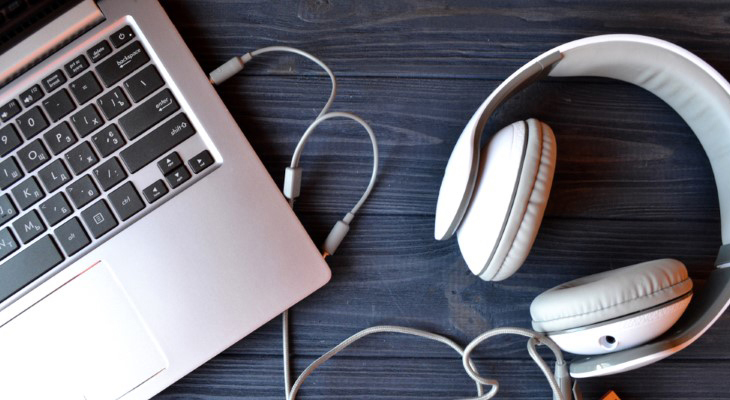
In fact, the situation where the laptop cannot connect to the headset can be due to many reasons. However, usually, the cases where the laptop does not recognize the headset mainly come from a number of reasons such as:
- The laptop cannot connect to the headset because the headset is broken. This is considered Among the most common causes today. In general, the solution in this case is relatively simple, just change the headset.
- A faulty connection port between the laptop and the headphone device is also the basic reason why you cannot use the headphone with the computer.
- The laptop cannot connect to the headset due to an error in the audio driver. In fact, the driver plays a particularly important role, helping to support the use of peripheral devices. Therefore, an error in the audio driver will certainly hinder the use of the headset.
- Due to user error when accidentally turning off audio on the device.
2. Some solutions to fix the problem of laptop not recognizing headphones
Finding out the reason why your computer does not recognize your headphones will help you find the most suitable and effective solution. According to experts, the error of your laptop not being able to connect to your headphones can be solved with some simple solutions such as:
2.1. Check the device hardware again
If you plug your headphones into your laptop but get a message saying 'headphones not detected', don't forget to check the hardware of each device. Specifically:
First, users should try plugging the headset into another connection port on the computer. Because in reality, there are many cases where the headset cannot receive audio signals from the computer because the USB port used for connection is broken. Therefore, you can try connecting to another port on the laptop to check.
If after trying all the ports and still can't use it, try connecting the headset to another device, such as a phone. In this case, if you still can't get sound, then the reason is definitely that the headset is broken, need to replace with another headset.
2.2. Check Volume Mixer
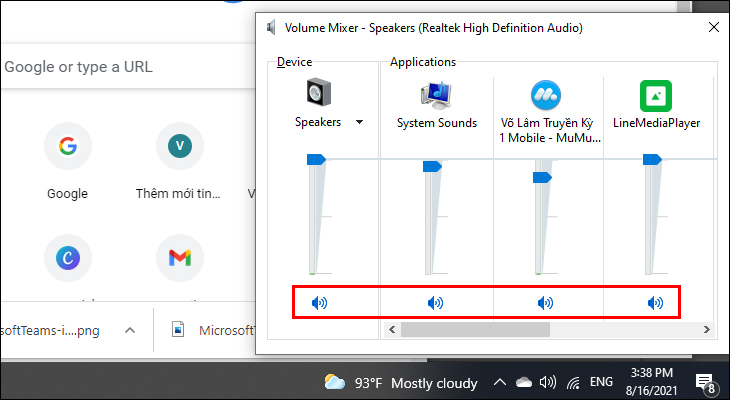
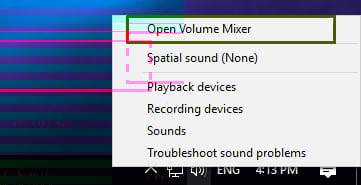
Step 1 : Right click on the speaker icon on the Taskbar > Select Open Volume Mixer .
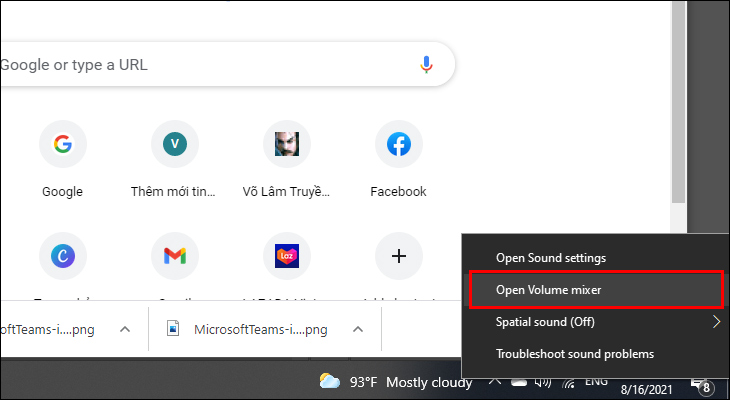
Step 2 : Check if the speaker and running programs are muted. If so, turn on the sound by clicking on the speaker icon.
2.3. Check Device Usage
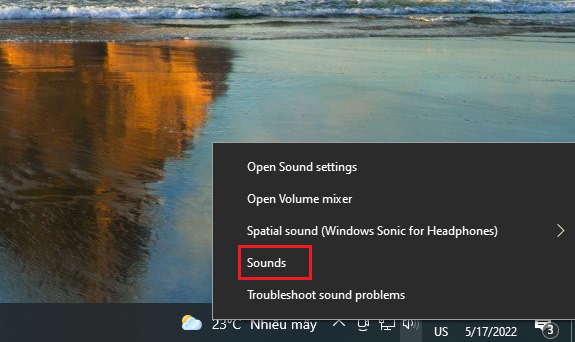
Step 1 : Right click on the speaker icon on the Taskbar > Select Sound .
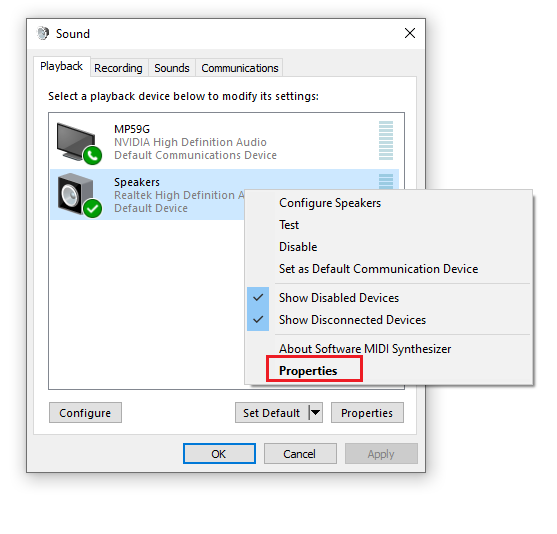
Step 2 : In the Sound dialog box, select Playback > Right- click on the headphone device name > Select Properties .
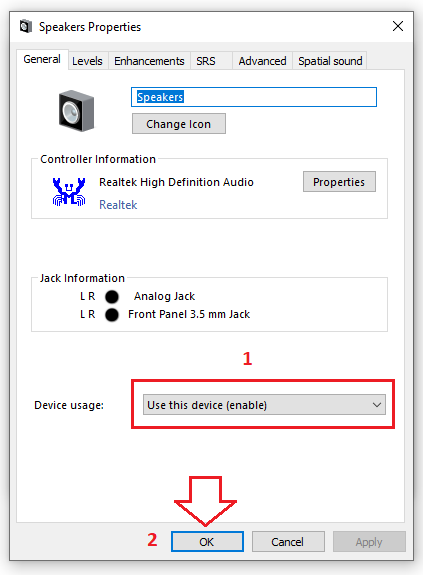
Step 3 : In the Device usage section below > Select Use this device (enable) > Click OK .
2.4. Use the built-in audio troubleshooter
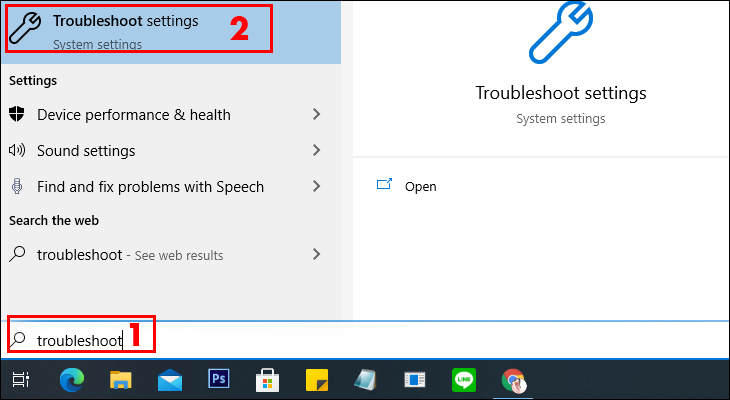
Step 1: In the Windows window, type troubleshoot in search > Click to open Troubleshoot Settings .
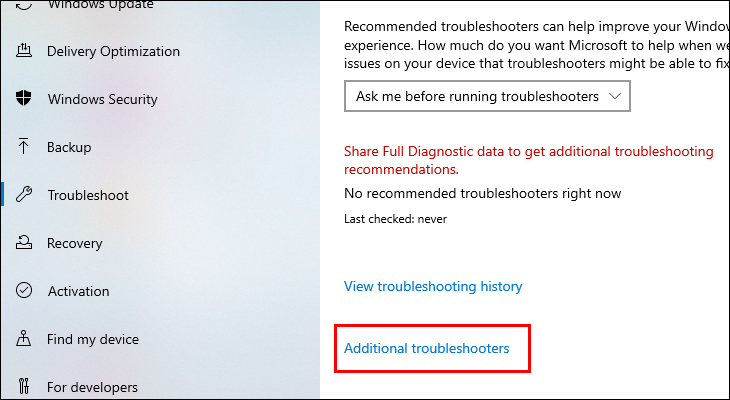
Step 2 : Select Additional troubleshooters .
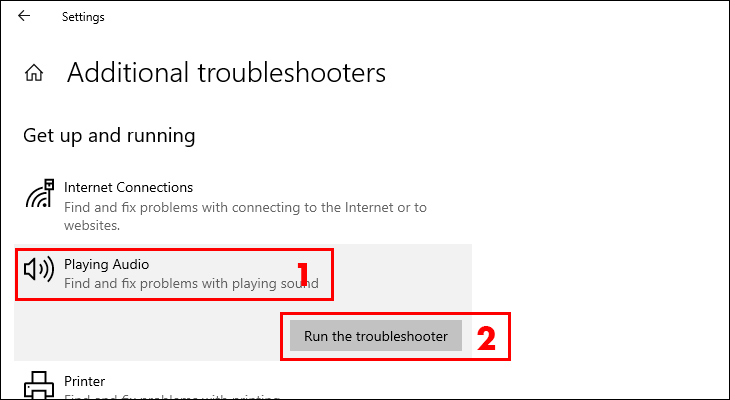
Step 3 : Select Playing audio > Click Run the troubleshooter .
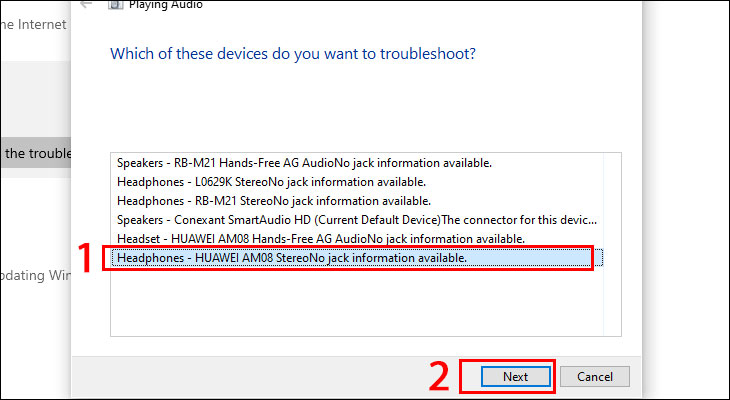
Step 4 : Click Headphones > Select Next .
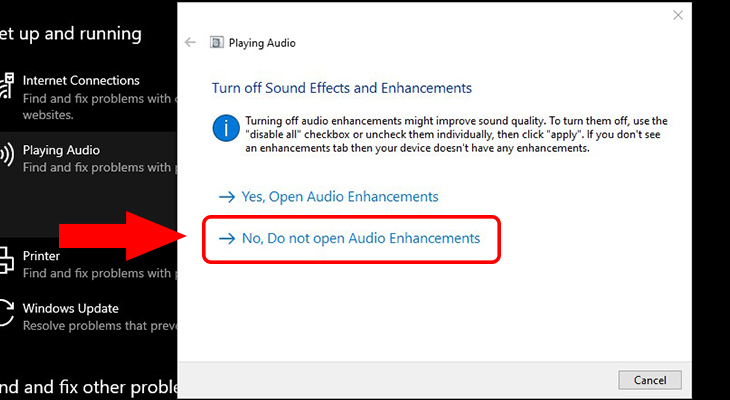
Step 5 : Select No, Do not open Audio Enhancements .
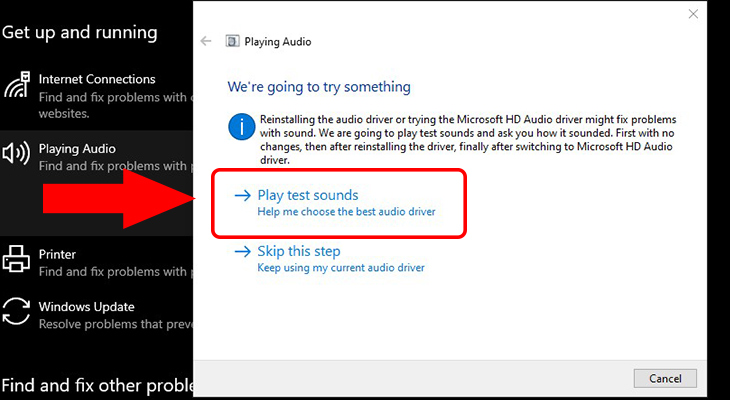
Step 6 : Select Play test sounds .
2.5. Reinstall the audio driver
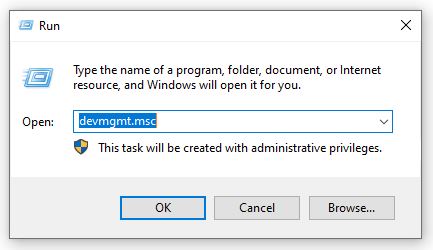
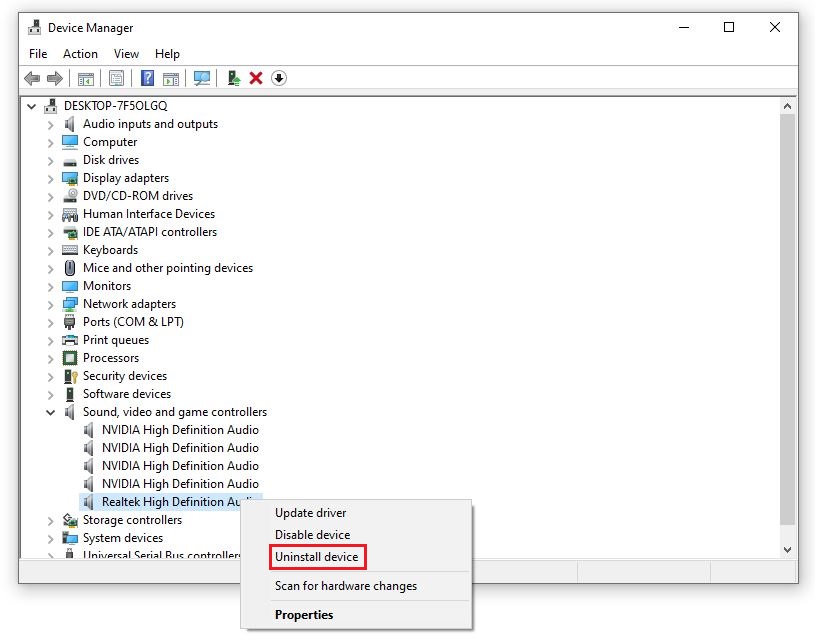
Step 1: Press Windows + R key combination > Type devmgmt. msc > Click OK .
Step 2 : In the Device Manager dialog box, double-click or click the arrow next to Sound, video and game controllers .
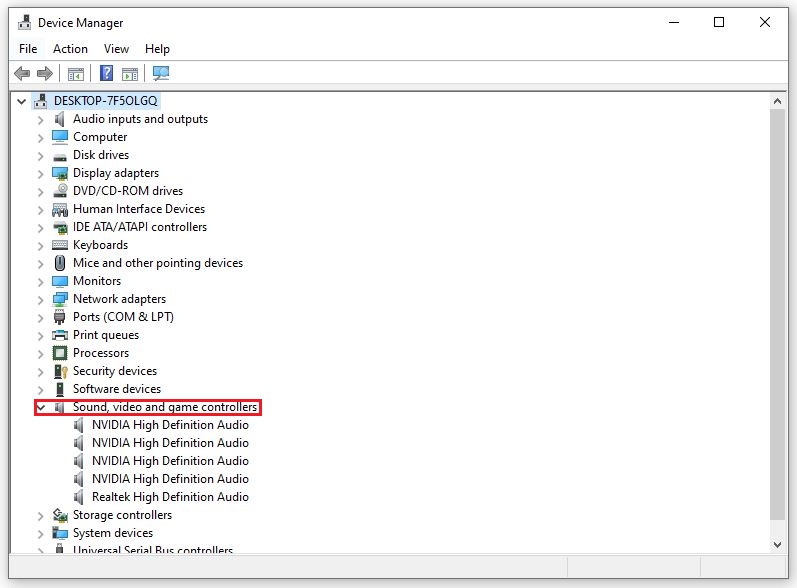
Step 3 : Right click on Realtek Audio > Select Uninstall device .
Step 4 : Right-click on Sound, video and game controllers > Select Scan for hardware changes .
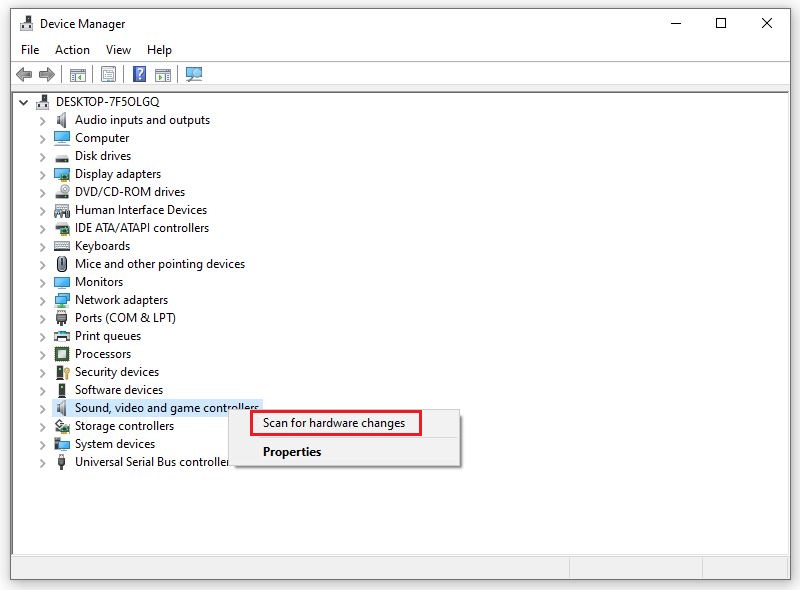
After this step, the computer will automatically scan and reinstall the missing audio driver.
2.6. Set default output device for headphones
In case the headset is not set as the default audio output device on the laptop, you will not be able to use it. Especially when your computer uses Windows 10 operating system. To change the headset to the default output device, users perform the following operations:
Step 1: Type ' Control Panel ' into the search box in Windows 10 to open the laptop's settings window.
Step 2: Here, click on ' Hardware and Sound ' and continue to select ' Sound '.
Step 3: At the ' Playback ' tab, the user drags the mouse to the device table, displays disabled devices by right-clicking and selecting the ' Show Disabled Devices ' command.
Step 4: In case the headset is displayed on the screen but is in Disable state, click to switch to Enable mode, at this time the device will be activated again.
Step 5: After successfully activating the headset, click on Set as Default and select Apply to finish.
2.7. Apply audio troubleshooting feature
Currently, Windows 10 has launched the Playing Audio troubleshooting feature, integrated right into the system, allowing users to fix the situation where the laptop does not recognize headphones in a simple and quick way. To use this feature, users follow these steps:
Step 1: Click on the Windows icon on the Laptop keyboard and type ' Troubleshoot '. Then click on ' Troubleshoot Settings '.
Step 2: After successfully opening the dialog box, find and select the Playing Audio icon and click ' Run the troubleshooter '. At this time, the Windows system will automatically search for audio errors on the device.
Step 3: After the system has finished checking, select Headphones and click Next to continue with the next steps.
Step 4: Select the command ' No, Do not open Audio Enhancements ' and continue to click on the ' Play test sounds ' section to check the sound from the headphones. In case you can't hear anything, click on ' I didn't hear anything ' so that Windows can continue to process for you.
Connecting to headphones is Among the important features of laptops to support users in the process of working and entertaining with the device. Therefore, we hope that today's article will help you understand more about how to effectively fix the error of laptop not recognizing headphones. Follow other articles of Hoang Ha Computer to learn more useful knowledge.
FAQ About Step
What is Step?
Step 4: In case the headset is displayed on the screen but is in Disable state, click to switch to Enable mode, at this time the device will be activated again
Why is Step important?
Follow other articles of Hoang Ha Computer to learn more useful knowledge
How can you use or manage Step effectively?
To use this feature, users follow these steps: Step 1: Click on the Windows icon on the Laptop keyboard and type ' Troubleshoot '
Related Articles
 5 Ways to Quickly Fix Windows 10 Error of Not Recognizing Headphones: Best8 minutes read
 The Laptop Is Not Recognizing the Headphones5 minutes read
 8 Things to Check If Your Computer Doesn't Recognize Your Headphones8 minutes read
 How to Fix the Problem of a Laptop Not Recognizing a USB Device When Plugged In5 minutes read
 6 Ways to Fix Laptop Not Recognizing Mouse7 minutes read
 11 Ways to Fix Your Computer Not Recognizing Headphones: Recommended Choices11 minutes read
Reader Comments 0
Sign in with email or Google to join the discussion.