Table of Contents
If your laptop shows a blank white screen, connect a known-good external monitor and check whether the white screen starts before or after Windows loads. If the laptop recently got wet, power it off and unplug it before doing either test.
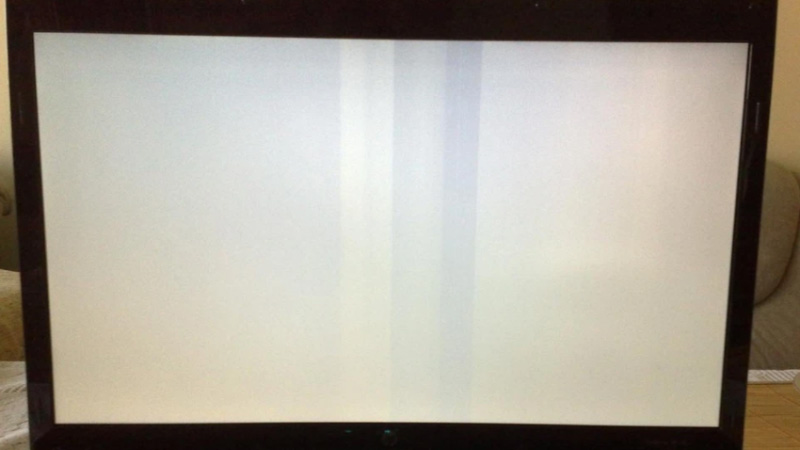
Test with an external monitor
- Connect a display with a known-good cable to the laptop’s HDMI, DisplayPort, or video-capable USB-C port. Select the matching input on the monitor.
- Start the laptop and note whether the built-in display shows the manufacturer’s logo or goes white immediately.
- If Windows has loaded and the external display is blank, make sure it is active. Try the laptop’s display-switch key or the Windows projection controls if you can see them.
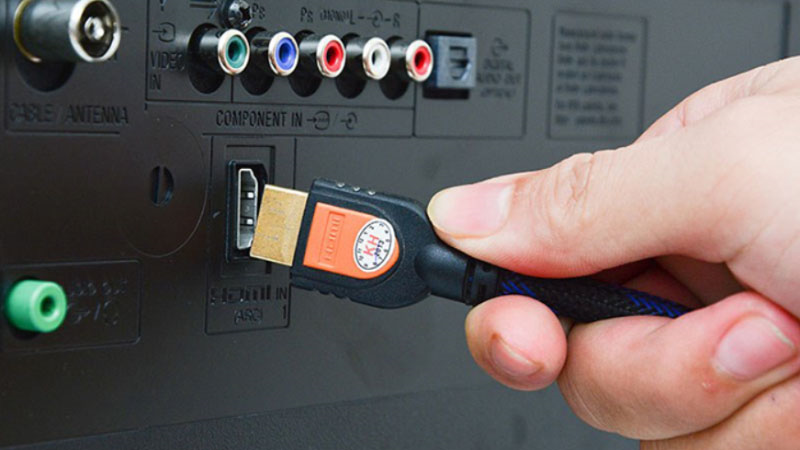
What the result can tell you
- The external monitor works and the built-in screen stays white: The internal panel, display cable, or connector may be involved. The test does not identify the exact failed part.
- Both displays have trouble: First rule out the external input and cable. A graphics, driver, or system problem is also possible.
- It starts only after Windows loads: Check whether it began after a graphics driver or app update. Use the laptop maker’s diagnostics if the symptom also occurs before Windows starts.
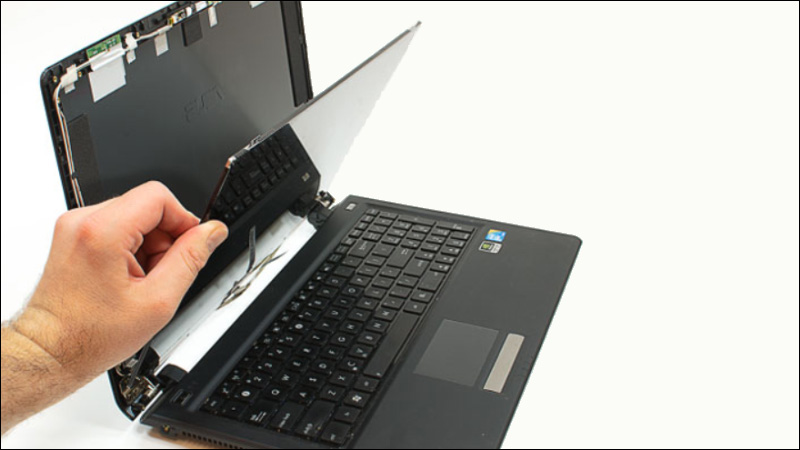
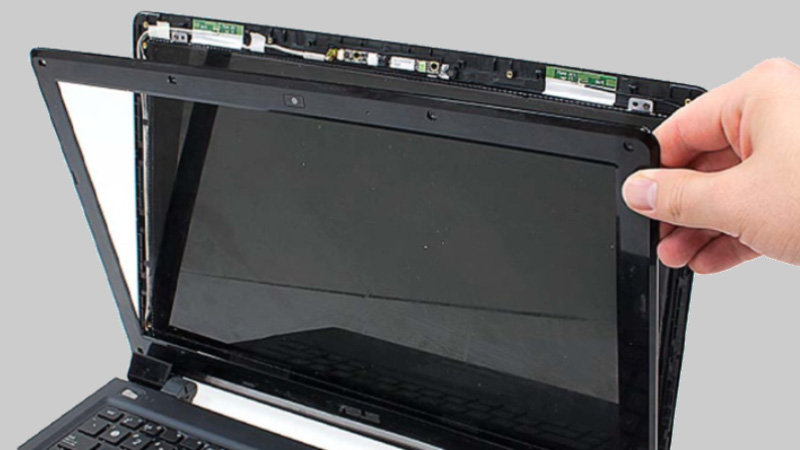

What to do after a spill, impact, or suspected hardware failure
After a spill, shut the laptop down, unplug it, and consult the manufacturer or a repair technician. Avoid powering it back on to test it. After an impact or if the white screen follows normal lid movement, avoid forcing the hinge. If an external monitor works and the laptop is dry, use it to back up important files before service.




Reader Comments 0
Sign in with email or Google to join the discussion.