Table of Contents
This updated guide examines 4 Ways to Manage the Process of Backup Windows Server 2008 on and organizes the essential facts, background, and practical takeaways in clear American English.
With Windows Server Backup instead of some other support tools, we can save a part of the cost of licensing, as well as the complexity of having to do it on one or more different system scales. As for system administrators - Administrator , this can be considered the best method to manage and monitor the performance of one or more large systems. In the following article, we will present and introduce four basic and easiest ways to remotely manage the status of Windows Server Backup from multiple servers.
1. In case of using multiple Windows Backup Snap-ins:
In essence, Windows Server Backup is handled by how to use the command line - Command Line or Windows Server Backup management application (wbadmin.msc) . And this management program can be applied on 1 server at a time (usually a local server), but can also be handled for many computers that use the same version of Windows Server Backup operating system.. Today, we are able to add a Windows Server Backup Snap driver - print via the Microsoft Management Console (MMC) interface . Follow these steps to manage the backup process from multiple servers through a single console:
- Open a new Microsoft Management Console window (MMC.exe)
- Select File> Add / Remove Snap-in
- Select Windows Server Backup Snap - in and click the Add button
- At Computer Chooser screen, select Another Computer and enter the name of the remote server to be managed
- Click Finish and repeat steps 3 - 4 for each subsequent server to add
- When done, click OK and all servers will display in the list below
- Choose File> Save as , set the appropriate name and save the newly created MMC component
And each time you open the MMC, the entire server has been added to the list. You just need to browse each MMC to check the corresponding status of each server
2. Using Windows Small Business Server:
If you own a Microsoft Small Business Server (SBS) operating system version 2008 or 2011, it is possible to automate the backup management process with a fairly effective feature. Specifically, Windows Server Backup is part of SBS management solution, the rate of success of Exchange 2010 in SBS 2011 environment is highly appreciated for small and medium enterprises. The corresponding reports are created and sent via email daily or weekly, making it easy for system administrators to follow the whole situation of the backup process:
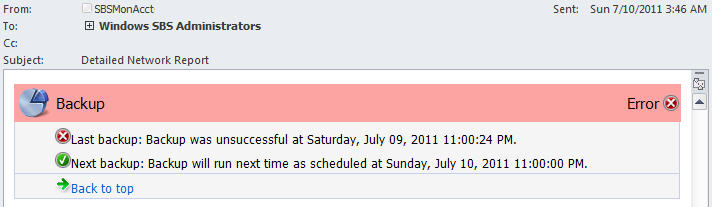 Detailed Network Report gives users an overall view of the backup status in Small Business Server system
Many SBS servers can be set up to send emails to the same address, either in automatic or non-automatic modes, with fixed-time reports. all of which have a positive effect. extreme to the success of the process.
3. Back up the successful implementation process:
Did you know that the Windows 2008 server system has built-in management capabilities at the primary level? In fact, these are tasks based on the events that users create corresponding to each action on the system in 1 or more log files in Windows. Windows Backup events are stored in a Microsoft - Windows - Backup component. To perform this process, follow the specific steps below:
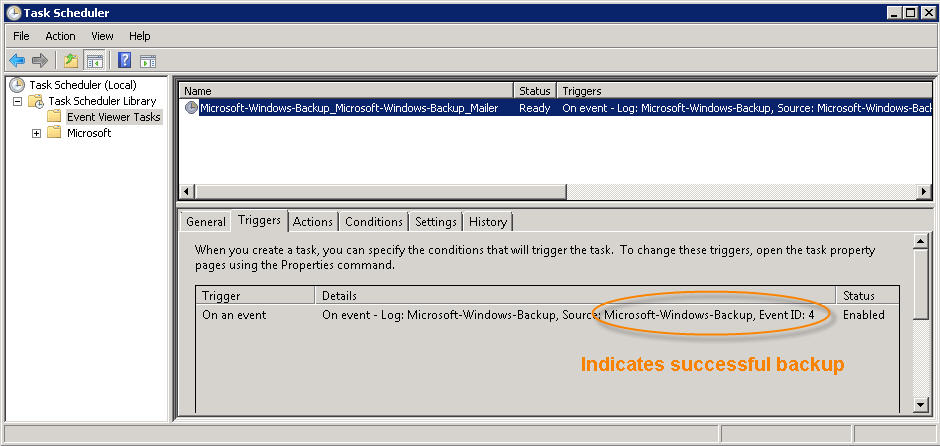
- Open Event Viewer> Applications and Services Logs> Microsoft> Windows> Backup
- Select the correct event of the backup process that was successful before the source is Microsoft - Windows - Backup and Event ID: 4
- Right-click on the event and select Attach Task to This Event
- Select Send an Email and follow the instructions
- Use the address list to send email
- Observe the process of sending this message via mailbox
4. Confirm SCOM Management Pack:
On the other hand, a strange feature of Microsoft is that it has never released Systems Center Operations Manager (SCOM) management package for Windows Backup . Perhaps Microsoft wants customers to use System Center Data Protection Manager (DPM) to manage the backup process on multiple servers. And Today, there is a DPM 2010 MP package to fully confirm the backup status for all protected server models in the form of DPM.
And similarly, users need to confirm the MP - Management Pack when creating the status of Windows Server Backup on different servers. A common recommendation by experts at this step is to use the SCOM confirmation command to combine the new MP section after successfully creating new objects in SCOM corresponding to each server using Windows Server Backup.
A fairly simple technique used in SCOM is to create a new object to define and initialize components based on a specific Registry key. For example, when daily backups are scheduled, lock Tree in the Registry of the TaskCache section to be edited by adding some Windows Backup key keys. And to check on which computers have enabled Windows Backup , check the existence of the following Registry key:
SOFTWAREMicrosoftWindows NTCurrentVersionScheduleTaskCacheTreeMicrosoftWindowsBackupMicrosoft-Windows-WindowsBackup
After that, we can see the number of components and remote control tasks to monitor the entire backup process. A useful process here can be a missed event and not encounter any warning within 24 hours. You can observe similar events similar to Microsoft - Windows - Backup Event ID: 4 by described above:
 The process of confirming the SCOM management package to create a tracking table for backup processes often between different serve
Good luck!
FAQ
What is 4 Ways to Manage the Process of Backup Windows Server 2008 on about?
It provides a structured overview of tutorial, explains the main context, and highlights practical takeaways for readers.
Why does this topic matter?
Understanding the main concepts helps readers evaluate the issue, avoid common mistakes, and make better-informed decisions.
How should readers use this information?
Use the guidance as a practical starting point, confirm details that may have changed, and follow current product, safety, or security recommendations.
Related Articles
 Instructions: Delete Log Information in Windows Server Backup2 minutes read
 Backup and Restore Wi-Fi Settings in Windows 73 minutes read
 Balancing Download of Exchange 2007 Sp1 Hub Transport Servers11 minutes read
 Replica Set in Mongodb: What You Need to Know5 minutes read
 Install Windows Server Backup on Windows Server 2008 R24 minutes read
 4 Basic Difference Between Windows Server and Windows Desktop7 minutes read
Reader Comments 0
Sign in with email or Google to join the discussion.