Table of Contents
The quickest way to capture part of the screen in Windows 11 is to press Windows + Shift + S. Select a rectangle, window, free-form area, or the full screen, then open the notification to annotate or save the image. For a full-screen file saved automatically, use Windows + PrtScn.
Windows 11 screenshot shortcuts
| Shortcut | What it captures | Where it goes |
|---|---|---|
| Windows + Shift + S | A selected area, window, or full screen | Clipboard and Snipping Tool notification |
| PrtScn | The full screen; on some PCs it opens Snipping Tool instead | Clipboard or Snipping Tool |
| Alt + PrtScn | The active window | Clipboard |
| Windows + PrtScn | The full screen | Pictures > Screenshots |
| Windows + Alt + PrtScn | The current game or app through Game Bar | Videos > Captures |
Laptop keyboards may require the Fn key as well. If your device has no PrtScn key, Microsoft documents Fn + Windows + Spacebar as an alternative. See the general Windows screenshot guide for other Windows versions.
Capture the full screen with Print Screen
Press PrtScn to copy the entire display to the clipboard. Open Paint, an email, or a document and press Ctrl + V to paste it. Press Alt + PrtScn when you need only the active window.
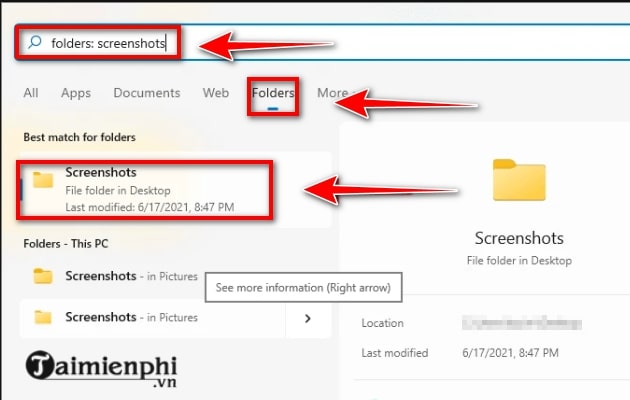
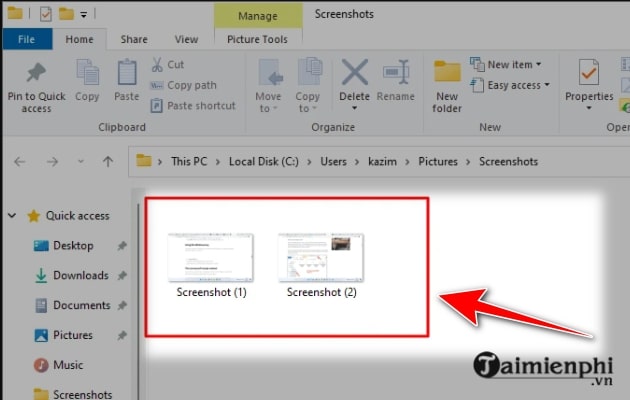
To create a file immediately, press Windows + PrtScn. Open File Explorer and go to Pictures > Screenshots. If OneDrive screenshot backup is enabled, the location may be inside the OneDrive Pictures folder.
Capture a selected area with Snipping Tool
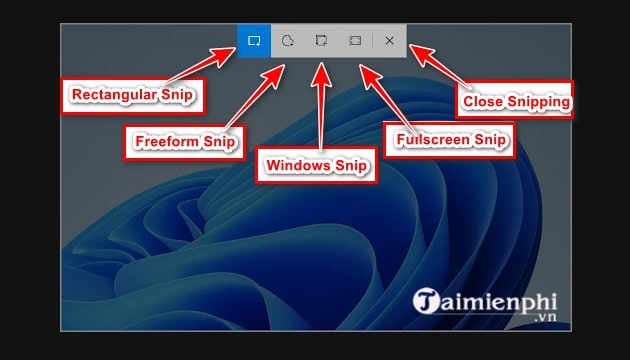
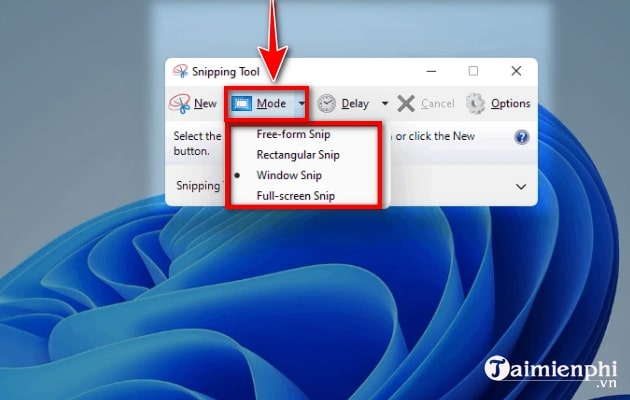
Snip & Sketch has been folded into the current Snipping Tool in Windows 11. Press Windows + Shift + S, then choose Rectangular, Freeform, Window, or Fullscreen mode from the capture bar. Drag over the area you want. The result is copied to the clipboard, and selecting its notification opens the editor.
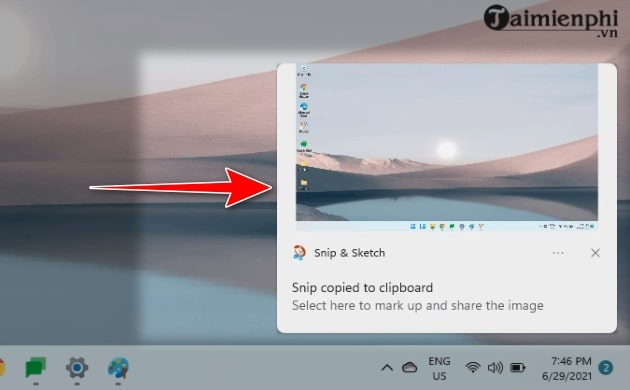
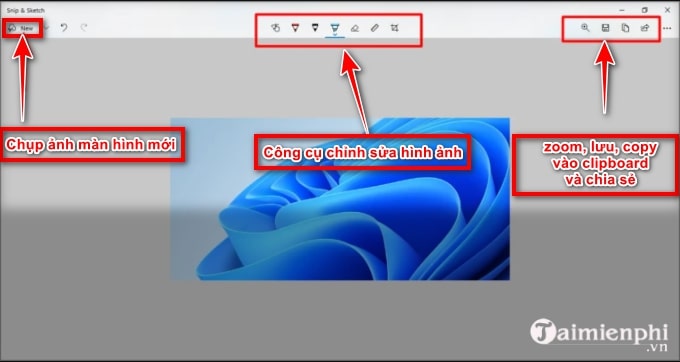
In the editor you can crop, draw, highlight, copy, share, or save the image. Use Ctrl + S to choose a filename and location.
Make PrtScn open Snipping Tool
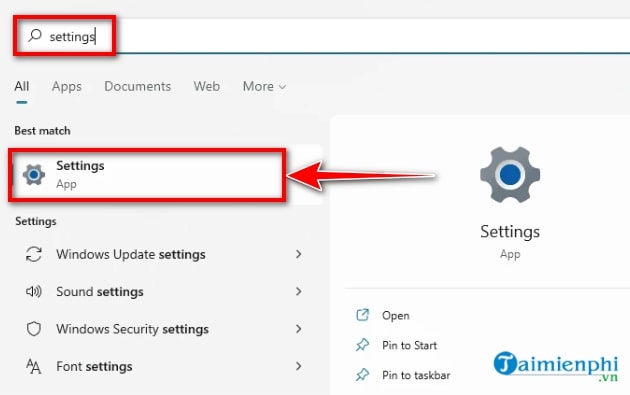
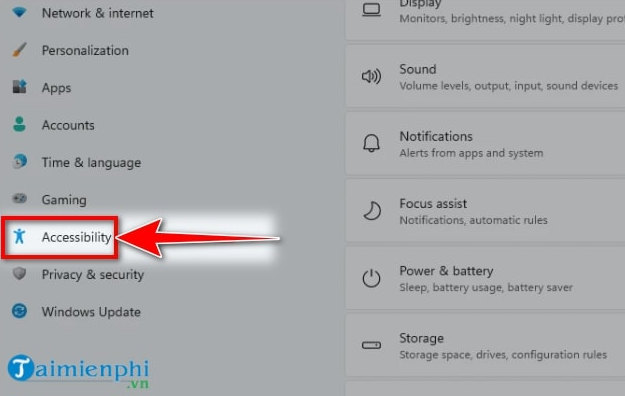
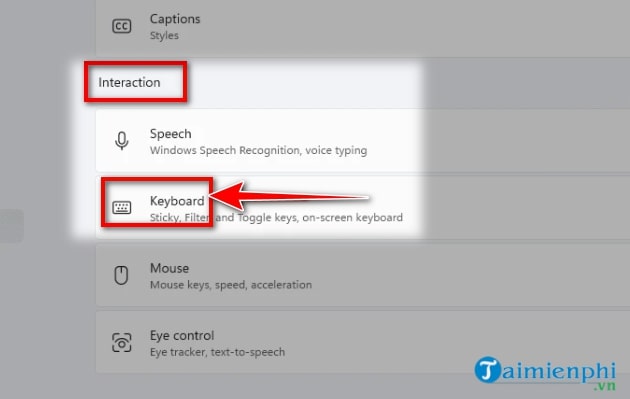
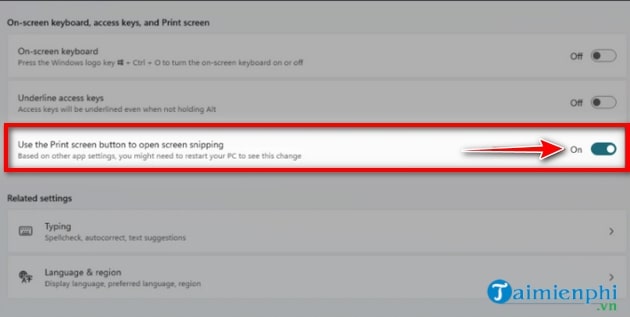
Open Settings > Accessibility > Keyboard, then enable the option that uses the Print Screen key to open screen capture. The exact wording can vary by Windows build. Once enabled, pressing PrtScn opens the same selection overlay as Windows + Shift + S.
Open the full Snipping Tool app
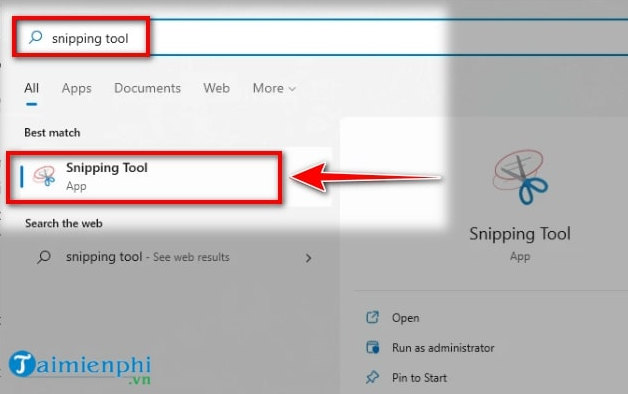
Search for Snipping Tool from Start when you want a capture delay or need the editor ready before taking a screenshot. Select New, choose a capture mode, and drag with the left mouse button—not the right mouse button—to select an area.
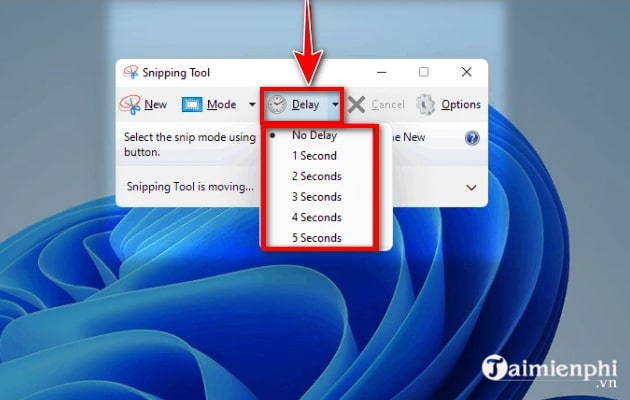
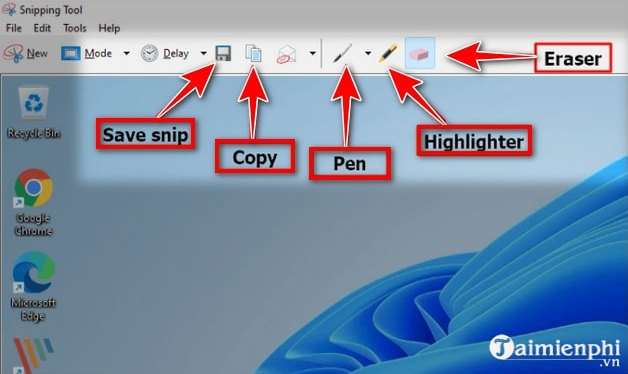
Microsoft’s current instructions for the app are available in its Snipping Tool guide.
Capture a game or app with Xbox Game Bar
Press Windows + G to open Game Bar, select the Capture widget, and choose the camera button. The direct shortcut is Windows + Alt + PrtScn. Game Bar stores captures in Videos > Captures; it is most useful for games and compatible apps, not the Windows desktop or File Explorer.
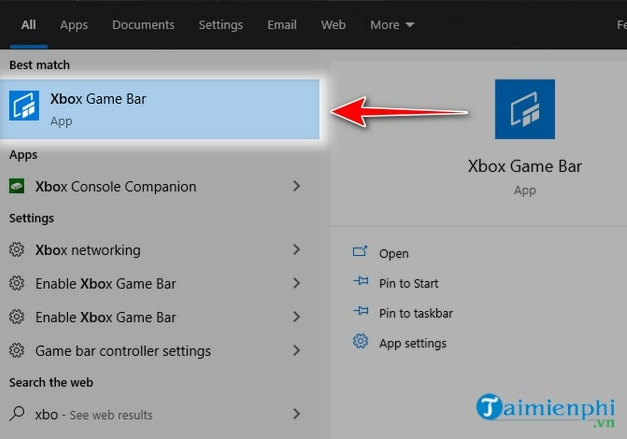

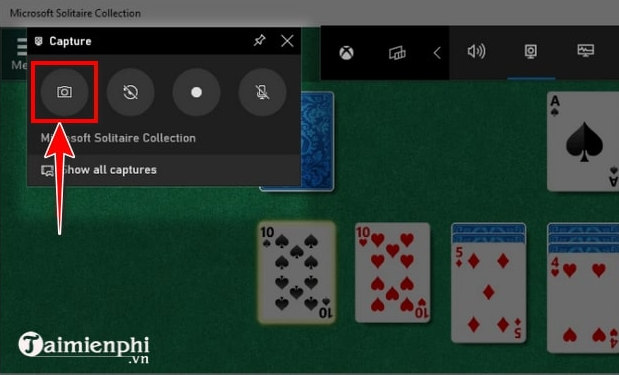
If you also need video, follow the Windows screen-recording guide.
Use ShareX for scrolling captures and automation
The built-in tools cover most needs. ShareX is useful when you need scrolling capture, repeatable workflows, annotations, or automated file naming. Install it only from the official site, choose Capture, and select Region or Scrolling capture. Review upload settings before using it with private information.


The ShareX and Greenshot comparison explains how two popular third-party tools differ.
Use PicPick for capture and image editing
PicPick combines screen capture with a lightweight image editor. Choose a capture type, select the area, then use File > Save As and choose PNG for sharp interface screenshots or JPEG when a smaller photographic file is more important.


If the shortcut does not work
- Try adding Fn on a compact laptop keyboard.
- Check whether PrtScn is assigned to Snipping Tool under Accessibility > Keyboard.
- Paste with Ctrl + V before assuming a PrtScn capture failed; some shortcuts copy rather than save.
- For Windows + PrtScn, check Pictures > Screenshots and the equivalent OneDrive folder.
- Avoid capturing passwords, recovery codes, private messages, or customer information before sharing an image.
Related Articles
 Summary of New Keyboard Shortcuts on Windows 11 to Help You7 minutes read
 The Simplest and Fastest Way to Take a Screenshot on a MacBook In 202613 minutes read
 How to Take a Screenshot on Windows 118 minutes read
 Summary of 60+ Latest Keyboard Shortcuts on Windows6 minutes read
 5 Easiest and Fastest Ways to Take Screenshots of Windows 10: Recommended18 minutes read
 The Fastest Ways to Take Screenshots on a Computer or Laptop9 minutes read
Reader Comments 0
Sign in with email or Google to join the discussion.