Table of Contents
Google’s Android apps cover more than the ones that ship with your phone. Start with the job you need to do. Authenticator generates sign-in codes, Snapseed edits photos, Magnifier helps you read small print on a supported Pixel, and Chrome Remote Desktop lets you reach a computer you’ve already set up. Availability and preinstallation vary by phone and country.
1. Action Blocks for one-tap shortcuts
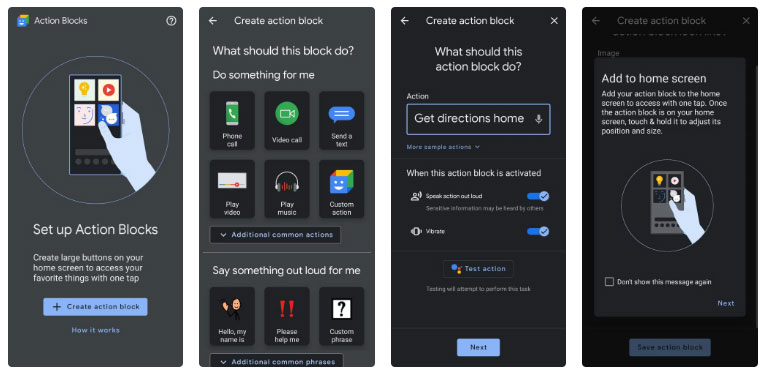
Use Action Blocks to put a large, labeled button on your home screen for a supported Google Assistant action, such as calling a contact. You can also create a button that reads a phrase aloud. Test the action before pinning it, especially if you’re setting up the phone for someone else.
2. Google Opinion Rewards for occasional Play credit
The Android app offers short surveys and can issue Google Play credit. Survey availability and eligibility vary, so treat it as occasional credit. Check the Opinion Rewards availability and eligibility page before installing.

3. Wallpapers for a changing home screen
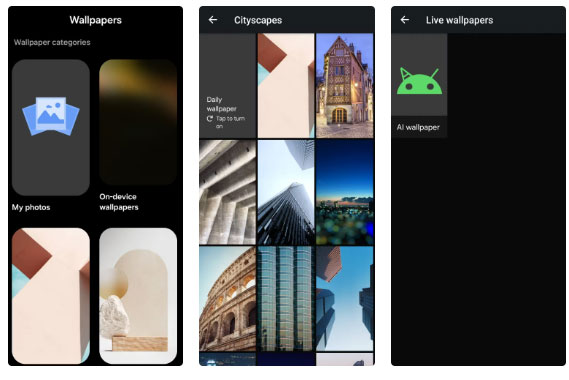
Pick a photo or browse Google’s collections, then apply a wallpaper to the home screen or lock screen as supported by your phone. Some collections offer a daily rotation. If your phone already has a wallpaper picker you like, check whether the separate app adds a collection you want.
4. Google Authenticator for one-time sign-in codes
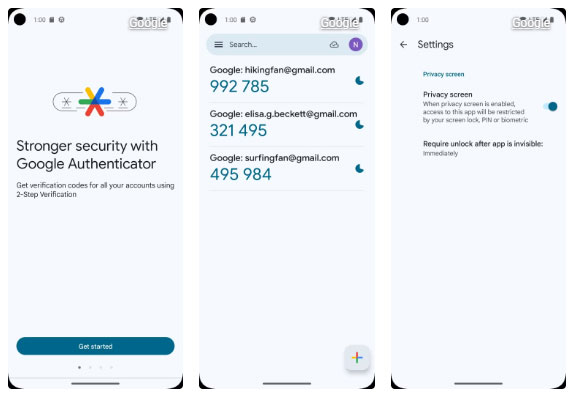
Use Authenticator for accounts that support time-based verification codes. The app can generate codes without an internet connection. Before retiring an old phone, make sure the codes work on its replacement and keep account recovery codes somewhere safe. Google documents how to sync or transfer Authenticator codes.
5. Magnifier for menus, labels, and signs
On supported Pixel phones, Google’s Magnifier uses the camera to enlarge physical objects and text. You can freeze the view so you can read a label without holding the phone in place. Google Play lists Pixel 5 or later as the requirement. To enlarge text already displayed on your phone, use Android’s accessibility magnification instead.
6. Gallery for browsing photos stored on your phone
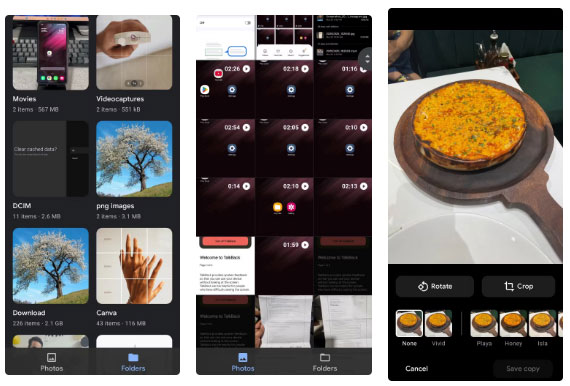
Google’s Gallery app gives you a simple view of local photos and folders, with basic editing tools. Choose it if you want to browse device files offline. Set up a separate backup if you need photos to be recoverable after losing or replacing the phone.
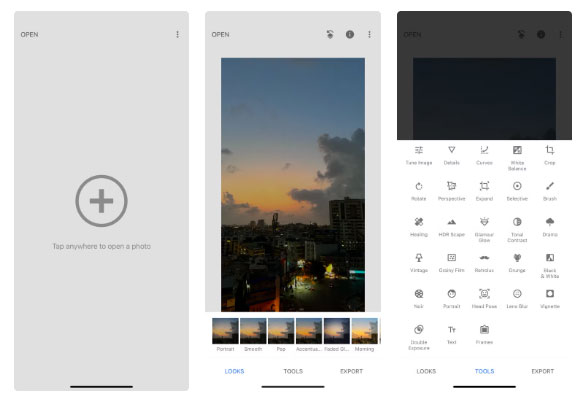
7. Snapseed for selective photo edits
Use Tune Image for exposure or color, straighten a tilted shot, or use Selective to adjust one area. Export a copy when you want to keep the original intact. The Snapseed editing guide walks through those tools.
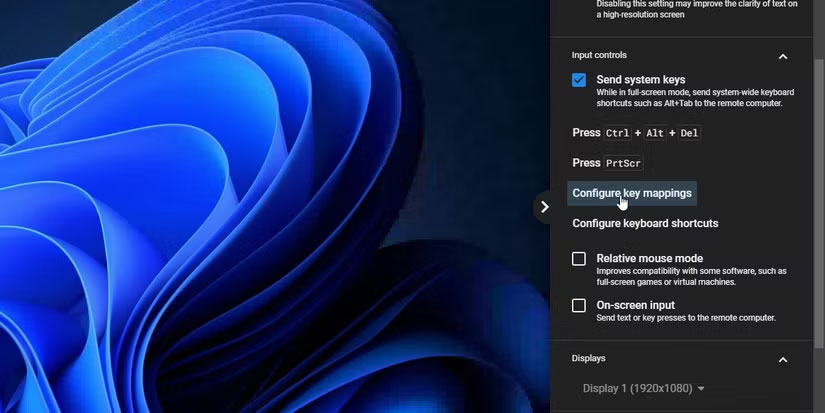
8. Chrome Remote Desktop for reaching your computer
Set up the host component on a supported computer, then open the mobile app and sign in to the same Google account. The host must be online and reachable. See the Chrome Remote Desktop setup guide for host installation, PINs, and one-time support.
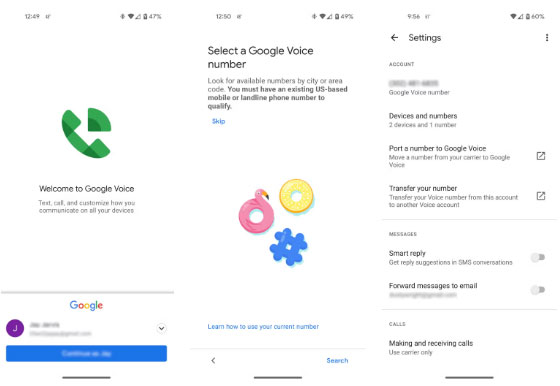
9. Google Voice for a separate calling number
Google Voice can give eligible users a number for calls, texts, and voicemail on a phone or in a browser. Personal number signup depends on where you live, and work accounts have different requirements. Check Google Voice setup and eligibility before relying on it as a second line.
Related Articles
 Can Huawei pre-install 70 popular Android apps for new phones?
 TOP essential apps when using Android phones
 Protect Android devices by sending unspecified applications to Google
 Backup and restore installed applications on Android using AppMonster.
 7 'less popular' Android apps from Google you should know
 Pre-installed apps that can be safely uninstalled on Samsung phones
Reader Comments 0
Sign in with email or Google to join the discussion.