Table of Contents
This updated guide explains how to delete a payment card on amazon with clear steps, practical tips, and useful context. Like other international online shopping websites, Amazon requires users to enter payment card information to complete the Amazon account registration process.
How to Delete Payment Cards on Amazon Computer
Step 1:
First, users access the Amazon website on their computer and then log in to their personal account.
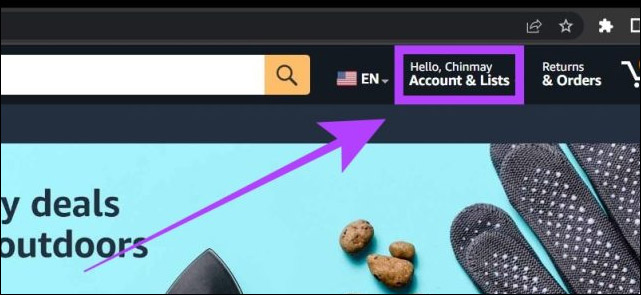
On the website interface, we select Accounts & Lists in the upper right corner as shown.
Step 2:
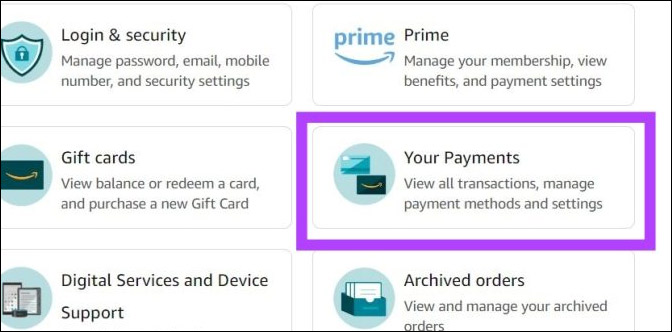
Switch to the new interface, select Your Payments to see the payment cards you have added.
Step 3:
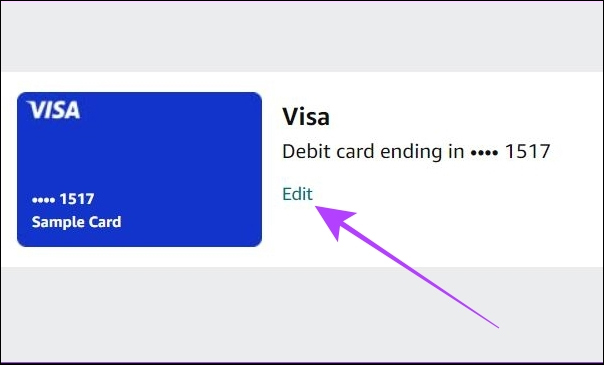
In the list of payment cards you have added to Amazon, we find the payment card we want to delete , select it and choose Edit to delete the card.
Step 4:
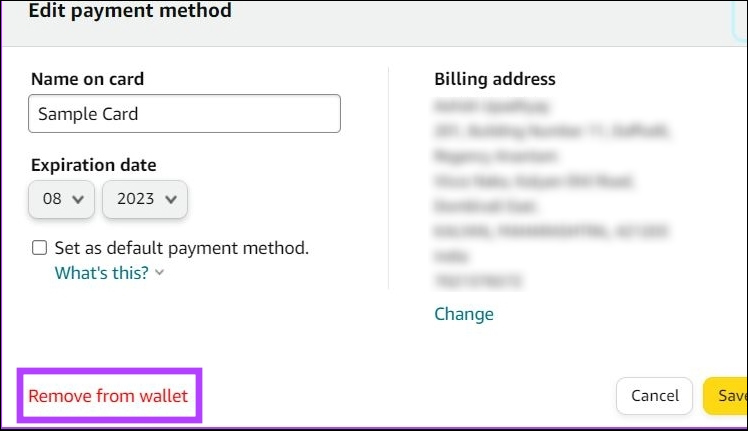
Next, the user clicks on Remove from wallet to remove the payment card from the list. Now you just need to choose Remove to delete this payment card.
How to Delete Payment Cards on the Amazon App
Step 1:
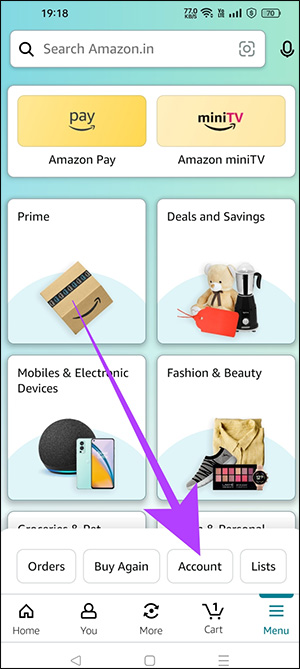
At the Amazon application interface, select the 3-dash icon below and select Account in the displayed list.
Step 2:
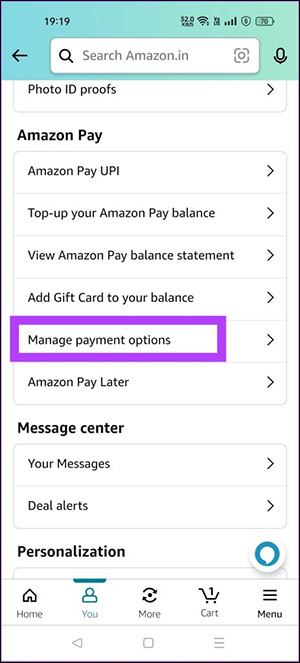
In the list of user account management options, select Manage payment options as shown below.
Step 3:
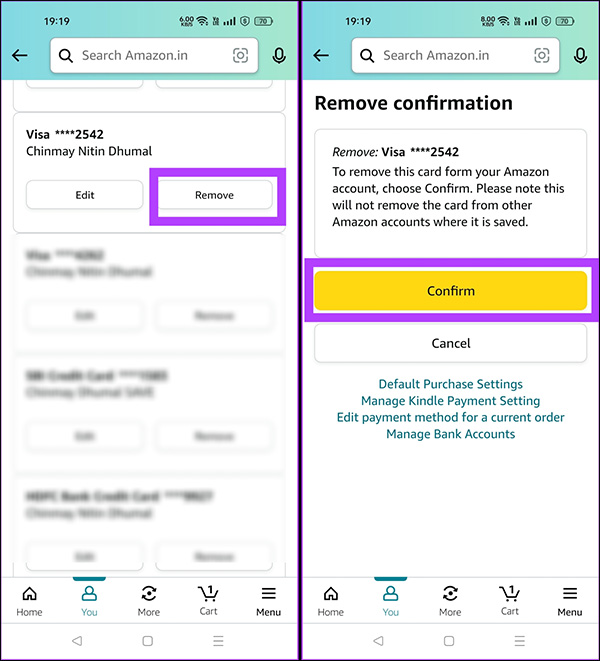
At this time, the user also sees a list of payment cards that the user has added to Amazon. We select the payment card that we want to delete and select Remove to proceed to delete this payment card.
Now you need to choose Confirm to confirm deleting the payment card.
FAQ
What should I prepare before I delete a payment card on amazon?
Review the requirements and options in the guide first. Having the correct device, app version, account access, or materials ready helps prevent avoidable errors.
How long does it take to delete a payment card on amazon?
The time depends on the task and your setup. Most basic steps can be completed quickly, while downloads, updates, scans, or troubleshooting may take longer.
What should I do if the steps do not work?
Repeat the instructions in order, confirm that your software or device is supported, and check permissions, connectivity, and available updates before trying again.
Related Articles
 How to Check If Your Payment Card Information Is Leaked3 minutes read
 Instructions for Adding Payment Cards on Microsoft Edge3 minutes read
 Google Is About to Launch Its Own Payment Card4 minutes read
 Apple Card Vs. Amazon Prime Rewards Visa: Which Credit Card8 minutes read
 Apple Pay Has Supported Most Bank Payment Cards in the US4 minutes read
 How to Buy Online on Amazon: Amazon Shopping Guides5 minutes read
Reader Comments 0
Sign in with email or Google to join the discussion.