Table of Contents
Use Apple Reminders as an inbox for things you need to act on later. Set one list as the default, capture tasks as they come up, and schedule a recurring reminder to sort through the list. Keep longer meeting notes or reference material in Notes and put only the next action in Reminders.
Decide what goes in the inbox
Write each item as a task you can act on, such as “Send Mira the revised budget.” Add a short note or link if you’ll need context. If all you have is a rough idea, capture it and decide what to do with it at your next review.
Create an Inbox and make it the default
- Open Reminders on your Mac. Create a list called Inbox or rename a list you already use.
- Choose Reminders > Settings and select Inbox from the Default List menu.
- Add a test reminder with Siri and check where it lands. If you use Reminders on your iPhone too, check that the list syncs and that its default list is set the way you want.
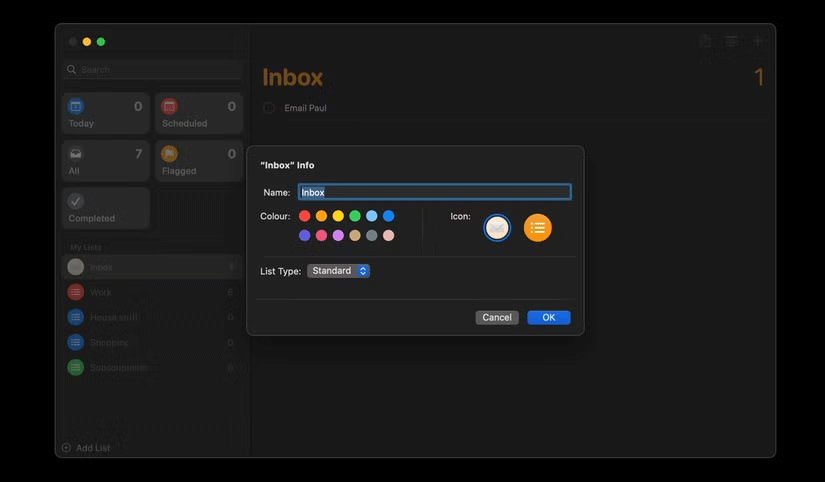
Apple explains which reminders use the default list. Items you add directly inside another regular list can stay in that list. See how to organize Reminders lists on macOS when you’re ready to split tasks by project.
Schedule a recurring review
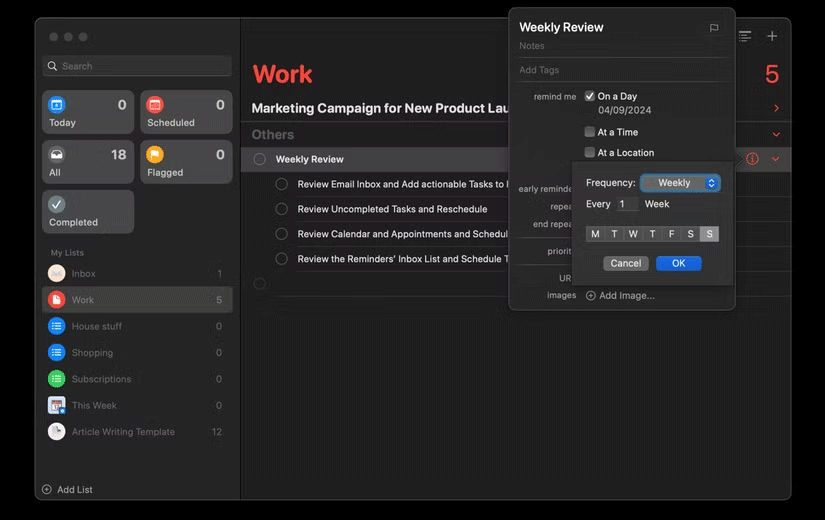
Create a reminder called “Review my inbox,” open its info panel, set a date and time, and choose a daily or weekly repeat. Try a short daily review if the list fills up quickly. During the review, move each task to the right list, add a due date when it has a deadline, transfer reference material to Notes, or remove it.
Choose a quick way to capture tasks
Spotlight on Mac
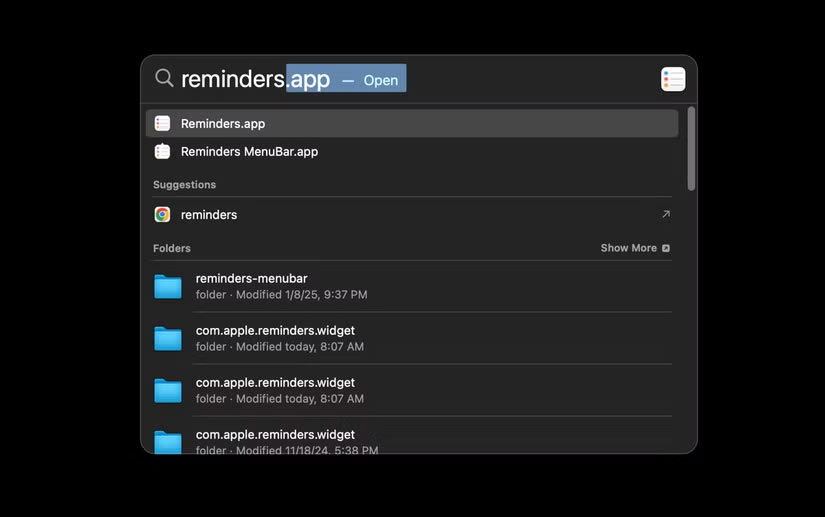
Press Command+Space, type Reminders, and open the app. Choose your Inbox before adding the item.
Siri when your hands are busy
Try “Remind me to call the plumber Friday at 9 a.m.” Check that Siri heard the right time. For something without a deadline, dictate the task and leave the date unset.
A Reminders widget for visibility
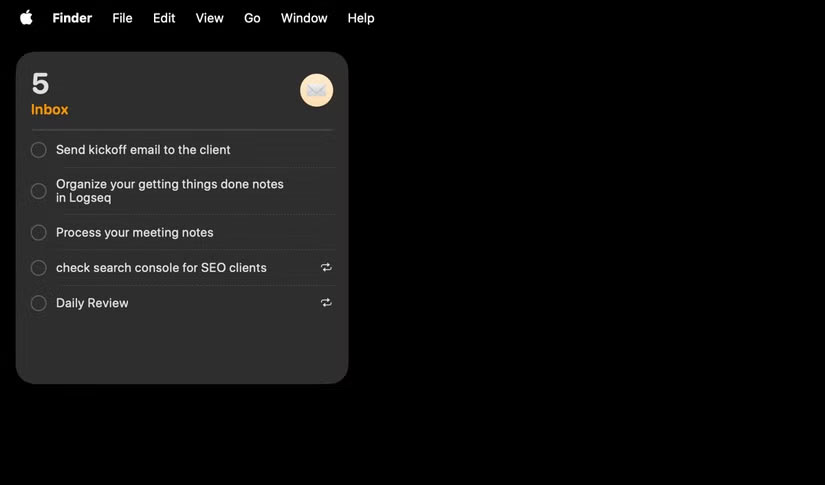
Control-click the Mac desktop, select Edit Widgets, and add Reminders. It can keep the list visible and give you a quick way back to the app. If you prefer a keyboard-first setup, see these Reminders quick-entry options.
Related Articles
 Using application notes To write on Windows 10
 A feature every note taking app needs!
 7 best note-taking apps for students
 How to Take Notes with AI and Save a Lot of Precious Time
 6 AI Note-Taking Apps for Meetings, Study, and Personal Notes
 11 bad habits that affect health that we need to fix right away
Reader Comments 0
Sign in with email or Google to join the discussion.