Table of Contents
Microsoft 365 companion apps provide small taskbar interfaces for finding people, files and calendar information on Windows 11. However, this is now a retirement story as well as a launch story: Microsoft says the People, Files and Calendar companions will be retired by December 16, 2026.
What the companion apps do
The Microsoft overview describes three apps:
- People: look up colleagues and organizational information.
- Files: find Microsoft 365 documents and recently used files.
- Calendar: view upcoming appointments and access meetings.
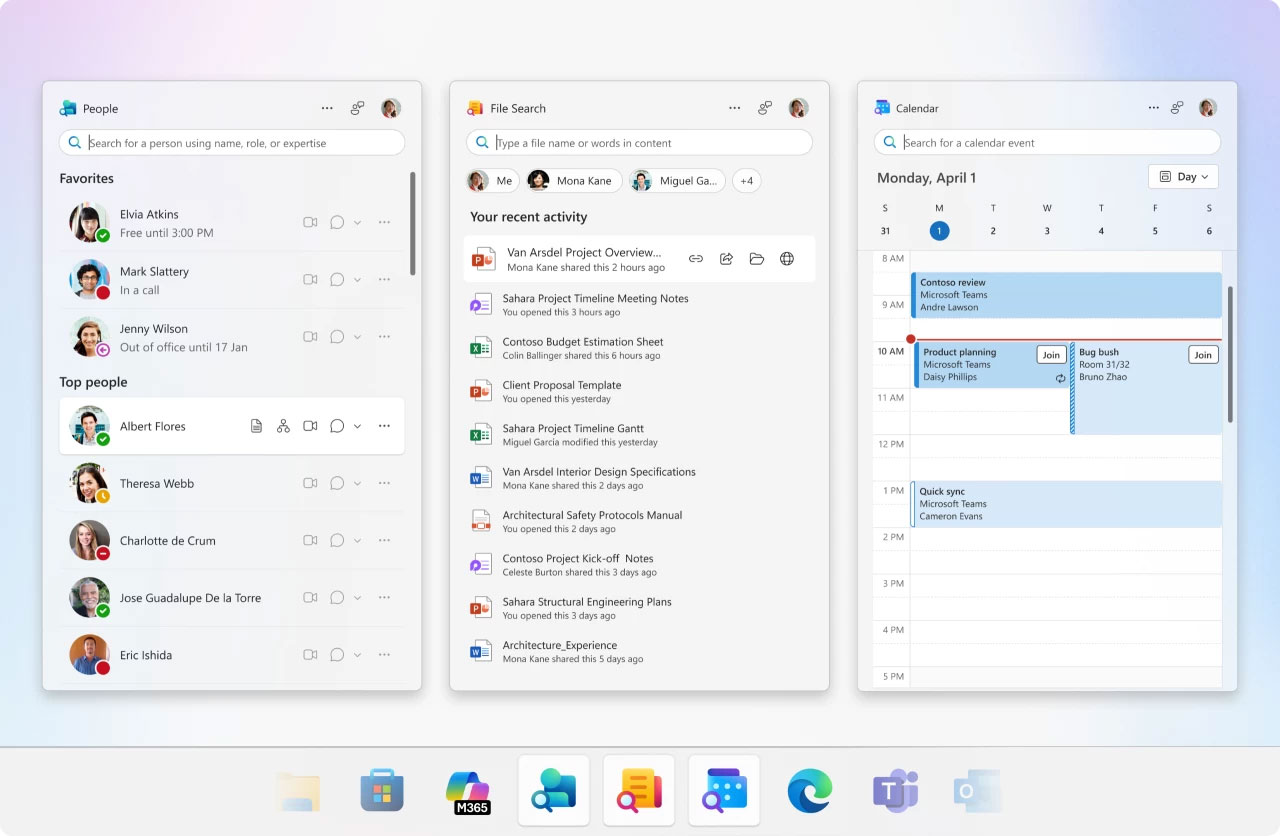
They are additional interfaces to Microsoft 365 services, not replacements for Word, Excel or the entire Office suite. Their usefulness depends on the connected account, license and organizational setup. The original rollout targeted eligible Windows 11 devices with Microsoft 365 Apps; it was not an installation of a new full Office suite on every PC.
Automatic installation and startup are separate
Microsoft's overview describes automatic installation through Microsoft 365 Apps updates beginning in late October 2025, with administrator controls. Startup behavior can also be managed. Installation, taskbar pinning and starting at sign-in should not be treated as the same setting.
If you are simply reviewing startup load, see how to assess startup apps. Disabling a startup entry does not uninstall the software, stop every deployment method or remove an administrator's policy. On an organizational device, coordinate changes with IT.
What retirement means for users
Microsoft's retirement guidance says the companions will become non-functional before December 16, 2026 and may be removed sooner by an organization. Their removal does not delete the files, calendar events or contacts held in Microsoft 365 services.
Use Outlook or Teams for calendar and people workflows, and the appropriate Microsoft 365 application, OneDrive, SharePoint or Windows search tools for files. Before the transition, identify the tasks you perform through a companion and check the equivalent route in the main application.
Removing the apps
Administrators normally handle removal on managed devices. On an unmanaged device, Microsoft's instructions point to Settings > Apps > Installed apps, finding Microsoft 365 companions and selecting Uninstall. The companions are removed together rather than as three independent installations.
Administrators should also stop deployment assignments before removing existing installations, otherwise a management tool may install them again. Follow the current retirement instructions for the deployment method used in your organization instead of relying on an old launch article.






Reader Comments 0
Sign in with email or Google to join the discussion.