Table of Contents
If Windows Hello sometimes says “Couldn't recognize you,” sign in with your PIN and use Improve recognition to add another face template. Also clean the camera, remove harsh side lighting, and re-scan while wearing the glasses or accessories you commonly use.

The steps apply to Windows 11 and Windows 10, although Settings labels differ slightly. Face sign-in requires a Windows Hello-compatible infrared camera; an ordinary RGB webcam is usually not enough.
Improve Windows Hello face recognition
- Sign in with your Windows Hello PIN or password.
- Open Start > Settings > Accounts > Sign-in options.
- Expand Facial recognition (Windows Hello).
- Select Improve recognition.
- Confirm your identity with the PIN when prompted, then select Get started.
- Look directly at the camera and keep your face inside the guide until the scan finishes.
- Select Close, lock the computer with Windows+L, and test face sign-in.
The following screenshots show an older Windows 10 interface; the path and purpose remain similar in current supported releases.
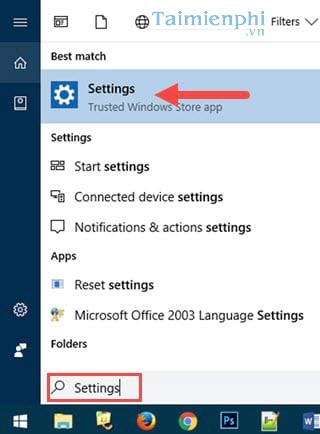
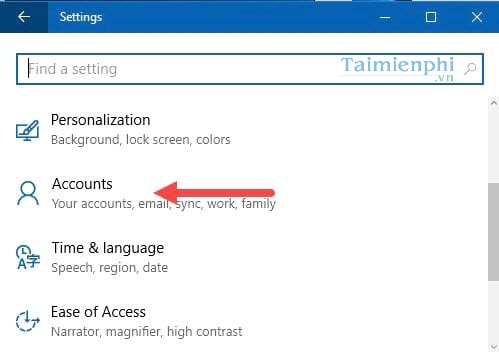
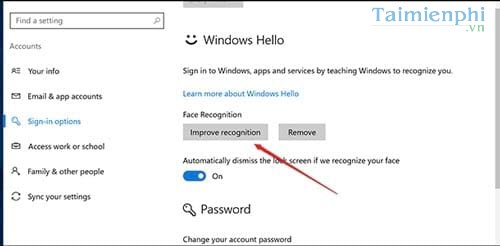
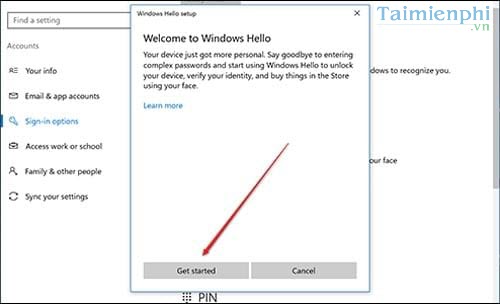
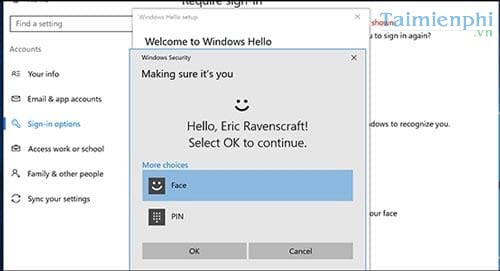
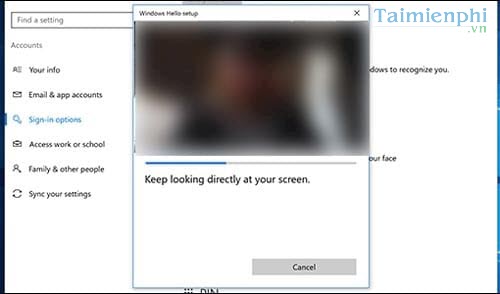
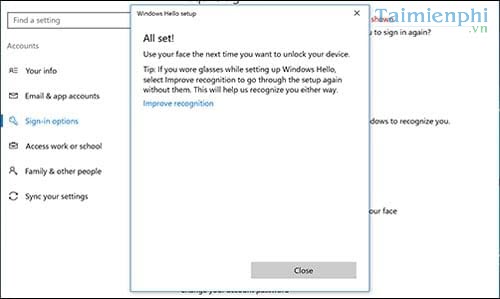
Microsoft explains that Improve recognition adds another template, whereas removing and setting up Face again keeps only the latest scan. Use Improve recognition when the existing setup generally works but struggles with a common appearance or environment.
Get a cleaner, more representative scan
- Clean the sensor area. Wipe the camera and infrared sensor gently with a clean microfiber cloth. Make sure a privacy shutter, sticker, case, or screen protector does not cover them.
- Use even light. Avoid a bright window or lamp on only one side of your face. Extremely dark rooms and direct sunlight can make recognition harder.
- Scan your normal appearance. Add another template while wearing the glasses, head covering, or other accessory you regularly use. Remove a hat if it casts a heavy shadow.
- Keep a natural position. Sit at the distance and angle you normally use at sign-in; do not hold the laptop unusually close just for enrollment.
- Keep the display visible. Some supported devices temporarily increase screen brightness to assist low-light recognition. Do not cover the screen during the scan.
Microsoft's Windows Hello troubleshooting guide recommends these lighting and appearance checks and documents the Improve recognition option.
If Improve recognition is missing
- Confirm that Facial recognition (Windows Hello) appears under Sign-in options.
- Check the manufacturer's specifications for an IR camera or explicit Windows Hello Face support. A webcam marketed only for video calls may not qualify.
- On a managed work or school PC, the administrator may restrict biometric sign-in or require enhanced anti-spoofing.
- An external camera may be incompatible with Windows 11 Enhanced Sign-in Security. Do not turn that security feature off casually; use compatible hardware or follow your administrator's policy.
If you need external hardware, compare devices that explicitly state Windows Hello support in our webcam selection guide, then verify compatibility with the PC manufacturer before buying.
Fix “We couldn't find a camera compatible with Windows Hello Face”
- Open the Windows Camera app. If it cannot see the camera, open any physical privacy shutter and check the keyboard camera switch.
- Install Windows, firmware, and optional driver updates from Windows Update and the PC manufacturer.
- Open Device Manager > Cameras. If the IR camera is disabled, enable it. Avoid deleting drivers unless the manufacturer specifically recommends reinstalling them.
- Restart Windows—do not merely put the laptop to sleep.
- Return to Sign-in options and try setup again.
Microsoft's camera troubleshooting page covers privacy shutters, device access, drivers, and hardware checks.
Remove and re-enroll your face
If recognition fails after a major appearance change or the stored template appears damaged:
- Open Settings > Accounts > Sign-in options.
- Expand Facial recognition (Windows Hello) and select Remove.
- Restart Windows.
- Return to the same section, select Set up, and enroll again.
- Use Improve recognition afterward if you need an additional template with glasses or in another normal lighting condition.
Keep the PIN and account recovery options
Do not remove your PIN or forget your Microsoft account recovery information just because face recognition works. Windows Hello deliberately falls back to a PIN or other sign-in method after certain restarts, security changes, hardware failures, or unsuccessful scans. The PIN is tied to that device and is part of the Windows Hello security design.
For another enrollment example, see our guide to setting up Windows Hello on an HP laptop. The available face, fingerprint, and PIN options depend on the hardware.
Windows 10 support status
Windows 10 reached end of support on October 14, 2025. A Windows 10 PC still runs, but it needs an eligible Extended Security Updates arrangement or migration to a supported operating system to continue receiving security fixes. Improving biometric recognition does not compensate for an unsupported OS. See Microsoft's Windows 10 end-of-support options.
Related Articles
 Microsoft Pulls Out of Facial Recognition Startup AnyVision3 minutes read
 Windows Hello Face Facial Recognition Technology on Windows 103 minutes read
 'Not a Bug, but a Feature': Windows Hello Face Unlock Doesn't Work3 minutes read
 Microsoft Upgraded Bing's Voice Recognition Capabilities3 minutes read
 How Far Does AI Go Today and Do We Need to Feel Threatened7 minutes read
 10 Extremely Attractive Search and Facial Recognition Tools10 minutes read
Reader Comments 0
Sign in with email or Google to join the discussion.