Table of Contents
If you forget an Excel file password, first identify which type of protection is blocking access. A password required before the workbook opens usually protects an encrypted file. A password requested only when you edit a sheet, change workbook structure, or modify a protected range is a different type of protection.
Use recovery methods only on a workbook you own or are authorized to manage. Make a copy of the file before trying any repair or recovery step so the original remains intact.
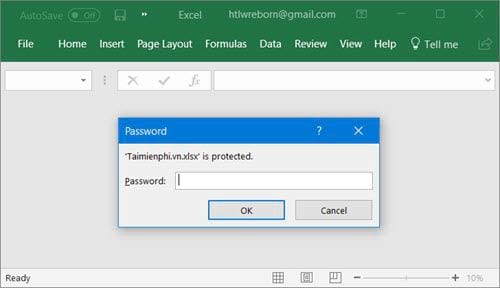
If Excel asks for a password before opening the file
Modern Excel workbooks protected with File > Info > Protect Workbook > Encrypt with Password are encrypted. Excel does not provide a “forgot password” link or a master password for these files.
- Check your password manager and saved notes. Search for the workbook name, project name, or the date when protection was added.
- Try known variations carefully. Check Caps Lock, keyboard layout, spaces, punctuation, and passwords you used for the same project. Avoid repeated random attempts if the file belongs to an organization.
- Look for an unencrypted copy. Check email attachments, shared folders, exported reports, another device, and approved backups.
- Check version history. If the workbook is stored in OneDrive or SharePoint, an earlier version may predate the password. Open version history from the storage service rather than overwriting the current file.
- Contact the owner or IT administrator. In a managed environment, they may have an approved backup or data-recovery procedure.
If none of these options produces the password or an accessible copy, the encrypted workbook may not be recoverable. Be cautious with software that promises guaranteed or instant recovery: strong passwords can make guessing impractical, and untrusted tools require access to the file's contents.
If the workbook opens but editing is blocked
Worksheet protection and workbook-structure protection are intended to prevent accidental or unauthorized changes; they are not the same as file encryption. Ask the person who protected the workbook for the password or an editable copy. If the workbook belongs to your organization, follow its document-recovery process.
Before assuming protection is the problem, check whether the file is read-only, opened in Protected View, locked by another user, or limited by file permissions. Those conditions require different fixes and do not call for password recovery.
Recover an earlier or backup copy
Excel's AutoRecover files, cloud version history, and normal backups may help when an accessible copy existed previously. They do not decrypt the current protected workbook, but they can restore an earlier version of the data. The guide to recovering a deleted Excel sheet and checking AutoRecover files explains where to look for workbook recovery copies.
Prevent the same problem
- Store the password in a trusted password manager.
- Keep a tested backup in an approved location.
- Record who owns the workbook and who can authorize access.
- Use worksheet protection for edit control and file encryption only when confidentiality requires it.
- Confirm that an authorized recovery copy exists before replacing a password.
For sensitive files, prefer organization-approved storage and encryption practices. Third-party password-guessing tools should not be the first recovery step and should never be used on a file without clear authorization.
Related Articles
 How to Set Excel Password to Secure Data File8 minutes read
 What to Do When You Forget the Excel File Password8 minutes read
 Unlocking Excel Files When You Forget Your Password Is Super Simple Explained7 minutes read
 Forgot Password Protected Excel File, What Should You Do?12 minutes read
 How to Open Password-Protected Excel Files: Complete Guide5 minutes read
 Set a Password for Your Excel 2016 File3 minutes read
Reader Comments 0
Sign in with email or Google to join the discussion.