Table of Contents
Windows Server 2016 enforces password complexity through the Password must meet complexity requirements policy. A domain administrator can disable that setting in Group Policy Management and then refresh Group Policy so the change reaches affected computers.
Security note: Disabling complexity requirements weakens one layer of account protection. Before changing a production domain, review the organization's password policy and consider using a longer minimum password length or other controls. This guide is intended for administrators who understand the effect of changing a domain-wide policy.
Disable password complexity in Group Policy
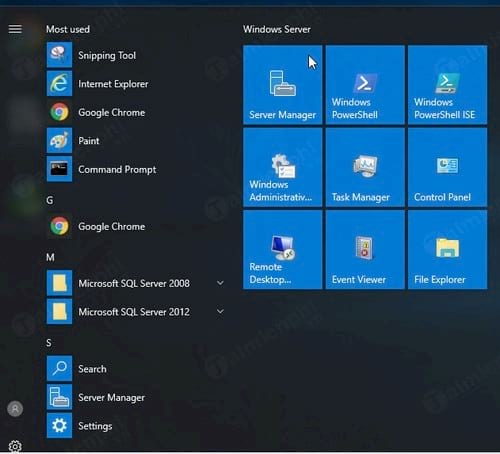
Open Server Manager from the Start menu.
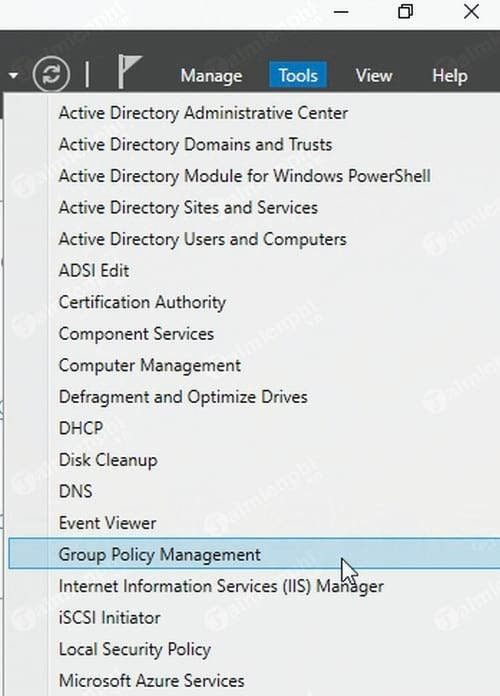
Select Tools > Group Policy Management.
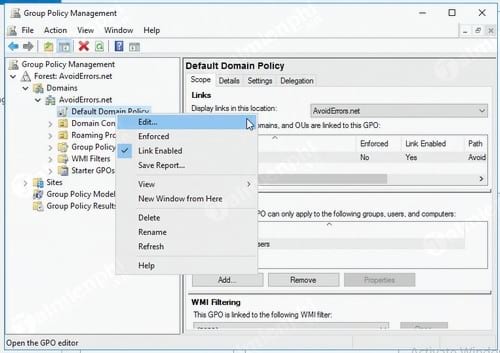
Under the domain, right-click Default Domain Policy and select Edit. If your organization uses a separate Group Policy Object for password settings, edit that policy instead.
Navigate to Computer Configuration > Policies > Windows Settings > Security Settings > Account Policies > Password Policy.
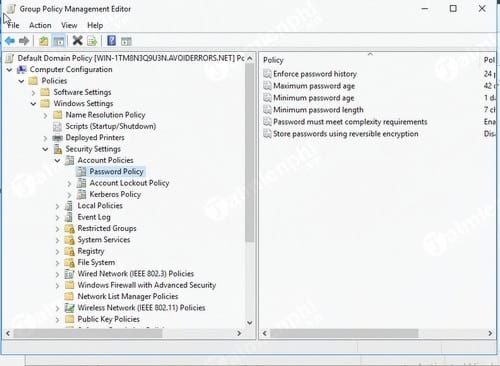
In the right pane, double-click Password must meet complexity requirements.
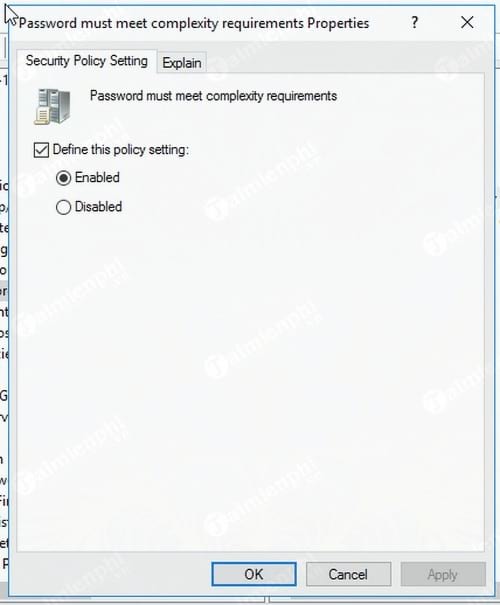
Select Disabled, then click OK.
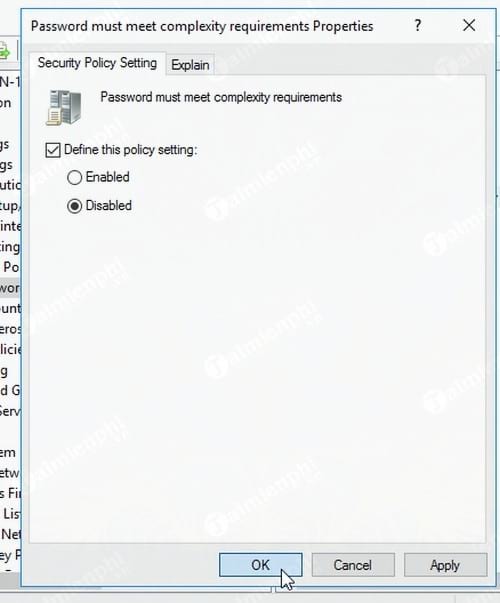
Apply and verify the policy change
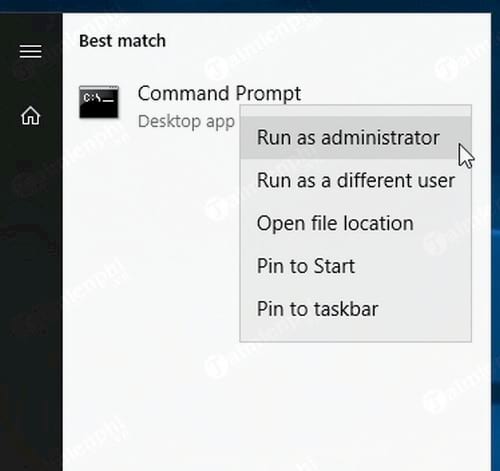
Close Group Policy Management and open Command Prompt as administrator.
Run the following command:
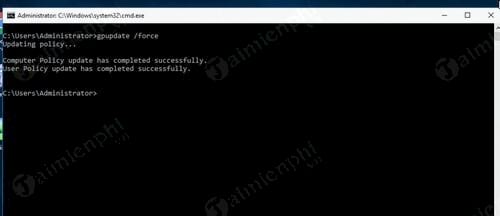
gpupdate /force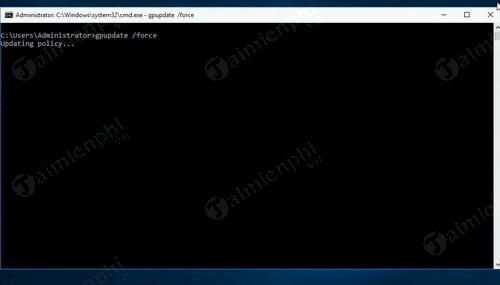
Wait for confirmation that the computer and user policies were updated. Domain clients also receive the setting during their normal Group Policy refresh; run the command locally on a client only when an immediate refresh is required.
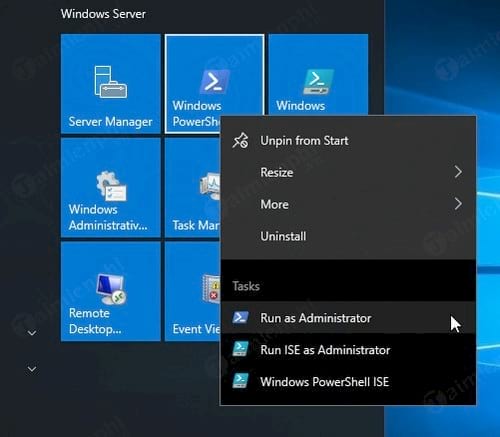
PowerShell method for a local security policy
The following method edits the local security policy by exporting it, changing the PasswordComplexity value, applying the edited configuration, and deleting the temporary file. Run PowerShell as administrator.
secedit /export /cfg C:secpol.cfg
(Get-Content C:secpol.cfg).Replace('PasswordComplexity = 1', 'PasswordComplexity = 0') | Set-Content C:secpol.cfg
secedit /configure /db C:WindowsSecurityLocal.sdb /cfg C:secpol.cfg /areas SECURITYPOLICY
Remove-Item C:secpol.cfg -Force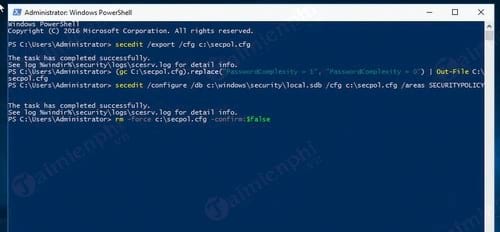
A domain Group Policy can override local password settings, so use Group Policy Management for domain accounts. For more Windows administration context, see the guides to configuring multiple Remote Desktop users on Windows Server 2016 and using Command Prompt in Windows.
Related Articles
 Are Complex Passwords 'Out of Date': What You Need to Know5 minutes read
 How to Hide 6 Folders in This PC on Windows 106 minutes read
 Free Hide Folder: Hide and Protect Folders on Windows4 minutes read
 Instructions to Hide or Delete Recycle Bin Icon on Desktop3 minutes read
 The Command Bootcfg Delete in Windows3 minutes read
 MS SQL Server: DELETE Command in SQL Server4 minutes read
Reader Comments 0
Sign in with email or Google to join the discussion.