Table of Contents
There are many ways to recover your Windows 7 computer password, ranging from easy to difficult. However, not every case can be solved with a single method.
Recover Windows 7 Password, Restore Win 7 Pro, Ultimate Password: Overview

In this guide,, This guide walks you on using Command Prompt along with the Registry , two very useful components with many yet-to-be-explored features, to recover your Windows 7 password. Furthermore, this method can be applied to many different situations when you forget your password and across various operating systems. Therefore, readers should carefully review the instructions below before attempting this.
Recover Windows 7 password, restore Win 7 password
Step 1: To recover your Windows 7 password, you need a DVD containing the Windows 7 installation files or at least a USB drive containing the installation files. If you don't know how to create one, you can refer to the Windows 7 installation guide and follow the instructions.
Step 2: You proceed with the initial steps of installing Windows 7 as usual by selecting Next.

Step 3: But here, instead of selecting "Install now ," choose "Repair your computer ."
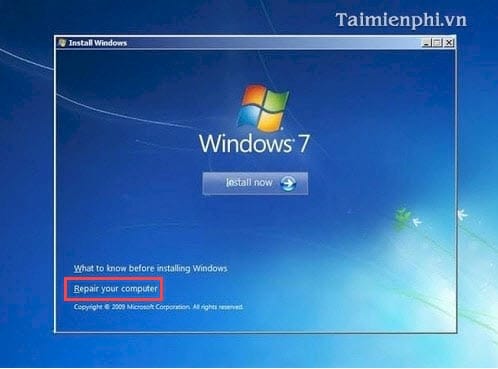
Step 4: At this point, the system will give you 5 options to repair the computer; we choose Command Prompt .
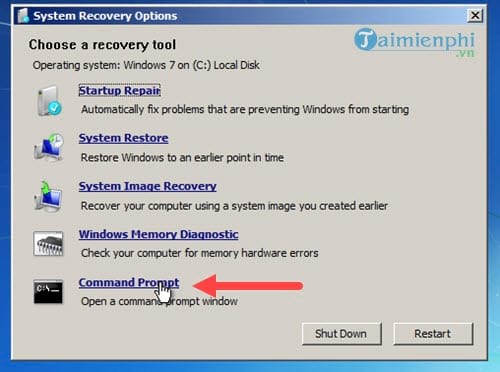
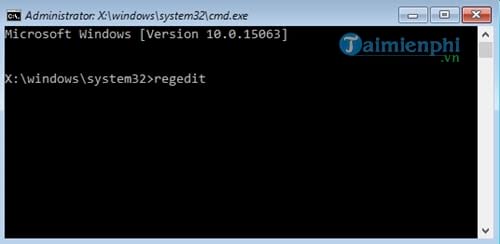
Step 5: When the Command Prompt screen appears, type the command regedit to open the Registry Editor .
Step 6: Next, click HKEY_LOCAL_MACHINE and then select File > Load Hive .
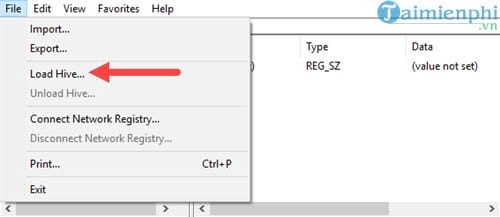
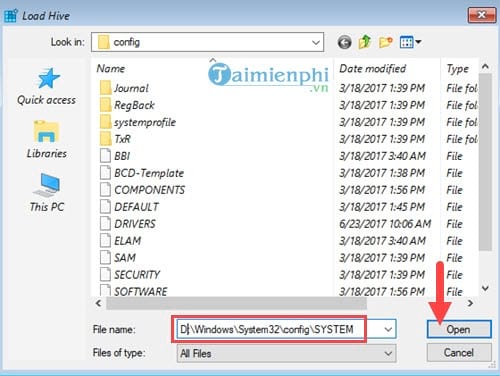
Step 7: In the Load Hive section, open the file using the following command: D:Windows|System32configSYSTEM and click Open .
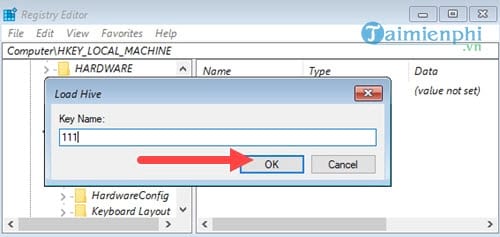
Step 8: The system will now ask you to enter a new folder. You can name it anything, but remember to keep it short. Here, TipsMake entered 111 .
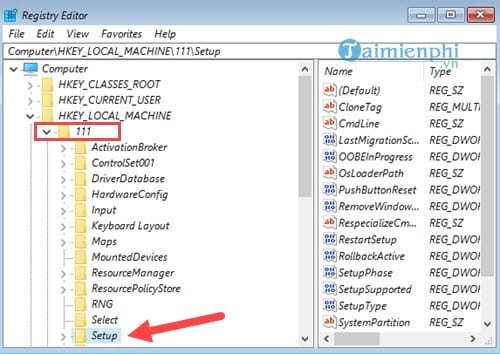
Step 9: In section 111, open the Setup folder.
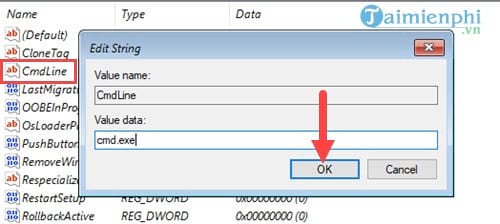
Step 10: click Cmdline and change the value to cmd. exe , then click OK .
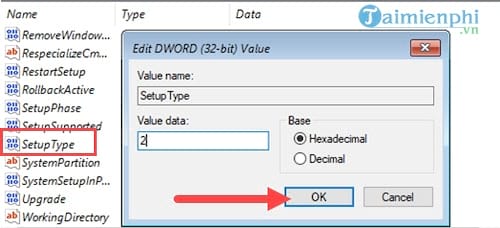
Below, click SetupType and change the value to 2 .
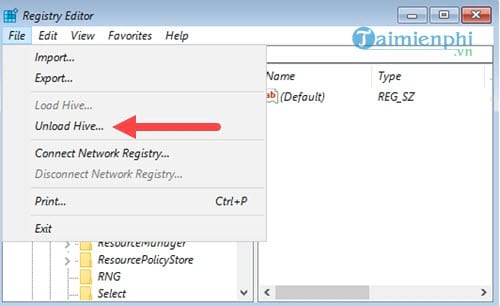
Step 11: Finally, click item 111 again, then select File > Unload Hive .
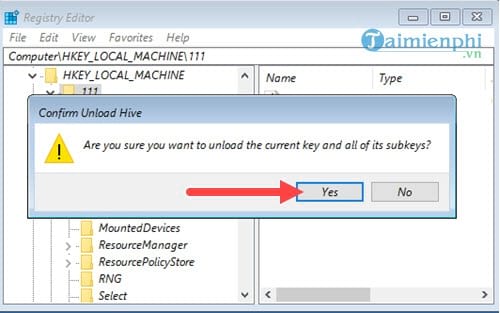
The system will ask if you are sure you want to exit this section; select Yes to close the Registry Editor.
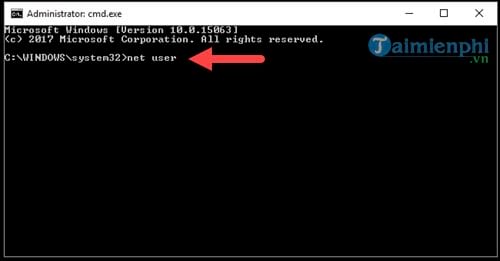
Step 12: Then exit completely and restart your computer. The Command Prompt window will automatically appear on the screen. Enter the command `net user` to check your account balance.
Step 13: Next, simply check the machine's account and use the `net use` syntax.
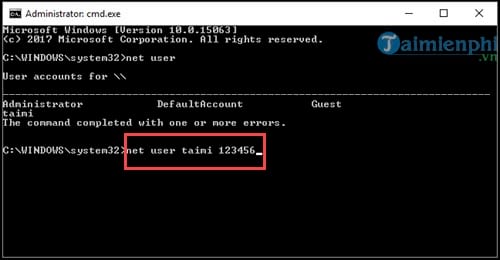
After completing this step, close Command Prompt and you will immediately be able to access Windows 7 with the password you just set.
So, we've completed the process of recovering your Windows 7 password. This method is a bit complicated and lengthy, but it's highly effective and applicable to many cases of forgotten computer passwords. If you've exhausted all other methods to recover your Windows 7 password, this is one option you should remember in case you forget your computer password. Furthermore, this method works for both Windows 8 and Windows 10.
To avoid having to recover your computer password later, when setting your computer password, you should save it to a password reminder app or on your phone. Also, remember to choose a password that is easy for you to remember.
You should also make it a habit to change your computer password. This is a better way to protect your computer and avoid forgetting it like before. It only takes a little time to successfully change your computer password.
FAQ
What should you know about recover windows 7 password, restore win 7 pro, ultimate password?
There are many ways to recover your Windows 7 computer password, ranging from easy to difficult. However, not every case can be solved with a single method.
Do the steps or features vary by device or software version?
They can. Menu names, available settings, and compatibility may differ by device, region, account type, or software version, so check the options shown on your own screen.
What should you do if the recommended method does not work?
Repeat the steps in order, confirm that the requirements are met, and restart the relevant app or device when appropriate. Also check for updates and review any error message before trying again.
Related Articles
 Reset Pass Windows 10 from the Login Screen4 minutes read
 How to Recover Your Gmail Password, Google Login Password4 minutes read
 Forgot Windows Password: How to Recover Windows 10 Password7 minutes read
 Tips for Quickly Recovering Your Forgotten Facebook Password6 minutes read
 How to Backup and Recover Passwords on Coc Coc: Save Password4 minutes read
 How to Retrieve Forgotten Windows 10 Password6 minutes read
Reader Comments 0
Sign in with email or Google to join the discussion.