Table of Contents
Learn how to recover a Forgotten Excel Password using Passper with clear steps, practical tips, and troubleshooting guidance for common issues.
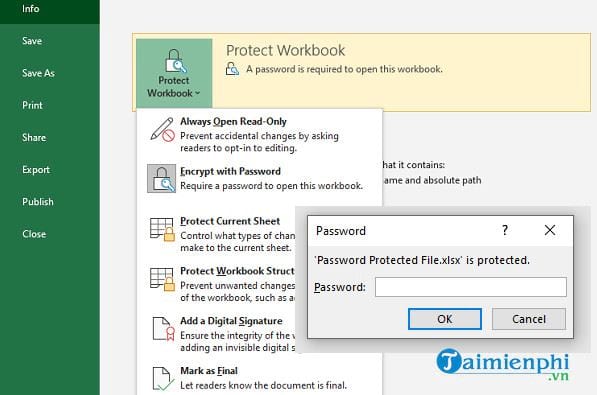
Passper for Excel password recovery tool
Passper for Excel helps you remove lost or forgotten Excel passwords without affecting the original data in the spreadsheet. It offers two different solutions. The first is password recovery, and the second is removing any restrictions applied to the document.
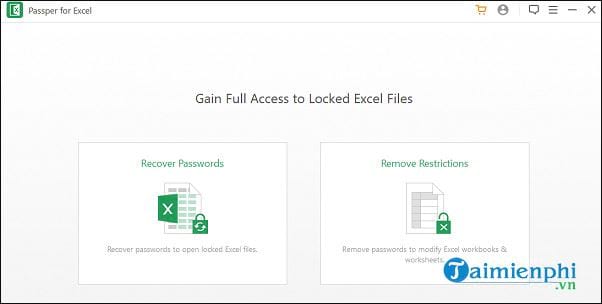
1. Recover your Excel password.
You click the "Recover passwords" option and select a file. The next important option is where you must choose the recovery method to find the password associated with that Excel file. First, you need to consider a few details to help speed up the recovery process.
- Search for a password that could potentially be used to lock the file. - Passwords containing numbers, special characters, or a string of letters. - Passwords related to your date of birth, phone number, or anyone else.
Once you have some of the necessary information, the software will make cracking the Excel file easier. You click one of the methods in the " Select a recovery method" section.
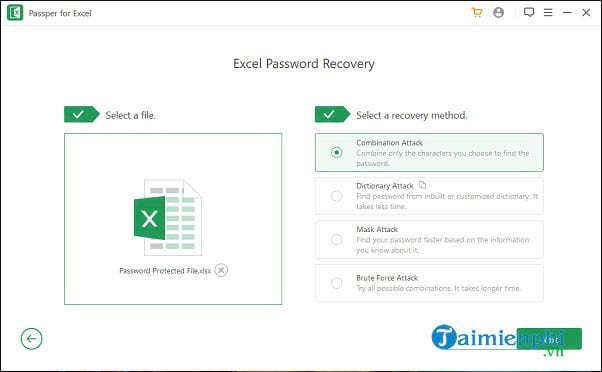
1.1. Combination Attack
This method combines all the characters you select. This helps narrow down the range of selected characters, not all of them. For example, you might not know the password, but you might know which specific characters were used, such as numbers or letters. After selecting them, the software will start combining only those characters.
- Password strength. - Prefixes and suffixes. - Lowercase and uppercase letters. - Symbols.
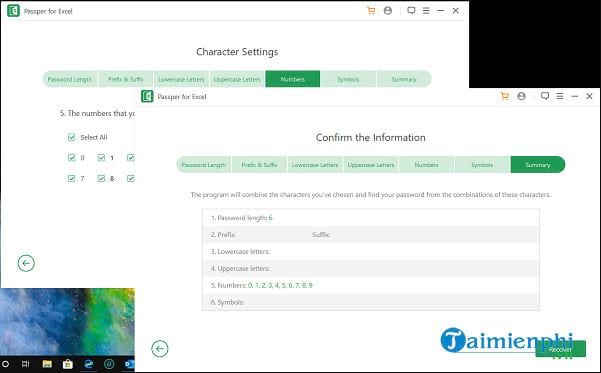
If your guessed password is close to the actual password, the recovery process will be quick. In this case, if the computer has a multi-core CPU and GPU technology, the recovery speed is significantly increased. For example, when you perform a heavy workload on an older computer, the processing might take days to complete compared to a few hours on a powerful computer.
1.2. Dictionary Attack
The software contains a dictionary with millions of passwords that people use, including words, numbers, special characters, uppercase letters, lowercase letters, and combinations of all of them.
1.3. Mask Attack
Exclude some characters you don't use and then enter the characters you think will appear in the password. This way, the system will use the characters you enter and combine them with all other possible characters, excluding those that have been excluded.
1.4. Brute Force Attack
While the Mask Attack option may omit some characters from the guessing process, the Brute Force Attack uses everything. That's why choosing this method will make password recovery much longer due to the high number of incorrect guesses.
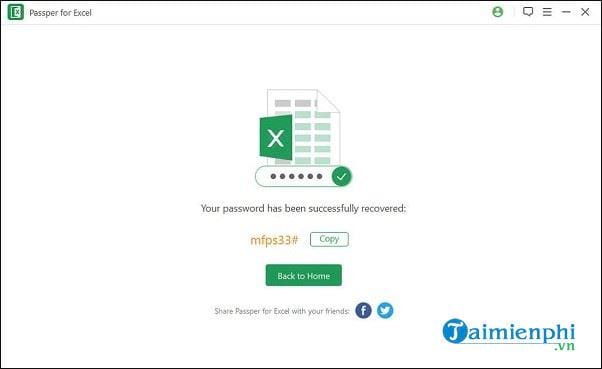
Once the software can crack the password, it will reveal it. You can then copy it and open the password-protected Excel file. Make sure you have saved the password somewhere or remove it by going to File > Info > Protect workbook and disabling it.
2. Remove limitations in Excel files.
Many clients submit documents with restrictions. This is useful in many cases because any changes in formatting or modifications to the data can cause confusion. However, if you want to customize the document a bit, these restrictions need to be removed, and that's where the Remove Restrictions feature comes in handy.
Launch the software and select the " Remove Restrictions" option. This will remove any restrictions applied to the file, including read-only, protected Excel spreadsheets, uncopyable spreadsheets, unprintable spreadsheets, and more. Once these are removed, you can proceed to edit the file as if you had created it yourself.
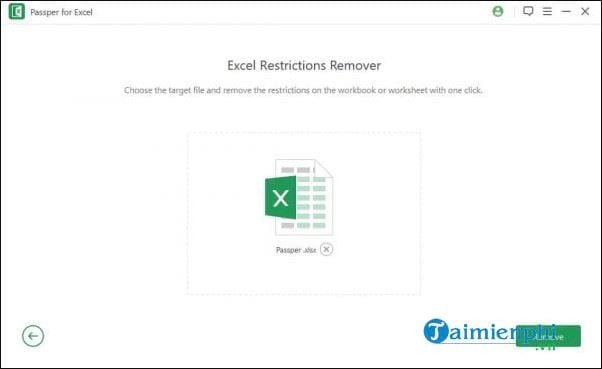
Overall, for anyone wanting to recover a password-protected Excel file, Passper for Excel is a great solution. It can recover the password to open an Excel file and remove the password protection without affecting the original data. Additionally, you can refer to how to bypass Excel passwords and remove sheet passwords in Excel here.
FAQ
How can you Recover a Forgotten Excel Password using Passper?
Learn how to recover a Forgotten Excel Password using Passper with clear steps, practical tips, and troubleshooting guidance for common issues.
What should you know about passper for Excel password recovery tool?
Passper for Excel helps you remove lost or forgotten Excel passwords without affecting the original data in the spreadsheet.
What should you know about recover your Excel password?
You click the "Recover passwords" option and select a file. The next important option is where you must choose the recovery method to find the password associated with that Excel file.
Related Articles
 How to Install Word and Excel Password Recovery Wizard to Recover Word, Excel5 minutes read
 Forgot Your Saved Wi-Fi Password?6 minutes read
 Steps to Reset Forgotten Password on Windows 105 minutes read
 How to Recover Your Forgotten Gapo Password5 minutes read
 How to Recover Your Facebook Password When It Is Forgotten4 minutes read
 How to Recover Gmail Account When Password Is Forgotten5 minutes read
Reader Comments 0
Sign in with email or Google to join the discussion.