Table of Contents
Quick answer
Setting a password for your Excel 2016 file helps you maximize the security of your spreadsheets and statistics on your computer. Follow these instructions to set a password for your Excel 2016 file in the Office 2016 suite, preventing others from accessing your Excel file.
Set a password for your Excel 2016 file, create a password to protect your Office 2016 Excel file
Office 2016 was released with an interface and features best suited for use on Windows 10. Using Excel 2016 on Windows 10, users can experience the smoothness and similarity in interface between these two Microsoft products.
However, there will be times when you can open an Excel file but cannot edit it. This isn't actually a bug; the main reason you can't edit Excel 2016 when opened with Office 2016 is because a protection feature is enabled in the software. Simply disable this feature, and you'll be able to use Excel 2016 to edit files normally again.
Another trick to help you secure your important Excel files is to set a password for your Excel 2016 file. Check out the instructions below from TipsMake.
Set a password for your Excel 2016 file.
To set a password for a file in Excel 2016, you need to download the Office 2016 suite. This is a comprehensive suite of applications including Word, Excel, and PowerPoint 2016 versions.
Download Office 2016 here: Download Office 2016
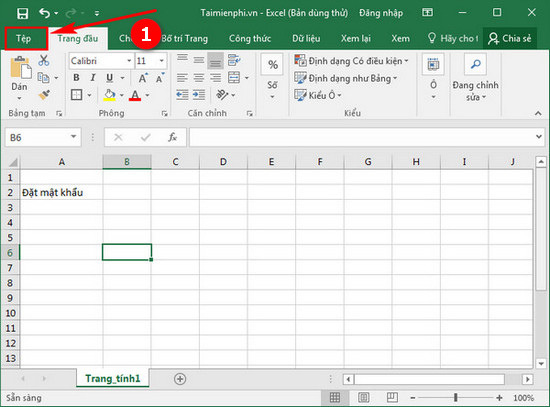
Step 1: In the Excel 2016 interface, select File .
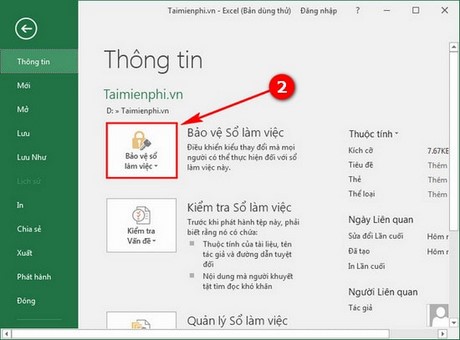
Step 2: Select Protect workbook .
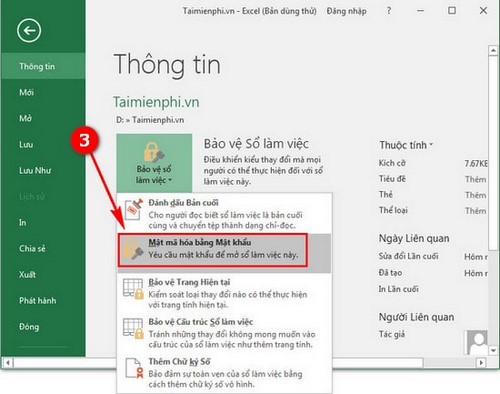
Step 3: Select Password Encryption.
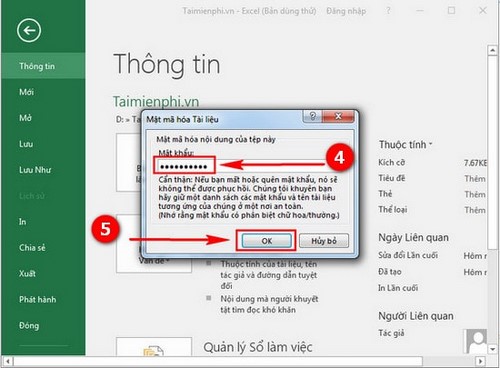
Step 4: Enter your initial password and press OK .
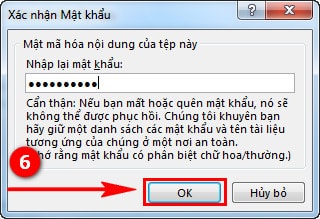
Confirm your password again and press OK to finish.
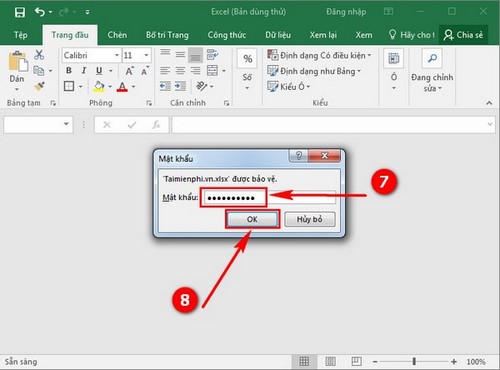
Your Excel file is now password protected. To reopen it, you need to enter the password and click OK .
With the above technique for setting a password on Excel 2016 files, you have best protected your spreadsheets and documents.
Another useful way to read Excel files is to convert Excel to Word. This is a useful trick for particularly important situations and something you should know. Converting Excel to Word makes it easier to edit data and text within Excel.
Related Articles
 How to Set Excel Password to Secure Data File8 minutes read
 The 5 Best Microsoft Office File Recovery Tools6 minutes read
 Forgot Password Protected Excel File, What Should You Do?12 minutes read
 How to Set Password for Folder and File in Windows9 minutes read
 Set Password to Protect and Encrypt Documents in Office 20132 minutes read
 What to Do When You Forget the Excel File Password8 minutes read
Reader Comments 0
Sign in with email or Google to join the discussion.