Table of Contents
Run as administrator starts an app with elevated Windows permissions. This can let it change system-wide settings or write to protected locations, so use it only when a trusted app needs that access for a specific task. It does not verify that the app is safe.
What User Account Control does
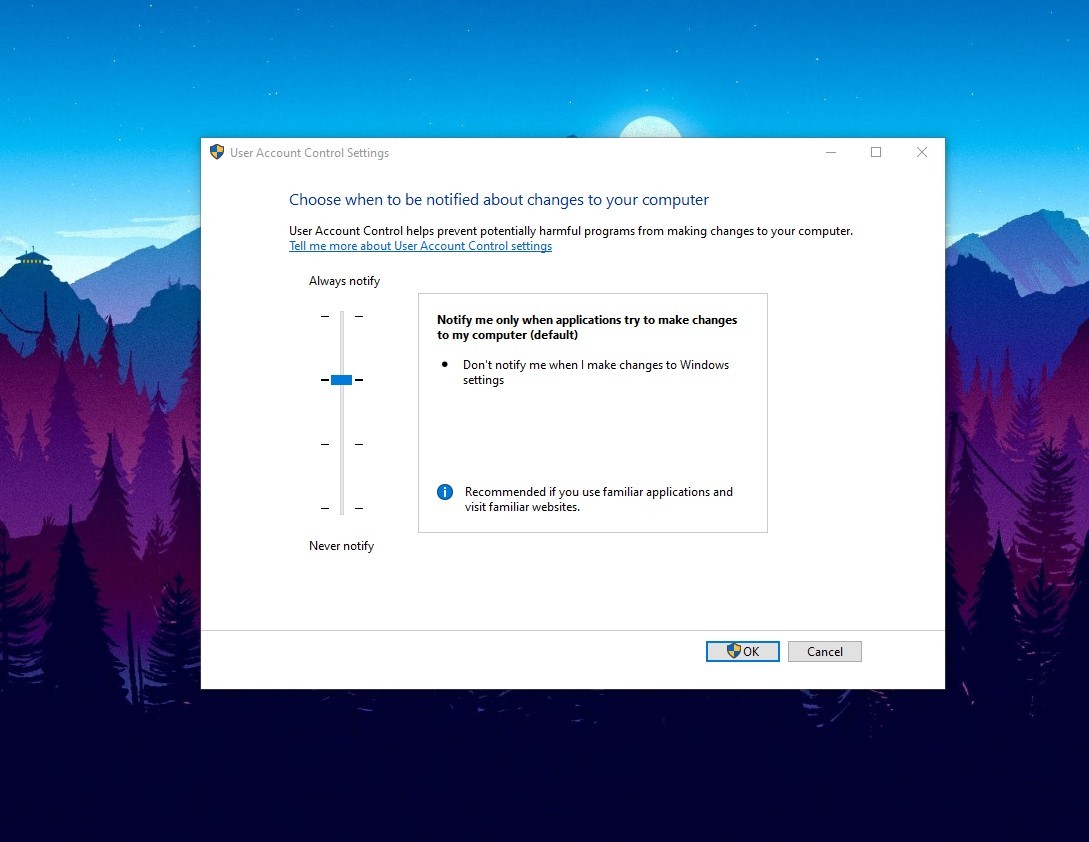
Windows normally runs apps with standard-user permissions, even when you sign in to an administrator account. When an app requests elevation, User Account Control (UAC) asks for approval or administrator credentials, depending on the account. Approve a prompt only when you expected the app to make the change and can verify its publisher or source. If you did not start the action, choose No.
Elevation can increase the damage an unsafe app can do. Microsoft recommends giving programs only the privileges they need; most everyday apps do not need to run as administrator.

Run a trusted app as administrator once
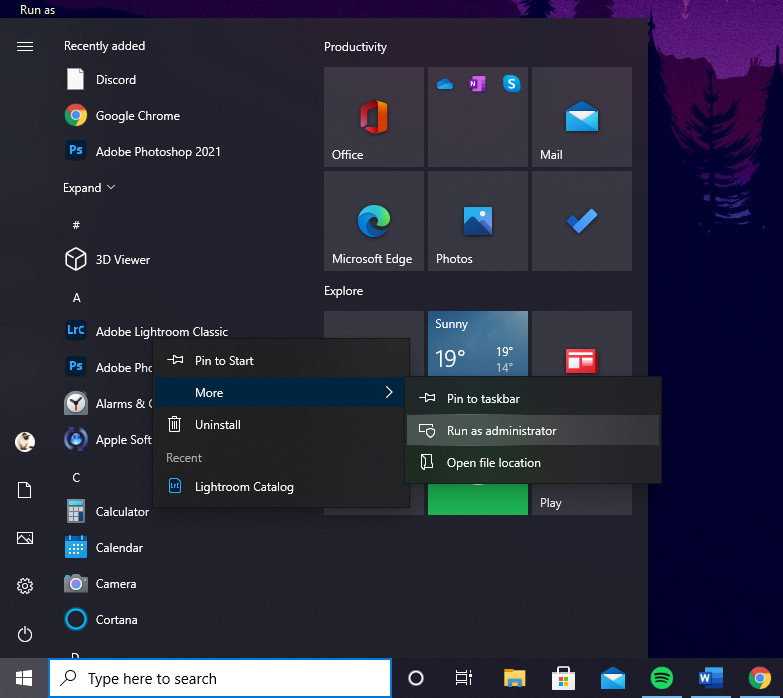
- From Start: search for the app, right-click its result, and choose Run as administrator. Some Windows builds also let you press Ctrl + Shift + Enter after selecting a search result.
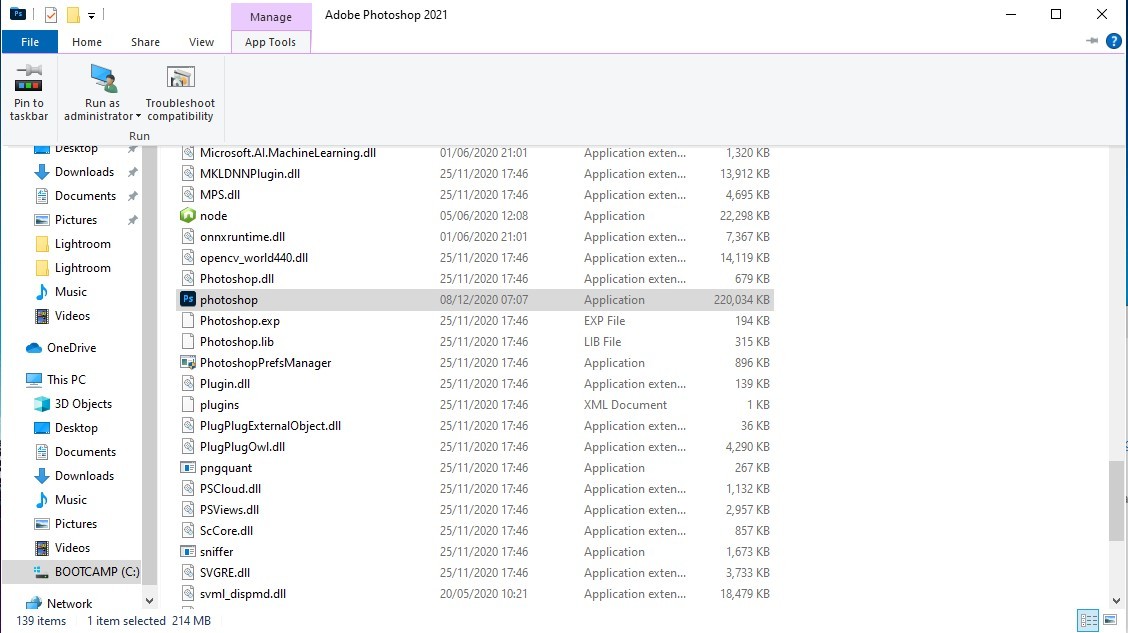
- From a shortcut or app file: right-click it and choose Run as administrator. Approve the UAC prompt only if the app and requested action are expected.
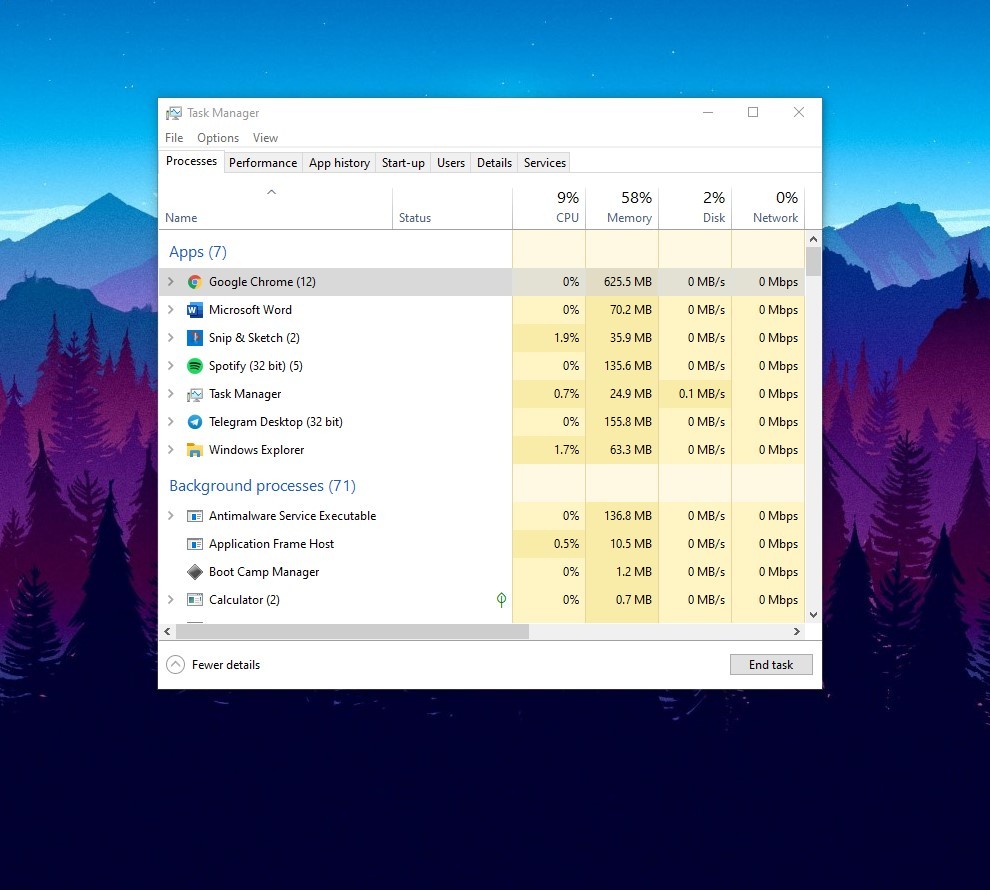
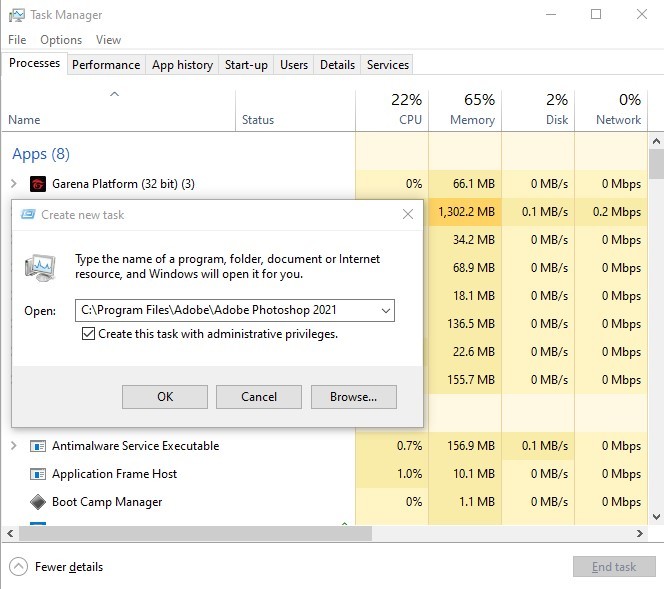
- From Task Manager: select Run new task, enter the program path, and select the option to create the task with administrative privileges, if shown.
If you are signed in as a standard user, Windows may ask for an administrator account name and password. If you do not have those credentials, ask the device owner or administrator; do not try to bypass the prompt.


Make an app always run elevated only when necessary
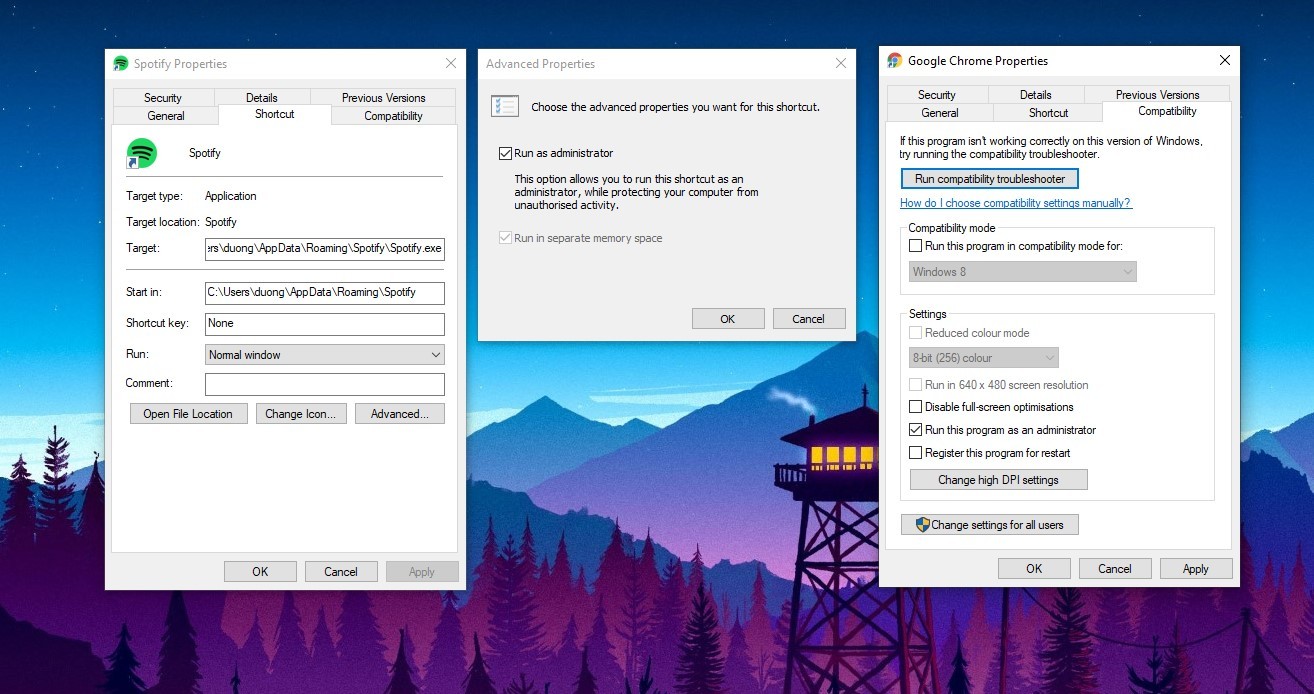
If a trusted legacy app repeatedly requires elevation, right-click its shortcut, open Properties > Compatibility, and select Run this program as an administrator if available. This makes every launch elevated, so use it only when the publisher’s documentation or your administrator says it is required. Clear the setting if the app works normally without it.
Do not modify registry keys or place an app in the Startup folder to force it to run elevated. Those workarounds can create security and startup problems. The old Registry Editor instructions and menu screenshots below are retained from the original article for reference, not as steps to follow.
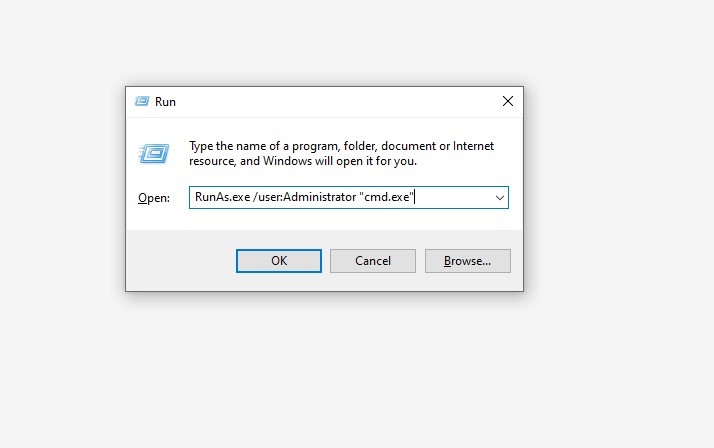
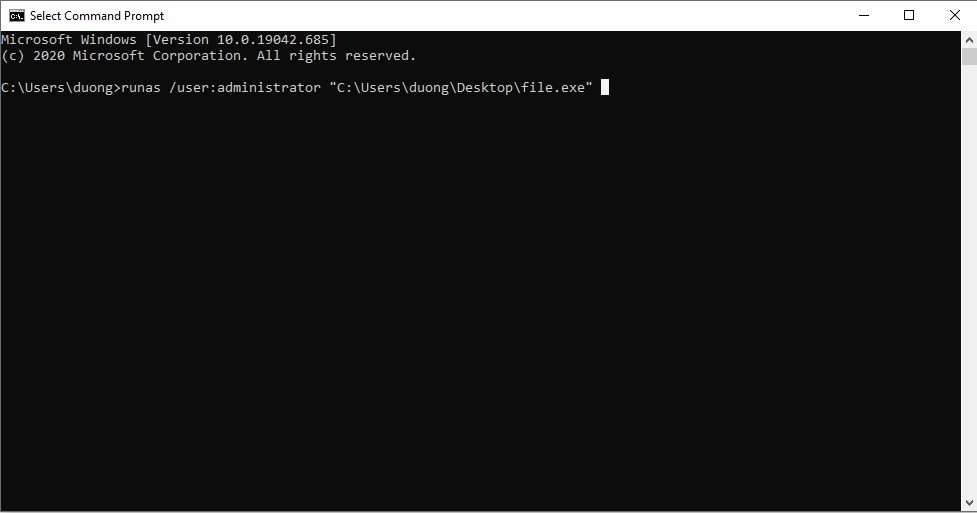
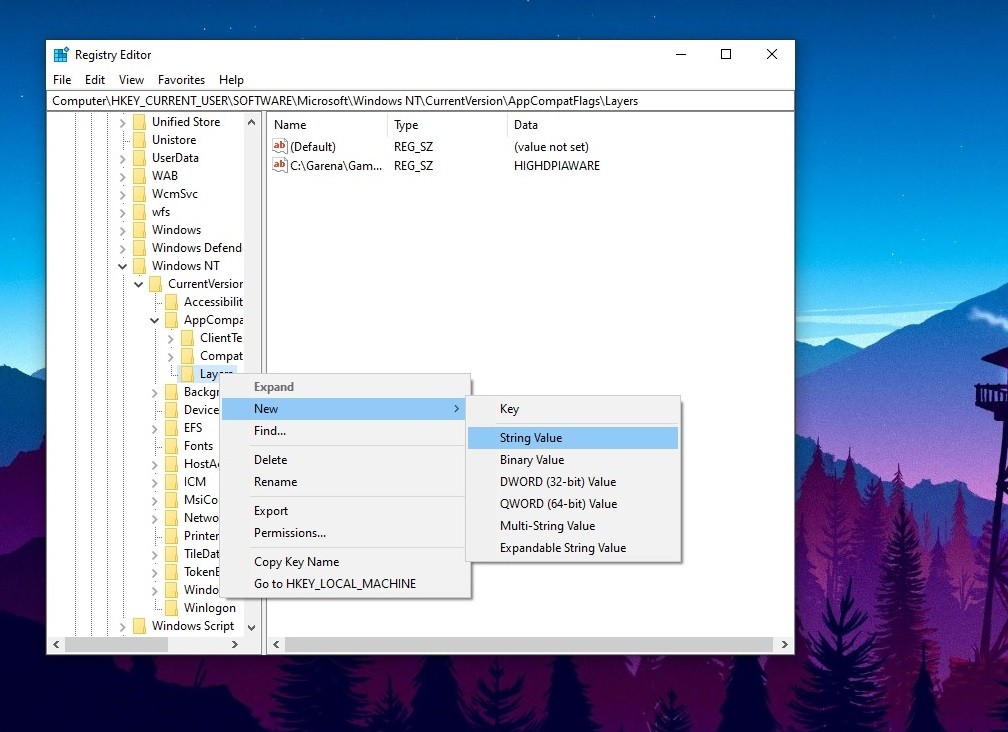
For details, see Microsoft’s explanation of how User Account Control works and its guidance on running apps with administrator privileges.
Related Articles
 How to Enable or Disable the Built-In Administrator Account in Windows
 How to fix the error Run as Administrator does not work in Windows
 How to Login to Windows XP as the Administrator
 How to Make Yourself an Administrator on Any Windows System
 How to Open Command Prompt as Administrator in Windows 11 or 10
 How to Always Run a Program As an Administrator on Windows
Reader Comments 0
Sign in with email or Google to join the discussion.