Table of Contents
Image compression reduces file size; resizing reduces pixel dimensions. Both can help with uploads and storage, but lossy compression can discard image detail. Keep an original copy and inspect the exported file at its intended display size before replacing it.
Free image tools to consider
Caesium Image Compressor: batch compression
Caesium is a free desktop tool for compressing common image formats, including JPEG, PNG, WebP, and TIFF. It is useful when you want to process a group of files and adjust output quality or dimensions. The amount of size reduction depends on the format, image, and settings; no tool can guarantee a specific percentage while preserving identical quality.

RIOT: compare compression before saving
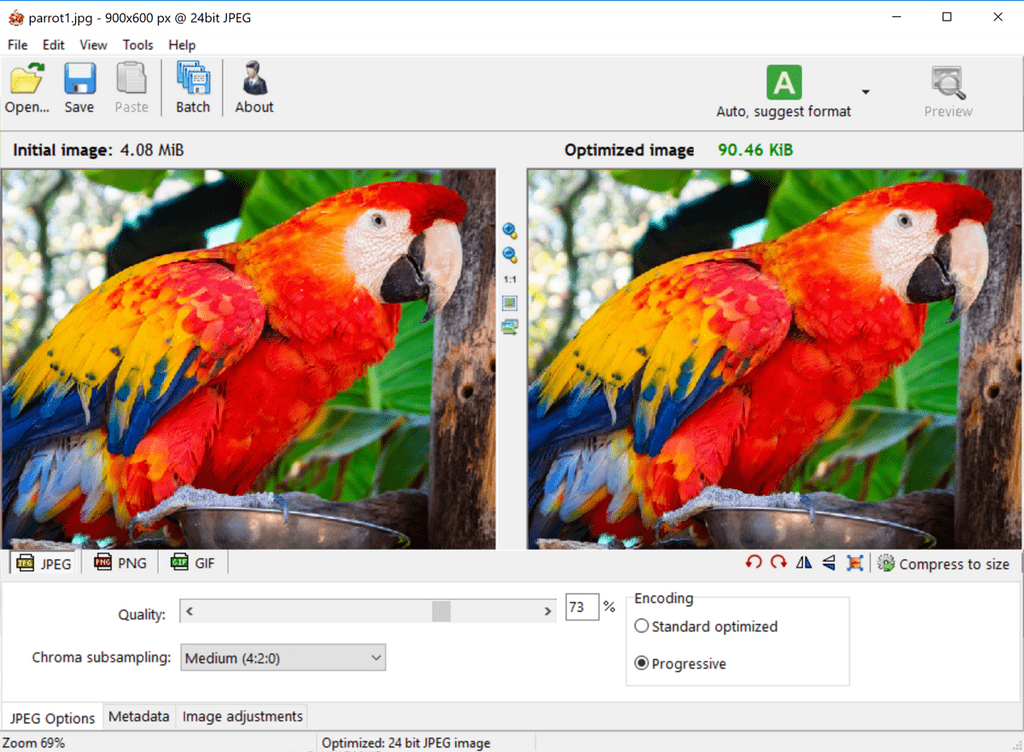
RIOT (Radical Image Optimization Tool) is a free image optimizer with a preview-oriented workflow for comparing file size and image appearance. Its publisher now lists desktop builds for Windows, macOS, and Linux. Check the current download page for platform availability and supported formats.

IrfanView: resize and convert on Windows
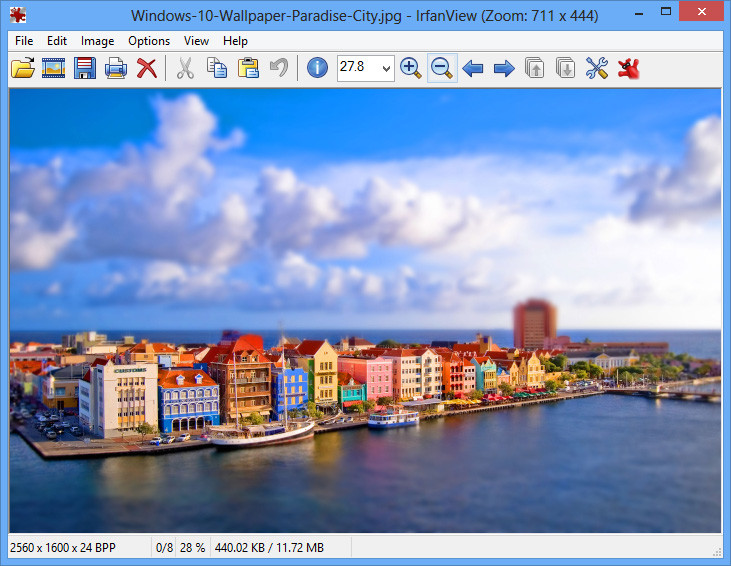
IrfanView can resize and save images in different formats on Windows. Its publisher offers it as freeware for private, non-commercial use; business use requires the applicable license. It is a useful choice if you also want a compact image viewer and basic editing tools.
How to reduce an image without unnecessary quality loss
- Make a copy of the original file.
- Choose the pixel dimensions needed for the destination. A smaller display image usually needs fewer pixels than a print or archive master.
- For JPEG or WebP, lower quality in small steps and preview fine details, text, gradients, and faces.
- For logos, screenshots, and transparency, test PNG or another lossless option; changing format can alter transparency or appearance.
- Save the optimized copy under a new name, then compare its dimensions, file size, and visual quality.
Changing a file extension does not convert or compress an image. Use the app’s export or save-as format option instead. Avoid repeatedly recompressing JPEG files because each lossy save can introduce additional artifacts.
Older tools in the source list
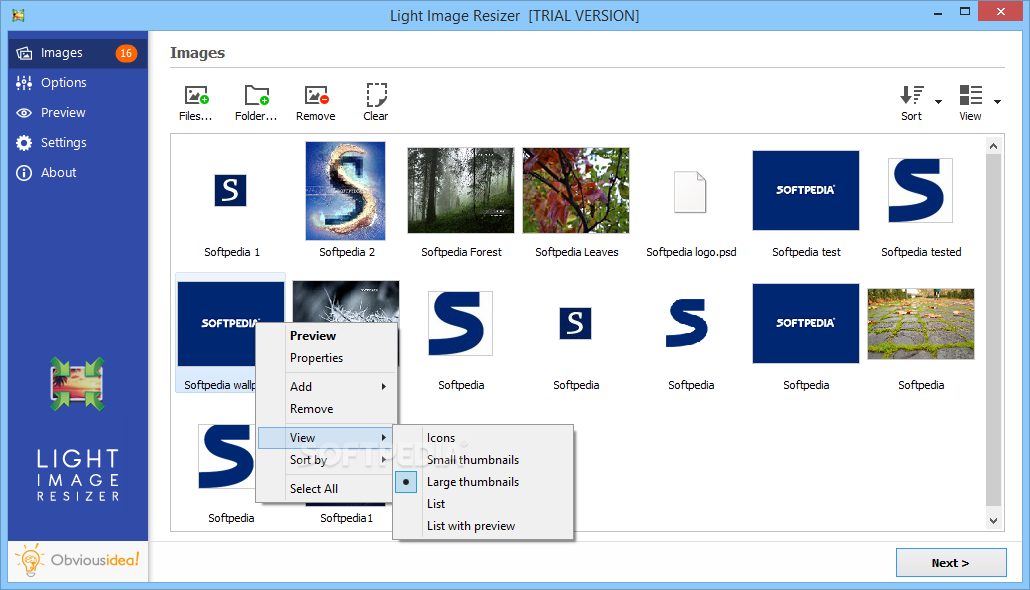
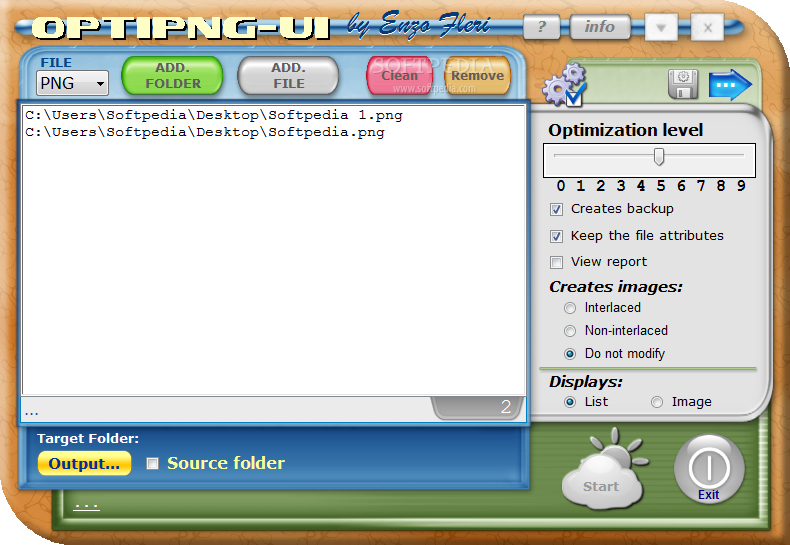
The original list also included Light Image Resizer and OptiPNG. Light Image Resizer has its own current licensing and feature terms, so check its publisher’s site before choosing it. OptiPNG is a command-line tool focused on PNG optimization rather than a general image resizer.
Related Articles
 Reduce image size, how to compress images online for free
 How to compress photos with Optimizer (for images) Windows 10
 How to reduce the capacity of free online images
 Instructions for resizing photos with Pic Resize online
 5 Image Compression and Resizing Tools for Windows
 How to compress photos on Windows 10 Compressor image application
Reader Comments 0
Sign in with email or Google to join the discussion.