Table of Contents
A USB drive cannot become physical RAM. Windows 10's ReadyBoost feature can use suitable flash storage as a cache for small, frequently read files, which may help an older PC with a mechanical hard drive and limited memory. It offers little or no benefit on a PC whose system drive is already a fast SSD.

Check whether ReadyBoost is worth trying
- Use a reliable USB drive you can leave connected. A slow or failing drive may be rejected.
- Keep the Windows-managed page file enabled. ReadyBoost complements Windows caching; it is not a page-file replacement.
- Do not expect it to improve CPU-heavy work, games, or applications that genuinely need more RAM.
- If Task Manager regularly shows very high memory use, adding compatible physical memory is the effective upgrade. The low-memory troubleshooting guide helps confirm the cause.
Back up the USB drive first
Choose a spare drive and copy any important files elsewhere.
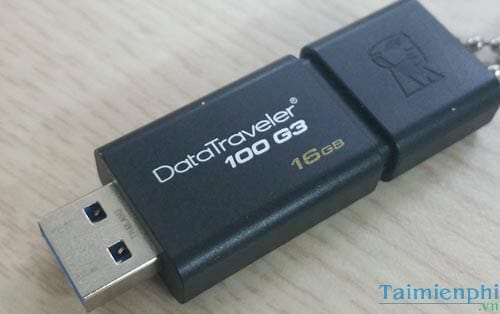
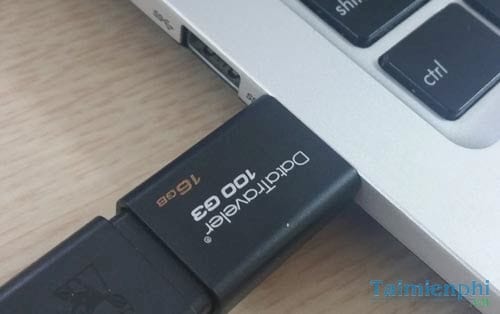
Insert it into a direct USB port on the PC.
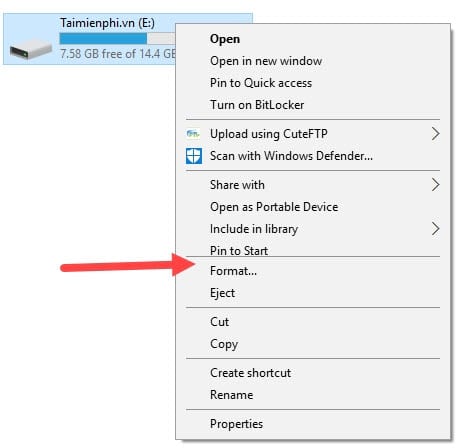
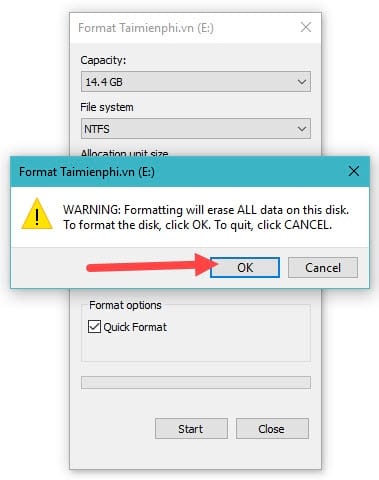
Formatting is not normally required. The screenshots below show the optional process, but formatting permanently erases the selected drive. Use it only if Windows cannot use the existing file system or if you intentionally want an empty drive. Double-check the drive letter before proceeding.
If formatting is necessary, leave appropriate default settings and select Start.
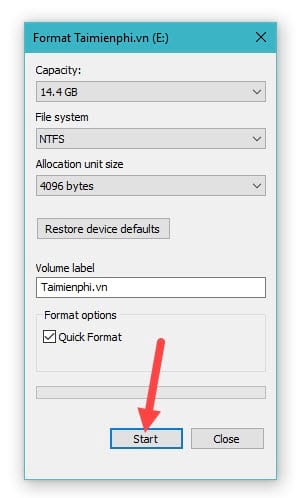
Confirm only after verifying that the correct drive is selected and its files are backed up.
Enable ReadyBoost
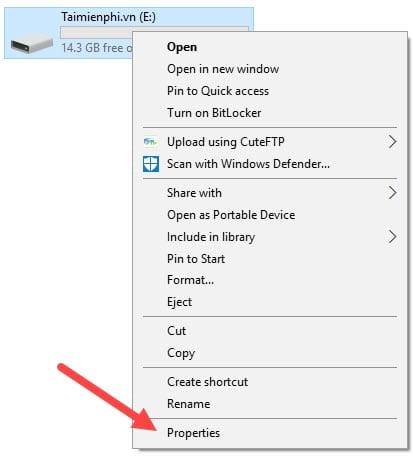
- Open File Explorer, right-click the USB drive, and choose Properties.
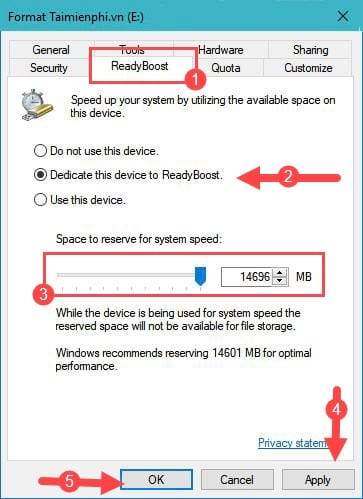
- Open the ReadyBoost tab. Choose Dedicate this device to ReadyBoost, or choose Use this device and select how much space to reserve.
- Select Apply, then OK.
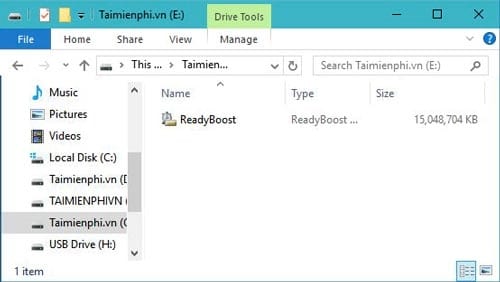
Reserved space appears used in File Explorer because Windows created the cache.
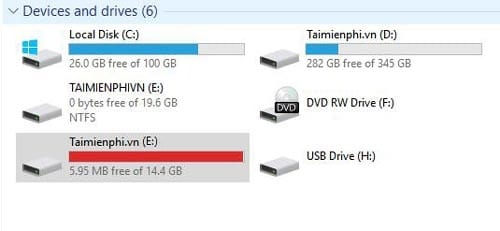
The ReadyBoost cache file is managed by Windows. Its size depends on the space reserved and should not be opened or edited.
If the ReadyBoost tab says the device cannot be used
Windows tests the drive's performance. Try a faster flash drive or a different direct USB port, but do not force an unsuitable device with registry tweaks. If Windows says ReadyBoost is not enabled because the computer is fast enough, the system drive is probably better at caching than the USB device and ReadyBoost is unnecessary.
Disable ReadyBoost before removing the drive
- Open the USB drive's Properties > ReadyBoost.
- Select Do not use this device, then Apply.
- Use Safely Remove Hardware before unplugging the drive.
Unexpected removal should not erase ordinary documents from the PC, but it discards the external cache and can corrupt the USB file system during a write.
Better ways to fix a slow computer
Check Task Manager for memory, disk, CPU, and startup pressure before buying hardware. Physical RAM helps when applications exceed available memory; an SSD addresses storage latency; removing unwanted startup apps reduces sign-in load. The slow-computer diagnostic guide explains how to match the upgrade to the actual bottleneck. Leave Windows' virtual memory automatically managed unless a documented workload requires otherwise; the virtual memory overview explains its separate role.
Related Articles
 Start Windows Faster: How to Make Windows Boot Faster11 minutes read
 When and How to Defragment Hard Drives on Windows 10?4 minutes read
 Microsoft Gives Reasons to Make Windows 11 Faster Than3 minutes read
 How to Set Virtual Ram for Win 10 to Make the Computer Run Faster and3 minutes read
 How to Change This Registry Value to Make Your Windows 11 Computer Run Faster Immediately8 minutes read
 5 Ways to Speed Up Windows XP SP 2 and Windows Vista7 minutes read
Reader Comments 0
Sign in with email or Google to join the discussion.