Table of Contents
Mac voice changers fall into two groups. Real-time tools create a virtual microphone that can be selected in Discord, Zoom, a game, or streaming software. Recording tools apply effects to a clip inside the app and export or share the result. Choosing the wrong type is the main reason an app appears not to work.

Voxal, Voicemod, and MorphVOX are intended for real-time use. Voice Changer Plus is mainly for recording short clips. Always check the developer's current macOS and processor requirements before installing, especially on an Apple silicon Mac.
Quick comparison
| App | Best for | Type | What to check |
|---|---|---|---|
| Voxal Voice Changer | Calls, games, and custom effect chains | Real time and recorded | License terms and macOS compatibility |
| Voicemod | Discord, streaming, games, and soundboards | Real time | Requires macOS Ventura 13 or later |
| MorphVOX Mac | Voice profiles and background sounds | Real time | Confirm support for your exact Mac and macOS version |
| Voice Changer Plus | Short recorded clips with preset effects | Recorded | Mac availability depends on App Store compatibility |
1. Voxal Voice Changer
Voxal Voice Changer processes microphone audio in real time and can be used with compatible call, game, and recording applications. It includes preset voices and lets users build and save custom effect chains. It can also apply effects to recorded audio, making it the most flexible option in this list.
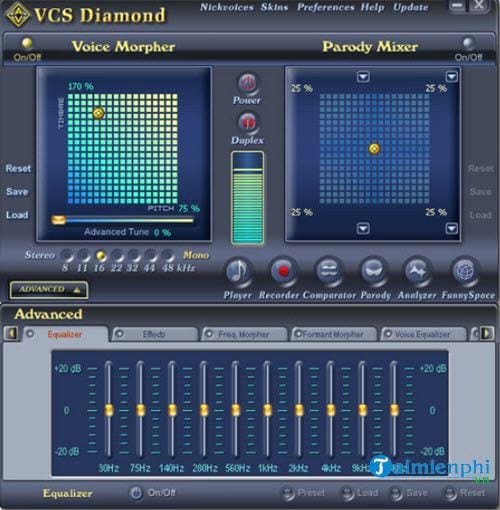 Voxal supports live processing and saved voice effects.
Test the free version before buying and read NCH's license terms: “free” availability may be limited to non-commercial home use. During setup, allow microphone access only when macOS requests it for the official app.
2. Voicemod for macOS
Voicemod for Mac combines a real-time voice changer with a soundboard. It is designed to route processed audio into communication and streaming apps through a virtual input device. Voicemod's support documentation says the Mac version requires macOS Ventura 13 or later.
Choose Voicemod when soundboard playback and quick switching between effects matter. Some voices and creation tools may require a paid plan. The desktop Mac software is different from the mobile companion app, so download the macOS installer from Voicemod's official site.
3. MorphVOX Mac
MorphVOX Mac changes microphone audio for online chat and games and provides voice profiles, tuning controls, and optional background sounds. The developer offers a trial and a paid Mac product.
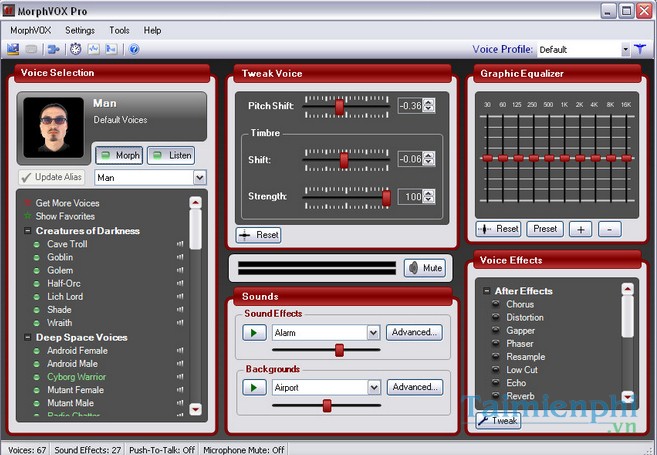 MorphVOX provides adjustable voices and background effects.
The developer's Mac pages include references to much older OS X versions, so do not treat “OS X 10.6 or later” as proof that every current Mac configuration is supported. Confirm 64-bit and Apple silicon compatibility for the exact download before purchasing. If the installer or system extension is blocked, use the developer's current support instructions rather than weakening macOS security settings broadly.
4. Voice Changer Plus
Voice Changer Plus records a short clip and replays it with preset voices and sound effects. It is useful for messages and saved clips, but it does not provide a system-wide virtual microphone for a live game or call.
 Voice Changer Plus applies effects to recordings.
The App Store listing indicates Mac availability only for compatible hardware and macOS versions. Check the compatibility section from the Mac you intend to use; an iPhone or iPad app listing does not guarantee that it will run on every Intel or Apple silicon Mac.
Set up a real-time voice changer on Mac
- Download the installer from the developer's official site and verify that it supports your macOS version and processor.
- Connect headphones. Using speakers can send processed audio back into the microphone and create echo or feedback.
- Open System Settings > Privacy & Security > Microphone and allow access for the voice changer. Grant screen-recording or accessibility access only if a documented feature genuinely requires it.
- Open the voice changer, select the physical microphone as its input, and choose an effect.
- In Discord, Zoom, OBS, or the game, select the voice changer's virtual microphone as the input device.
- Run a test recording. Adjust the input level so loud words do not distort, then reduce effect intensity if speech becomes difficult to understand.
- When finished, restore the app's input to the physical microphone. Otherwise, later calls may still use the virtual device.
Troubleshooting
- No processed audio: confirm that the chat app uses the virtual microphone, not the Mac's built-in microphone.
- No microphone signal: check macOS microphone permission and the input selected inside the voice changer.
- Echo or howling: use headphones, disable duplicate monitoring, and lower speaker or monitoring volume.
- High delay: close unnecessary audio apps, reduce demanding effects, and select a consistent sample rate where the apps expose that option.
- App will not open: verify macOS and processor support. Do not bypass Gatekeeper for an installer from an unverified mirror.
Older recommendations to avoid
Voice Candy and Voice Swap often appear in old Mac lists, but dependable current developer and compatibility information is difficult to verify. Modern macOS releases do not run 32-bit apps, so an old download may fail even if a third-party site still offers it. Use a maintained product with a current official support page.
For Windows alternatives, see our list of voice-changing software for computers. Mac users can also compare real-time voice changers for chat and games. If you only need to edit a saved voice recording, a full audio editor may provide better control than a preset voice app.
Related Articles
 Entertainment with 6 Voice Changer Apps on Android8 minutes read
 Top 15 Applications to 'Transform' Your Voice on iPhone6 minutes read
 Top Voice Changer Apps for Android Phones5 minutes read
 Top 6 Voice Conversion Software on Windows 105 minutes read
 How to Use Fake Voice to Change Voice: Step-by-Step Guide3 minutes read
 5 Real-Time Voice Changing Software for Discord, Skype, Steam6 minutes read
Reader Comments 0
Sign in with email or Google to join the discussion.