Table of Contents
For the fastest Windows file search, start in the smallest likely location. Use taskbar Search for apps and common documents, or open File Explorer and search a specific folder when you know roughly where the file belongs. Searching all of This PC is broader but can take longer.
1. Search from the Windows taskbar
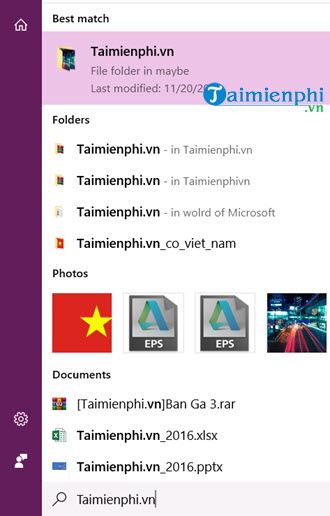
Press the Windows key and type part of the file name or a keyword. Use the result filters, such as Documents, when available. Taskbar Search is convenient for indexed folders, apps, settings, and files connected through supported cloud services.
2. Search a specific folder in File Explorer
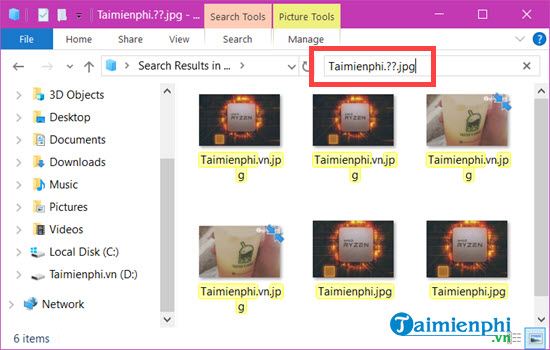
Open File Explorer with Windows key + E, browse to the likely folder, and type in the search box. Start in Downloads, Documents, Pictures, or the relevant project folder. Move up to a drive or This PC only if the narrower search fails.
Check the search scope shown in File Explorer. A query started inside Downloads does not normally search unrelated folders on another drive.
3. Search by extension when you know the file type
Use an asterisk as a wildcard for the name. Examples include *.pdf, *.docx, *.jpg, and report*.xlsx. The first pattern finds every file with that extension in the selected search scope; the second finds Excel files whose names begin with “report”.
4. Sort results by date or size
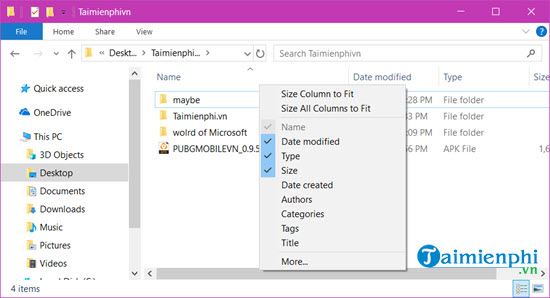
If you remember when you edited the file, switch File Explorer to Details view and sort the results by Date modified. For a large video, archive, or installer, sort by Size. Sorting avoids relying on old size-category syntax that can vary with Windows versions and display languages.
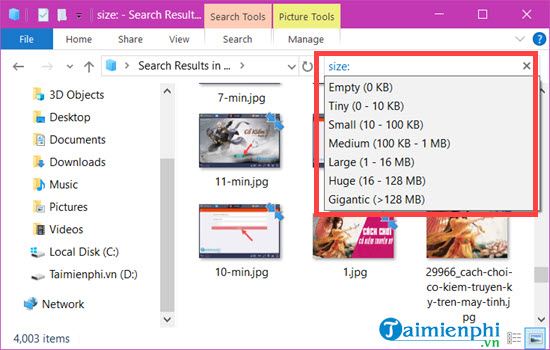
5. Search file contents when indexing supports it
A file-name search is different from a content search. Windows can index properties and, for supported formats and locations, text inside documents. If a known phrase does not find the file, first try the file name, extension, date, and likely folder. Encrypted, unsupported, offline, or unindexed files may not be searchable by their contents.
6. Adjust Windows search indexing
Open Settings > Privacy & security > Searching Windows. Review which locations are indexed and whether Windows is using the standard or broader search mode available on your device. A broader index can improve coverage but requires more initial indexing work and system resources.
Microsoft explains the current settings in its Windows search indexing guide. TipsMake also explains how Windows Search Indexer works.
7. Check common places when a file is missing
- Search This PC by the extension if the folder is unknown.
- Look in Recycle Bin if the file may have been deleted.
- Check OneDrive or another sync service, including its online recycle bin.
- Enable hidden-item display only when the missing file could be hidden; avoid changing system files.
- Right-click a result and choose Open file location to confirm the actual path.
- If search results are incomplete, allow indexing to finish or use the Windows search troubleshooter.
Microsoft's file and app search instructions cover the current taskbar and File Explorer workflow.
8. Consider a dedicated filename search tool
A maintained third-party utility can be useful on systems with very large file collections. Review the publisher, update history, download source, and indexed locations before installing one.
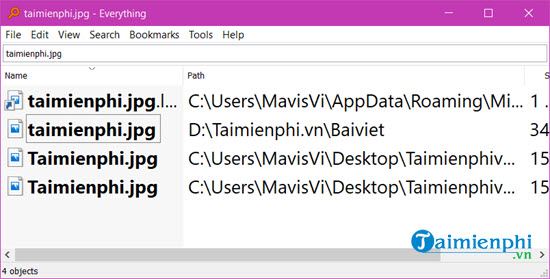
TipsMake's useful Windows applications list includes a modern filename-indexing option. The older Locate32 guide explains how database-based search works, along with its maintenance and compatibility limitations.
Related Articles
 What Are Files and Folders in the Computer?7 minutes read
 How to Create Files and Folders Easily with Powershell8 minutes read
 Root Directory (Home) in Unix // Linux: Manage Folders in Unix //8 minutes read
 Use CMD to Delete Large Folders on Windows4 minutes read
 5 Essential Tips to Search Better on Windows 117 minutes read
 How to Synchronize Files and Folders on Linux3 minutes read
Reader Comments 0
Sign in with email or Google to join the discussion.