Table of Contents
Locate32 finds files and folders by searching a database of their names rather than scanning every drive for each query. This makes filename searches fast after the database has been built, but the results can become stale until the database is updated.
Important: Locate32 is an older utility and its public project files have not received a normal release in many years. On a current Windows 10 or Windows 11 PC, try Windows Search first. If you still use Locate32, download it only from the project's established pages, scan the package, and test compatibility before depending on it.
Download and open Locate32
Step 1: Visit the Locate32 project site or its linked SourceForge project. Choose the package that matches 32-bit or 64-bit Windows. Some releases are distributed as portable archives, so extract the files to a dedicated folder and read the included documentation before running the application.
Build the filename database
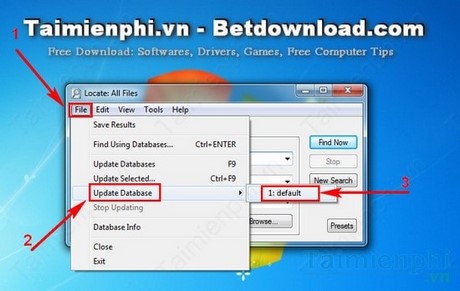
Step 2: In Locate32, open File > Update Databases and select the default database. The first update scans the selected drives and records file and folder names.
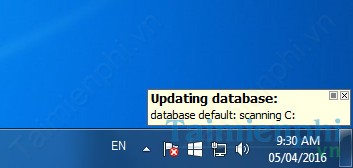
The initial scan can take time on a large drive. Let it finish before judging search speed or completeness.
Update the database after adding, deleting, renaming, or moving many files. Locate32 can only return information stored during its latest scan.
Search by file or folder name
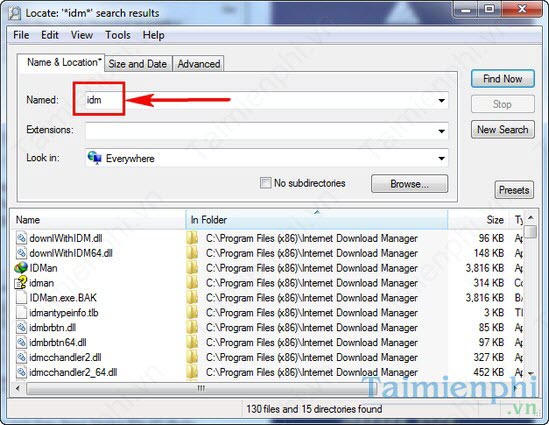
Step 3: Enter all or part of the name in the Named field. Review the path column before opening a result, especially when several files share the same name.
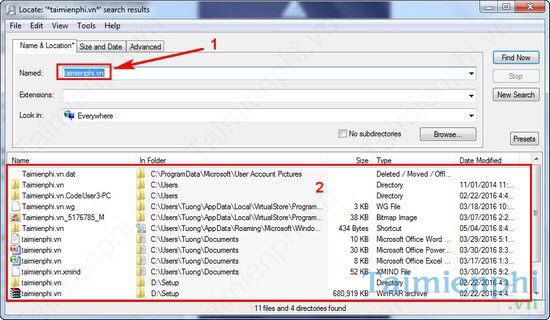
Use a file extension when it helps narrow the list, such as .pdf or .xlsx. Locate32 is strongest at name and path lookup; it is not a modern full-text search engine for document contents.
Filter by size or date
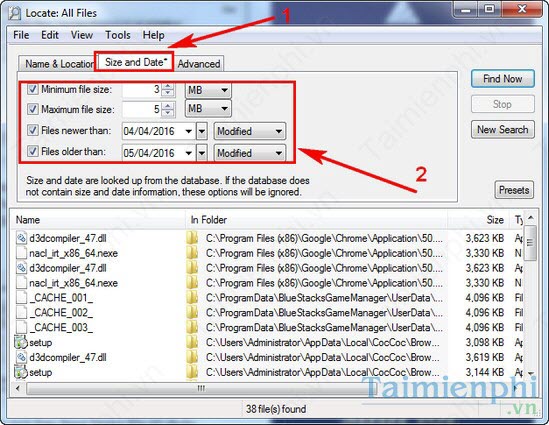
Step 4: If the name is uncertain, combine a partial name with minimum or maximum file size and date criteria. Keep the range broad at first, then narrow it if too many matches appear.
You can use the same name field to locate application executables or folders, but verify the full path before launching an unfamiliar file.
Limitations to consider
- Stale results: Newly created or moved files do not appear until the database is updated.
- Filename focus: The tool is not designed primarily for searching text inside modern documents.
- Old software: Compatibility, security hardening, and high-DPI behavior may not match current Windows applications.
- Indexed paths: A drive or folder omitted from the database cannot appear in results.
Use current Windows Search instead
Windows 10 and Windows 11 include indexed search in the taskbar and File Explorer. Microsoft explains how to adjust it in its Windows search indexing guide. TipsMake also explains what Windows Search Indexer does.
If you want a maintained third-party filename search tool, review current options before installing one. TipsMake's list of useful Windows applications includes a modern filename-indexing alternative.
Related Articles
 Find X2: 0 to 100% Super Vooc 2.0 65w Quick Charge Test Took Just8 minutes read
 OPPO Find X2: Display, Performance, and Super-fast Charging7 minutes read
 Find Large Files in Windows 10: How to Find Large Files on3 minutes read
 How to Find Files and Files on Your Computer Fast and Effective5 minutes read
 Scientists Create Cockroach Robots That Run Super Fast, Step Back3 minutes read
 The Easiest Ways to Find Large Files on Windows8 minutes read
Reader Comments 0
Sign in with email or Google to join the discussion.