Table of Contents
When Windows cannot open a PDF, test the file and the reader separately. If one PDF fails everywhere, the file is probably damaged, incomplete, restricted, or mislabeled. If every PDF fails in one application, update, repair, or replace that reader.
Start with a two-file, two-app test
- Try opening a different known-good PDF on the same computer.
- Try the problem PDF in Microsoft Edge or another current browser.
| Result | Likely cause |
|---|---|
| Only one PDF fails in every app | The file is incomplete, damaged, password-protected, or not really a PDF |
| All PDFs fail in Acrobat but open in Edge | Acrobat installation, update, or settings problem |
| Double-click opens the wrong app | Incorrect Windows file association |
| The file works after downloading again | Incomplete or damaged original download |
1. Download or copy the file again
Check that the file size is not 0 KB and that the download completed. Save an email attachment to a normal local folder before opening it. If another person sent the PDF, ask for a fresh export when the replacement also fails.
Renaming another file type with a .pdf extension does not make it a valid PDF. Avoid online “repair” services for confidential documents.
2. Open the PDF in Microsoft Edge
Right-click the file and choose Open with > Microsoft Edge. Edge can display standard PDFs without a separate reader. If the file opens, save or print only if you are authorized and if doing so will not discard forms, signatures, tags, or other required features.
TipsMake's guide to opening PDF files covers default apps and reader options on several platforms.
3. Update Adobe Acrobat Reader
Open Acrobat Reader and choose Help > Check for Updates. Install available updates and restart the program.

If Reader cannot update, use Adobe's official installer or contact the administrator of a managed PC. Do not install an older, unsupported Reader version as a routine compatibility fix; that can reintroduce known security problems.
4. Repair Acrobat Reader
In Reader, choose Help > Repair Installation, wait for the process to finish, and reopen the application.
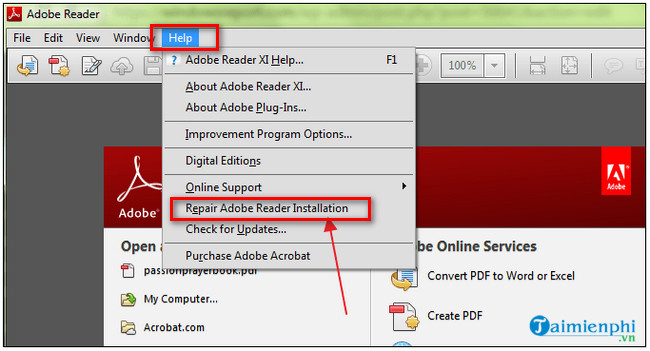
If Reader does not start, repair or uninstall it through Windows Settings, then reinstall the current supported version from Adobe.
5. Set the correct default PDF app
- Right-click a PDF and choose Open with > Choose another app.
- Select Microsoft Edge, Adobe Acrobat Reader, or another trusted PDF reader.
- Enable the option to always use that application for .pdf files.
You can also set the .pdf association under Settings > Apps > Default apps.
6. Test Protected Mode only for Access Denied
Protected Mode isolates PDF content and should normally remain enabled. If Acrobat specifically reports Access Denied, the PDF is from a trusted source, and earlier steps did not help, use a temporary diagnostic test.
- Open Acrobat Reader.
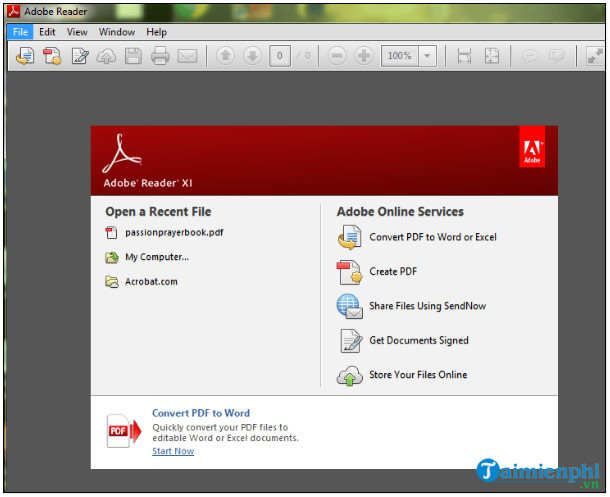
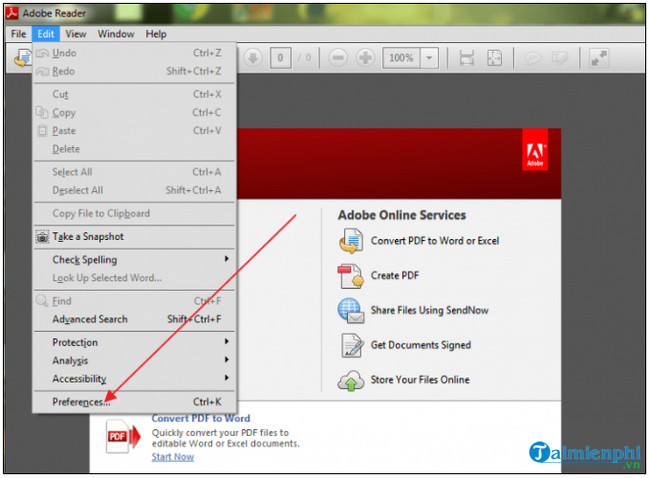
- Select Edit.
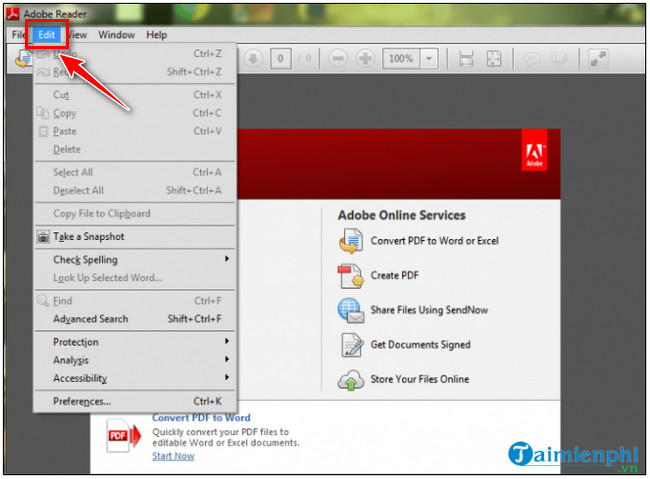
- Select Preferences.
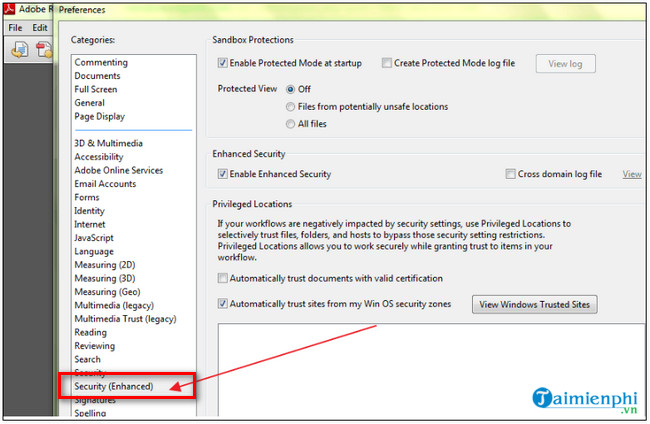
- Select Security (Enhanced).
- Temporarily clear Enable Protected Mode at startup, restart Reader, and test the PDF.
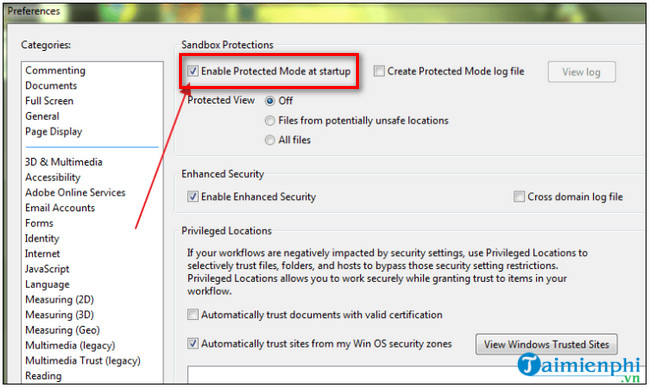
Re-enable Protected Mode after the test. If disabling it makes the file open, update Reader and investigate file-location or organizational policy conflicts rather than leaving the protection off. Adobe's official PDF-opening troubleshooting page limits this workaround to the Access Denied case.
7. Check password and permissions
- If Reader requests a password, ask the document owner for it.
- If the file is on a network or cloud folder, confirm that you have read access and that the file is fully synchronized.
- Save a permitted local copy when a temporary email or browser location is read-only.
- Do not attempt to bypass copying, editing, or opening restrictions.
8. Try another trusted reader
If the PDF is valid but one reader still fails, test a current alternative. TipsMake's PDFgear overview describes a multi-platform option, and the Acrobat Reader troubleshooting guide provides more application-specific checks.
When to stop troubleshooting
Ask for a new copy when one file fails in multiple current readers. Contact your administrator when updates, installation, or file access are controlled by policy. If the PDF contains an important signature, form, or legal record, do not convert or resave it merely to force it open; preserve the original and obtain a valid replacement.
Related Articles
 Computer Cannot Read JPG Image Files - Summary of 6+ Solutions Explained7 minutes read
 How to Read EPUB Files on Your Computer, Software to Read EPUB Files3 minutes read
 iPhone Can't Read MP4 Files, What to Do: Key Facts7 minutes read
 Top 5 Applications to Read DWG Files on Phones5 minutes read
 How to Delete Undelete Files: Clear Instructions20 minutes read
 Backup and Read iPhone Messages on Windows and Mac5 minutes read
Reader Comments 0
Sign in with email or Google to join the discussion.