Table of Contents
Foxit PDF Reader and UniPDF use different approaches. Foxit Reader can select and copy permitted text into Word, while UniPDF is a dedicated converter that creates a DOC or RTF file. Copying is suitable for a short passage; conversion is better when you need most of the document.
Before you start
- Confirm that the PDF's security settings and your rights allow copying or conversion.
- Keep the original PDF for comparison.
- If the page is a scan, ordinary text selection will not work; use OCR.
- Do not upload or process a confidential PDF with unapproved software.
Option 1: Copy PDF text with Foxit Reader
This is text extraction, not a full layout conversion. Tables, columns, images, headers, and footnotes may not transfer correctly.
- Open the PDF in Foxit PDF Reader and locate the selection tool.
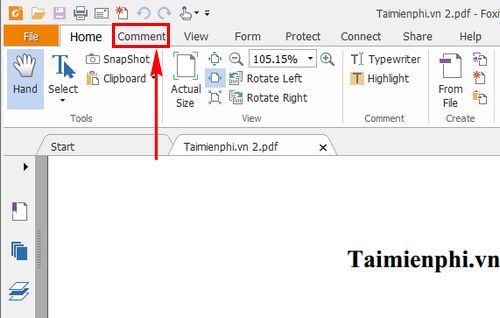
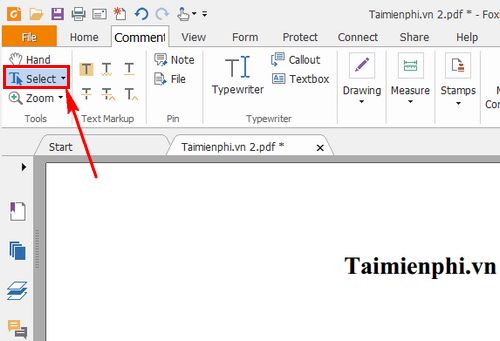
- Choose the text-selection command.
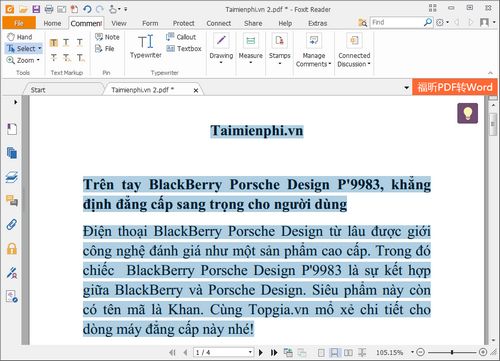
- Drag to select the passage. Use Ctrl+A only if the reader selects the document's text in the correct order.
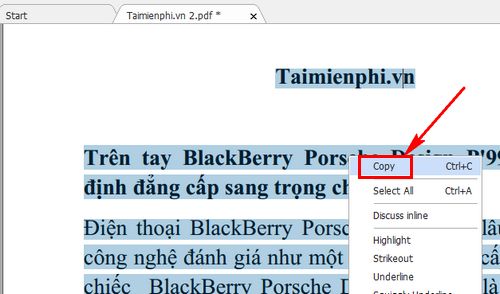
- Right-click and choose Copy, or press Ctrl+C.
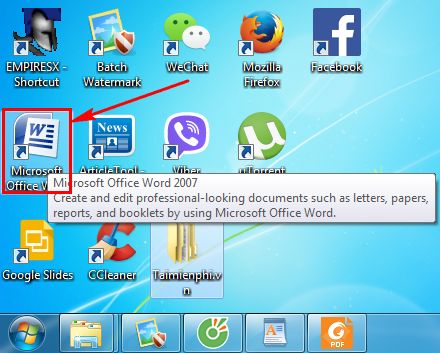
- Open a new or existing document in Microsoft Word.
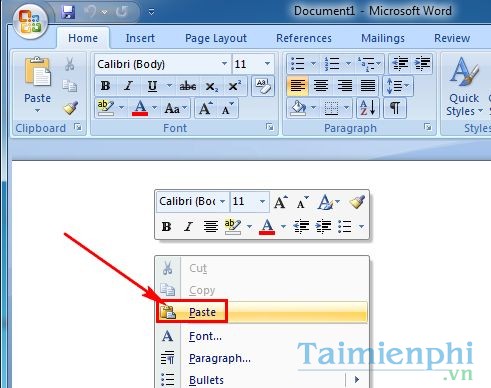
- Paste with Ctrl+V. Use Word's Keep Text Only paste option when PDF formatting creates unnecessary line breaks or fonts.
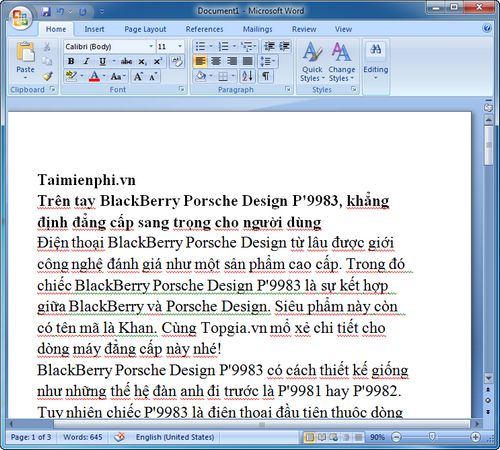
Review the pasted text and rebuild headings, lists, and tables with Word's native tools.
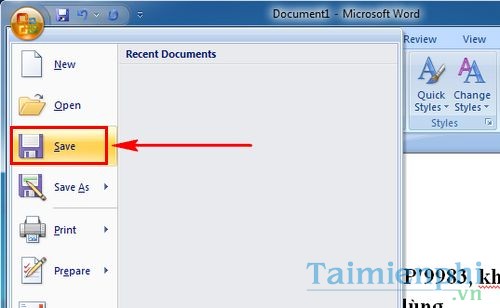
- Select File > Save As and save the document as DOCX.
Current Foxit products and features may differ from these legacy screenshots. Foxit's official PDF Reader page identifies the viewer, annotation, form, and signing features available in the current reader.
Option 2: Convert the PDF with UniPDF
UniPDF is a Windows converter that can export PDF content to older Word formats such as DOC or RTF. Its current edition, limits, licensing, and supported Windows versions should be checked before installation. Download only from the verified developer site.
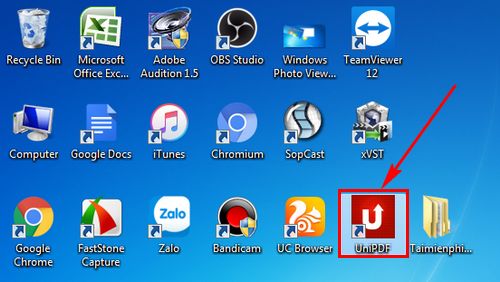
- Open UniPDF.
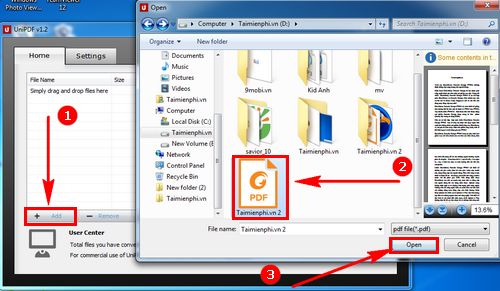
- Select Add, choose the PDF, and select Open.
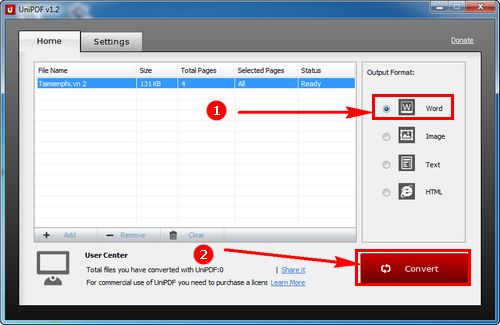
- Select Word as the output format and choose Convert.
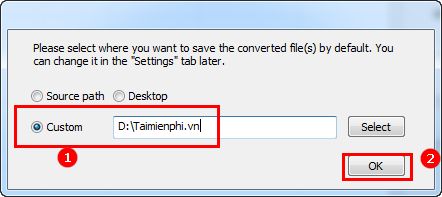
- Choose a custom output folder so you can find the converted file without overwriting another document.
When conversion finishes, open the output file.
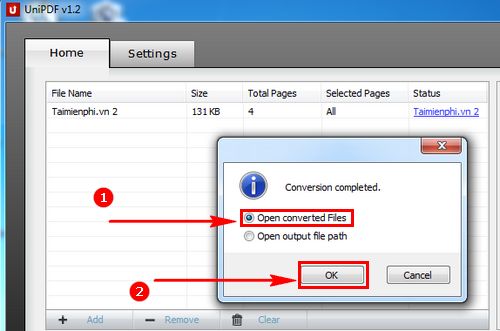
Inspect and edit the converted content in Word.
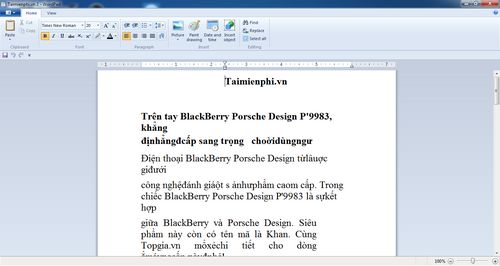
The official UniPDF download page lists the current free and paid terms. If the output is DOC or RTF, open it in a current Word version and save a separate DOCX copy after checking the content.
Choose between copying and conversion
| Need | Better approach |
|---|---|
| A few paragraphs | Copy permitted text in Foxit Reader |
| Most of a text-based PDF | Convert with UniPDF, Word, Acrobat, or another trusted converter |
| Scanned pages | Use an OCR-capable tool |
| Complex tables or precise layout | Test more than one converter and expect manual repair |
| Private or regulated content | Use approved local software |
TipsMake's guide to copying PDF content into Word explains permissions and paste options. For a complete document, compare the alternatives in the three-method PDF-to-Word guide.
Quality checks after transfer
- Compare names, dates, numbers, quotations, and symbols with the original.
- Check reading order on multi-column pages.
- Inspect tables, images, page breaks, headers, and footnotes.
- Remove repeated line breaks and apply Word heading styles.
- If Vietnamese or special characters are incorrect, follow the PDF-to-Word font-error troubleshooting guide.
No converter can guarantee perfect formatting for every PDF because the format stores fixed page positions rather than Word's editable document structure. Treat the converted file as a draft that requires verification.
Related Articles
 Link Download Foxit Reader 10.1.1.375768 minutes read
 Instructions on editing PDF files using Foxit PDF Reader13 minutes read
 minutes read
 Foxit Reader - PDF Reader with Many Additional Features: Key Facts17 minutes read
 How to Install Vietnamese for Foxit Reader3 minutes read
 How to Join PDF Files with Foxit Reader2 minutes read
Reader Comments 0
Sign in with email or Google to join the discussion.