Table of Contents
Excel can create a PDF without a separate converter. The important work happens before export: define the print area, choose the right sheets, set page orientation and scaling, and inspect the preview so columns are not cut off.
Prepare the workbook
- Save the workbook under its normal Excel filename.
- Review formulas and displayed values. A PDF captures the visible result, not an interactive spreadsheet.
- Hide any rows, columns, or sheets that must not appear.
- Select the cells to publish and choose Page Layout > Print Area > Set Print Area if only part of a sheet should be included.
- Open File > Print and check every preview page.
TipsMake's guide to aligning Excel pages for printing explains print areas, margins, and scaling in more detail.
Method 1: Save As PDF
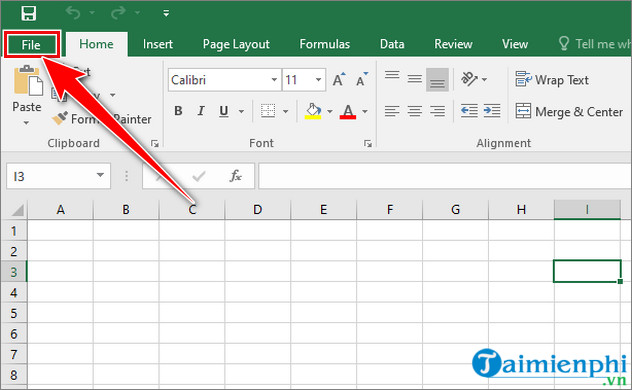
- Open the workbook and select File.
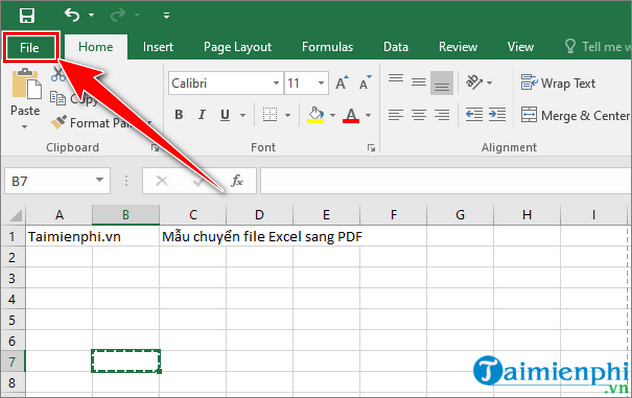
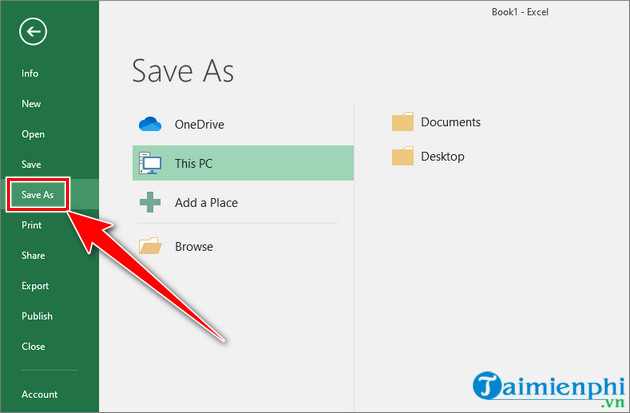
- Select Save As and choose the destination folder.
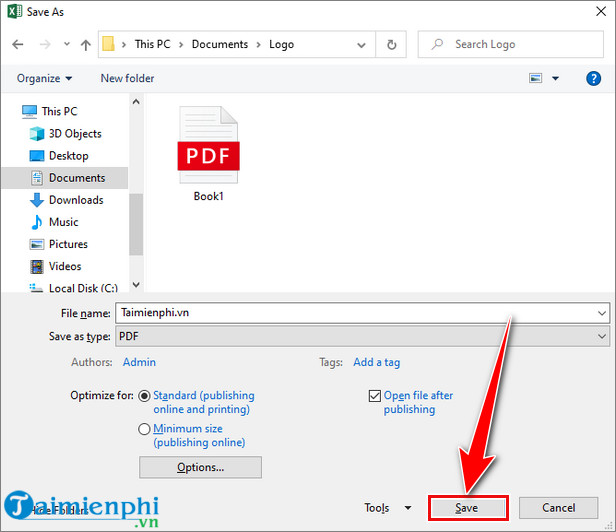
- In Save as type, choose PDF (*.pdf).
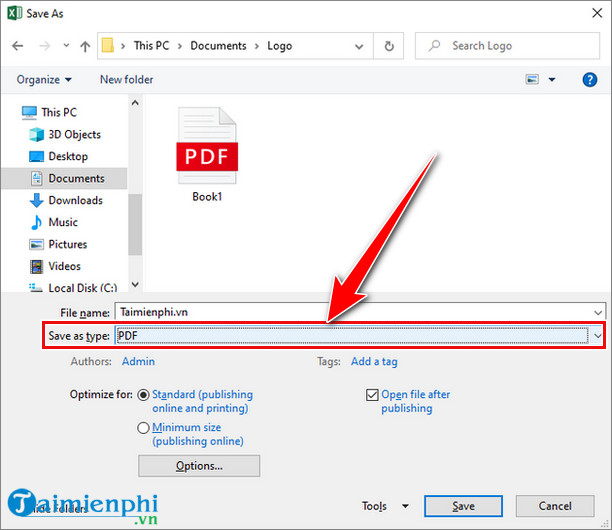
- Select Options and choose what to publish:
- Selection: only the selected cell range.
- Active sheet(s): the currently selected worksheet or grouped worksheets.
- Entire workbook: all visible worksheets in workbook order.
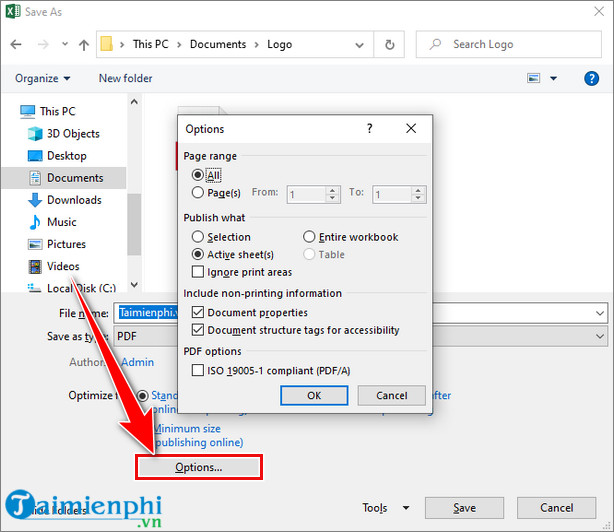
- Confirm the options and choose the desired optimization setting. Standard is appropriate for print quality; minimum size favors a smaller file.
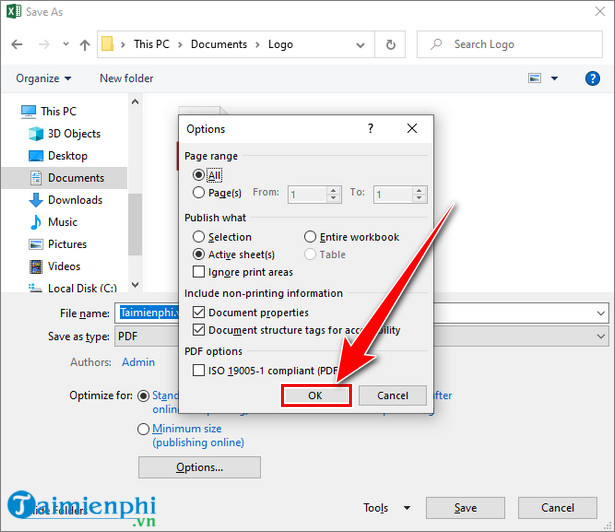
- Select Save.
Method 2: Export as PDF/XPS
The Export route exposes the same publishing options through a different menu.
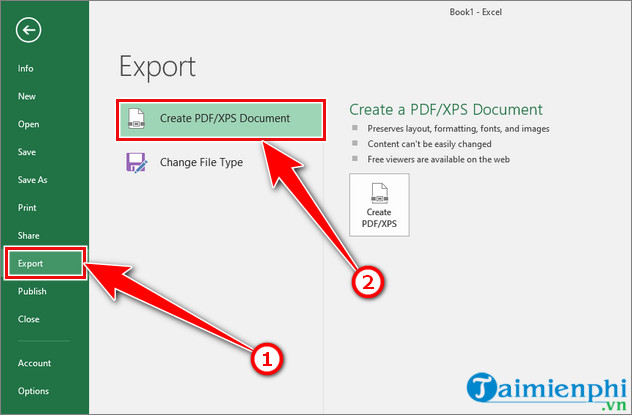
- Select File.
- Select Export > Create PDF/XPS Document.
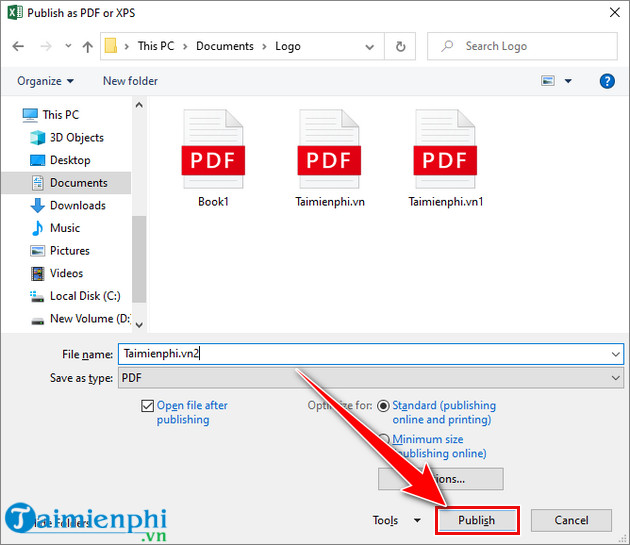
- Choose the folder and filename, review Options, then select Publish.
Use either Save As or Export; there is normally no quality advantage to doing both.
Fit a wide worksheet to the PDF page
When columns continue onto a second horizontal page, fit the sheet to one page wide rather than forcing the whole worksheet onto one physical page.
- Open Page Layout and the Page Setup dialog.
- Choose Landscape orientation for a wide table.
- Under Scaling, select Fit to.
- Set the width to 1 page. Leave the height automatic when the sheet has many rows.
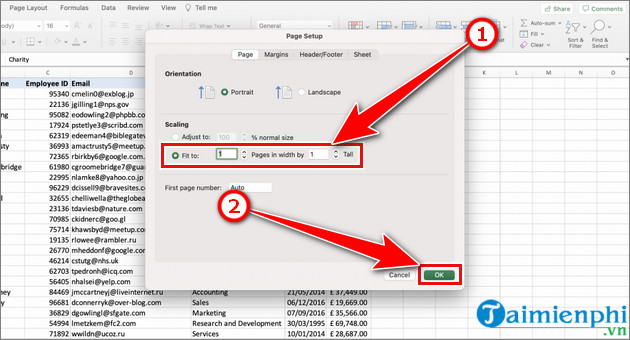
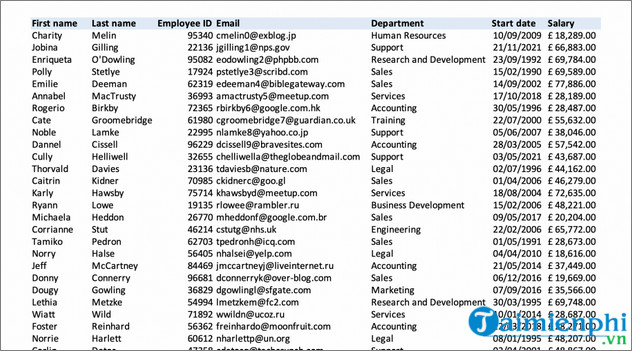
Setting both width and height to 1 can shrink a large worksheet until the text is unreadable. Use one page tall only for a small sheet designed to fit on one page.
For a full worked example, see how to set Excel's print area and save it as PDF.
Prevent missing columns and blank pages
- Use View > Page Break Preview to see where pages divide.
- Remove unused formatting far to the right or below the real data if Excel creates unexpected blank pages.
- Check that the print area does not include empty columns.
- Use narrower margins and landscape orientation before reducing scale excessively.
- Repeat header rows on each printed page through Page Layout > Print Titles.
The older Excel sheet and print-formatting guide also covers margins, orientation, page breaks, and print areas.
Export several worksheets in a specific order
Arrange the sheet tabs in the required order. To publish only some sheets, hold Ctrl and select their tabs, then choose Active sheet(s) in the PDF Options dialog. Ungroup the sheets afterward by right-clicking a selected tab and choosing Ungroup Sheets; otherwise, later edits can affect every grouped sheet.
Privacy and accessibility checks
- Remove hidden or filtered information that must not be shared; do not assume the PDF process handles confidential data for you.
- Check comments, notes, headers, footers, and defined print areas.
- Use meaningful sheet headings and avoid relying on color alone.
- Test whether text can be selected and read in the PDF. Complex spreadsheets may need a separately designed accessible report.
Open and verify the final PDF
Do not stop after Excel reports that the file was created. Open the PDF and confirm:
- all required sheets are present and in order;
- no columns or rows are cut off;
- the font is readable at normal zoom;
- page headers, footers, dates, and totals are correct;
- charts and images are not clipped;
- there are no unexpected blank pages.
If you later need editable cells again, use the original workbook. Converting the PDF back to Excel can lose formulas, formatting, and structure; TipsMake's PDF-to-Excel guide should be a recovery option, not a substitute for keeping the XLSX file.
Related Articles
 Simple Way to Convert Excel Files to PDF: Exel to PDF8 minutes read
 Simple Way to Convert Excel Files to PDF - Convert Directly or9 minutes read
 Convert Csv to Xls: How to Convert Csv Files to Excel in Bulk6 minutes read
 Convert CAD Files to PDF5 minutes read
 3 Simple Ways to Convert Excel Files to Word That You Should4 minutes read
 How to Convert PDF Files to Excel Keeps Formatting: PDF to Excel2 minutes read
Reader Comments 0
Sign in with email or Google to join the discussion.