Table of Contents
A converter can create a 320kbps MP3 from a YouTube video, but that does not make the source audio “true 320kbps” quality. YouTube processes uploaded audio for streaming. Encoding that stream again at 320kbps produces a larger MP3 and may reduce additional loss, but it cannot restore detail removed during the original upload and streaming process.
If you own the video or have permission to convert it, download the authorized source and encode it locally. For music you do not own, use YouTube Music’s offline feature or obtain the track from an authorized download store.
What “320kbps MP3” actually describes
Bitrate is the amount of data encoded per second. A 320kbps constant-bitrate MP3 uses roughly 320 kilobits per second for the compressed audio stream. It does not describe the quality of the original recording, mixing, mastering, or the source supplied to the encoder.
Consider two conversions:
- A lossless studio master encoded once to 320kbps MP3 can sound very good.
- A low-quality stream re-encoded to 320kbps remains limited by the stream. The new file contains more data, but much of that data describes audio that was already compressed.
This is called lossy-to-lossy transcoding. Each lossy conversion can add artifacts, so the best source is the original WAV, FLAC, or high-quality production export—not audio extracted from a streaming copy.
YouTube Music quality is not 320kbps MP3
YouTube Music’s current quality settings use AAC or Opus rather than MP3. Google lists an upper bound of 256kbps AAC/Opus for the High and Always High settings. Bitrates from different codecs are not directly interchangeable: a 256kbps AAC or Opus stream should not be judged simply as “worse” because the number is lower than 320kbps MP3.
Eligible YouTube Music members can select a download quality under profile picture > Settings > Downloads & storage > Audio quality. Those downloads remain in the YouTube Music app; they are not exported as ordinary MP3 files. See Google’s audio-quality guide.
When a 320kbps MP3 makes sense
- You are encoding from your own lossless or high-quality source.
- A player, car stereo, or delivery system requires MP3 rather than AAC, Opus, or FLAC.
- Storage is less important than broad compatibility.
- You want to minimize additional encoding loss and cannot use a lossless format.
For speech, podcasts, and casual mobile listening, 128–192kbps or a good variable-bitrate setting is often more efficient. For an editing or archival master, keep the original or use a lossless format.
How to create a 320kbps MP3 from a video you own
1. Obtain the authorized source
Use your original recording whenever possible. If the only copy is a video you uploaded, download it from YouTube Studio: open Content, use the options menu beside the upload, and select Download. Google Takeout can export all uploads from an account.
Our guide to extracting MP3 audio from videos you own explains the VLC and FFmpeg setup in detail.
2. Encode a constant-bitrate MP3 with FFmpeg
Install FFmpeg from the official FFmpeg site or a trusted operating-system package source, then run:
ffmpeg -i input.mp4 -vn -c:a libmp3lame -b:a 320k output.mp3-i input.mp4selects your video file.-vnexcludes the video stream.-c:a libmp3lameselects the MP3 encoder.-b:a 320ksets a 320kbps target bitrate.
Change the filenames as needed and keep the extension .mp3 on the output. If the source is mono speech, forcing a 320kbps stereo file wastes space without improving clarity.
3. Verify the finished file
Do not rely only on a converter’s Download button label. With FFprobe, which is included in many FFmpeg packages, run:
ffprobe -v error -show_entries format=duration,bit_rate -of default=noprint_wrappers=1 output.mp3The reported bitrate confirms how the new file was encoded, not the quality of the pre-conversion source. You can also inspect the file in a media player or use the operating system’s file-properties panel. Listen for clipping, gaps, incorrect channels, or a truncated ending before deleting the source.
File-size estimate
A 320kbps constant-bitrate MP3 uses about 2.4MB per minute before small amounts of container and tag overhead. Therefore, a five-minute track is roughly 12MB and an hour is roughly 144MB. Variable-bitrate MP3s use more or less space depending on the audio’s complexity.
| Duration | Approximate 320kbps size |
|---|---|
| 3 minutes | 7.2MB |
| 5 minutes | 12MB |
| 30 minutes | 72MB |
| 60 minutes | 144MB |
Why the old X2Convert method was removed
The source article claimed that X2Convert was ad-free, unlimited, free, and able to deliver 320kbps quality on every platform. Those claims cannot be assumed to remain accurate. A third-party site can change domains, ownership, advertising partners, limits, or file-handling behavior at any time.
Online converter risks include fake Download buttons, notification spam, redirects, tracking, unrelated installers, and files that are not the requested media. They also encourage users to copy content without checking permission. A “320kbps” option can simply re-encode a lower-quality source and does not prove better sound.
For authorized content, local conversion keeps the video on your device. If you still need to evaluate an online tool, follow the checks in our guide to YouTube downloader safety. Never enter Google credentials, paste a private video URL, or install an extension to retrieve one file.
Better sources for high-quality music
If the goal is high-fidelity listening rather than extracting your own recording, obtain music from a legitimate store, a creator’s official download page, or a service that offers the format and license you need. These legal high-quality music sources explain where lossless and properly licensed downloads can be found.
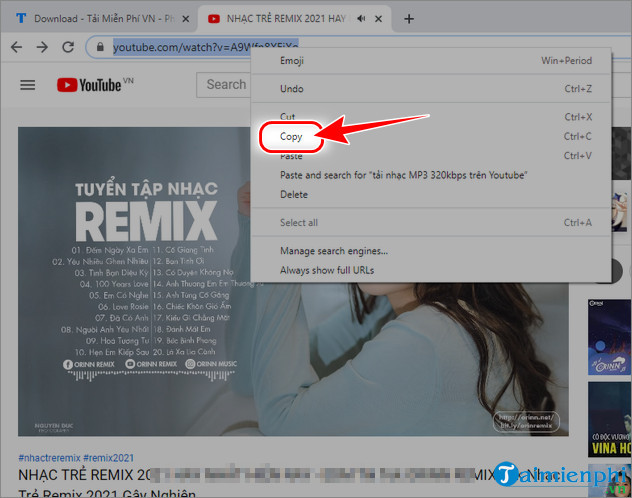
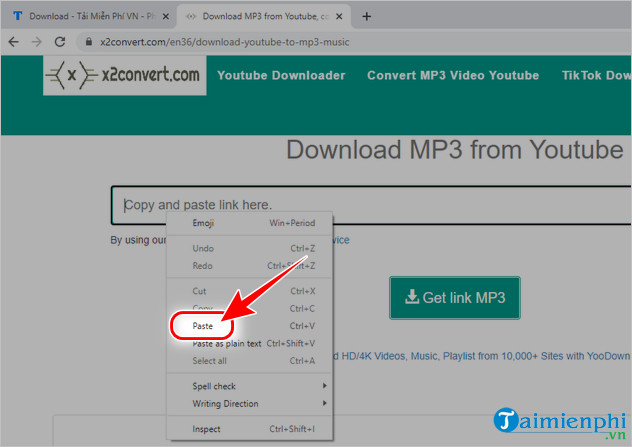
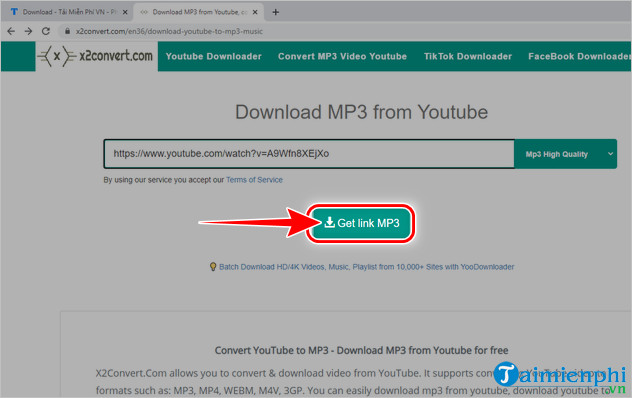
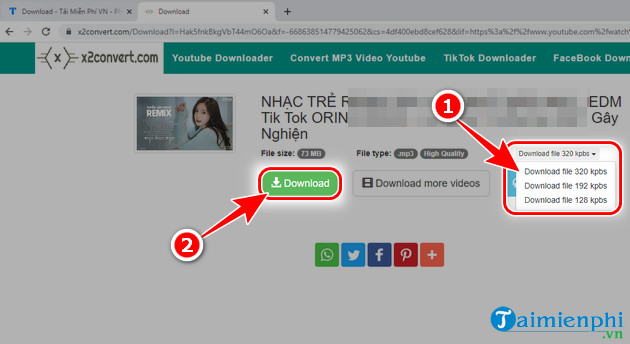
Legacy X2Convert screenshots
The images below are retained to identify the workflow shown in the original article. They are not a current endorsement, and the service’s interface, domain, or behavior may have changed.
Related Articles
 Convert YouTube MP3 Files: What You Need to Know9 minutes read
 Download Youtube Music, 13 Ways to Download MP3 From YouTube28 minutes read
 Rip Music from YouTube Videos, Download Mp3s, Download Music from5 minutes read
 YouTube to Mp3 Ways to Download MP3 from YouTube4 minutes read
 Instructions for Downloading Mp3 Music YouTube Does Not Need8 minutes read
 How to Downloading Music on YouTube, Downloading MP3 Files of YouTube Videos4 minutes read
Reader Comments 0
Sign in with email or Google to join the discussion.