Table of Contents
Windows 11 splits some controls between Settings and the classic Control Panel. That can make navigation awkward when you need to switch between pages quickly. Search for the control by name or use a direct Run shortcut to go to the page you need.
Jump directly to a Windows Settings page
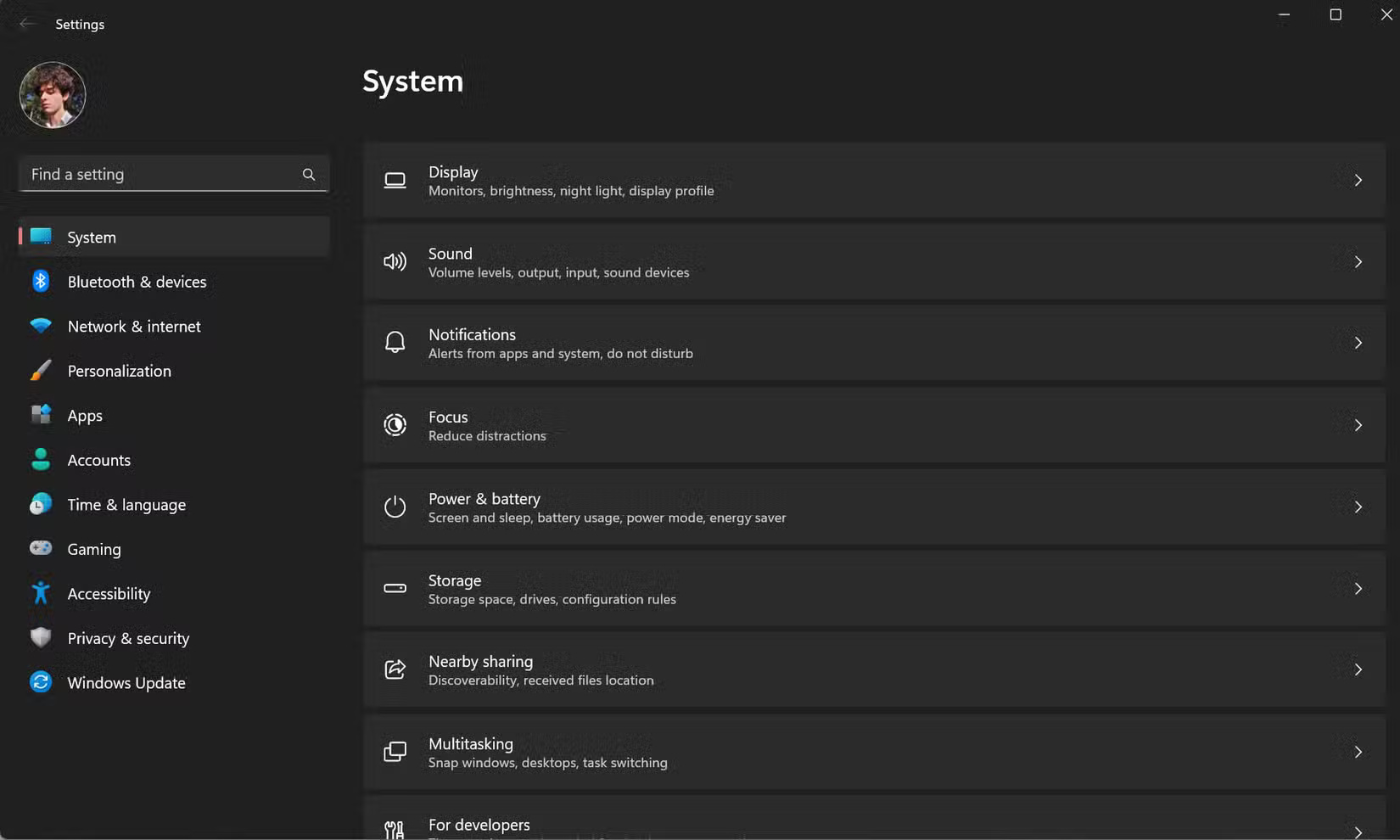
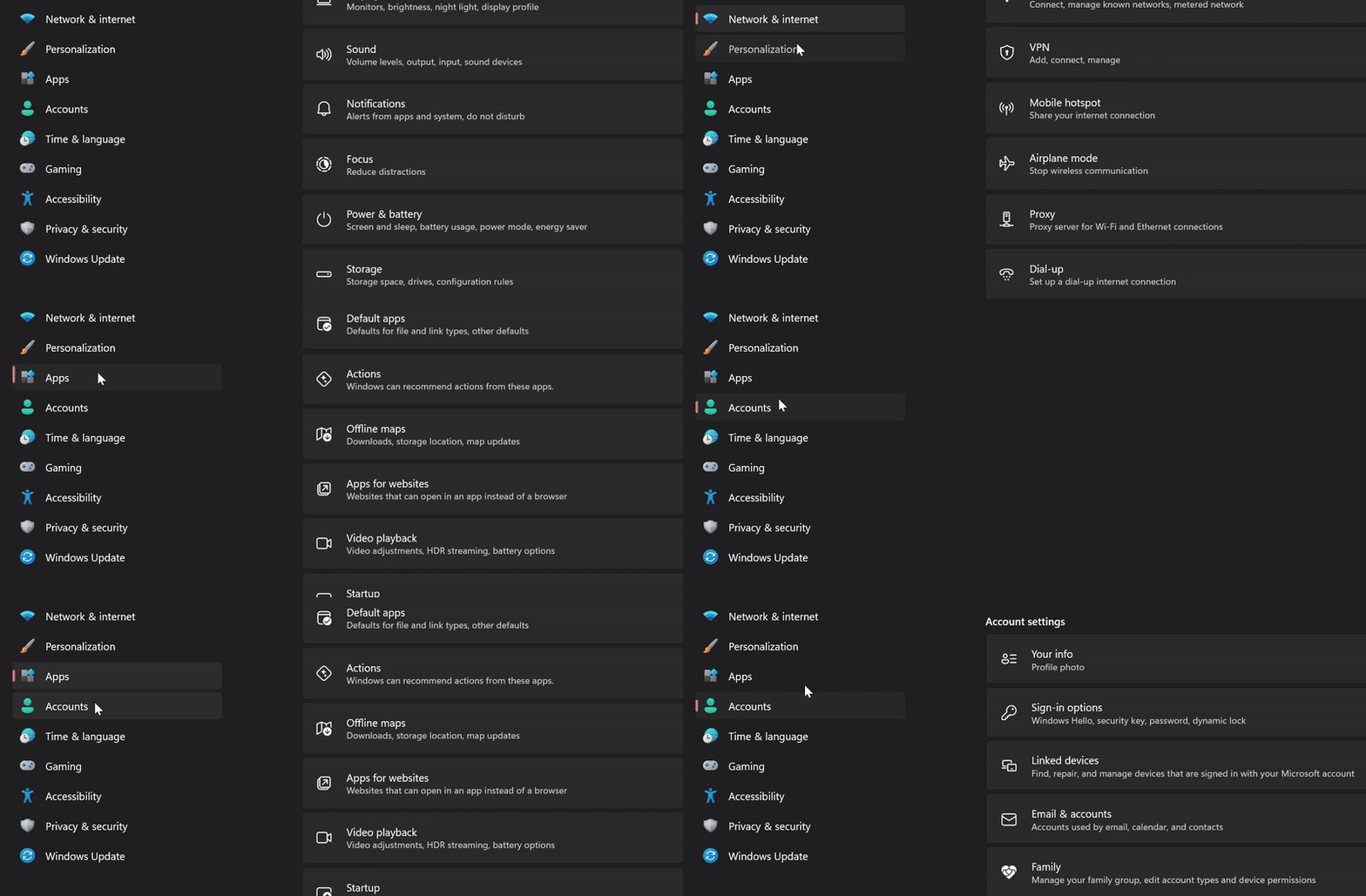
Press Windows+R, enter an address and press Enter. These are useful starting points:
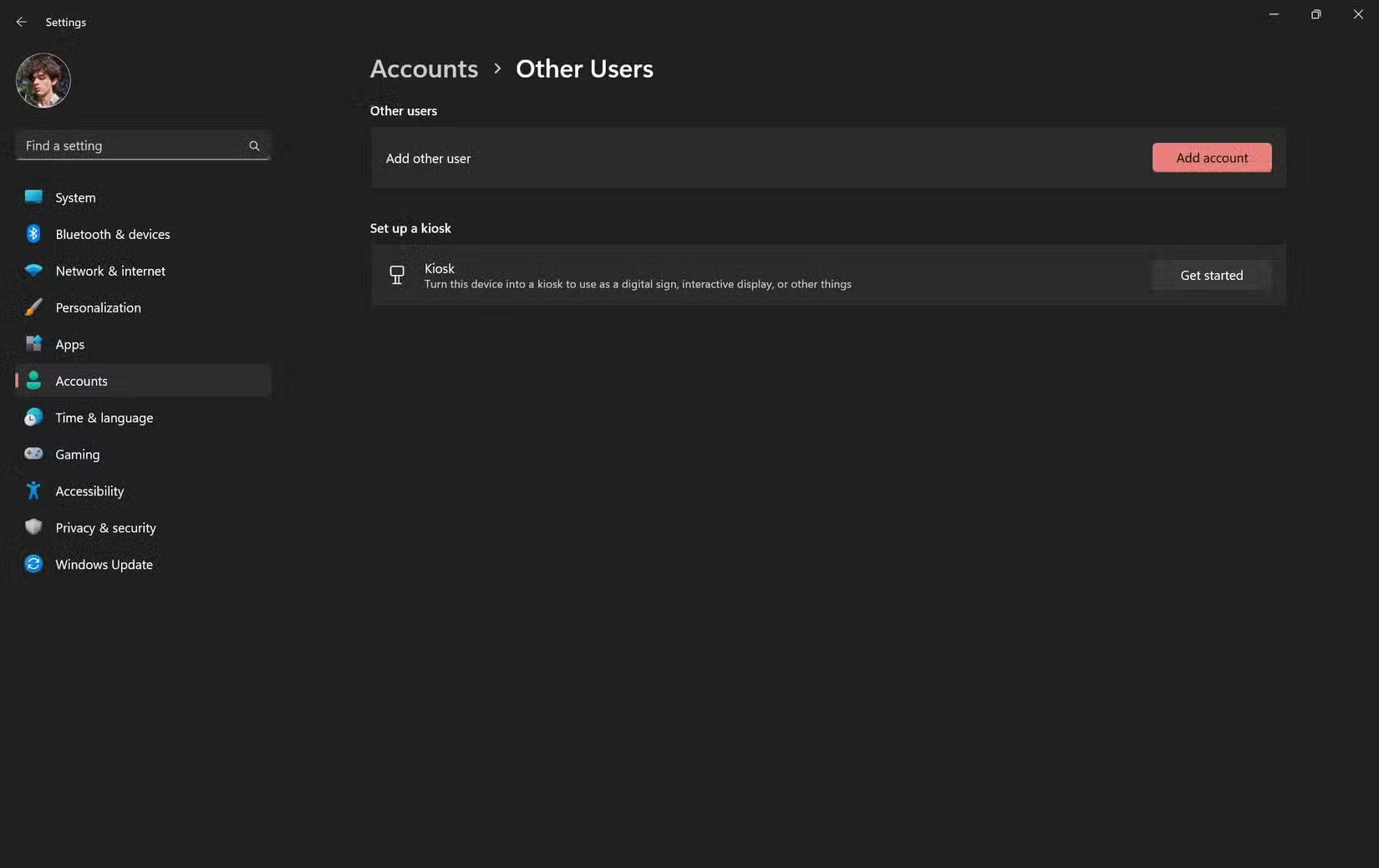
ms-settings:network-statusopens the network settings area.ms-settings:displayopens display settings.ms-settings:otherusersopens the page for other accounts, where supported.
Page names and behavior can change by Windows build. See Microsoft’s Settings URI reference. If navigating to a second Settings page replaces the first window, open a separate classic dialog for one of the tasks, where available.
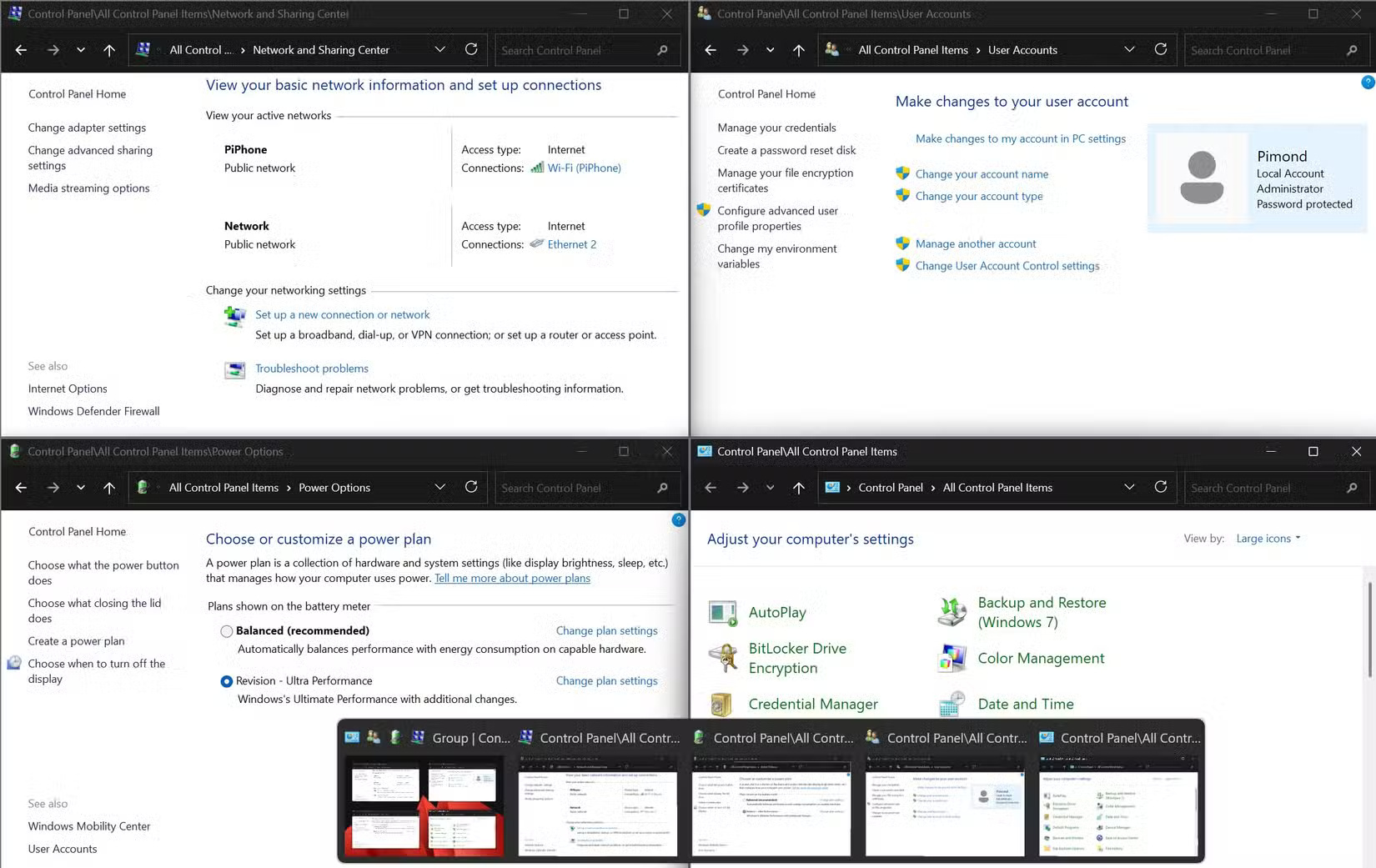
Open a classic dialog alongside Settings
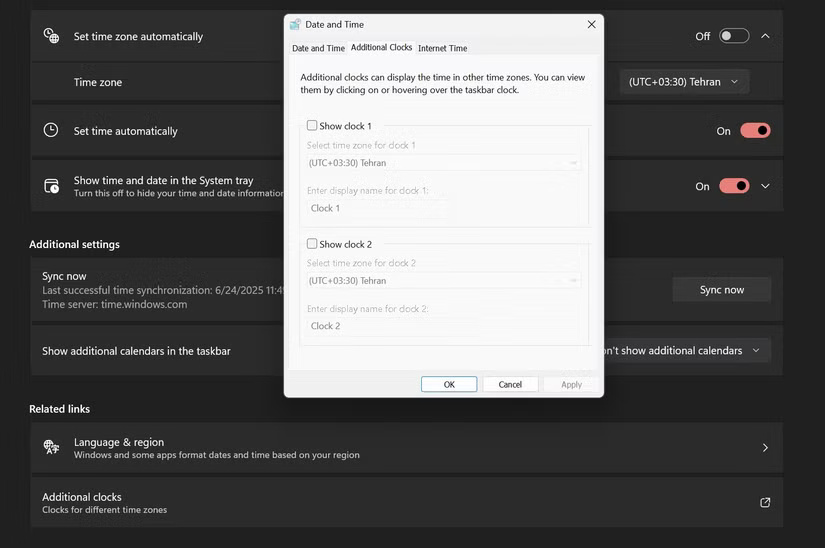
Use ncpa.cpl for the classic Network Connections dialog or timedate.cpl for Date and Time. For example, leave Display settings open and use Network Connections to check adapter status without losing your place. See ways to open Network Connections and how to reach Control Panel.
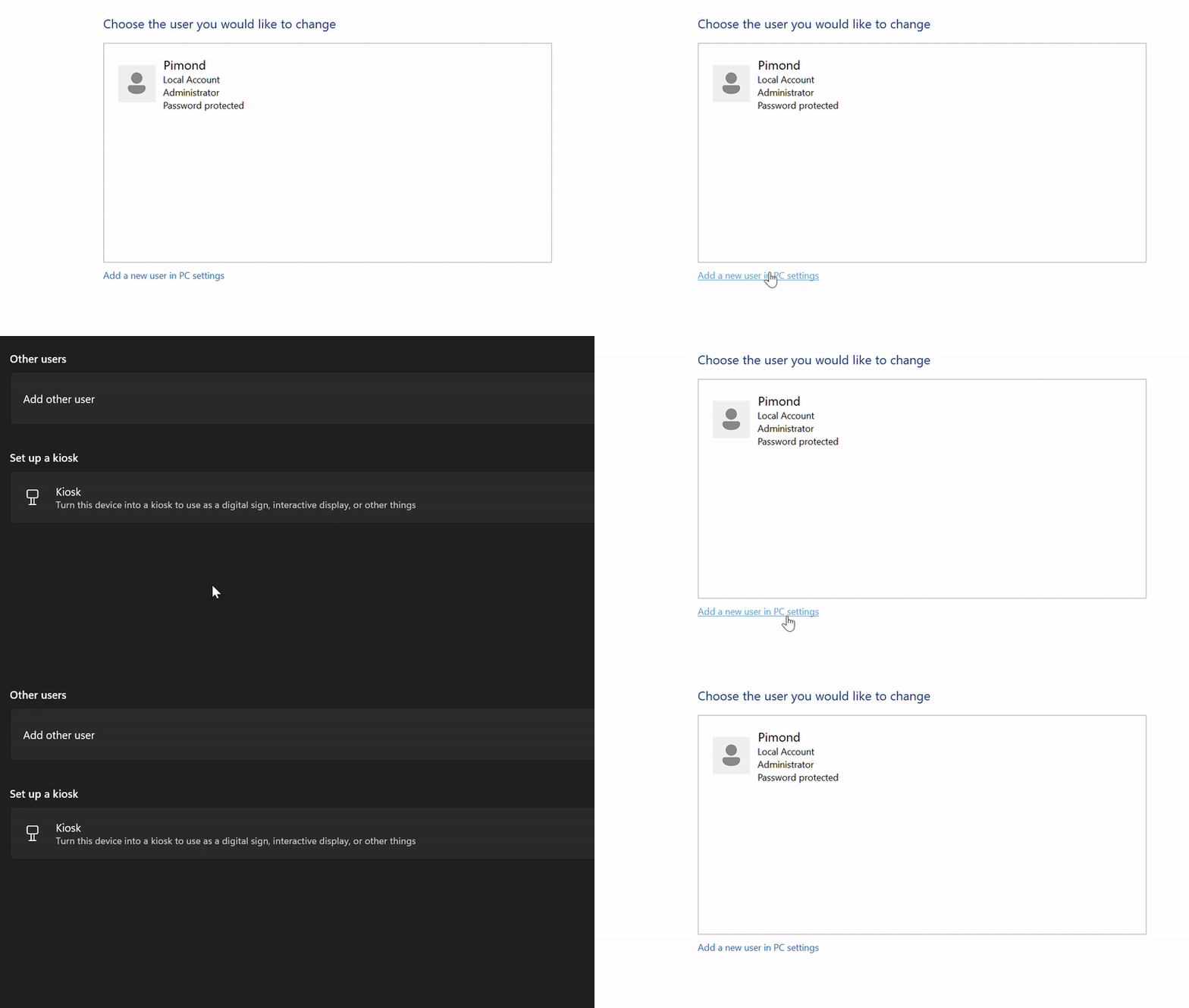
Add a local account from Settings
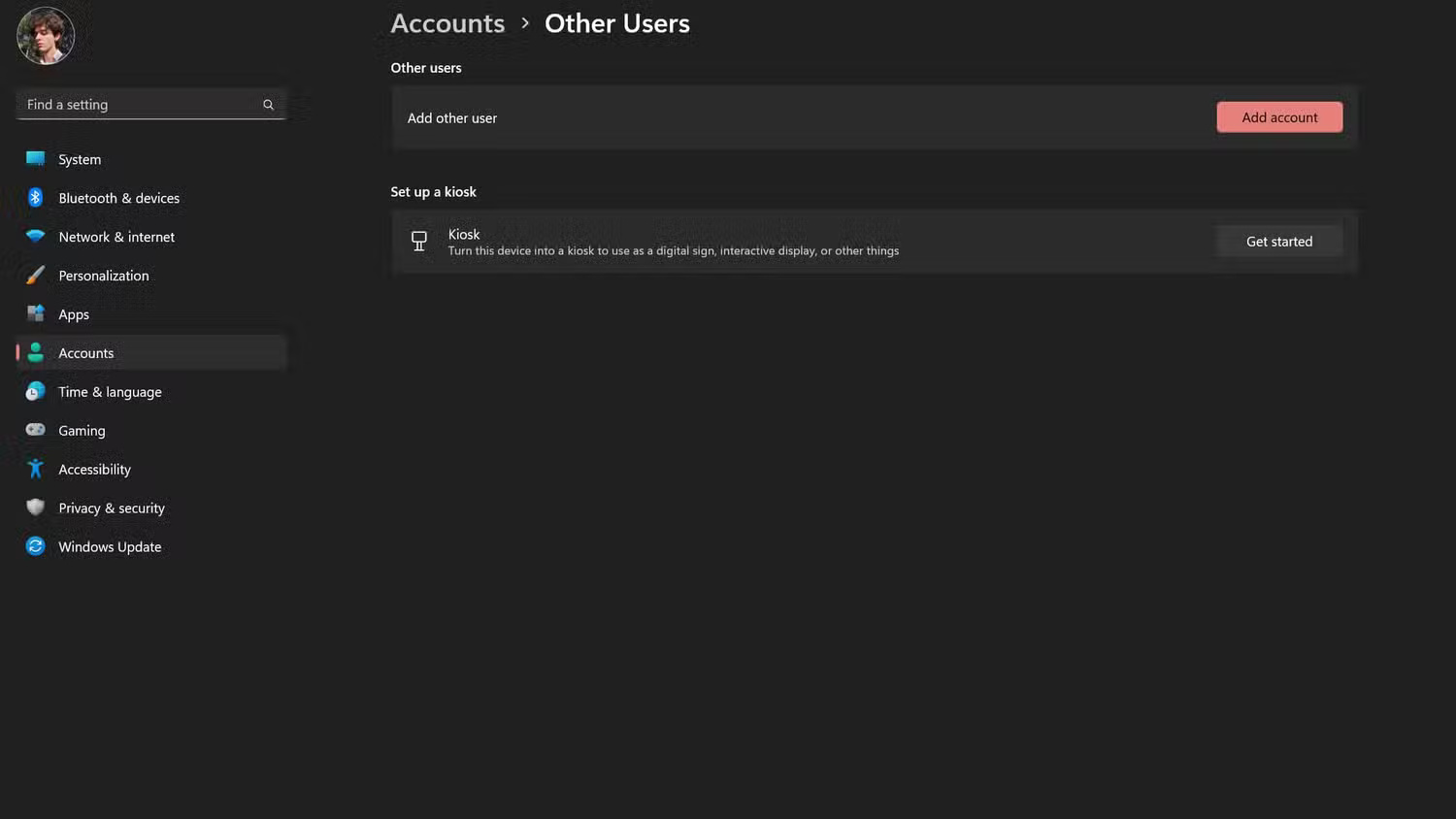
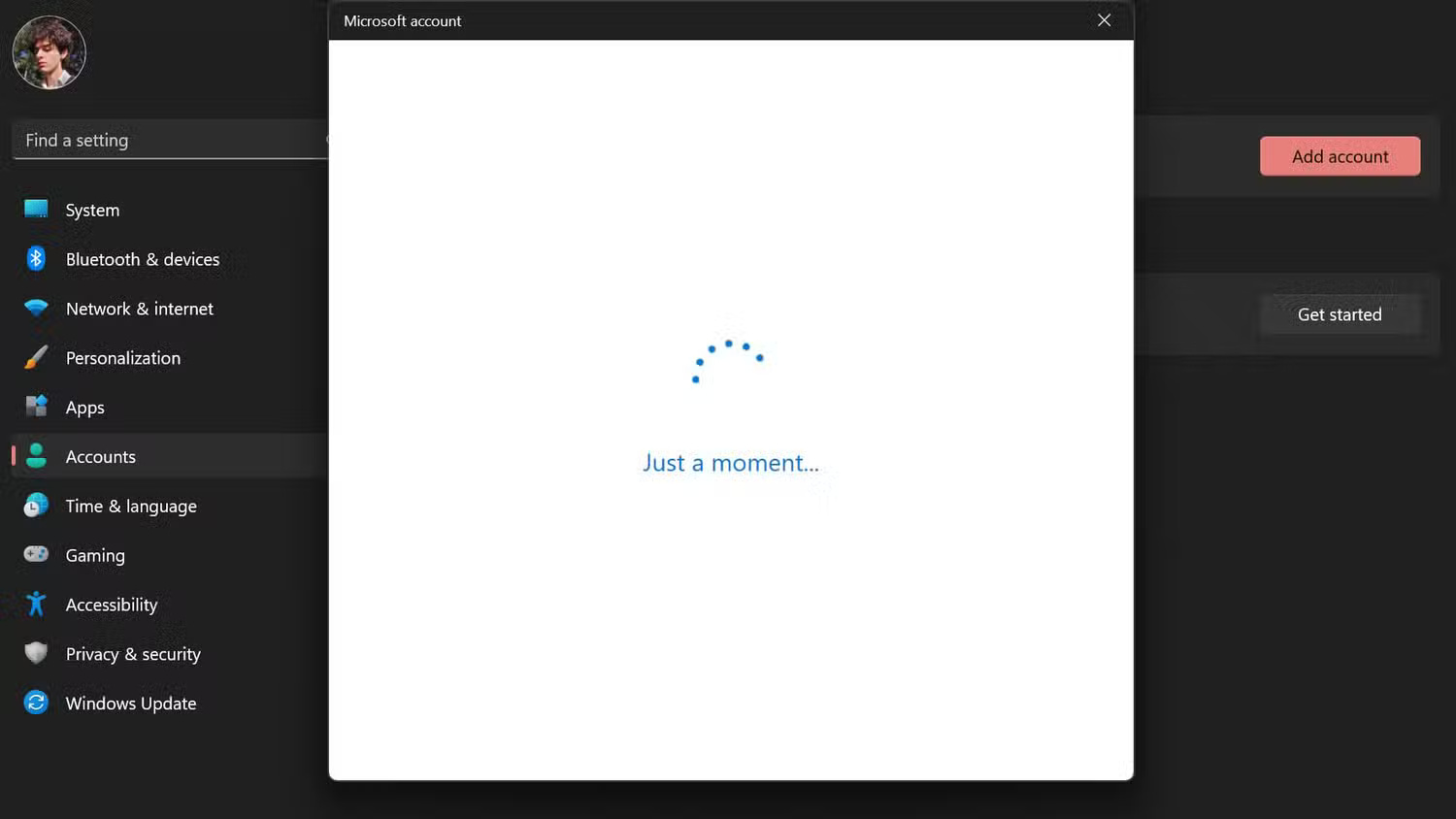
- Open Settings > Accounts > Other users and select Add account.
- Choose I don’t have this person’s sign-in information.
- Choose Add a user without a Microsoft account, then complete the account fields.
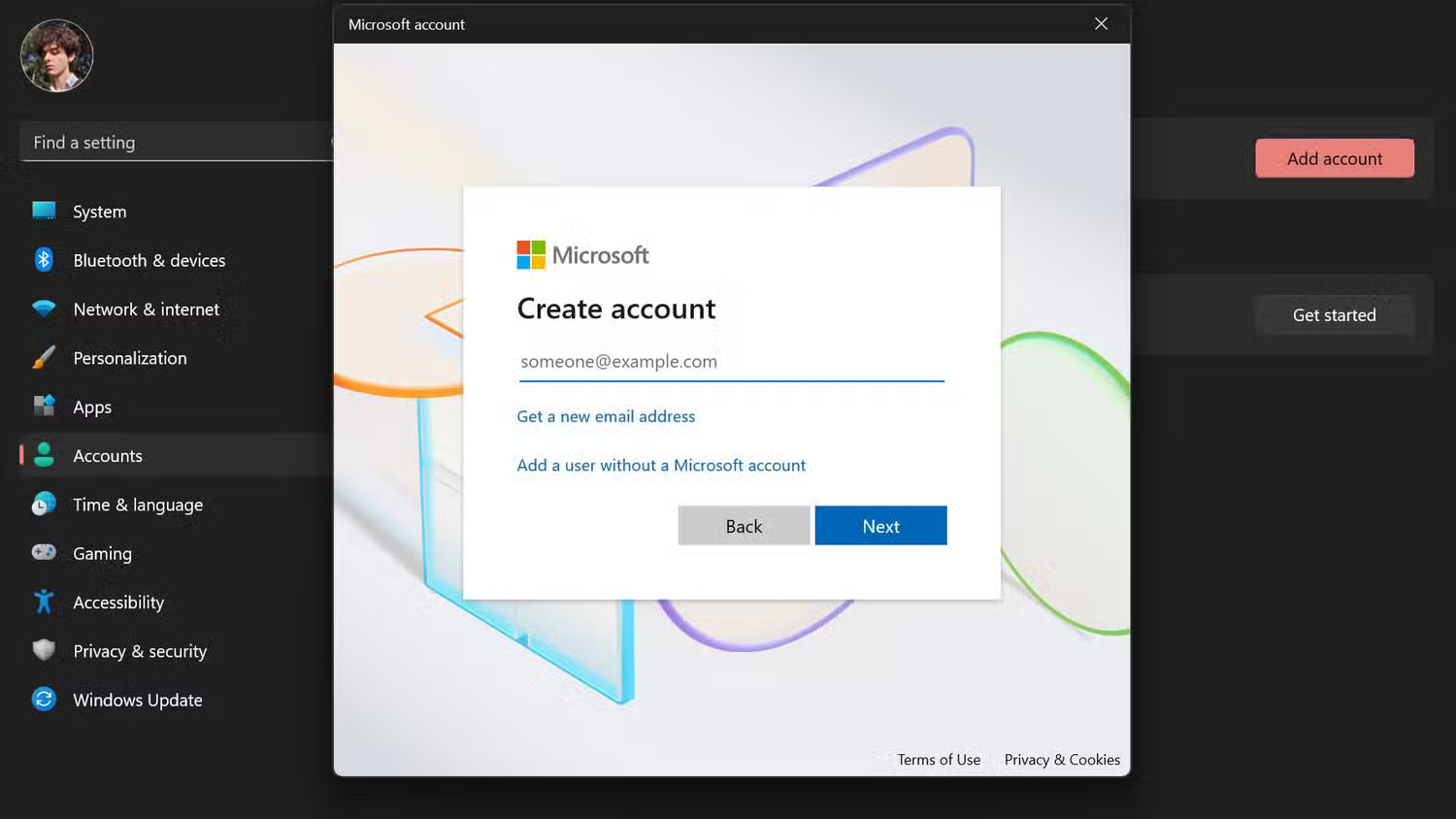
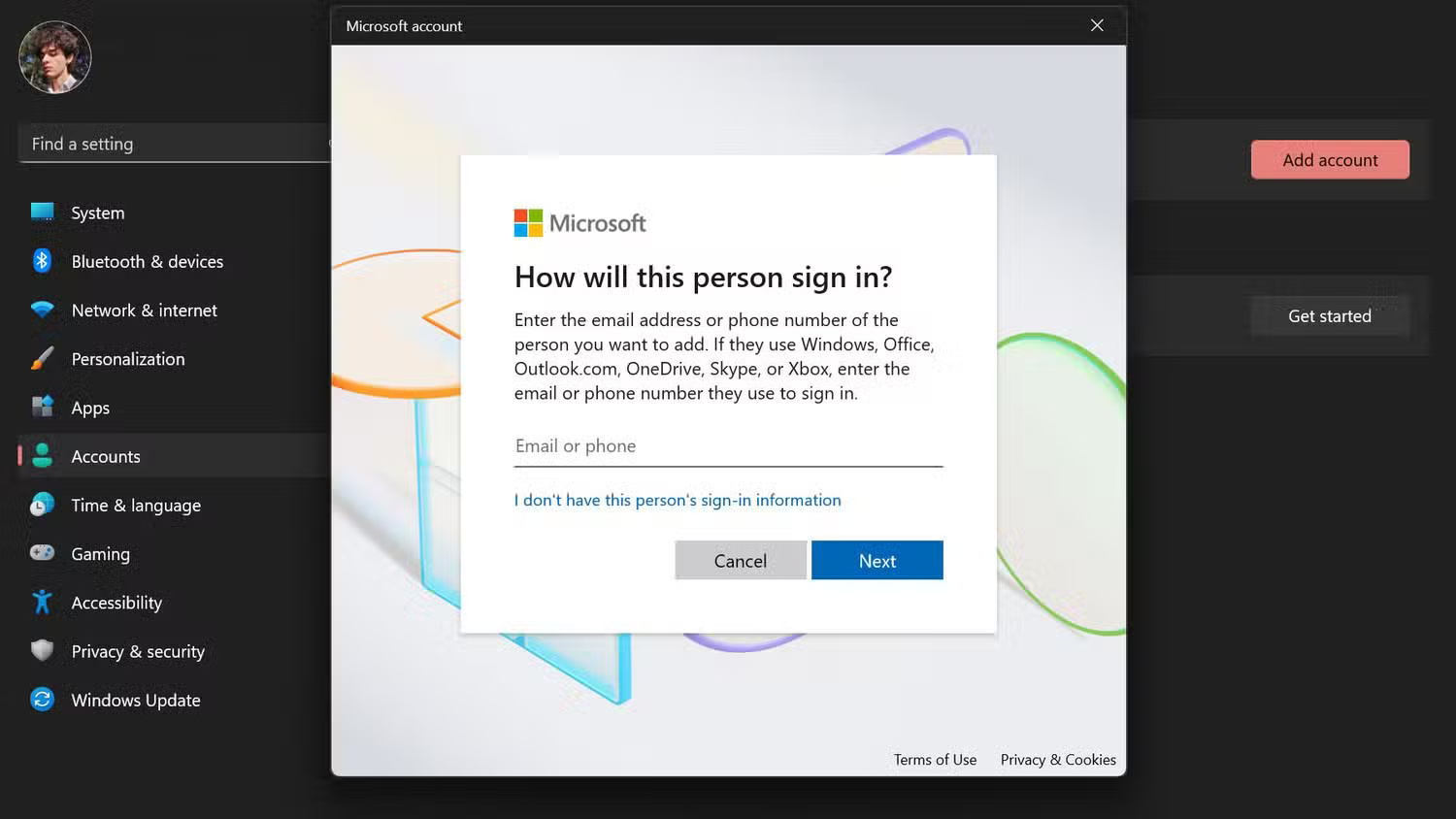
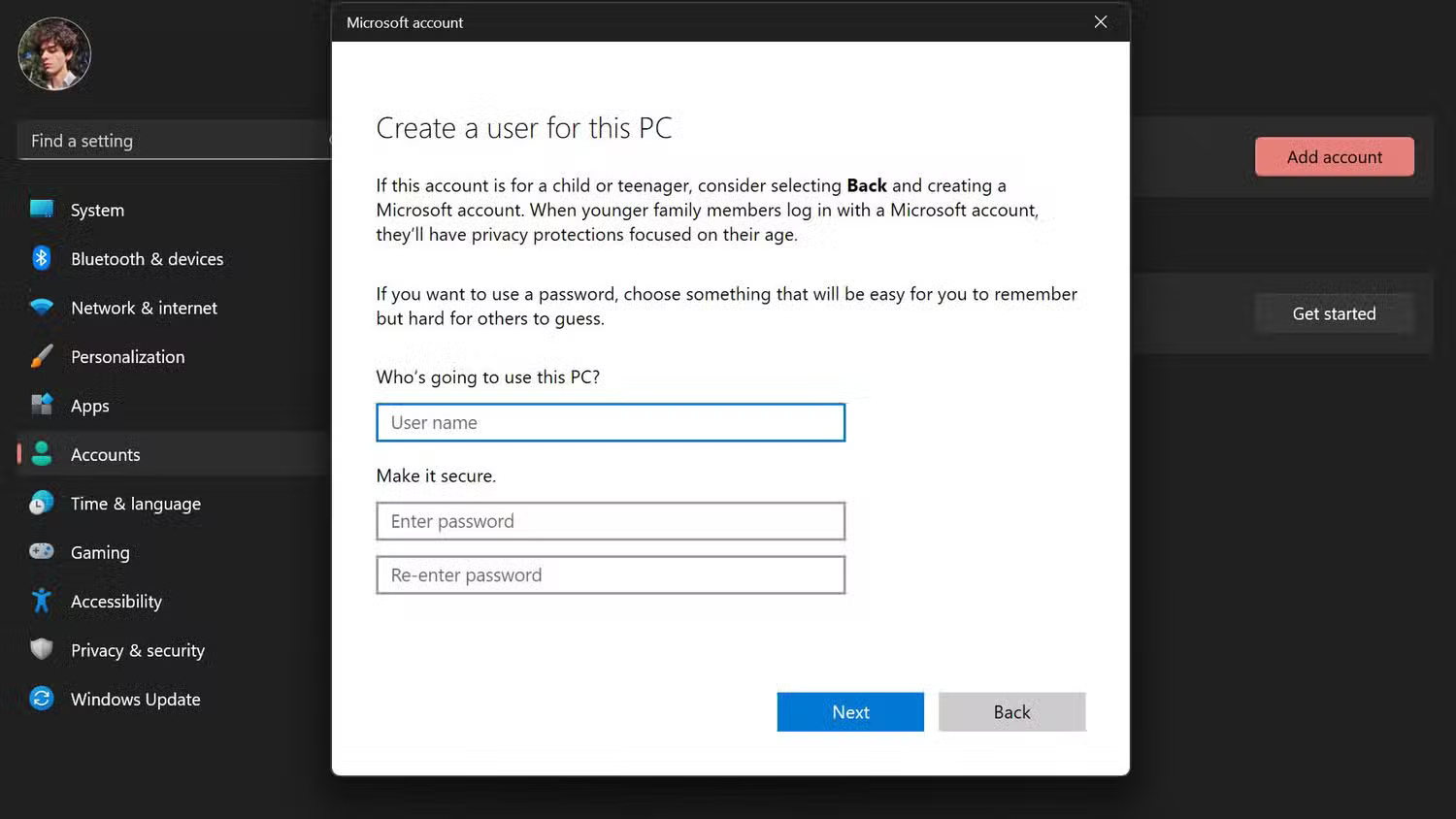
This procedure adds another user to an existing Windows setup. Organization policies can restrict the option. See Microsoft’s guide to Windows user accounts.





Reader Comments 0
Sign in with email or Google to join the discussion.