Table of Contents
This guide provides a clear, practical overview of "Learn About Windows Maintenance Tool: Free Tool That Solves the Most". It organizes the most useful details, explains important considerations, and highlights the steps or choices that matter most.
Windows Maintenance Tool lets you repair any Windows problem
Windows Maintenance Tool is a free and open source all-in-one maintenance toolkit for Windows. Written entirely in Batch and PowerShell, it is not a new tool in itself but a smart way to access all the advanced tools provided by Microsoft from a centralized place with a structured menu.
Getting started is easy! After downloading the file from GitHub, unzip the folder and navigate to the Previous Versions folder. At the time of writing, the latest versions ( 2.9.8 and 2.9.9 ) don't work properly, so use version 2.9.7 instead. Right-click Windows_Maintenance_Tool_V2.9.7.bat and select Run as administrator .
When you run the tool, you'll see a text menu organized into sections like Windows Updates, System Health Checks, Network Tools , and Cleanup & Optimization . Each option is numbered from 1-24 for easy navigation. Just type the corresponding number and press Enter to access features like Windows Updates, SFC Scans, Disk Cleanup, or Advanced Registry Optimization.
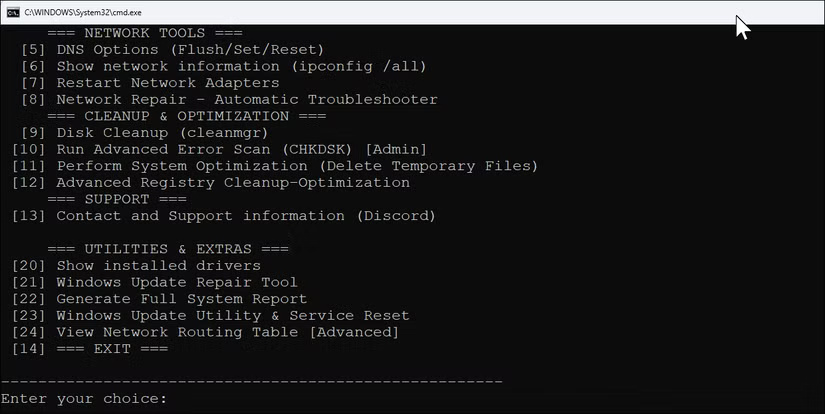
Since this is a batch file, you can easily customize it to your needs. Just right-click and select Edit to view and modify the code. This allows you to add your own commonly used commands, remove unnecessary options, or adjust how specific tools execute.
Let's look at some practical ways to use these tools.
Repair corrupted system files and components
Whenever you encounter a blue screen of death, your computer starts crawling, or a Windows feature stops working, corrupted system files are often the cause. Common fixes include scanning your system with the System File Checker utility and repairing system files with the DISM command. The Windows Maintenance Tool lets you run these tools simply by entering a corresponding number from the menu.
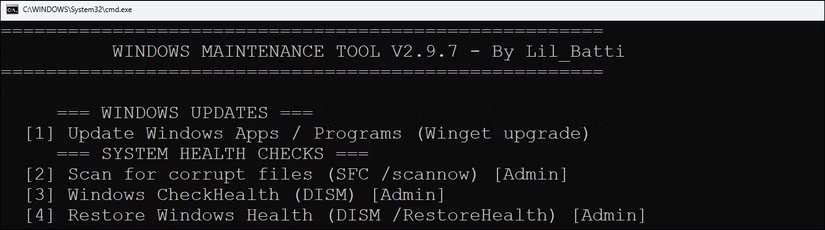
Under System Health Checks , you will find options 2 (SFC Scan) and 3 (Windows Check Health) . The SFC (System File Checker) scan will look for corrupted Windows files and automatically replace them with fresh copies.
If the problem persists, option 4, Restore Windows Health , goes one level deeper. It uses DISM (Deployment Image Servicing and Management) to fix problems that SFC can't handle. DISM can repair the Windows image itself, fixing problems that prevent SFC from running properly.
The real appeal here is that you don't need to remember any commands; just select the correct option and the tool will do the rest for you.
Network Diagnosis and Troubleshooting
We've all been in a situation where your Internet connection suddenly stops working and you're not sure if it's your computer, your router, or your ISP. The Network Tools section (options 5-8) provides everything you need to troubleshoot your network.
Selecting option 5 will clear your DNS cache, which often fixes websites that won't load despite a working Internet connection. The DNS cache stores website addresses, and sometimes this information becomes outdated or corrupted. Option 6 shows you detailed network information, which is useful when you need to check your IP address or network settings for more detailed troubleshooting.

Restart Network Adapters (option 7) does exactly what it says: restarts all network adapters, whether Wi-Fi or Ethernet. This often fixes issues like slow Wi-Fi speeds, limited connectivity, or when your computer shows you're connected but nothing loads. It's much faster than restarting your entire computer.
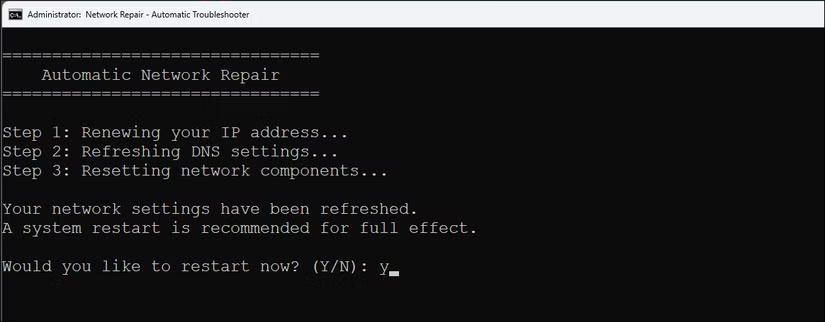
For a hands-off approach, choose the Automatic Network Repair option. This option automatically runs a variety of fixes, including resetting your network adapter, refreshing your IP address, and clearing network settings that may be causing the problem. Instead of Googling random network fixes and trying them one by one, this will do everything in order.
To apply the changes, you will need to restart your computer once. Press Y and then press Enter to restart your system.
Clean up PC without third-party software
PC cleaners and optimizers promise to speed up your PC, but often add more junk and pester you to upgrade to a paid plan. For regular maintenance, you don't need these third-party tools. Cleanup & Optimization uses Windows' own cleaning tools to safely free up space and delete unnecessary files.
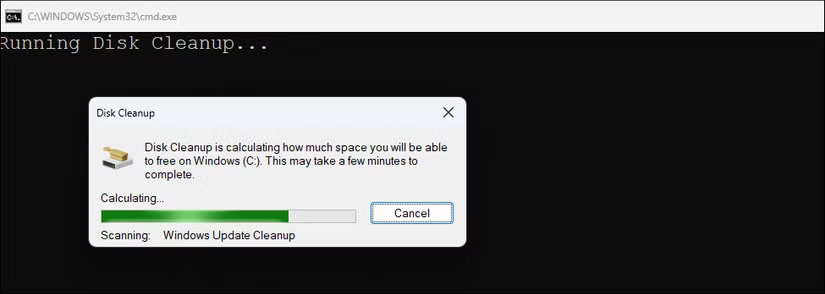
Option 9 runs Disk Cleanup , which deletes temporary files, old Windows updates, and other junk that builds up over time. Option 11 goes further with System Optimization, which cleans up temporary files more aggressively and can even reset some Windows services that can slow down your PC.
Advanced Registry Cleanup (option 12) may be worth a try if you have installed and uninstalled a lot of programs. It removes leftover registry entries that can slow down your system. However, don't rely too much on registry cleaners. Only use this option if you have trouble reinstalling a particular application. Always create a restore point before messing with the Windows Registry.
FAQ
What should you know about windows Maintenance Tool lets you repair any Windows problem?
Windows Maintenance Tool is a free and open source all-in-one maintenance toolkit for Windows. Written entirely in Batch and PowerShell, it is not a new tool in itself but a smart way to access all the advanced tools provided by Microsoft from a centralized place with a structured menu.
What should you know about repair corrupted system files and components?
Whenever you encounter a blue screen of death, your computer starts crawling, or a Windows feature stops working, corrupted system files are often the cause. Common fixes include scanning your system with the System File Checker utility and repairing system files with the DISM command. The Windows Maintenance Tool lets you run.
What should you know about network Diagnosis and Troubleshooting?
We've all been in a situation where your Internet connection suddenly stops working and you're not sure if it's your computer, your router, or your ISP. The Network Tools section (options 5-8) provides everything you need to troubleshoot your network.
What should you know about clean up PC without third-party software?
PC cleaners and optimizers promise to speed up your PC, but often add more junk and pester you to upgrade to a paid plan. For regular maintenance, you don't need these third-party tools. Cleanup & Optimization uses Windows' own cleaning tools to safely free up space and delete unnecessary files.
Related Articles
 8 Most Annoying iPhone Problems That iOS 26 Quietly Solved: Practical Guide7 minutes read
 4 Common GPU Problems and How to Fix Them8 minutes read
 5 Mistakes Can Damage Your Window Computer8 minutes read
 6 Tasks You Should Do Regularly on Your Windows Computer8 minutes read
 11 Free Applications That Handle Common Problems on Windows and macOS5 minutes read
 7 Common Computer Maintenance Errors You Should Know6 minutes read
Reader Comments 0
Sign in with email or Google to join the discussion.