Table of Contents
This updated guide explores Microsoft quietly rolled out new 'advanced settings' section for Windows 11 with practical details, clear explanations, and useful takeaways. There have been rumors recently that Microsoft is quietly developing a new Settings section for Windows 11 called 'Advanced Settings.' Originally spotted in the Windows Server preview, the new setting is now rolling out to Windows Insiders but is disabled by default (you can.
This new 'Advanced Settings' page is essentially a reworked version of the 'For Developers' section in Settings > System. Here you can adjust a variety of options and settings aimed at app developers and tech enthusiasts. Still, some of the options are also useful for regular users. The updated version of the page includes more features, some of which have been ported over from the discontinued Dev Home app. it is also better structured, making it easier to navigate and explore.
Microsoft hasn't officially announced "Advanced Settings," but you can already enable this settings page in the latest Dev and Beta previews of Windows 11. Interestingly, Microsoft seems to be rolling out the change via a Microsoft Store update: head to the "Downloads" section, check for updates, and you'll see the "Windows Advanced Settings" component.
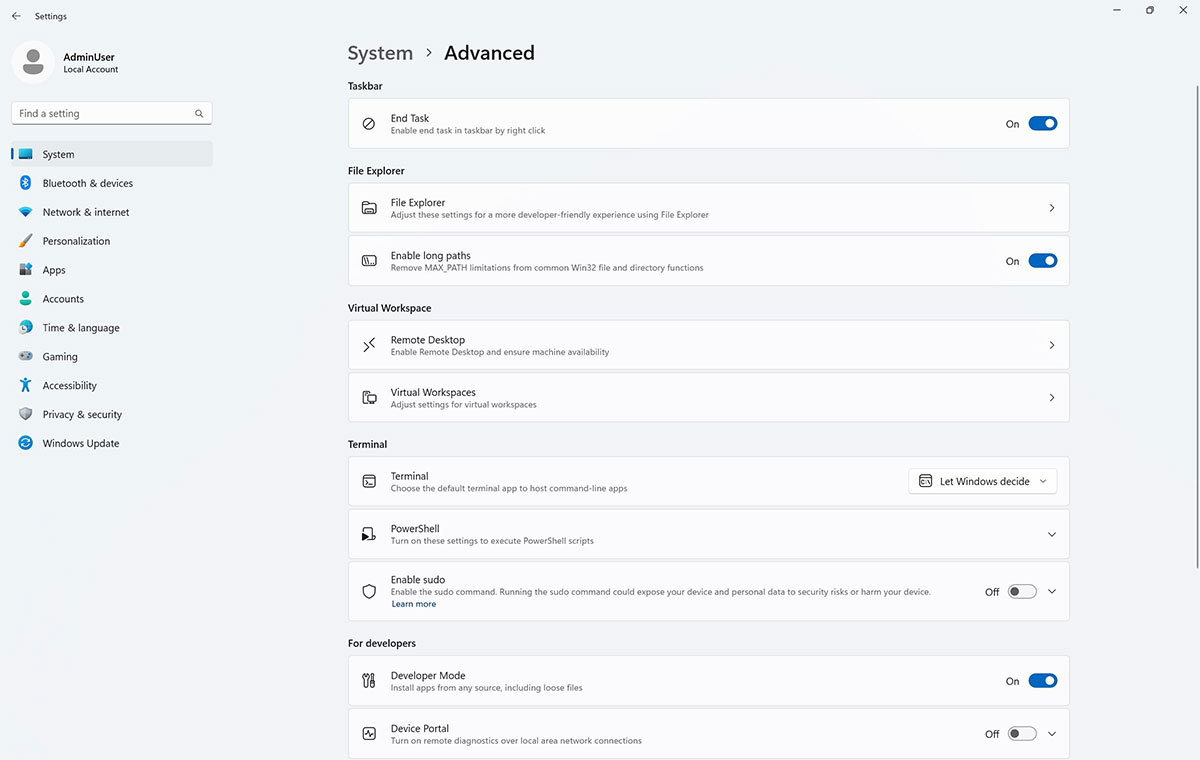
How to enable the new Settings item:
- Download ViVeTool from GitHub and extract to a folder of your choice
- Open Command Prompt with Admin rights and navigate to the folder containing the ViVeTool file using the CD command. for instance: CD C:Vive
- Enter the command: vivetool /enable /id:56005157 and press Enter
- Restart your computer
Microsoft is hosting its annual Build developer conference next week, so expect plenty of developer-related news. Perhaps this new Settings page will appear in upcoming announcements from Microsoft.
FAQ
What is the main takeaway about Microsoft Quietly Rolled Out New 'Advanced Settings' Section for Windows 11?
The key is to understand the core idea, compare the available options, and apply the practical guidance that matches your situation.
What should beginners know about Microsoft Quietly Rolled Out New 'Advanced Settings' Section for Windows 11?
Start with the essential steps and terminology. Avoid changing advanced settings until you understand how they affect performance, privacy, cost, or compatibility.
How can I use this information in practice?
Follow the relevant section in order, test one change at a time, and confirm the result before moving to the next step or recommendation.
Related Articles
 How to Enable Advanced Settings on Windows 114 minutes read
 How to Change Advanced Settings Hidden in the Browser5 minutes read
 How to Enable Advanced Search in Windows 112 minutes read
 How to Disable / Enable F8 Advanced Boot Options in Windows 105 minutes read
 Instructions on Enabling Advanced Search in Windows 11: Explained3 minutes read
 Windows 11: Complete Guide: How to Activate the Home Section in the5 minutes read
Reader Comments 0
Sign in with email or Google to join the discussion.