Table of Contents
In Windows 11, open Settings > Network & internet, select the active connection, and choose Edit beside IP assignment. Use Automatic (DHCP) for most home networks. Use a manual address only when you know which address, subnet, and gateway the network expects.
Record your current settings
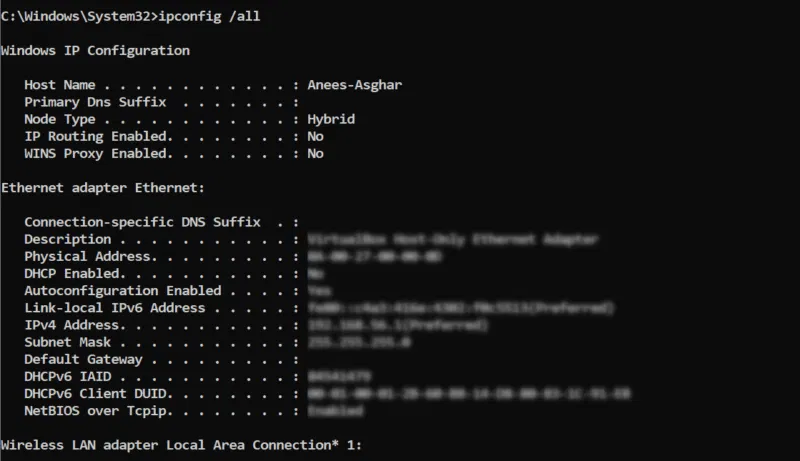
Open Command Prompt and run ipconfig /all. Under the active Wi-Fi or Ethernet adapter, note the IP address, subnet mask, default gateway, DNS servers, and whether DHCP is enabled. You can also open the connection’s Details window from Network and Sharing Center.


Change the IP assignment in Settings
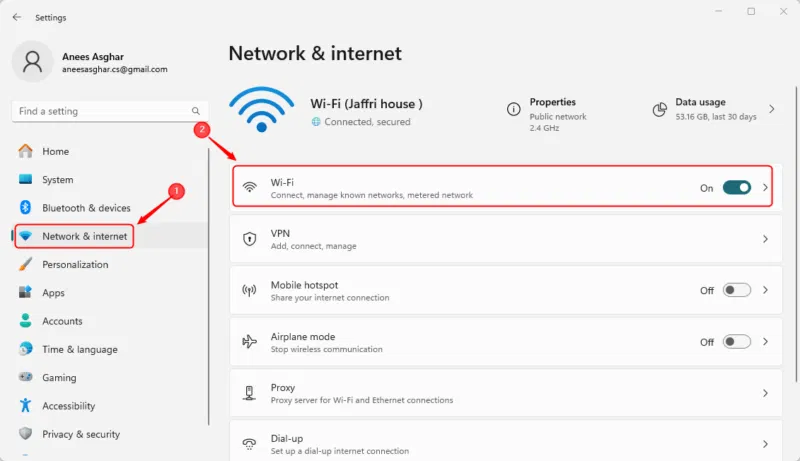
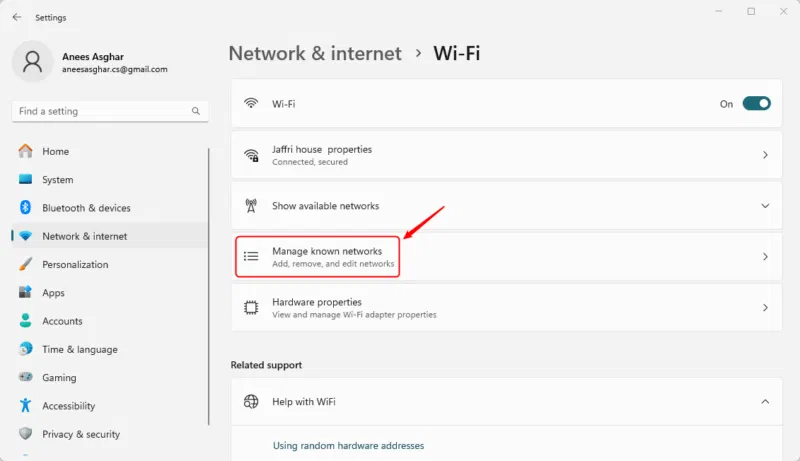
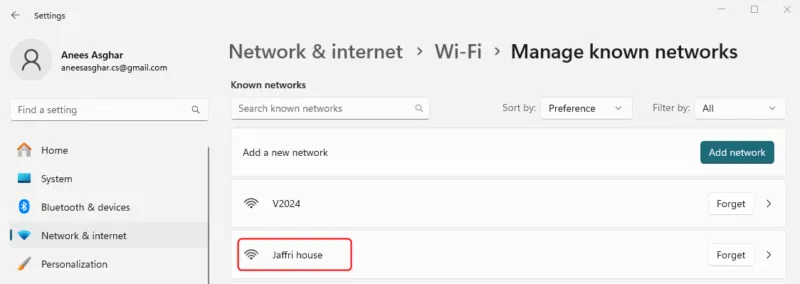
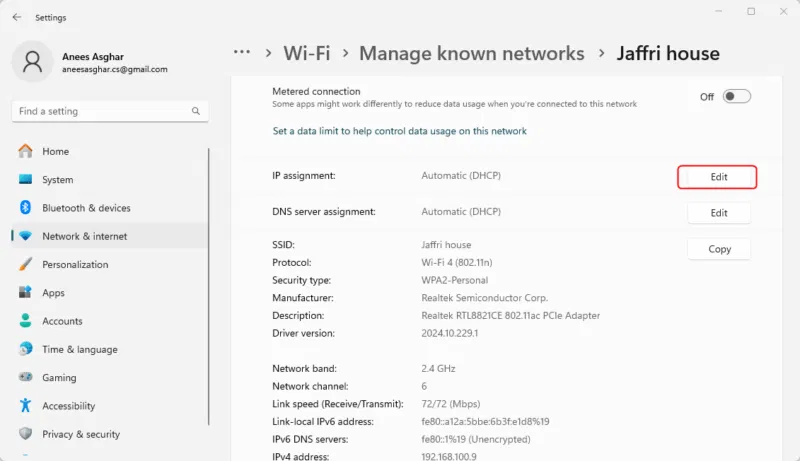
- For Ethernet, open its connection settings. For Wi-Fi, select the connected network’s properties or choose it from Manage known networks.
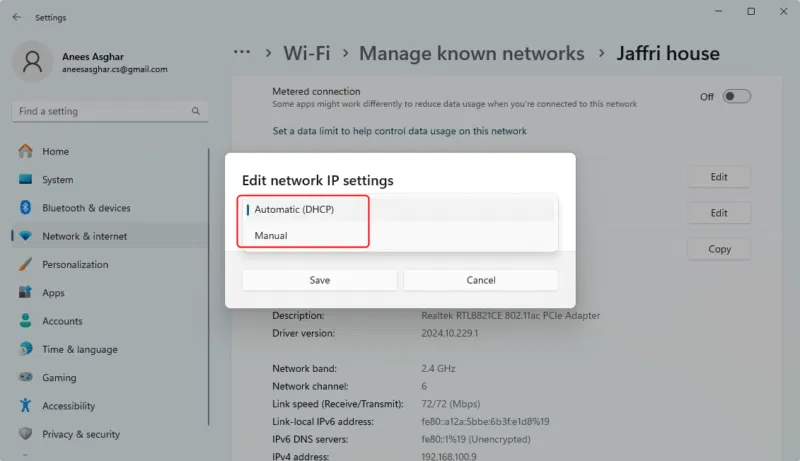
- Beside IP assignment, select Edit. Choose Automatic (DHCP) or Manual.
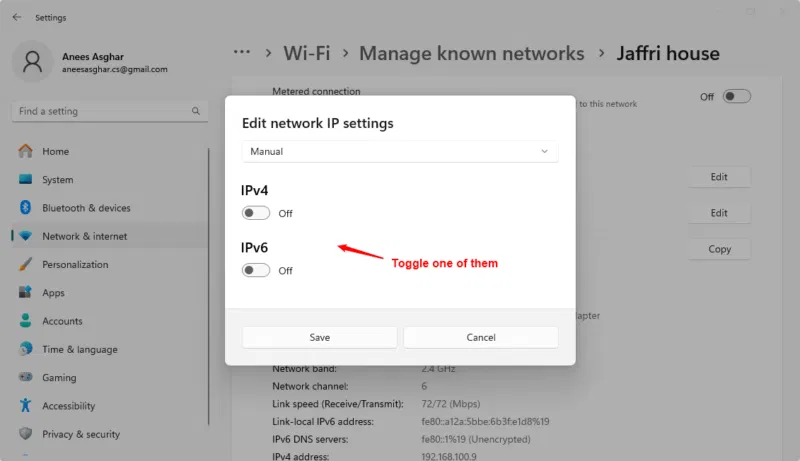
- For a manual IPv4 address, turn on IPv4 and enter the address, subnet mask or prefix, and gateway assigned by your router administrator. Configure DNS under the separate DNS server assignment setting if your Windows version shows one.
- Save and run
ipconfig /allagain. Verify that it lists the values you intended. If the connection fails, restore the previous setting.
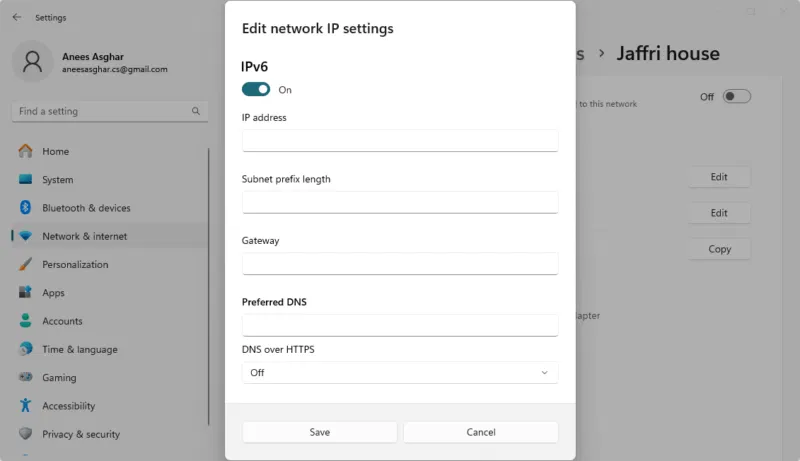
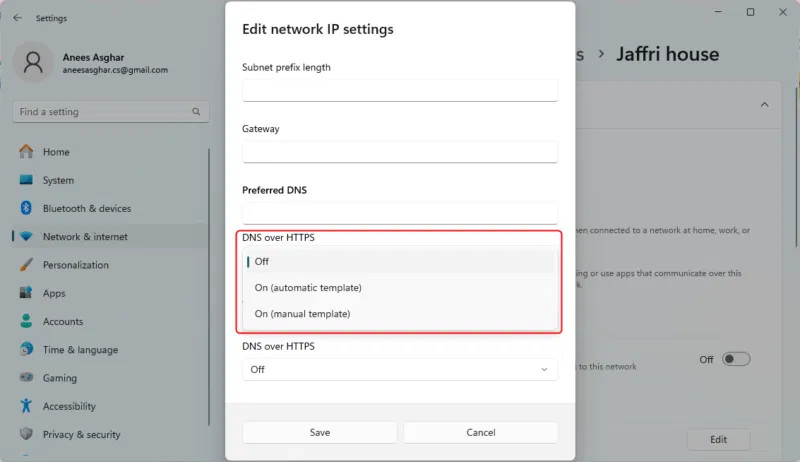
Two devices cannot reliably share the same static address. If you just need one device to keep the same address, consider a DHCP reservation in the router so it can manage the address centrally. If you enable DNS over HTTPS, check whether your settings allow unencrypted fallback.
Return a connection to DHCP from Command Prompt
Open an administrator Command Prompt and replace Ethernet with your exact adapter name. These commands restore automatic IPv4 address and DNS settings for that adapter:
netsh interface ipv4 set address name="Ethernet" source=dhcp
netsh interface ipv4 set dnsservers name="Ethernet" source=dhcp
Troubleshoot before resetting the network
If an automatic address didn’t arrive, try ipconfig /renew for the affected connection. If there is a valid address and gateway but one site won’t resolve, try ipconfig /flushdns. The DNS lookup tool can provide a separate view of a public record, and the Wi-Fi troubleshooting assistant helps isolate wider problems.
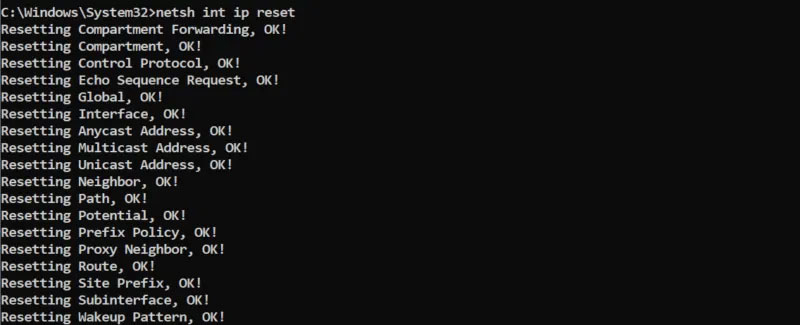

Keep a full TCP/IP reset for persistent issues after checking the adapter and gateway. The reset can remove custom settings and require a restart. Record saved network and VPN settings first.




Reader Comments 0
Sign in with email or Google to join the discussion.