Table of Contents
There's no denying that getting an SSD at a low price and with a lot of storage capacity can feel like a bargain.
There's no denying that getting a cheap SSD with many storage feels like a bargain. But amidst all those great deals and great prices, you might be dealing with a fake. Fake SSDs are more common than ever, and they're getting harder to spot. They may look completely genuine on the outside, with official labels and flashy branding, but they could use low-quality components, modified firmware, and offer a fraction of the advertised capacity. Fortunately, there are some easy ways to spot a fake SSD and avoid losing your data.
Check basic information with CrystalDriveInfo on Windows
The Easiest Way to Spot a Fake SSD
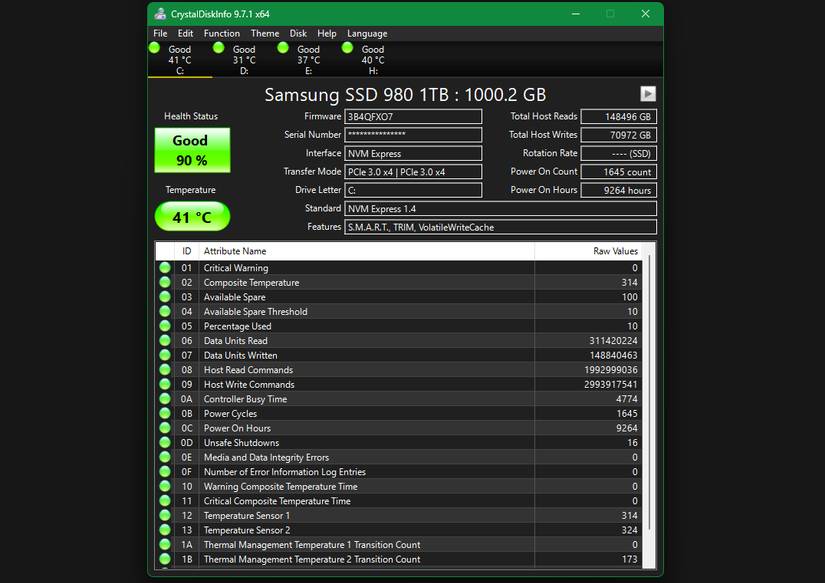
You can check basic SSD information on Windows and macOS, but a few free tools can pull all the information together in one place.
On Windows, you can use CrystalDriveInfo, a free, open-source utility that monitors the overall health of your SSDs and traditional hard drives. It will display all the details about your drive, including the brand, firmware version, serial number, reported capacity, total reads and writes, temperature, and more.
If the drive details and CrystalDriveInfo don't match, you've purchased a counterfeit drive. There are easy ways to spot the warning signs. For example, if the brand name is misspelled, unclear, or doesn't match the drive you purchased, that's a big red flag.
Run a quick DriveDx test on macOS
Detect warning signs in seconds
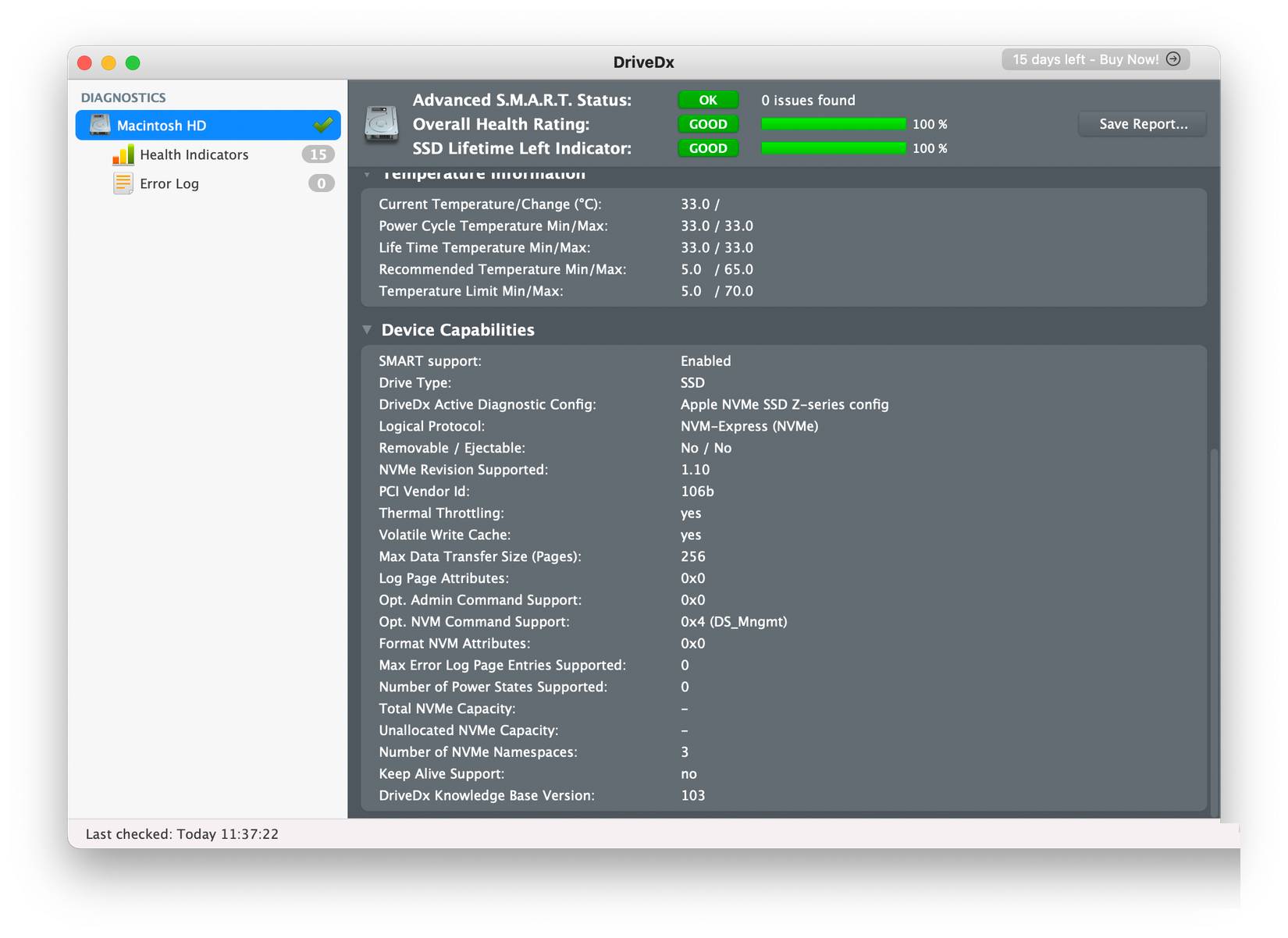
On macOS, you can choose the DriveDx drive testing utility, which lets you run advanced tests on SSDs and HDDs. When you launch DriveDx, the left panel will show your built-in and external drives. Select the drive you want to test, and it will show details like brand, model number, serial number, total capacity, etc. If you see random brand names, hundreds of hours of power on for a new SSD, or other inconsistent details, then you are clearly using a fake SSD.
Check actual capacity with FakeFlashTest on Windows
Actual capacity revealed in seconds
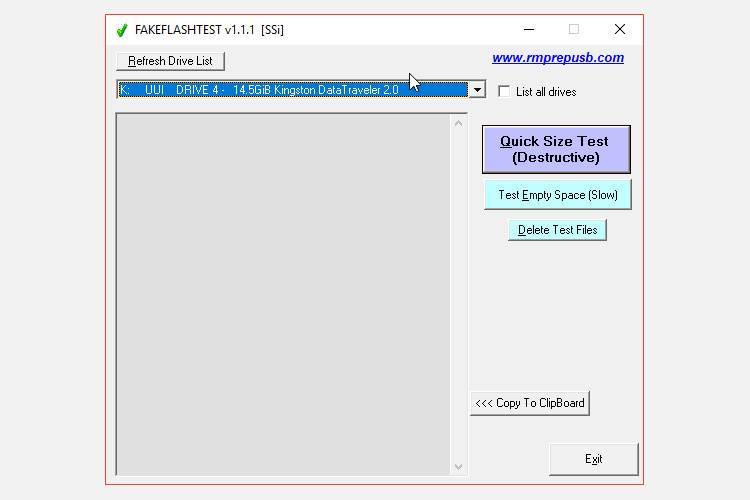
FakeFlashTest is a free Windows tool that lets you quickly test fake flash drives. Often, fake drives use modified firmware to display incorrect capacity, which can lead to data loss and corruption. FakeFlashTest can help you verify the actual storage capacity of your drive.
You can run The Quick Size Test To determine if the drive is fake. It reads and writes data to random segments on the drive. If the write/read fails at any point, it means the drive's actual capacity is not as advertised.
You can also use FakeFlashTest to check if your SD card is real or not.
Run F3 test to detect fake SSDs on Linux
Don't just trust the specs!
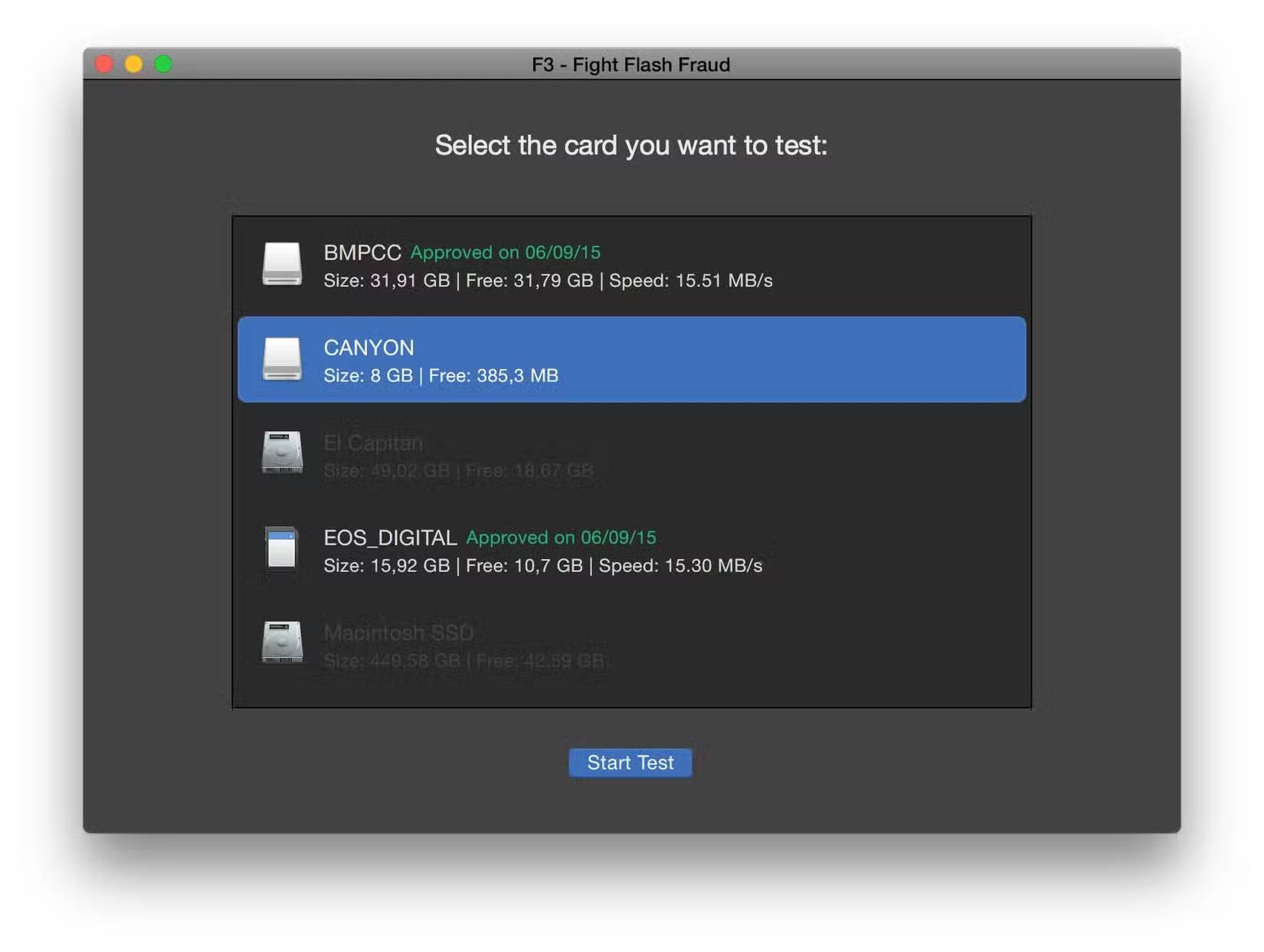
F3 (Fight Flash Fraud) can help you verify the true capacity of your storage drive. It is a command line tool that works on both Linux and macOS, similar to FakeFlashTest on Windows. It provides two programs to quickly check the storage capacity of your drive. First, you must use the F3write Program, which will write data to the entire storage drive. Then, the F3read Program helps verify that the drive contains the correct files written. If any errors appear or the process fails, it means that the drive has been modified to report a false capacity that is larger than it actually is.
Run F3XSwift test for quick capacity check on macOS
Verify SSD information
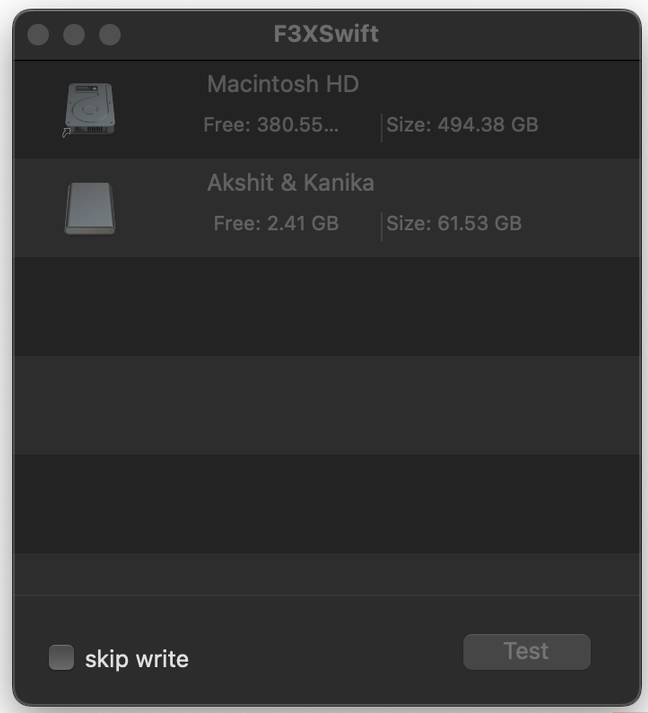
If you own a Mac, you can use F3XSwift, a free, open-source tool that can help you verify the actual capacity and integrity of your flash storage devices. It's essentially a macOS GUI running F3. After downloading the executable from the official GitHub page, simply launch the application and it will display the storage devices connected to your Mac. Select the drive you want to test and press the Test Button to start the read/write process.
Once the test is complete, F3XSwift will display the results along with the read and write speeds. If the test fails, it's clear that your drive has a problem.
FAQ
What should you know about the 'cheap' SSD you bought could be fake?
In practical terms, there's no denying that getting an SSD at a low price and with a lot of storage capacity can feel like a bargain.
Why does the 'cheap' SSD you bought could be fake matter?
The article highlights that check basic information with CrystalDriveInfo on Windows The Easiest Way to Spot a Fake SSD You can check basic SSD information on Windows and macOS, but a few free tools can pull all the information together in one.
What is the main takeaway?
The main takeaway is that if you see random brand names, hundreds of hours of power on for a new SSD, or other inconsistent details, then you are clearly using a fake SSD.
Related Articles
 Fake SSD '990 Pro' Appears, Super Cheap but Also Super Slow Explained6 minutes read
 Don't Lose Money on iPhone 3G 'Fake'8 minutes read
 How to Check Fake and Real Memory Card on Android Phone3 minutes read
 How to Check Genuine iPhone, How to Distinguish Fake iPhone5 minutes read
 Google Acquired Apple for $9 Billion, Which Turned Out to Be a Dow Jones Fake News4 minutes read
 AI Tools for Detecting Fake News May Not Be as Effective as You Think5 minutes read
Reader Comments 0
Sign in with email or Google to join the discussion.