Table of Contents
Mock chat screenshots can be useful in storyboards, interface demos, training material, and fictional social posts—but they should be unmistakably labeled. A fabricated conversation must never be presented as evidence that a real person or organization said something.
This guide shows how to create a clearly fictional chat mockup without impersonating someone, exposing private data, or misleading viewers.
Use chat mockups only for legitimate purposes
Appropriate uses include:
- testing a messaging-interface layout;
- illustrating a support conversation in documentation;
- storyboarding a film, comic, or marketing concept;
- teaching people how scams or misinformation can look;
- creating a fictional joke when everyone depicted has consented and the image is labeled.
Do not use a mockup to fabricate harassment, admissions, threats, customer testimonials, romantic messages, transactions, or statements attributed to a real person. Such images can cause reputational harm and may violate platform rules or law.
A safer workflow for creating a fictional chat
1. Write the conversation first
Use fictional names and avoid real phone numbers, profile photos, workplaces, locations, or account handles. Keep the script in a note so it can be reviewed for privacy and ambiguity before design work begins.
2. Use a neutral chat layout
Create alternating left and right speech bubbles in a presentation, graphics editor, or prototyping tool. A neutral layout is better than a pixel-perfect copy of iMessage or Messenger when platform authenticity is not part of the lesson.
3. Add a prominent disclosure
Place FICTIONAL CHAT, MOCKUP, or DRAMATIZATION at the top and repeat it in a visible watermark across the conversation. The disclosure should remain readable when the image is cropped or shown as a thumbnail.
A small note outside the image is not enough because reposts often remove captions. Put the label inside the exported graphic.
4. Remove identifying details
Use illustrated or abstract avatars, fictional timestamps, and non-working placeholder contact details. Never upload another person's photograph to a generator without permission. Do not include real message notification previews from your device.
5. Export a static image and keep the source
Export a PNG or JPEG at the size required for the document or post. Retain the editable source file, script, and disclosure layer so the mockup's origin can be demonstrated later.
Privacy risks of online chat generators
Legacy chat-generator sites and apps often ask for names, profile images, message text, or photo-library access. Before using any tool, review its developer, privacy policy, permissions, data-retention terms, and most recent update.
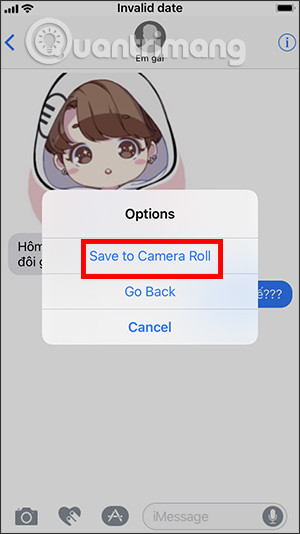
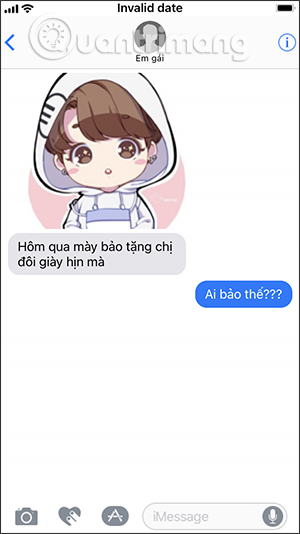
Do not enter genuine private conversations, client information, passwords, authentication codes, medical details, or children's data. A browser-based generator may process or store information remotely. An app that requests contacts, microphone, location, or full photo access for a simple mockup deserves extra scrutiny.
Why old tutorials can be misleading
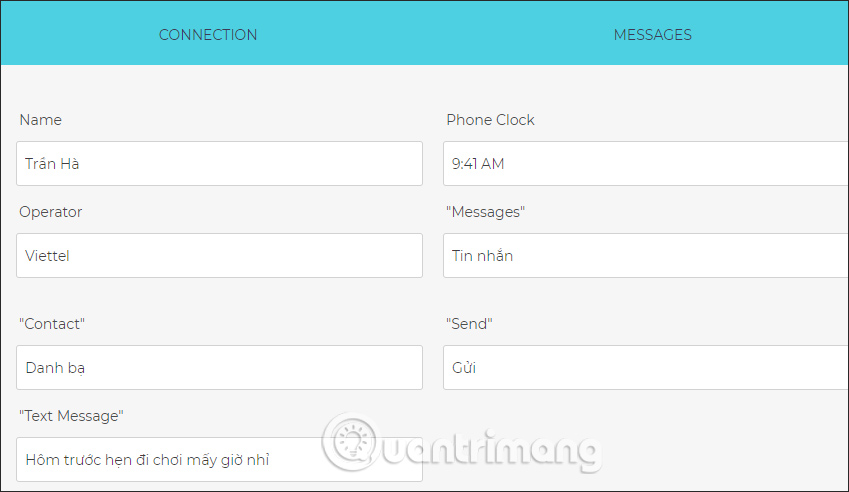
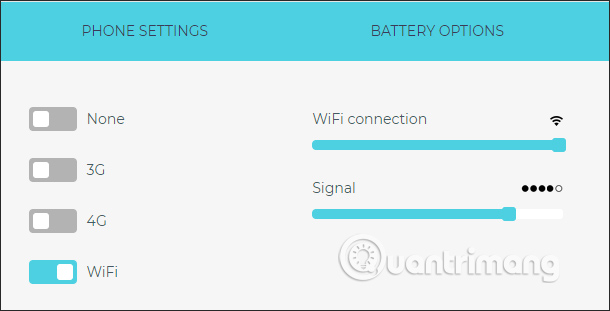
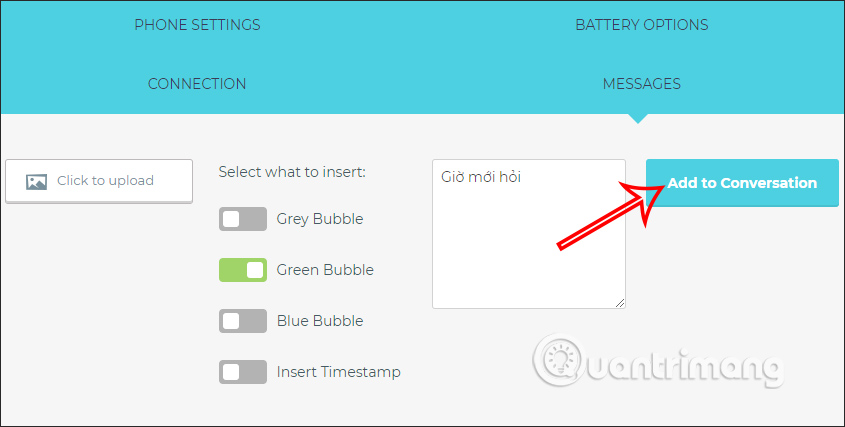
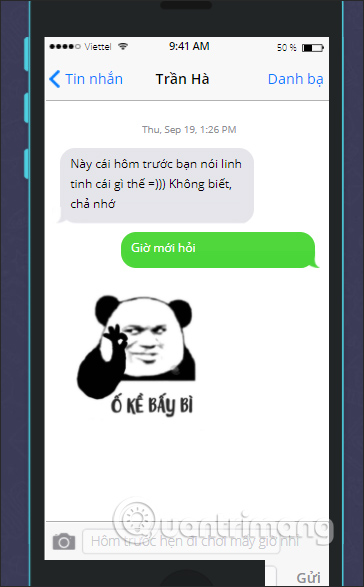
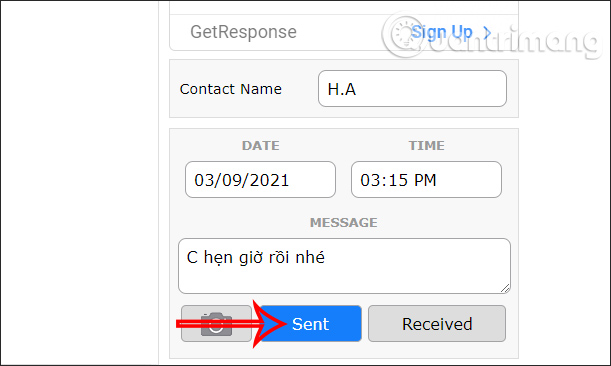
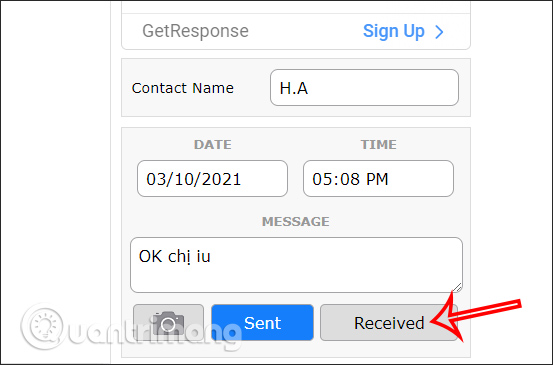
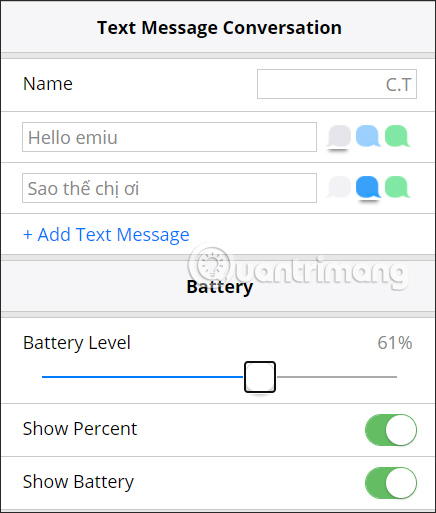
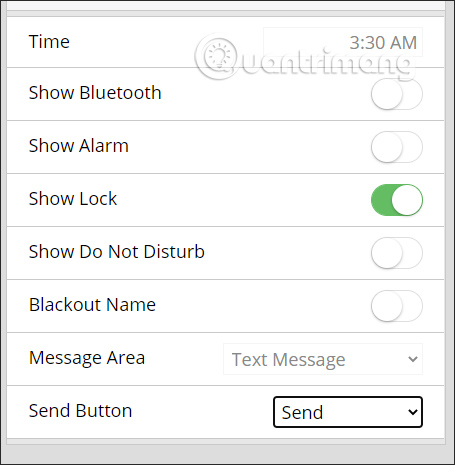
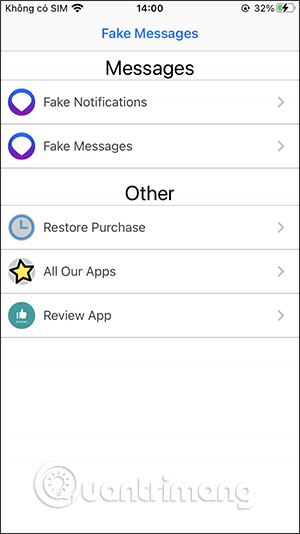
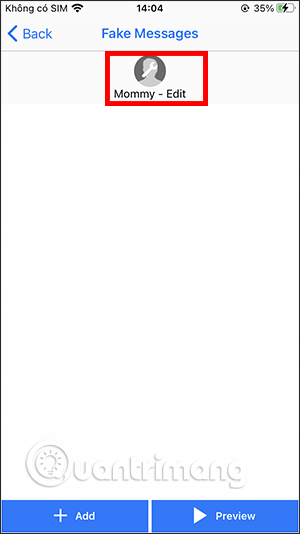
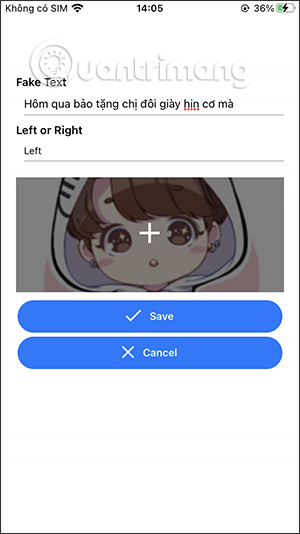
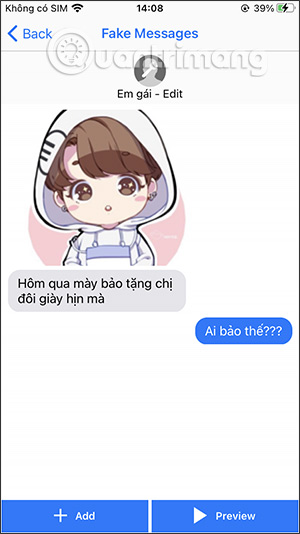
The screenshots below show interfaces from older fake-message generators. Their availability, ownership, security, pricing, and output may have changed. They are preserved as historical examples, not as current recommendations.
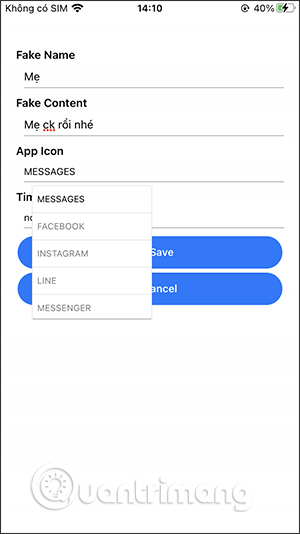
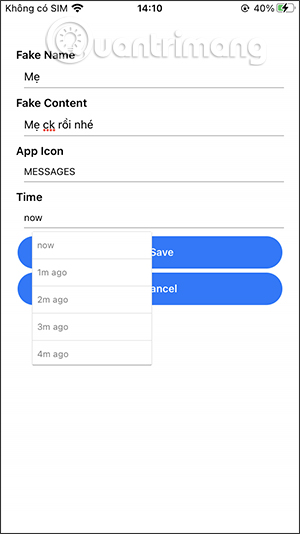
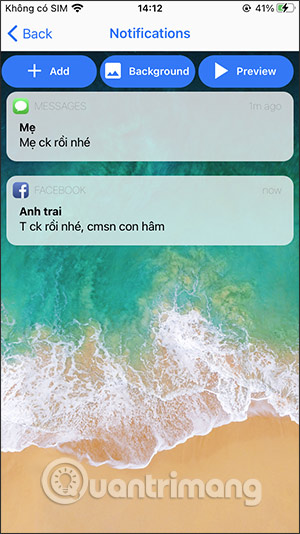
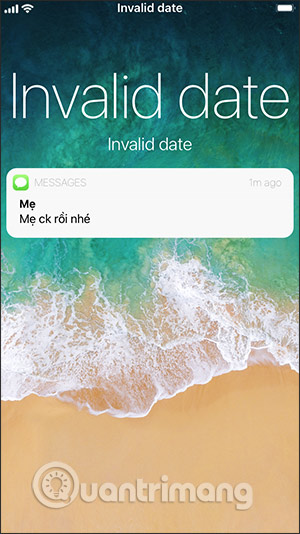
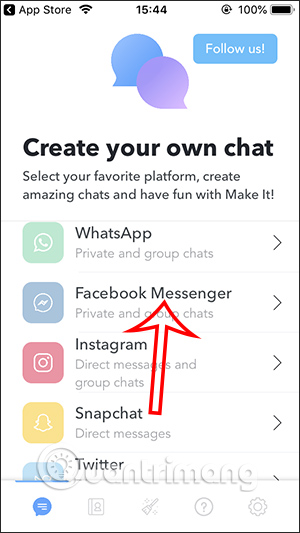
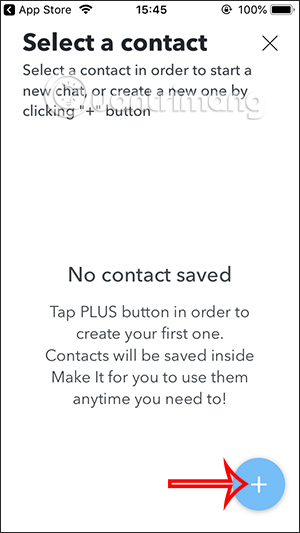
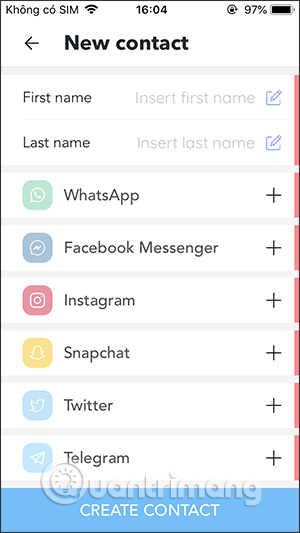
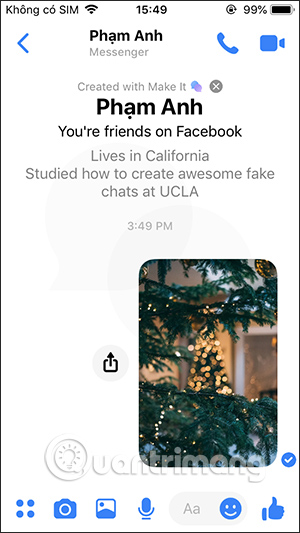
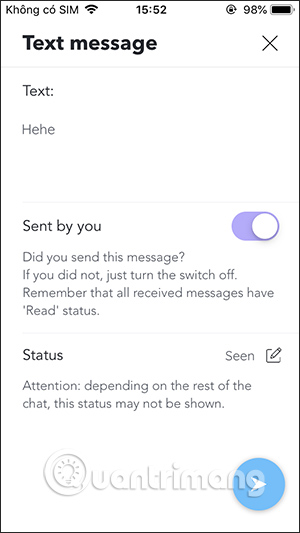
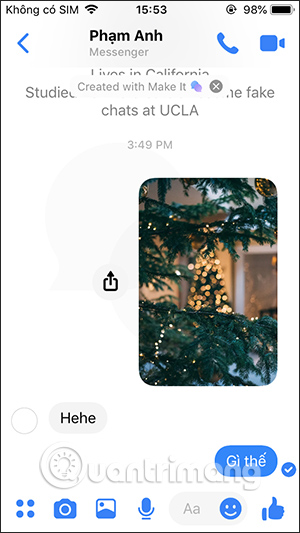
A dated imitation may also use the wrong font, spacing, status icons, reaction controls, or read-receipt design. That can make it unsuitable even for legitimate interface training.
How to recognize a fabricated message screenshot
- Ask for context: A screenshot omits account identity, surrounding messages, and metadata.
- Look for visual inconsistencies: Fonts, bubble spacing, icons, timestamps, and status bars may not match the claimed app or device.
- Check chronology: Battery state, time, message order, reactions, and interface version may conflict.
- Seek the original conversation: Where appropriate and lawful, verify it inside the account or through a screen recording that includes navigation and context.
- Confirm independently: Contact the alleged sender through a known channel instead of replying to the suspicious screenshot.
- Treat sensational content cautiously: A screenshot is easy to edit and should not be the sole basis for an accusation or payment.
If someone uses a fake chat to impersonate or scam
- Do not send money, codes, credentials, or additional personal information.
- Preserve the message, account details, URL, timestamps, and surrounding context.
- Contact the impersonated person or organization using a verified channel.
- Report the account or post through the platform's impersonation, fraud, or harassment process.
- Contact local authorities or a qualified adviser if the content involves threats, extortion, fraud, or serious reputational harm.
TipsMake's guide to checking a suspicious link in a text message provides additional steps for messages that try to send you to a scam site.
Publishing checklist
- The names, avatars, and contact details are fictional or used with explicit consent.
- The image contains a visible “MOCKUP” or “FICTIONAL CHAT” label.
- No private conversation or personal data was uploaded to a generator.
- The caption explains the educational, design, or entertainment purpose.
- The mockup cannot reasonably be mistaken for evidence about a real person.
- The editable source and disclosure layer are retained.
A good mock chat communicates a scenario without deceiving its audience. If realism conflicts with clarity, choose clarity and disclose the fabrication directly in the image.
Related Articles
 Beware of Fake iPhone Messages, Photos Taken by IMessage Online3 minutes read
 How to Unarchive Messenger Chats on Mobile and Desktop9 minutes read
 Facebook Messenger Will Only Allow Forwarding of Messages to2 minutes read
 How to Fix Some Common Errors on Facebook Messenger5 minutes read
 How to Manually Create Stickers in Messages on iPhone3 minutes read
 Facebook Message Statistics Show Who Sends the Most Messages on Facebook9 minutes read
Reader Comments 0
Sign in with email or Google to join the discussion.