Table of Contents
You can find plenty of ways to make an old laptop run like new, but if you ask which tweak makes the biggest difference, it's this: Force Windows to prioritize speed over looks.
Many people want to ditch their old laptops that they rarely use. It takes forever to boot up, opening a browser is a test of patience, and even typing feels sluggish. Now, there are plenty of ways to make an old laptop run like new, but if you ask me which tweak makes the biggest difference, it's this: Force Windows to prioritize speed over appearance.
Hidden settings slow down your computer
Most people never change this, but it makes a big difference.
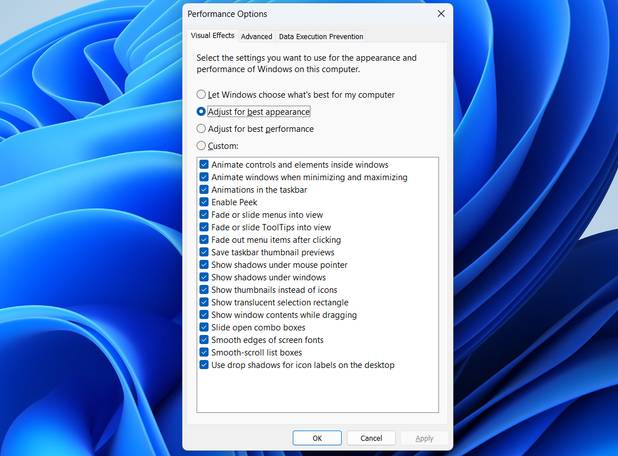
By default, Windows is configured to prioritize aesthetics over speed. You may not realize it, but your Windows computer is full of easily overlooked animations, shadows, and transparency effects. These include smooth fades when you minimize or open windows, subtle blurs behind menus, tooltip scrolling, and drop shadows under icons and text on your desktop.
The irony is that these effects are designed to make the system smoother and more responsive, but on older hardware, they have the exact opposite effect. The effect is even more noticeable on older laptops and budget desktops. You click the Start menu and wait half a second for the animation to play. You minimize the window, and there's a small pause before it disappears. Open File Explorer, and you might even notice a slight jerk as the interface slides in.
Force Windows to prioritize performance over appearance
A quick conversion brings an old laptop back to life
This default setting is perfectly fine for newer PCs with plenty of power. Modern processors and graphics chips can handle all that visual detail with ease. But for an older laptop that's already struggling to keep up, these features feel like unnecessary passengers slowing down the ride. Fortunately, Microsoft gives you full control over how much of the interface you want to keep.
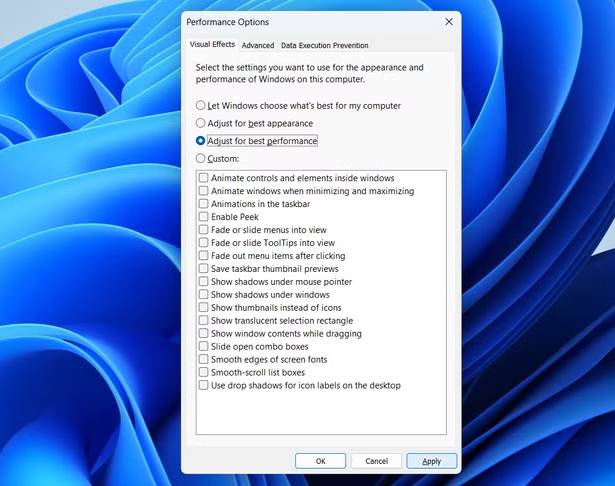
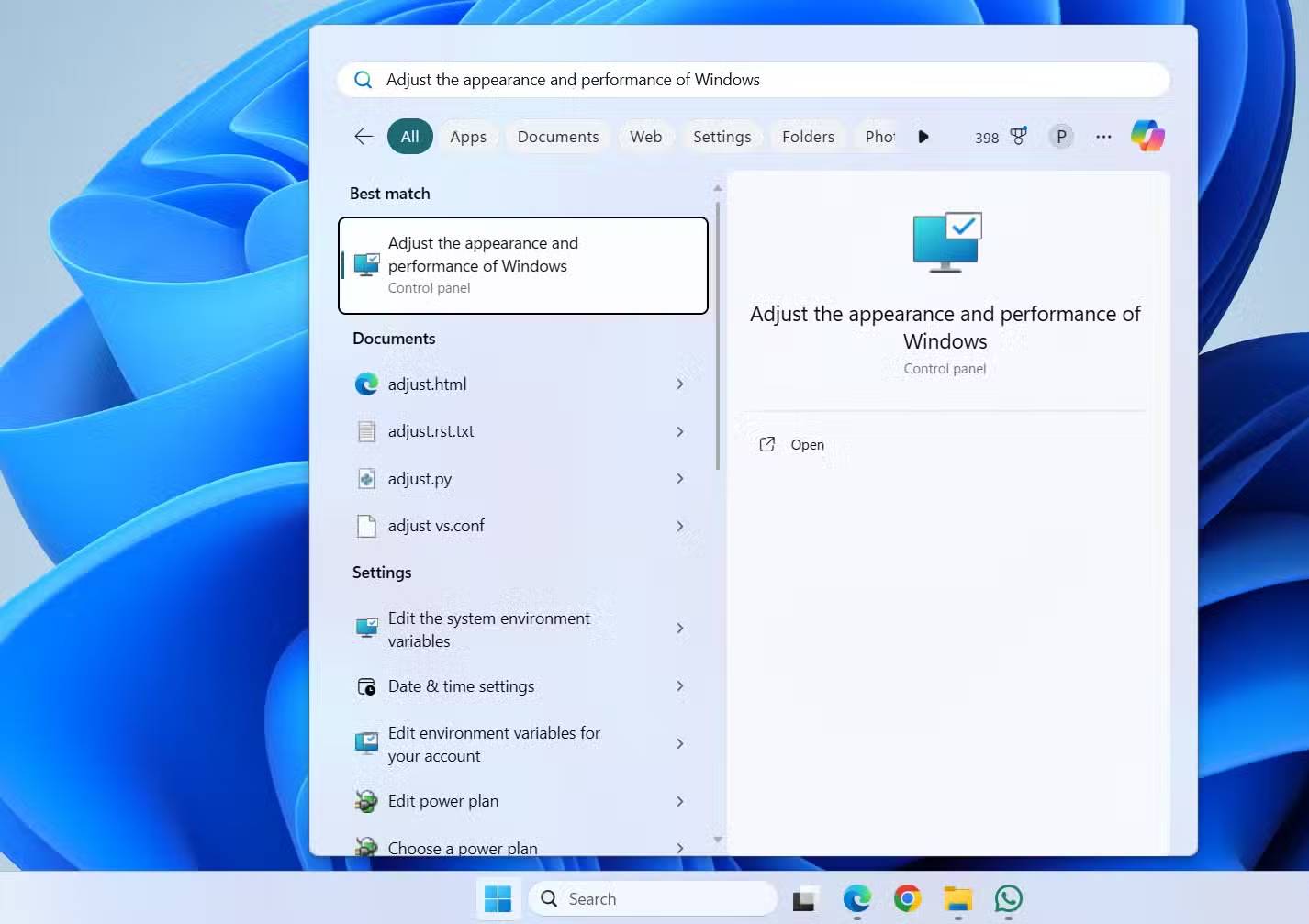
Open the Start menu, type Adjust the appearance and performance of Windows , and press Enter . This will open the Performance Options window. At the top, you will see 4 options. Select Adjust for best performance , and you will see all the boxes below automatically unchecked. Then, press Apply , and that's it.
It doesn't look great at first glance, but you can tweak it to make things look better.
A few touches will make the screen look more polished without slowing down the device.
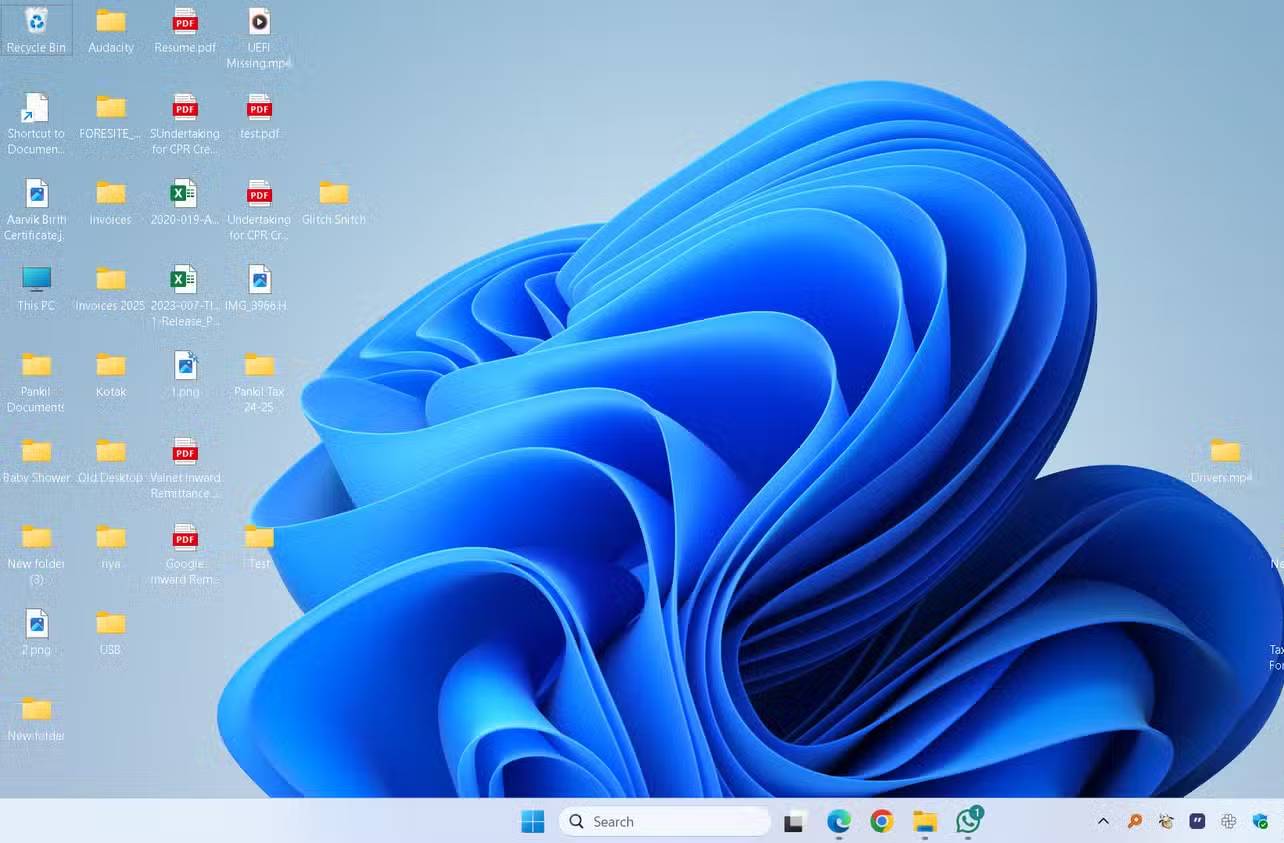
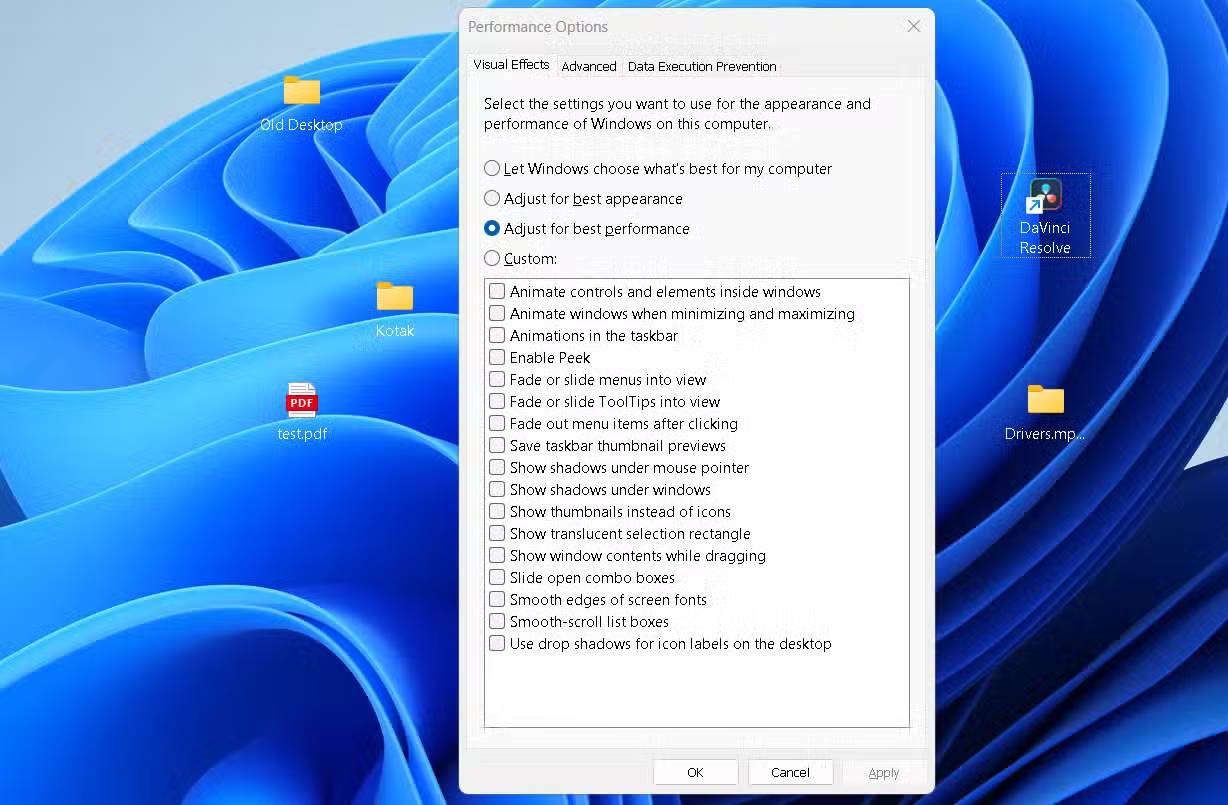
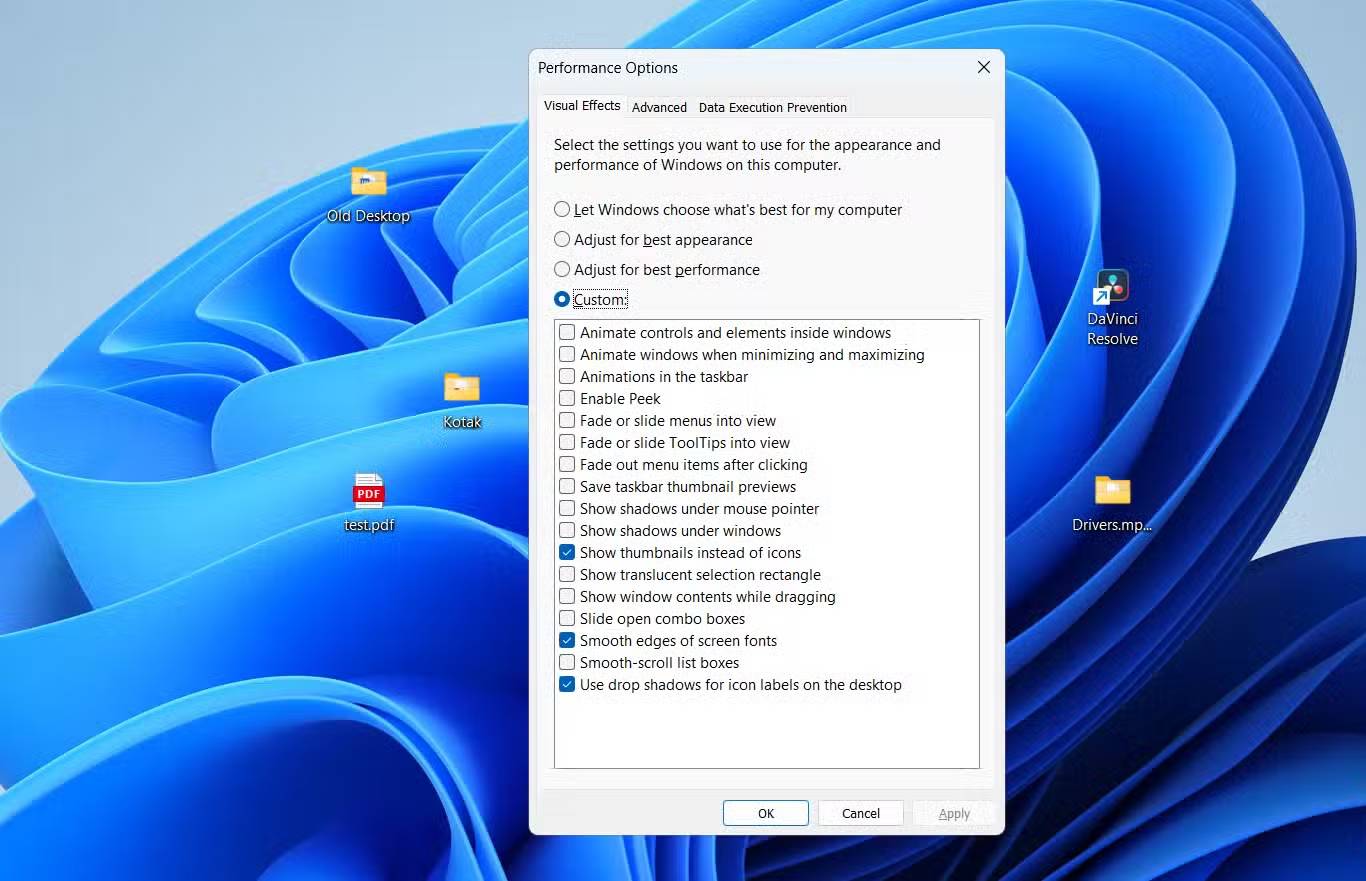
When you first disable all those visual effects, text may look a little rough around the edges, thumbnails may disappear, and windows may no longer move when you zoom in or out. Sure, your computer will run faster, but things can also feel a little monotonous.
The good news is that you don't have to settle for a completely bare-bones interface. The Performance Options menu isn't an 'all or nothing' switch. That is, you can turn specific effects back on to make your desktop look better while still keeping it smooth. To do this, you'll need to select the Custom Option and look at the list of checkboxes below.
You'll find options for everything from Animate windows when minimizing and maximizing To Smooth scroll list boxes . You can enable as many as you like, but remember: The fewer you enable, the better your system will perform. The idea is to experiment with the options and find the sweet spot that's both beautiful and fast and responsive.
FAQ
How do you make old laptop run faster immediately: step-by-step guide?
In practical terms, there are plenty of ways to make an old laptop run like new, but if you ask which tweak makes the biggest difference, it's this: Force Windows to prioritize speed over looks.
What should you check before getting started?
Review the requirements, compatible device or software version, and any warnings described in the guide before making changes.
What should you do if the steps do not work?
Repeat the steps in order, confirm that your app or system is up to date, and review the troubleshooting details provided above.
Related Articles
 10 Ways to Make Your Laptop Run Faster: Expert Selection Guide11 minutes read
 How to Make Your Laptop Run Faster: Step-by-Step Guide4 minutes read
 How to Change These 3 Settings to Make Your Windows Laptop Run Faster7 minutes read
 Things That Can Make You Look Older Than Your Actual Age5 minutes read
 How to Change This Registry Value to Make Your Windows 11 Computer Run Faster Immediately8 minutes read
 Should I Skin My Laptop? Does Skinning My Laptop Harm My Device?8 minutes read
Reader Comments 0
Sign in with email or Google to join the discussion.